
 iPhone Data Recovery
 iOS System Recovery
 iOS Data Backup & Restore
 iOS Unlocker
 iPhone Password Manager
 Location Changer
 Android Data Recovery
 Broken Android Data Extraction
 Android Data Backup & Restore
 Android Unlocker
 FoneTrans for iOS
 iPhone Data Eraser
 iPhone Cleaner
 HEIC Converter
 HyperTrans
 WhatsApp Transfer for iOS
 Mac Sweep
 Data Retriever
 Mac Data Retriever
 Video Converter Ultimate
 Screen Recorder
 Phone Mirror
 FoneLab iPhone Cleaner
Easily erase all contents and settings on iPhone, iPad or iPod completely and permanently.
- Clear iPhone Junk Files
- Clear iPad Cache
- Clear iPhone Safari Cookies
- Clear iPhone Cache
- Clear iPad Memory
- Clear iPhone Safari History
- Delete iPhone Contacts
- Delete iCloud Backup
- Delete iPhone Emails
- Delete iPhone WeChat
- Delete iPhone WhatsApp
- Delete iPhone Messages
- Delete iPhone Photos
- Delete iPhone Playlist
- Delete iPhone Restrctions Passcode
Suggested Ways on How to Organize Apps on iPhone
 Updated by
 Good day! I got my new iPhone this morning and downloaded different applications that are helpful to me. However, I do not like how they are organized on my iPhone. Can you teach me how to organize apps on iPhone? In this case, I can access my iPhone applications quickly. Thank you!
iPhone places your applications from the Home Screen, App Library, etc. However, we have different preferences when it comes to organizing our applications. Some want them alphabetically, some prefer them based on their functions, etc. Organize your apps on iPhone through the easy methods in this post below.

Guide List
Part 1. How to Move Apps on iPhone
Moving the applications from your iPhone will help you organize them. Doing the procedure will allow you to access them more easily because you know where to locate them. This procedure is possible from the Home Screen section of your iPhone. You only need to long-press the applications from the said section. Then, place them in the area where you want to put them.
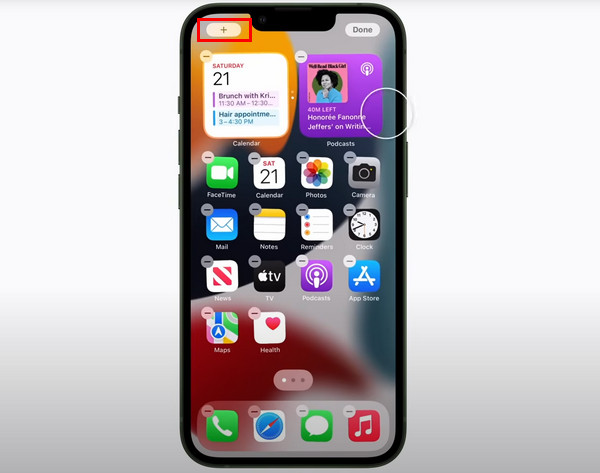
How to organize apps on iPhone with a widget? This procedure is almost the same as the previous process. Long-press the empty section of the iPhone screen. Then, the applications will jiggle. Tap the Plus button at the top left. After that, choose a widget and drag the applications to each other as the final step.
Part 2. How to Create a Folder for iPhone Apps
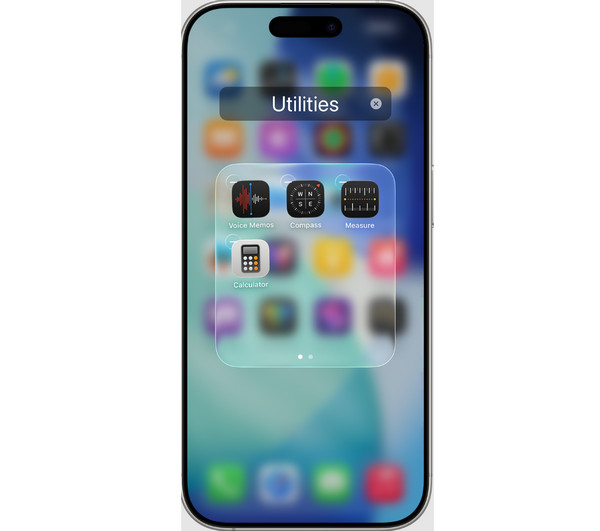
You may create a folder on your iPhone for your apps. This folder will be presented to the Home Screen section of your iPhone. This procedure is easy because it uses the drag-and-drop technique. You will not need the help of another application.
Unlock your iPhone, and you will be directed to the Home Screen section. Please long-press one of the apps you want to include in the folder. Then, locate another app you want to add to the folder. Drag the app to the other apps to create a folder. You may rename the folder by opening it. You can tap the folder to do that.
Part 3. How to Hide Apps on iPhone
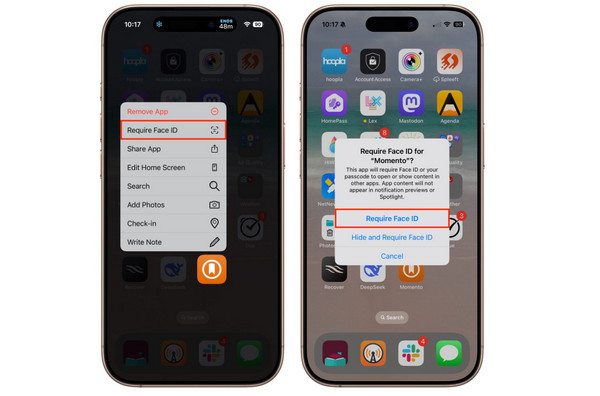
On the other hand, some users want to hide apps on iPhone. It is part of organizing them because there might be confidential information from these apps, like banks, digital wallets, etc. You can access the hidden apps from the App Library section. They will require you to use Face ID or Touch ID to access them.
Unlock your iPhone. Then, long-press the app you prefer to hide. Then, more options will be shown from the bottom. Select the Require Face ID/Touch ID/Passcode. Then, tap the Hide and Require Face ID/Touch ID/Passcode once more. Finally, tap the Hide App button as the last step.
Part 4. How to Reset Home Screen Layout on iPhone
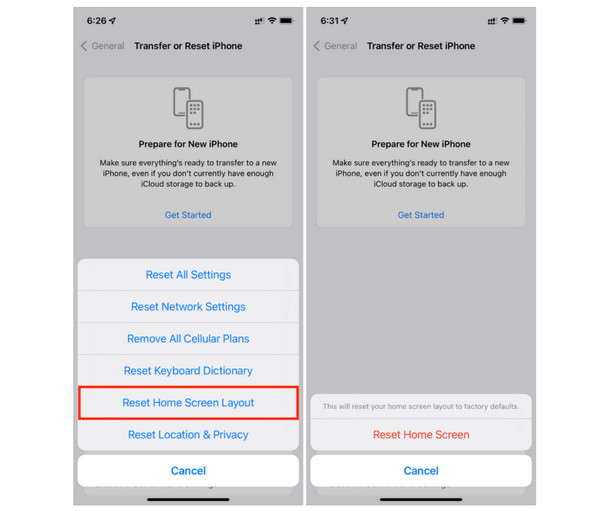
Have you organized your iPhone apps before through the Home Screen layout, but they seem unorganized now? You can reset your Home Screen layout on your iPhone to manage it again. However, the other layouts from your Home Screen section will also be reset.
Open the Settings app. After that, select the General button from the first interface. Then, tap the Transfer or Reset iPhone button from the list. Later, tap the Reset option at the bottom and tap the Reset Home Screen Layout button. Finally, tap the Reset Home Screen button from the list to confirm the action.
Part 5. How to Delete iPhone Apps
However, some of the applications on your iPhone are not used or are not helpful. You can delete iPhone apps to organize them more. Proceed below to see the methods that can help you delete your iPhone apps.
1. Built-in Way
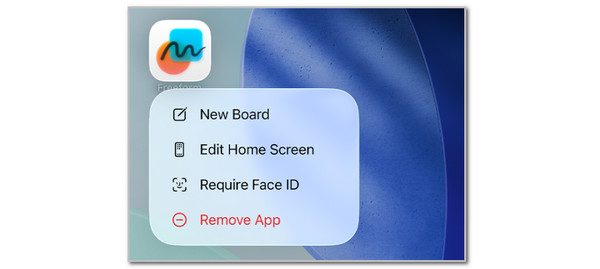
The built-in way to delete iPhone applications is the quickest option. However, it cannot delete multiple apps in one process. You need to delete the applications individually. The steps below will show you how.
Open and unlock your iPhone. After that, you will be prompted from the Home Screen section. Please locate the app you want to delete. Then, long-press the app and more options will be prompted at the bottom. Select the Remove App button from the list and tap the Delete button to confirm the action.
2. FoneLab iPhone Cleaner
FoneLab iPhone Cleaner is the best iOS data cleaner which can easily erase all contents and settings or specific data on iPhone, iPad or iPod Touch.
- Clean unwanted data from iPhone, iPad or iPod touch.
- Erase data quickly with one-time overwriting, which can save you time for plenty of data files.
- It is safe and easy to use.
Deleting the applications individually will be very inconvenient when you have multiple applications to delete. FoneLab iPhone Cleaner is the solution to that matter! It can delete your iPhone applications regardless of their quantity. Besides that, you can free up more space on your iPhone with this tool. It can erase junk files, large files, and even factory reset your iPhone. It uses a USB cable for the deletion process. This tool is easy to operate, and you need to follow the steps below for a quick process.
Step 1Click the Free Download option from the main interface of the tool. After that, please set up the downloaded file on the screen. Later, the tool will require you to set up the downloaded file. Please install the file, and the tool will be launched after a few seconds.

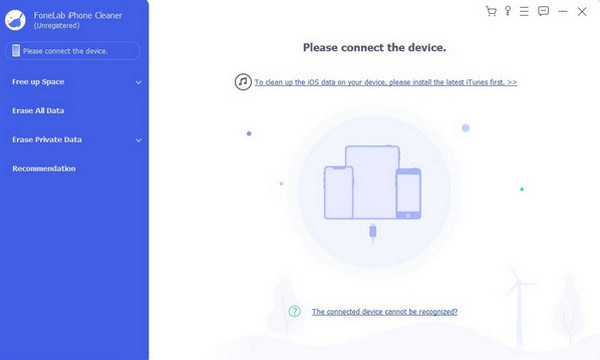
Step 2The first interface will require you to plug the iPhone into the computer. Please use a USB cable for this procedure. Then, the iPhone name must be prompted from the screen. Later, click the Free Up Space button on the left side of the screen. More options will appear on the left side.
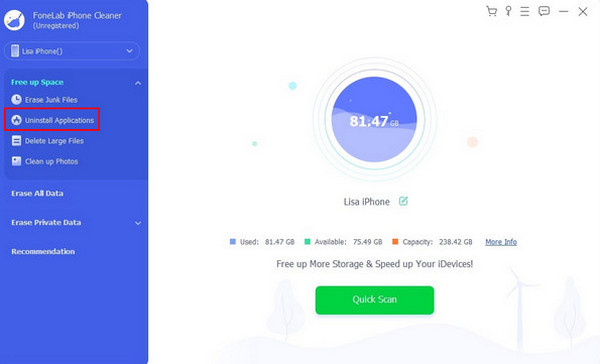
Step 3Please click the Uninstall Applications button from the mentioned list. After that, the tool will scan the applications on your iPhone. Please select the applications you need to delete. Then, click the Erase option at the bottom right corner to start deleting the applications.
Part 6. FAQs about How to Organize Apps on iPhone
How to organize apps on iPhone automatically?
iPhone organizes your applications from the App Library folder. It stores or organizes them based on their categories and functions. You no longer need to create folders manually after downloading the applications.
Can I auto-arrange iPhone apps on the Home Screen?
There is no way to auto-arrange your iPhone applications from your Home Screen. You are required to arrange them manually.
This post is all about how to organize apps on iPhone. You can choose from the methods on how you can achieve the mentioned process. FoneLab iPhone Cleaner is here to help you delete applications on your iPhone when they are no longer needed. Additionally, this tool allows you to delete large files, junk files, and more. You may also factory reset your iPhone using this software. Download the tool on your computer and explore its process, including its helpful features!



