
 iPhone Data Recovery
 iOS System Recovery
 iOS Data Backup & Restore
 iOS Unlocker
 iPhone Password Manager
 Location Changer
 Android Data Recovery
 Broken Android Data Extraction
 Android Data Backup & Restore
 Android Unlocker
 FoneTrans for iOS
 iPhone Data Eraser
 iPhone Cleaner
 HEIC Converter
 HyperTrans
 WhatsApp Transfer for iOS
 Mac Sweep
 Data Retriever
 Mac Data Retriever
 Video Converter Ultimate
 Screen Recorder
 Phone Mirror
 FoneLab iPhone Cleaner
Easily erase all contents and settings on iPhone, iPad or iPod completely and permanently.
- Clear iPhone Junk Files
- Clear iPad Cache
- Clear iPhone Safari Cookies
- Clear iPhone Cache
- Clear iPad Memory
- Clear iPhone Safari History
- Delete iPhone Contacts
- Delete iCloud Backup
- Delete iPhone Emails
- Delete iPhone WeChat
- Delete iPhone WhatsApp
- Delete iPhone Messages
- Delete iPhone Photos
- Delete iPhone Playlist
- Delete iPhone Restrctions Passcode
Clear iPhone Virus in 5 Proven and Tested Techniques
 Updated by
 iPhone has tight security for your files and information. However, iOS devices can still get viruses. If that happens, your iPhone data and information are at risk. Some individuals do not know where they acquire the viruses on their iOS devices. There are various reasons for this issue. It includes jailbreaking the iPhone, downloading malicious apps or configuration and profile, visiting unknown or untrusted websites, and more.
Did your iPhone get unwanted viruses? Let us get rid of them! This article has 5 practical guides on how to remove virus from iPhone. Continue browsing it to discover them.

Guide List
Part 1. How to Remove Virus on iPhone
An iPhone can get viruses in different ways. If so, it only means that there are various ways to remove virus from iPhone. This section will show you the 5 easy methods to do it.
1. Clear Browsing Data
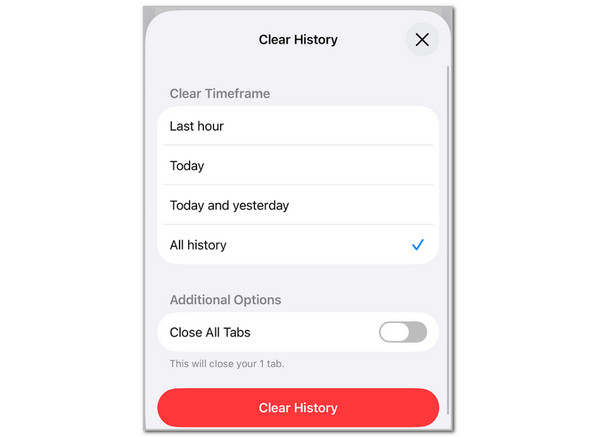
The web browsers on the iPhone can visit different websites. However, some of the websites contain sneaky viruses that can enter your iPhone after visiting them. Clearing Safari will help you clear a virus on your iPhone. How to clean virus from iphone Safari? The steps below are to clear browser cache on iPhone.
Tap the Settings app and select the Apps button at the bottom. Later, choose Safari from the list. Then, tap the Clear History and Website Data button. Filter the date and time. Tap the Clear History button afterward.
Note: Alternatively, you can tap the Offload App button for the downloaded web browsers.
2. Remove Unfamiliar Apps
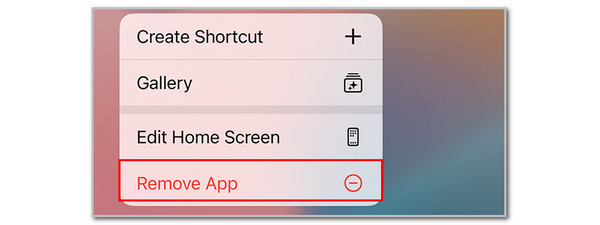
There are times when the virus installs unwanted applications on your iPhone. Or, the applications are the ones containing the virus that affects your iPhone system. The Trojan virus on iPhone can be obtained. Follow the steps below to uninstall applications on your iPhone that are malicious.
Unlock your iPhone, and it will show you the applications installed. Please locate the malicious apps on the screen. Long-press it, and there will be options from the new dialog box. After that, please tap the Remove App button at the bottom and tap the Delete App button on the screen. Tap Delete to confirm the process.
Alternatively, you can tap and hold the empty area from the Home Screen section. The apps will jiggle. Locate the app you want to delete and tap the Minus button. After that, tap the Delete App button. Tap the Delete option to confirm the process.
3. Update iOS
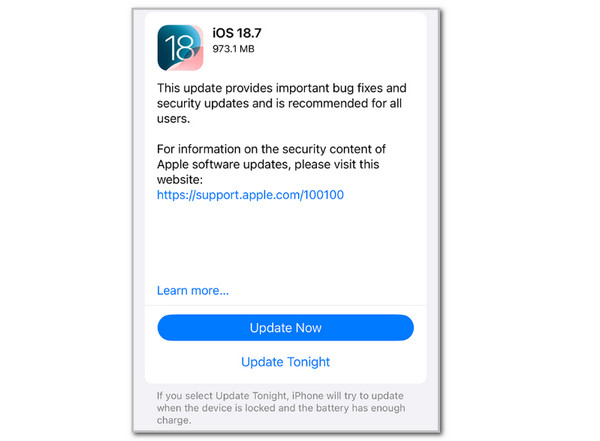
The best virus protection for iPhone is its built-in security features. Getting the latest version of iOS receives the latest security features for the mentioned device. Also, it can fix the malfunctions in its systems caused by viruses. Please imitate the steps below to update your iOS version.
Open the Settings app and tap the General button from the list. After that, tap the Software Update button. Then, wait for the latest version for your iOS. Tap the Update Now button at the bottom. Wait for the update process to be completed afterward. Toggle on Automatic Updates to update iOS version automatically.
4. Factory Reset iPhone
If the viruses are numerous and severe, it is time to factory reset iPhone. This way, you can eliminate all the viruses on your iPhone. Please use the steps below to factory reset the iPhone easily.
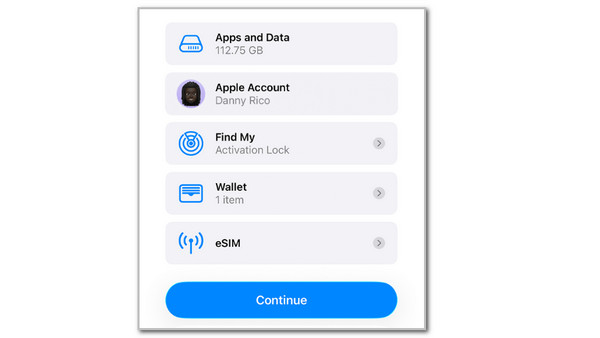
Open the Settings app. After that, tap the General button from the list. Later, tap the Transfer or Reset iPhone button. Then, pick Erase All Content and Settings from the list. Enter the Apple ID password or iPhone passcode. Confirm the data you want to erase. Tap Continue to start the process.
5. FoneLab iPhone Cleaner
You can also factory reset the iPhone data and remove virus with the help of a third-party tool, like FoneLab iPhone Cleaner. It also allows you to choose the security level for erasing the iPhone. You can choose from low to high. This tool has a simple interface that makes the procedure way more convenient. Additionally, it does not require you to have an internet connection. How to clean iPhone from virus with this tool? The steps below show you how to use the software.
FoneLab iPhone Cleaner is the best iOS data cleaner which can easily erase all contents and settings or specific data on iPhone, iPad or iPod Touch.
- Clean unwanted data from iPhone, iPad or iPod touch.
- Erase data quickly with one-time overwriting, which can save you time for plenty of data files.
- It is safe and easy to use.
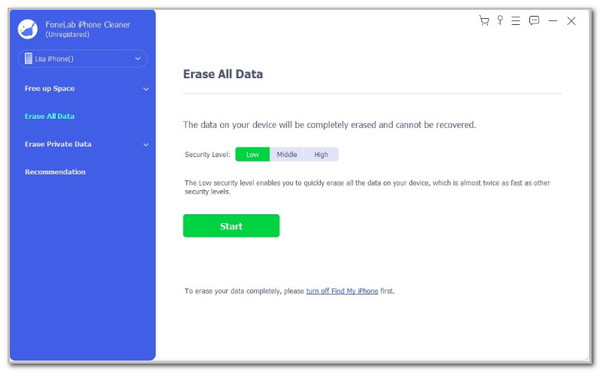
Step 1Download the tool from its website. Then, plug the iPhone into the computer using a USB cable. After that, click the Erase All Data button on the left. Select a security level on the right and click Start.
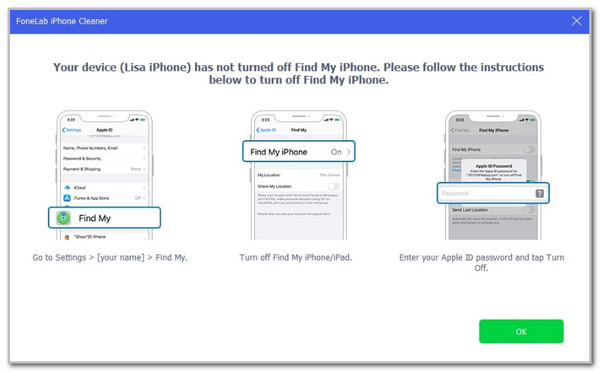
Step 2The tool will require you to perform other operations on your iPhone. Imitate the on-screen instructions and click OK to continue.
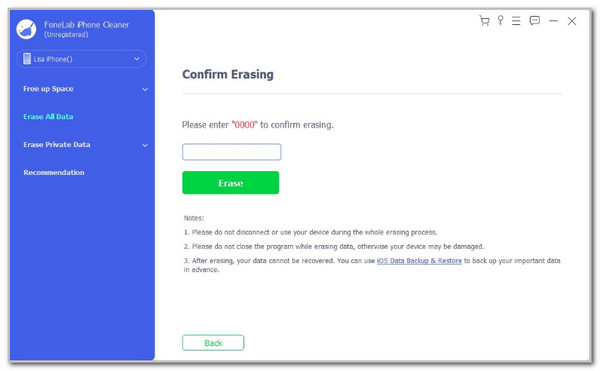
Step 3Enter the 0000 code from the box. After that, click Erase at the bottom to confirm and start the erasing process.
6. Comparison Table
| Technique | Purpose | When to Use |
| Clear Browsing Data | Eliminate malicious cookies or cookies from untrusted websites. | When the iPhone receives pop-up ads. |
| Remove Unfamiliar Apps | Deleted harmful applications from iPhone. | When you notice installed apps that are not from the App Store. |
| Update App/iOS | Fixes issues causing viruses. | When you notice abnormal issues in your iPhone system. |
| Factory Reset iPhone | Removes profound virus effects by restoring the iPhone to its factory settings. | If virus-related issues persist. |
| FoneLab iPhone Cleaner | Clears junk files, factory resets the iPhone, and removes private data that might be infected with viruses. | Clean iPhone files that are potentially capable of storing sneaky viruses. |
Part 2. Tips to Prevent Future iPhone Virus
You might ask: Can iPhone get virus anytime? Yes. A virus can be acquired anytime. It is recommended to know the common ways to prevent viruses on your iPhone.
- • First, it is suggested not to download applications from untrusted websites or links.
- • Also, it is bad to jailbreak your iPhone, which causes a virus to enter the iPhone's system.
- • Additionally, you can update your iOS and its applications regularly to get their latest security features, which block viruses.
- • Also, do not visit or tap links that are sent to your iPhone via email or messages.
- • You also need to use safe Wi-Fi or another internet connection when required.
- • Lastly, you can install an anti-virus for iPhone.
Part 3. FAQs about iPhone Virus
How to check iPhone for virus in Settings?
You can use the Safety Check feature of your iPhone. Open the Settings application and tap the Privacy & Security button. Tap the Safety Check button and select the Manage Sharing & Access button. After that, use the Emergency Reset. Finally, verify the changes to complete it.
How to tell if iPhone has virus?
There are concrete signs that your iPhone has a virus. There are unexpected pop-up ads while using it, rapid draining of the battery, unusual behavior of its app, and more. And worst, some viruses can shut down your iPhone out of nowhere.
In conclusion, you have discovered the 5 easy ways to remove the virus on your iPhone. FoneLab iPhone Cleaner is the best third-party tool on the list. Download it to become an expert in using it! Also, we recommend that you do a virus scan for iPhone regularly.



