
 iPhone Data Recovery
 iOS System Recovery
 iOS Data Backup & Restore
 iOS Unlocker
 iPhone Password Manager
 Location Changer
 Android Data Recovery
 Broken Android Data Extraction
 Android Data Backup & Restore
 Android Unlocker
 FoneTrans for iOS
 iPhone Data Eraser
 iPhone Cleaner
 HEIC Converter
 HyperTrans
 WhatsApp Transfer for iOS
 Mac Sweep
 Data Retriever
 Mac Data Retriever
 Video Converter Ultimate
 Screen Recorder
 Phone Mirror
- Part 1. Can You Delete Screen Time History on iPhone
- Part 2. Turn Off Screen Time to Delete Screen Time History
- Part 3. How to Clear Screen Time by Disabling Share Across Devices
- Part 4. How to Reset Screen Time History by Resetting Device via iCloud
- Part 5. When Official Methods Fail – FoneLab iFoneWiz
- Part 6. Comparison of Strategies to Delete Screen Time History
- Part 7. FAQs about How to Delete Screen Time History
- Unlock Apple ID
- Bypass iCloud Activation Lock
- Doulci iCloud Unlocking Tool
- Factory Unlock iPhone
- Bypass iPhone Passcode
- Reset iPhone Passcode
- Unlock Apple ID
- Unlock iPhone 8/8Plus
- iCloud Lock Removal
- iCloud Unlock Deluxe
- iPhone Lock Screen
- Unlock iPad
- Unlock iPhone SE
- Unlock Tmobile iPhone
- Remove Apple ID Password
Reliable Guide on How to Delete Screen Time History
 Updated by
 Do you want to delete Screen Time history? For many users, the feature initially appears as a helpful function in their digital lives, as it helps track the time spent on social media, gaming, or other activities. However, it can also make you feel uncomfortable over time since it exposes patterns you prefer to keep private. For instance, if you share a device with a family member, it gives them the ability to see your Screen Time activities or history.
Or you may have set personal limits that served their purpose weeks ago, yet the history remains, cluttering the interface with outdated statistics. After all, the desire to clear this history is not always about hiding something. Sometimes, users simply want a clean slate. Regardless, this article will serve as your guide to deleting Screen Time history, so continue reading below.

Guide List
- Part 1. Can You Delete Screen Time History on iPhone
- Part 2. Turn Off Screen Time to Delete Screen Time History
- Part 3. How to Clear Screen Time by Disabling Share Across Devices
- Part 4. How to Reset Screen Time History by Resetting Device via iCloud
- Part 5. When Official Methods Fail – FoneLab iFoneWiz
- Part 6. Comparison of Strategies to Delete Screen Time History
- Part 7. FAQs about How to Delete Screen Time History
Part 1. Can You Delete Screen Time History on iPhone
Before learning how to clear Screen Time on iPhone, let us first clarify if this process is possible. After all, it is a fair question because if you explore the Screen Time section, there is no obvious Delete History button. So, some people believe that once Apple logs your activity, the history stays there forever, but that’s not the case. The answer depends on how you handle the feature.
There are different strategies to delete your history on Screen Time, and you can use the right one depending on the situation. For instance, if you no longer plan to use the feature further, the best solution would be to turn it off, which automatically deletes your Screen Time history. Or, if the Share Across Device feature is enabled, turning it off prevents your main device activities from appearing on others.
Therefore, you can indeed delete your Screen Time history, but under certain circumstances. The most trusted techniques are provided in the succeeding parts, so you must only choose which suits your Screen Time situation the best.
Part 2. Turn Off Screen Time to Delete Screen Time History
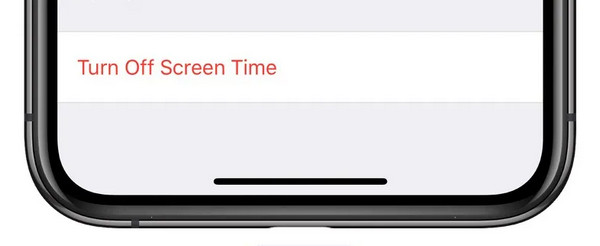
As mentioned, although there is no direct Delete button for the feature’s history, among the effective actions you can take is to turn off Screen Time. That’s because, as long as Screen Time remains active on your iPhone, it continuously records your app usage, notifications, and more, saving your data day after day, week after week, building a historical record. Thus, the simplest way to wipe all those accumulated logs is to switch Screen Time off entirely.
Follow the directions below to grasp how to delete Screen Time on iPhone, by turning it off:
Step 1When you access the Screen Time section on Settings, enter the feature’s passcode.
Step 2Next, find and choose Turn Off Screen Time before entering the passcode again.
Part 3. How to Clear Screen Time by Disabling Share Across Devices
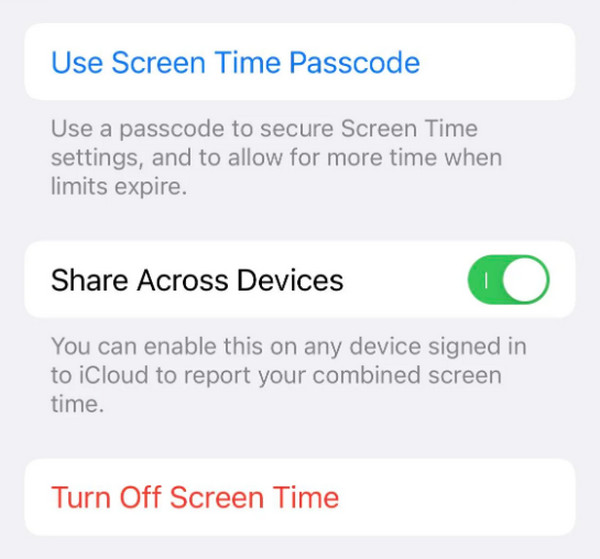
The Share Across Devices feature, as its name suggests, syncs your Screen Time data across your iPhone and other devices when it is enabled. It means every minute you spend on one device also shows up on the others. Thus, the key solution in this particular case is to turn off the feature, stopping your history from being shared with the other devices linked to your Screen Time. However, this won’t clear the history on your main device, making it suitable only for certain users.
Follow the process below to determine how to delete Screen Time history on iPhone by disabling Share Across Devices:
Step 1Access Screen Time on the Settings interface by providing its passcode.
Step 2Once in, scroll down to see and toggle off the Share Across Devices option.
Part 4. How to Reset Screen Time History by Resetting Device via iCloud
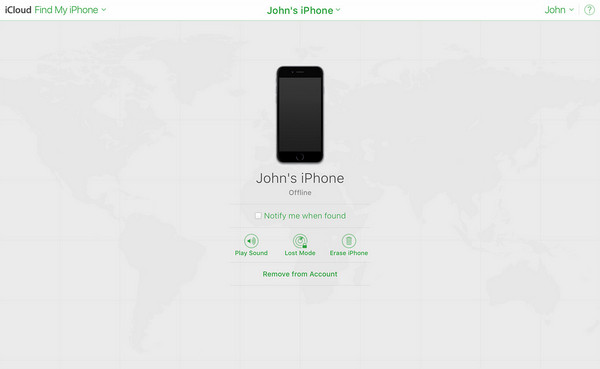
Meanwhile, a reset method is also available if you prefer a more thorough approach. Perhaps you’re having difficulty accessing or managing your device because of Screen Time restrictions, so resetting the iPhone remotely would be more convenient. If so, you can do this process on iCloud, as its Find My page offers management options, including Erase iPhone, making it easier to erase your device, which also automatically deletes the Screen Time history.
Follow the guide below to reset Screen Time history by resetting the device via iCloud:
Step 1Enter the iCloud site, and when asked, input your Apple credentials to log in. You will then be directed to your homepage, so from the list of services, choose Find My.
Step 2The uppermost section of the page has the All Devices tab. Click it, followed by your iPhone. Then, opt for Erase iPhone from the materializing options to reset the device.
Part 5. When Official Methods Fail – FoneLab iFoneWiz
Sometimes, even official methods fail to resolve specific concerns on iPhone, including the simple deletion of Screen Time history. Fortunately, you still have a fallback, which is FoneLab iFoneWiz. If you can’t turn Screen Time off using the official way, maybe because of a forgotten passcode, this program will help you bypass it, even if you don’t provide credentials.
Yes, you read that correctly! It doesn’t matter if you don’t know the passcode or if it’s your first time using FoneLab iFoneWiz. Its user-friendly interface and functions are enough to unlock your Screen Time with ease. Apart from that, it can help you handle other issues later. For instance, you can remove Apple ID from iPhone, unlock an iOS screen, bypass MDM, etc.

iFoneWiz Helps you unlock iPhone screen, Removes Apple ID or its password, Remove screen time or restriction passcode in seconds.
- Helps you unlock iPhone screen.
- Removes Apple ID or its password.
- Remove screen time or restriction passcode in seconds.
View the simple navigation below as a pattern to unlock and turn off Screen Time with FoneLab iFoneWiz:
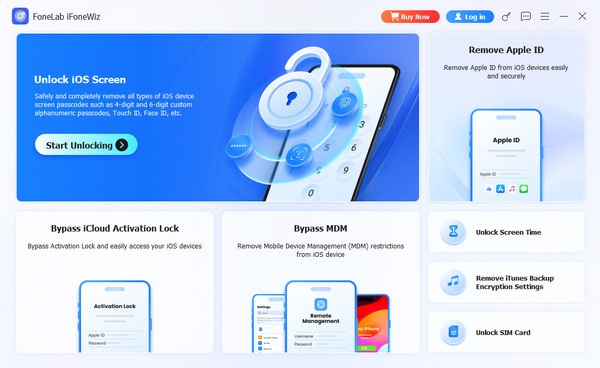
Step 1Obtain the file for FoneLab iFoneWiz using the Free Download option. When it materializes in the Downloads folder, open it to prompt the setup process. Within a few minutes, you can hit Start and launch the program. Then, pick Unlock Screen Time on the screen.
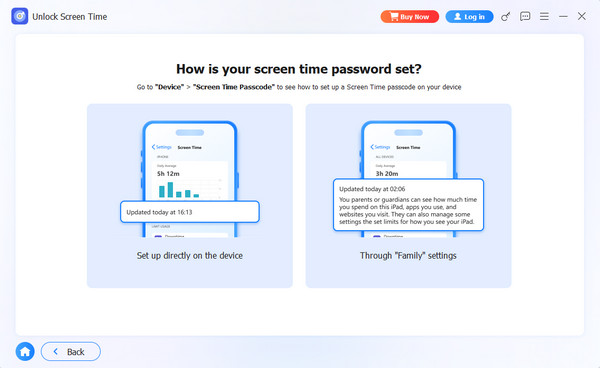
Step 2Once you enter the appropriate feature, it’s time to utilize your Lightning cable to attach the iPhone to the program. Then, choose either Set up directly on the device or Through “Family” settings. After that, navigate the prompts until you resolve your Screen Time concern.
Part 6. Comparison of Strategies to Delete Screen Time History
| Strategies | Turn Off Screen Time | Disable Share Across Devices | Reset Device via iCloud | FoneLab iFoneWiz |
| How It Works | Switches Screen Time off completely, erasing its history | Turns off syncing between your Apple devices | Erases your device, including Screen Time data through iCloud | Removes Screen Time passcode and clears related data |
| Deletes History | Yes | Sometimes – clears local history if sync was on | Yes | Yes |
| Preserves Limits & Downtime | No | Yes | No | No |
| Difficulty | Easy | Very Easy | Medium | Easy |
Part 7. FAQs about How to Delete Screen Time History
Can you delete Screen Time on iPhone permanently?
You can permanently delete your Screen Time history or activities on iPhone, yes. However, if you’re referring to the feature itself, it’s not possible since it is built-in.
Can I delete just one day of history instead of everything?
Unfortunately, no. Apple does not offer a way to delete specific days or weeks selectively. You either keep all your history or clear all of it at once.
Aside from being trusted, the methods above have also been proven to be the safest. So, rely on them or install FoneLab iFoneWiz anytime to ensure your concerns will be resolved safely.



