
 iPhone Data Recovery
 iOS System Recovery
 iOS Data Backup & Restore
 iOS Unlocker
 iPhone Password Manager
 Location Changer
 Android Data Recovery
 Broken Android Data Extraction
 Android Data Backup & Restore
 Android Unlocker
 FoneTrans for iOS
 iPhone Data Eraser
 iPhone Cleaner
 HEIC Converter
 HyperTrans
 WhatsApp Transfer for iOS
 Mac Sweep
 Data Retriever
 Mac Data Retriever
 Video Converter Ultimate
 Screen Recorder
 Phone Mirror
- Part 1. What Does Face ID Do on iPhone
- Part 2. How to Bypass Face ID by Using Passcode Instead of Face ID
- Part 3. How to Bypass Face ID by Permanently Disabling Face ID
- Part 4. How to Bypass Face ID by FoneLab iFoneWiz
- Part 5. Comparison Table of Methods to Bypass Face ID
- Part 6. FAQs about How to Bypass Face ID
- Unlock Apple ID
- Bypass iCloud Activation Lock
- Doulci iCloud Unlocking Tool
- Factory Unlock iPhone
- Bypass iPhone Passcode
- Reset iPhone Passcode
- Unlock Apple ID
- Unlock iPhone 8/8Plus
- iCloud Lock Removal
- iCloud Unlock Deluxe
- iPhone Lock Screen
- Unlock iPad
- Unlock iPhone SE
- Unlock Tmobile iPhone
- Remove Apple ID Password
How to Bypass Face ID on iPhone in 3 Quick Practices
 Updated by
 Good day! I registered my Face ID yesterday. I tried scanning it this morning to unlock my iPhone. However, it cannot be unlocked! I do not know what happened. I think I need to bypass the feature. How to bypass Face ID on iPhone? Please help me. Thank you!
You can unlock your iPhone in a few seconds with Face ID. However, it will be a total disaster if the iPhone does not recognize you! If you encounter the issue, this article is for you. It helps you bypass the iPhone Face ID. Continue reading it to know the full details.

Guide List
- Part 1. What Does Face ID Do on iPhone
- Part 2. How to Bypass Face ID by Using Passcode Instead of Face ID
- Part 3. How to Bypass Face ID by Permanently Disabling Face ID
- Part 4. How to Bypass Face ID by FoneLab iFoneWiz
- Part 5. Comparison Table of Methods to Bypass Face ID
- Part 6. FAQs about How to Bypass Face ID
Part 1. What Does Face ID Do on iPhone
Face ID is a screen lock type on your iPhone that requires your face to be registered. It is much more secure than PINs and passwords. It has the same high security as Touch ID, which requires your fingerprint.
You can instantly unlock the iPhone by looking at it. Besides unlocking your iPhone, it can be used to authenticate purchases from the App Store, iTunes Store, and Apple Books. It secures the usernames and passwords you save in your iPhone's websites or apps.
Additionally, banking and other essential applications are also secured with the mentioned screen lock type. Lastly, you can use it to lock your iPhone applications when you hide them from your Home Screen. This way, there will be no unauthorized access to your iPhone apps when you leave it unattended.
Part 2. How to Bypass Face ID by Using Passcode Instead of Face ID
When setting up a passcode or Face ID, the iPhone lets you set up both. It is the same as the Touch ID screen lock type. The good thing about Face ID is that it can easily be disabled, so the iPhone will require you to enter the passcode instead. It happens when there is an issue with your iPhone's Face ID recognition. The common issues are listed below.
- Your iPhone just turned on or restarted.
- The iPhone is not unlocked for 48 hours or more.
- The Face ID on your iPhone is not used for the last 4 hours of the day.
- You scanned 5 failed attempts for your Face ID.
Do you want to know how this process works? Please refer to the detailed instructions below for the quickest way.
First, cover the iPhone camera or scan a different face using it to make a wrong attempt. Then, do it 5 times. Then the iPhone will display the unlock screen, which requires you to enter the passcode. Enter the correct passcode to unlock an iPhone.
Part 3. How to Bypass Face ID by Permanently Disabling Face ID
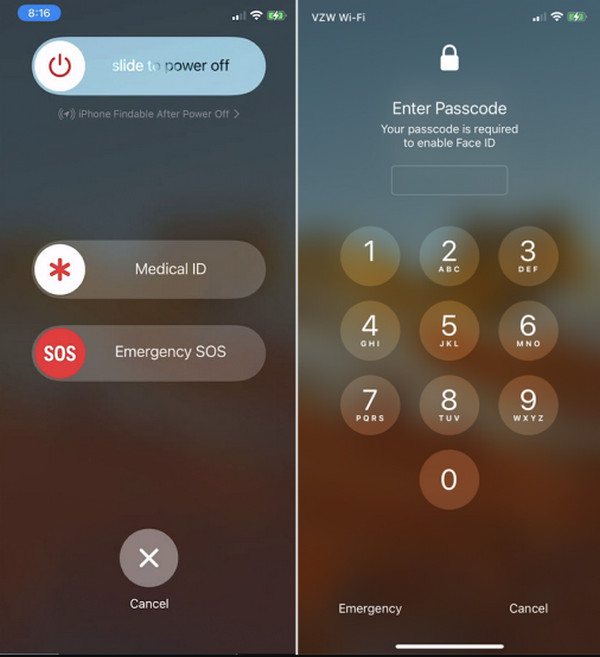
When the Face ID is needed to unlock your iPhone, you can still disable it. There is a hidden technique that most iPhone users do not know. It is a combination of physical buttons on your iPhone that requires a bit of professional skill from users. It is commonly used when the iPhone Face ID not working. It is one of the ways to fix it quickly.
However, this method is only accessible to the latest versions of iOS. Earlier versions do not have access to the mentioned technique. Please refer to the steps below to disable Face ID on your iPhone.
Ensure that the iPhone is turned on. Then, press and hold the Side and Volume Down or Volume Down button of the mentioned Apple device. Later, you will see the 2 options on the screen. Please tap the Cancel button at the bottom center. An iPhone will ask for your passcode and automatically disable Face ID on the mentioned Apple device.
Part 4. How to Bypass Face ID by FoneLab iFoneWiz
The previous Apple methods for bypassing Face ID are not accessible to some users. As an alternative, use FoneLab iFoneWiz. It is a tool that can bypass different screen lock types, including Face ID, Touch ID, passcode, and PIN. Wiping out the iPhone’s content and settings is the primary procedure that can be performed.

iFoneWiz Helps you unlock iPhone screen, Removes Apple ID or its password, Remove screen time or restriction passcode in seconds.
- Helps you unlock iPhone screen.
- Removes Apple ID or its password.
- Remove screen time or restriction passcode in seconds.
The tool can also bypass other security features on the mentioned feature. It includes iCloud Activation Lock, iTunes backup encryption password, SIM lock, and more. Please use the steps below to use the tool properly to remove passcode from iPhone, including Face ID.
Step 1Please download FoneLab iFoneWiz. To do this procedure, you need to click the Free Download button. Wait for the file to be downloaded. Locate it and set it up based on the requirements. Later, it will be opened on your computer.
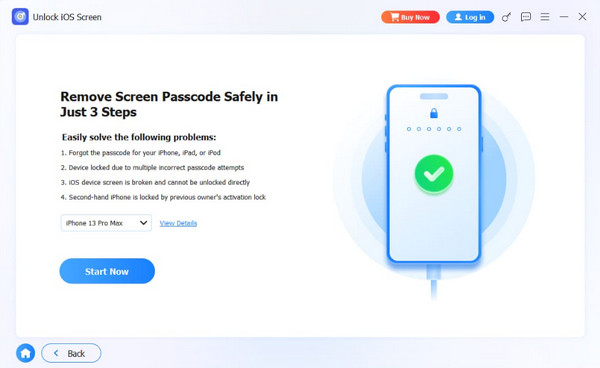
Step 2Please select the Unlock iOS Screen button at the top left. Later, please plug your iPhone into the computer using your USB cable. Click the Start Now option at the bottom left. On-screen instructions will appear. Click the Next button at the bottom-right to continue.
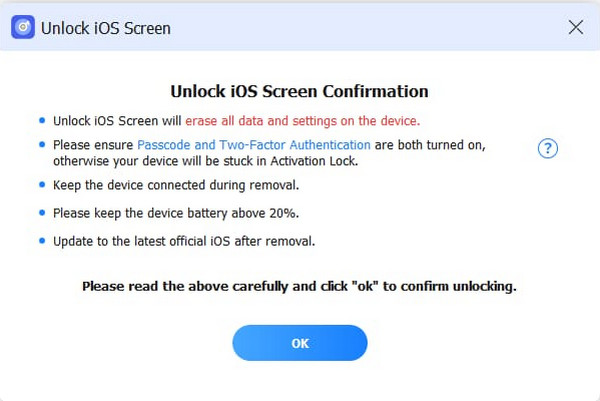
Step 3Click the OK button at the bottom center. Then, you need to confirm the process on the screen. To do that, please click the Confirm Again button on the same spot. Please wait for the process to be completed. Later, click the Finish button on the left side of the screen. Unplug your iPhone from the computer afterward for a safe process.
Part 5. Comparison Table of Methods to Bypass Face ID
| Method | Success Rate | Difficulty |
| Using Passcode Instead of Face ID | The success rate is high if you know the passcode. But it will be impossible if the passcode is unknown. | Easy |
| Permanently Disabling Face ID | Low | The process is difficult, especially since it requires a combination of physical buttons. |
| FoneLab iFoneWiz | High | Very Easy |
Part 6. FAQs about How to Bypass Face ID
Can my Face ID be fooled by a photo?
No. The iPhone Face ID cannot be fooled with a simple photo. This feature requires uses 3D depth mapping and infrared sensors.
How to confuse Face ID?
There are various ways to confuse the iPhone Face ID. Wearing a mask and a hat can do that. iPhone will not recognize you since these accessories are blocking your face.
This post explains how to bypass Face ID on an iPhone. The mentioned screen lock type is well explained, including the methods to bypass it. FoneLab iFoneWiz is one of them. The tool can also remove numeric, alphanumeric, Touch ID, and other passcodes. Please download the tool to learn more about it!



