
 iPhone Data Recovery
 iOS System Recovery
 iOS Data Backup & Restore
 iOS Unlocker
 iPhone Password Manager
 Location Changer
 Android Data Recovery
 Broken Android Data Extraction
 Android Data Backup & Restore
 Android Unlocker
 FoneTrans for iOS
 iPhone Data Eraser
 iPhone Cleaner
 HEIC Converter
 HyperTrans
 WhatsApp Transfer for iOS
 Mac Sweep
 Data Retriever
 Mac Data Retriever
 Video Converter Ultimate
 Screen Recorder
 Phone Mirror
- Unlock Apple ID
- Bypass iCloud Activation Lock
- Doulci iCloud Unlocking Tool
- Factory Unlock iPhone
- Bypass iPhone Passcode
- Reset iPhone Passcode
- Unlock Apple ID
- Unlock iPhone 8/8Plus
- iCloud Lock Removal
- iCloud Unlock Deluxe
- iPhone Lock Screen
- Unlock iPad
- Unlock iPhone SE
- Unlock Tmobile iPhone
- Remove Apple ID Password
Outstanding Guide on How to Add Another Face ID to iPhone to iPhone Easily
 Updated by
 Could anyone help me with how to add another Face ID to iPhone? My sister always borrows my device, either to research for a school project, take photos, or play games. Every time, she needs to unlock it with my Face ID, which sometimes becomes a hassle, especially when I’m busy with something. So, I want to add her Face ID instead. Kindly please help.
When you have an iPhone or other device, there’s no guarantee you will be the only one to use it. It can be borrowed by your family members or closest friends for specific reasons, like the scenario above. And if it becomes a frequent occurrence, adding their Face ID is the most convenient action to take, especially for trusted people. It won't only save you time, but you will also be able to avoid disruption when you’re busy, and they need to borrow the device. The question is, how will you add another Face ID? Well, skim the parts below to know the answer.


Guide List
Part 1. How to Add Another Face ID on iPhone Settings
The official procedure to add another Face ID to the iPhone lies in its Settings app. Like other device management options, its interface offers a designated section for security or password-related concerns, which is Face ID and Passcode. So, if you’d like to set another Face ID to your iPhone, it is the section you must visit on the Settings app. Don’t worry about technicalities or complications, though. The app is designed to be comprehensive, allowing everyone, even beginners, to understand its options and functions easily. Thus, expect you will be able to add another Face ID effortlessly, especially with the help of our guidelines.
Go along with the effortless task below to grasp how to add another Face ID on iPhone Settings:
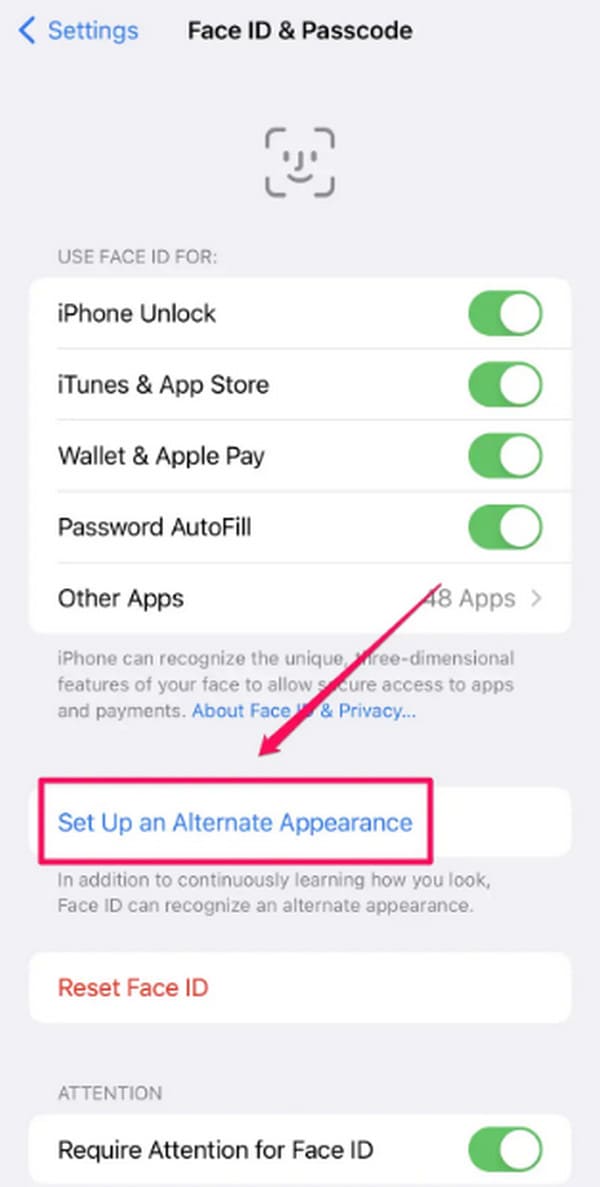
Step 1On your iPhone Settings app’s initial interface, scroll down to see Face ID & Passcode. You will be prompted to type your passcode, so provide it to enter the designated section.
Step 2After that, choose Set Up an Alternate Appearance. The following screen will then prompt you to set up an additional Face ID for your iPhone, so follow it to finish.
Part 2. What If You Forgot The Passcode on iPhone
As you have seen previously, adding another Face ID to the iPhone requires providing your passcode. However, what if you have forgotten it since the device allows you to rely on Face ID most of the time? Well, ease your worries, as that can be resolved with the solutions below.
Solution 1. Recovery Mode
A forgotten passcode can easily block you from accessing your iPhone, and this fact might worry you about not being able to use the device again. The good news is that Apple developed various solutions to resolve this, and the initial one you can run to is Recovery mode. If you boot your iPhone to it with iTunes, Finder, or Apple Devices, it will give you a Restore option that will erase the device with its passcode. Then, you can set it up again with a new passcode.
Mimic the simple operation below to resolve your forgotten passcode concern using Recovery mode:
Step 1Initialize iTunes, Finder, or Apple Devices on the computer, then link your iPhone via a Lightning cable. Afterward, boot it to Recovery mode with the correct button combination.
On iPhones with no Home button: Press Volume Up once, quickly followed by Volume Down. Immediately after, long-press the Power button until you see the Recovery mode.
On iPhones with Home button: Simply press the Home + Power buttons for a few seconds, and at the same time. Then, release until your screen shows Recovery mode.
Step 2A Restore tab will shortly be on the tool’s interface. Click it to erase the device and its passcode.
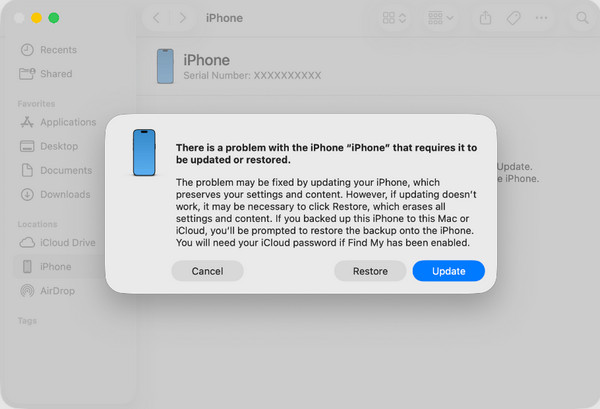
Are you confused about which program to use? Simply pick the available one on your computer. Finder is built into later macOS versions, while iTunes can be accessed on Windows and older macOS versions. Meanwhile, you can also use Apple Devices for later Windows and macOS.
Solution 2. iCloud
On the other hand, iCloud is the way to go if you prefer a remote solution. Since you can’t access the iPhone, try managing it through the iCloud website instead. As you may know, the Find My iPhone feature is activated by default on the device, and if you haven’t turned it off, iCloud’s Find My page will allow you to erase the iPhone or perform other management options. Like the last process, this action will also delete the passcode, letting you set up the device again.
Obey the beginner-friendly instructions below if you forgot your passcode to reset it through iCloud:
Step 1Provide your Apple credentials on the iCloud website, then access its Find My page.
Step 2Following that, select All Devices and choose your iPhone with a forgotten passcode. Its options will be displayed, so pick Erase iPhone from there to delete your device and passcode.
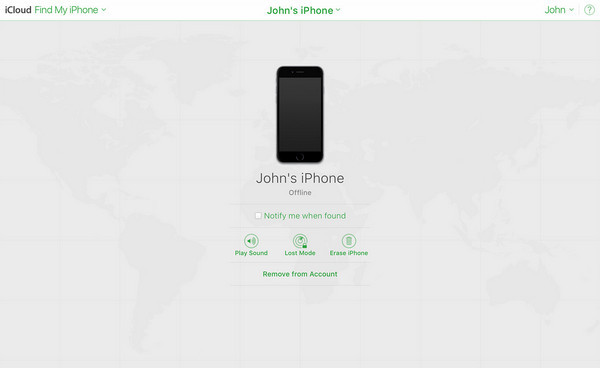
As mentioned, having the Find My feature enabled is necessary, as it is the key to accessing your iPhone’s management options on iCloud’s Find My page. So, if you previously turned it off, this solution won’t be the most suitable, as it will likely not work.
Solution 3. FoneLab iOS Unlocker
Other than Apple’s built-in solutions, a reliable tool you can depend on is FoneLab iOS Unlocker. It helps unlock iPhone without passcode or Face ID, even without having a pre-enabled feature. All you must do is attach your device to the program and navigate the steps on its user-friendly interface. It will shortly remove the passcode that has been preventing you from accessing the device.

FoneLab Helps you unlock iPhone screen, Removes Apple ID or its password, Remove screen time or restriction passcode in seconds.
- Helps you unlock iPhone screen.
- Removes Apple ID or its password.
- Remove screen time or restriction passcode in seconds.
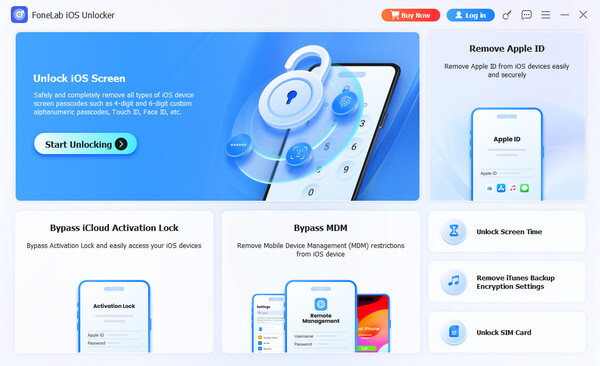
Meanwhile, other features are available if you encounter another lock or password-related problem later. It can help you bypass the MDM on your iPhone that is set by a company or organization, unlock Screen Time, bypass iCloud activation lock, remove Apple ID, and more.
Identify the worry-free steps below as a sample for unlocking your iPhone without a passcode with FoneLab iOS Unlocker:
Step 1Open the FoneLab iOS Unlocker’s official site. Clicking the Free Download option will save the installer in your Downloads; thus, set it up from there for the installation to process. It won’t take a minute until the Start button appears, prompting you to run the unlocker.
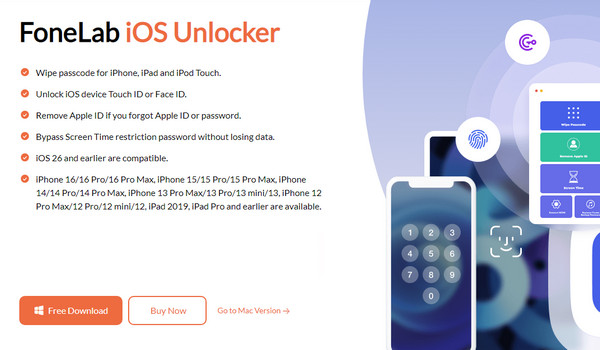
Step 2As presented, the program offers multiple unlocking features, but for this case, pick Unlock iOS Screen first in the upper left section. The succeeding interface will ask you to attach your iPhone; hence, do it with a Lightning cable. Then, follow along to remove its passcode.
Part 3. Comparison of Forgotten Passcode Solutions
| Solutions | Recovery Mode | iCloud | FoneLab iOS Unlocker |
| Core Purpose | Official system restore | Official remote device management | Third-party lock removal and system repair |
| Technical Skill Required | Moderate | Low | Low |
| Internet Connection Needed | Yes | Essential | Yes, but only to download the program |
| Success Rate | Very High | High | Very High |
| Best For | Users with a computer, who may not have Find My on | Users who have Find My enabled, and may not have physical access to the iPhone | Users who have no backup, no Find My access, or no Apple ID credentials |
Part 4. FAQs about How to Add Another Face ID
How to add another Face ID without a passcode?
Unfortunately, adding another Face ID isn’t possible without a passcode. That’s why this post’s Part 2 is essential, as it will help you with your passcode concern.
Can I add anyone’s Face ID to my iPhone?
Yes, you can, whether it is a family member, friend, etc. Just ensure you trust them for safety.
Use the recommended procedures above correctly with the help of our guidelines, and before you know it, you will have already added another Face ID to your iPhone. A forgotten passcode is also the least of your worries since solutions are available, especially FoneLab iOS Unlocker.



