
 iPhone Data Recovery
 iOS System Recovery
 iOS Data Backup & Restore
 iOS Unlocker
 iPhone Password Manager
 Location Changer
 Android Data Recovery
 Broken Android Data Extraction
 Android Data Backup & Restore
 Android Unlocker
 FoneTrans for iOS
 iPhone Data Eraser
 iPhone Cleaner
 HEIC Converter
 HyperTrans
 WhatsApp Transfer for iOS
 Mac Sweep
 Data Retriever
 Mac Data Retriever
 Video Converter Ultimate
 Screen Recorder
 Phone Mirror
- Unlock Apple ID
- Bypass iCloud Activation Lock
- Doulci iCloud Unlocking Tool
- Factory Unlock iPhone
- Bypass iPhone Passcode
- Reset iPhone Passcode
- Unlock Apple ID
- Unlock iPhone 8/8Plus
- iCloud Lock Removal
- iCloud Unlock Deluxe
- iPhone Lock Screen
- Unlock iPad
- Unlock iPhone SE
- Unlock Tmobile iPhone
- Remove Apple ID Password
How to Block YouTube on iPad Using 3 Secure Methods
 Updated by
 How do I block YouTube on iPad?” A question users state when they want to limit distractions, want to block the app to improve their own focus, or when parents want to protect their children from inappropriate content. It is a typical challenge because YouTube is accessible to everyone.
Luckily, you don’t need to be an expert to resolve this concern. Apple offers built-in features to make blocking YouTube simple, and three secure ways are listed in this post. Simply pick what fits your needs. Afterward, don’t hesitate to go over the additional program we recommended, as it will likely help you regarding restrictions you may face later.

Guide List
Part 1. Block YouTube on the App
As mentioned, among the main reasons people choose to block YouTube is to prevent their kids from being exposed to inappropriate content. Hence, the perfect solution for this is to enable the app’s restricted mode, blocking such content from appearing whenever someone uses the online video-sharing platform. It filters out potentially adult content but does not block YouTube entirely, making it perfect for those who only want to block specific videos from showing.
Navigate the stress-free directions below to understand how to block YouTube on iPad app:
Step 1Initially, launch the YouTube app on your iPad and ensure you are signed into your account. After that, opt for your profile photo at the bottom right of the interface.
Step 2Next, select the Settings symbol on the uppermost right to view the options, then tap General. When further selections appear, toggle on Restricted Mode to finish.
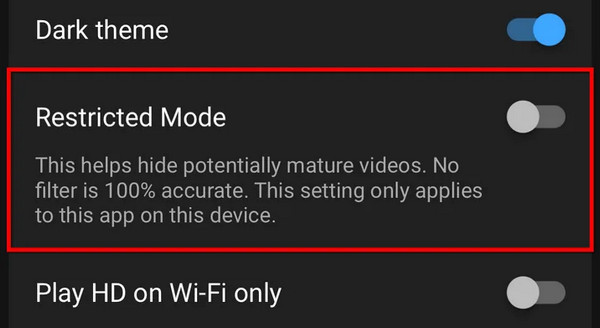
As you can see, this process is more of a content filter than an app block. That’s because YouTube doesn’t offer a direct option for blocking its platform from various devices. No worries, though. If you wish to block the app entirely, you can proceed to this article’s Part 3.
Part 2. Block YouTube on the Website
Do you watch YouTube videos from its website using a browser? If so, this is the suitable process to follow. Although the app and website are still both YouTube, the steps still differ in some ways, so handle the blocking procedure accordingly. But like the previous part, this also involves enabling the Restricted mode to keep children safe from content that is not fitting for their age. Besides, it will also lessen social media content that distracts you from doing what truly matters, improving focus instead of wasting time doomscrolling on YouTube.
Act under the unchallenging guide below to block YouTube on iPad for the website:
Step 1With your browser, navigate to YouTube’s official page, and like before, ensure you log in or sign in to your account. Following that, click your profile photo at the top right.
Step 2The options will then appear, and you will see the Restricted Mode tab immediately. Select it to click the Activate Restricted Mode toggle, enabling the feature.
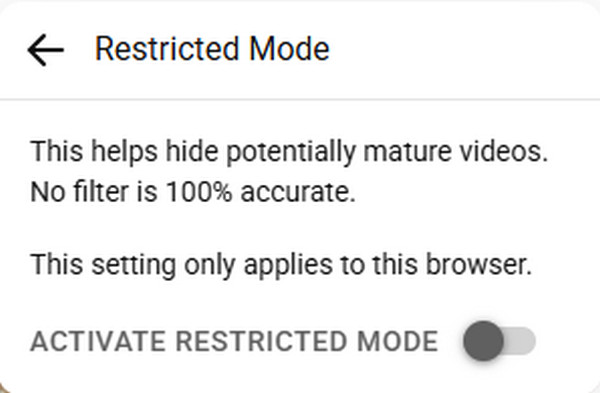
Unfortunately, even YouTube’s official website doesn’t offer a direct option to block its page on your browser, like the app. Hence, this process is only applicable to users wanting to block certain social media content on their YouTube account. To block the entire site, kindly continue.
Part 3. Block YouTube on iPad Using Screen Time
Since neither YouTube’s app nor website don’t provide options for blocking the platform, you can rely on your iPad's features instead, specifically Screen Time. The good news is that this method doesn’t require you to navigate options on the social media platform directly. Rather, this feature allows you to manage and block YouTube entirely, whether the app or website, in one place. Once you activate the restriction for the platform, the others who use your iPad will no longer be able to access it without your permission unless you make changes again.
Imitate the user-oriented operation below to master how to block YouTube on iPad using Screen Time:
Step 1Go to your iPad’s Settings interface and choose Screen Time. You will be asked for your Screen Time passcode, so input it to access the feature’s section.
Step 2If it isn’t activated yet, enable Screen Time and follow the prompts. Then, tap and turn on Content & Privacy Restrictions as well. Finally, manage the options, specifically, the Web Content or iTunes & App Store Purchases settings to block YouTube.
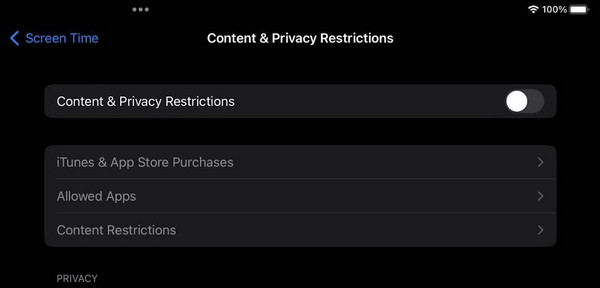
Please keep in mind how important it is to remember your Screen Time passcode. Many users tend to forget it over time, causing them to lose access to specific features, apps, or services on their device. However, such situations are sometimes inevitable, so if that time ever comes, we suggest using the solution below.
Part 4. How to Remove Screen Time on iPad
A forgotten passcode, especially for features you only use sometimes, like Screen Time, is common for several users. Thankfully, it is still possible to bypass Screen Time passcode with the help of a professional program, like FoneLab iOS Unlocker. It offers numerous advantages, such as efficiency, a user-friendly design, and unlike other tools, it doesn’t erase or reset the device, ensuring your iPad’s data and other content’s safety.

FoneLab Helps you unlock iPhone screen, Removes Apple ID or its password, Remove screen time or restriction passcode in seconds.
- Helps you unlock iPhone screen.
- Removes Apple ID or its password.
- Remove screen time or restriction passcode in seconds.
Meanwhile, FoneLab iOS Unlocker supports almost, if not all, iPad models and versions, so you can rely on its compatibility with your device. Apart from that, it could also work for your other iOS devices later, as it also caters to iPhones and iPod Touches. Moreover, the program’s other features can be helpful later if you need to remove MDM from iPhone, unlock your iOS or iPadOS device screen, bypass the iCloud Activation Lock, remove Apple ID, and more.
Understand the beginner-friendly process below as a sample to remove Screen Time on an iPad with FoneLab iOS Unlocker:
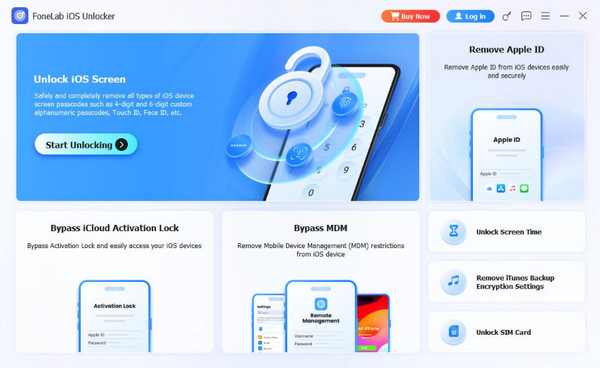
Step 1Save the FoneLab iOS Unlocker’s installer, and it will quickly be in the Downloads section later, allowing you to launch it and begin the initial setup. Once installed, wait for the Start tab to appear and tick it after it pops up.
Step 2The program’s multiple features are displayed on the key interface; thus, opt for Unlock Screen Time from there. Thereafter, attach the iPad with your Lightning cable. When more instructions and prompts are shown, simply follow through until the Screen Time is removed.
Part 5. FAQs about How to Block YouTube on iPad
Does blocking YouTube remove the app from the Home screen?
No, it doesn’t. However, you can remove it manually by long-tapping the YouTube app from your iPad’s Home screen and choosing the Remove App selection.
Can I block YouTube only during certain hours?
Yes. Screen Time allows you to set downtime or app limits. You can schedule YouTube to be blocked during specific hours while allowing access at other times if needed.
Blocking YouTube on your iPad is painless as long as you have the right technique. Whether you choose to block the app, block the website, or use Screen Time, each method gives you control over what can be accessed. But if anything goes wrong with the Screen Time feature, don’t worry, because FoneLab iOS Unlocker is available to help you any time.



