
 iPhone Data Recovery
 iOS System Recovery
 iOS Data Backup & Restore
 iOS Unlocker
 iPhone Password Manager
 Location Changer
 Android Data Recovery
 Broken Android Data Extraction
 Android Data Backup & Restore
 Android Unlocker
 FoneTrans for iOS
 iPhone Data Eraser
 iPhone Cleaner
 HEIC Converter
 HyperTrans
 WhatsApp Transfer for iOS
 Mac Sweep
 Data Retriever
 Mac Data Retriever
 Video Converter Ultimate
 Screen Recorder
 Phone Mirror
- Part 1. What is YouTube Restricted Mode
- Part 2. How to Turn Off Restricted Mode on the YouTube Mobile App
- Part 3. How to Turn Off Restricted Mode on YouTube on a Desktop Browser
- Part 4. How to Turn Off Restricted Mode on YouTube on Smart TVs & Consoles
- Part 5. Why the Slider is Greyed Out on YouTube Restricted Mode
- Part 6. How to Disable Restrictions for YouTube on iPhone/iPad
- Part 7. FAQs about How to Turn Off Restricted Mode on YouTube
- Unlock Apple ID
- Bypass iCloud Activation Lock
- Doulci iCloud Unlocking Tool
- Factory Unlock iPhone
- Bypass iPhone Passcode
- Reset iPhone Passcode
- Unlock Apple ID
- Unlock iPhone 8/8Plus
- iCloud Lock Removal
- iCloud Unlock Deluxe
- iPhone Lock Screen
- Unlock iPad
- Unlock iPhone SE
- Unlock Tmobile iPhone
- Remove Apple ID Password
How to Turn Off YouTube Restricted Mode in Straightforward Ways
 Updated by
 Hi! I was about to watch my favorite series on YouTube. Suddenly, the Video Unavailable error message appeared. My brother said that our mom turned on the Restricted Mode of YouTube. What is Restricted Mode on YouTube? Please help me turn it off. Thank you!
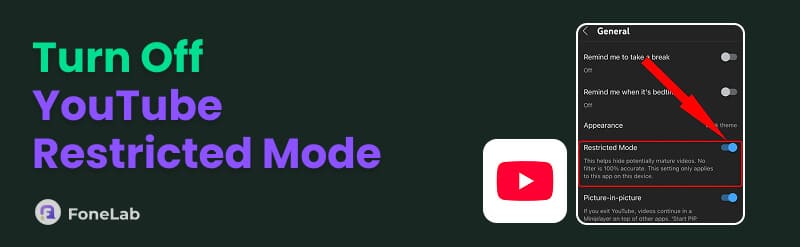
The Restricted Mode on YouTube is an optional setting for limiting content. Turning it off is easy! In this article, we will help you disable YouTube’s Restricted Mode. Easy procedures can be discovered as you scroll through this post. Kindly see them below.

Guide List
- Part 1. What is YouTube Restricted Mode
- Part 2. How to Turn Off Restricted Mode on the YouTube Mobile App
- Part 3. How to Turn Off Restricted Mode on YouTube on a Desktop Browser
- Part 4. How to Turn Off Restricted Mode on YouTube on Smart TVs & Consoles
- Part 5. Why the Slider is Greyed Out on YouTube Restricted Mode
- Part 6. How to Disable Restrictions for YouTube on iPhone/iPad
- Part 7. FAQs about How to Turn Off Restricted Mode on YouTube
Part 1. What is YouTube Restricted Mode
Many users know how to restrict YouTube content. Most of them are parents who want to restrict sensitive content from YouTube. Restricted Mode is one of the features that they use. It is used for safer viewing of the account user. Besides hiding adult, sensitive, and violent content, it can also be used to hide comments.
However, not all YouTube versions have this feature. If you want to use it, ensure that you update the application or the operating system of your Android phone or iPhone.
Part 2. How to Turn Off Restricted Mode on the YouTube Mobile App
YouTube is available on different smartphones, including the iPhone and Android phones. You can disable Restricted Mode on YouTube with these devices. They have the same procedure. The good thing about it is that you do not need any authentication from the account to turn off the mentioned feature. Please continue with the steps below to know the process.
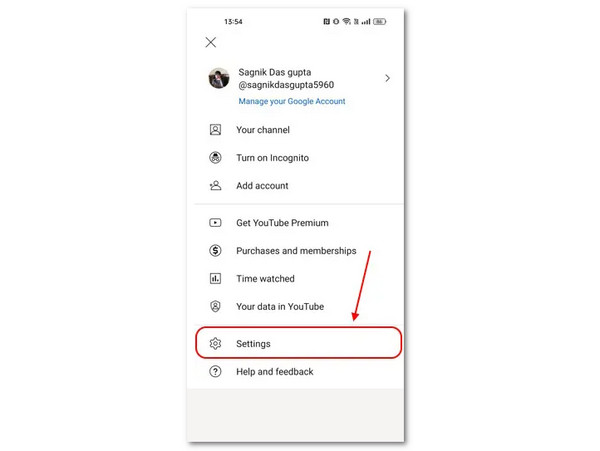
Open the YouTube app on an iPhone or Android phone. Then, select the Profile button at the top right corner. Tap the Settings button afterward from the screen that will appear. Please select the General button from the list. Finally, swipe down on the screen and toggle off the Restricted Mode slider to turn it off.
Part 3. How to Turn Off Restricted Mode on YouTube on a Desktop Browser
Besides the applications, you can also turn off Restricted Mode on YouTube on a browser. The reason is that YouTube is accessible online. The previous procedure is almost the same as this one. Please use the steps below to know how.
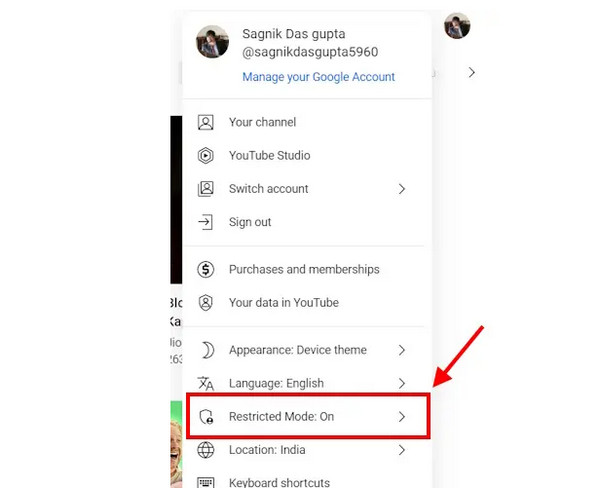
Step 1Search for the main website of YouTube. After that, please click the Profile button at the top right corner. Then, a new list of options will be prompted on the main interface. Please click the Restricted Mode button from the list. You will also see the On indication on the right side.
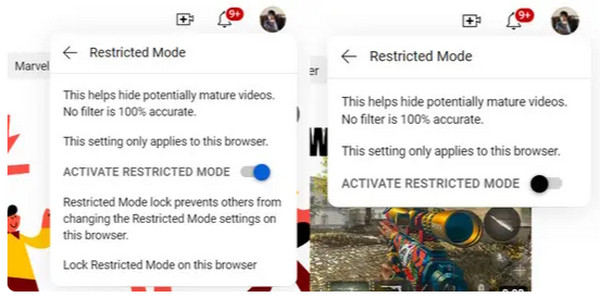
Step 2The full description of the feature will appear on the screen. Please toggle off the Activate Restricted Mode button at the bottom. Then, the feature will be turned off immediately.
Part 4. How to Turn Off Restricted Mode on YouTube on Smart TVs & Consoles
YouTube is also available on Smart TVs and Consoles. How to disable Restricted Mode on YouTube on Smart TVs and consoles? Please follow the steps below.
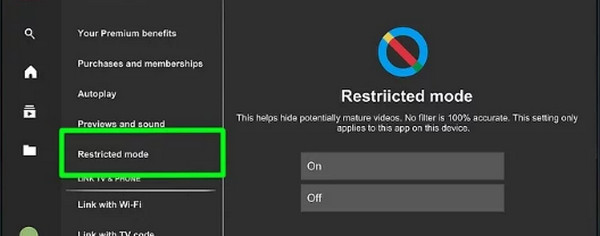
Open the YouTube app on your Smart TVs or consoles. Then, select your profile and choose the Settings button. Select the Restricted Mode button afterward. Finally, select the Off button.
Part 5. Why the Slider is Greyed Out on YouTube Restricted Mode
The Restricted Mode slider of YouTube can be greyed out when the internet connection is slow. Also, the YouTube settings may be locked out for an administrator. These reasons are preventing you from turning off the said feature.
Part 6. How to Disable Restrictions for YouTube on iPhone/iPad
Besides the Restricted Mode feature on your iPhone and iPad, there are other features that can restrict content from your YouTube account. Turn off these restrictions to fix the issue. Scroll below to discover them.
1. Use Screen Time
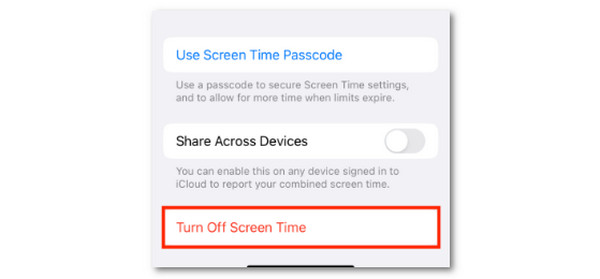
Screen Time helps you monitor your screen activities. It can also restrict some features and apps. You can turn off restrictions on iPhone Screen Time using the steps below.
Open Settings. After that, select your name at the top. Later, tap the Screen Time button. Select the Turn Off App & Website Activity or Turn Off Screen Time button. Enter the passcode to confirm the process.
2. Disable Family Sharing
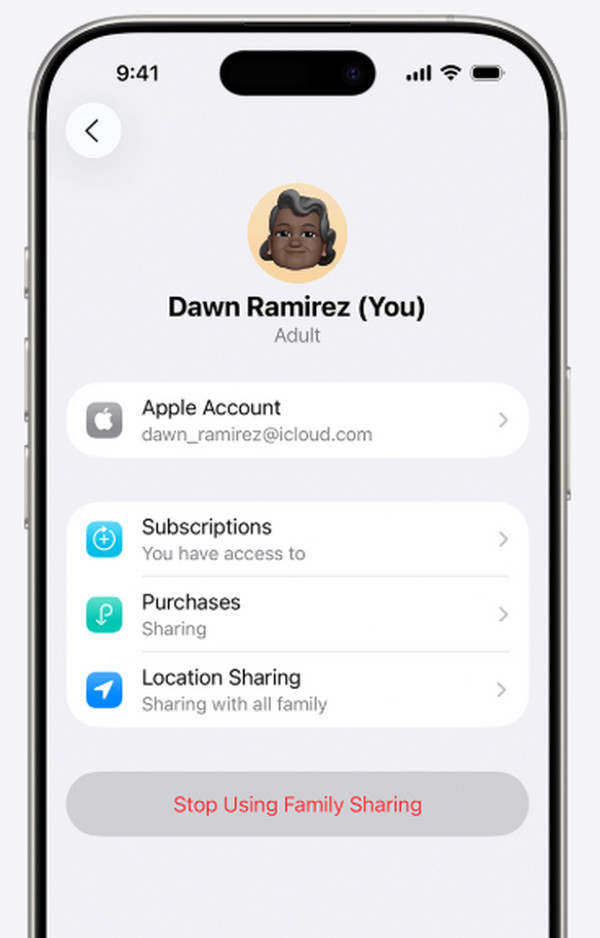
Family Sharing is another feature on your iPhone or iPad that allows you to control and manage children’s iPhone and iPad activities. If so, turning off this feature will help you remove some restrictions on your iPhone or iPad. The steps below will show you how.
Open the Settings app. Then, select your name at the top. Select the Family button and tap your name. Finally, select the Stop Using Family Sharing button.
3. Use FoneLab iOS Unlocker
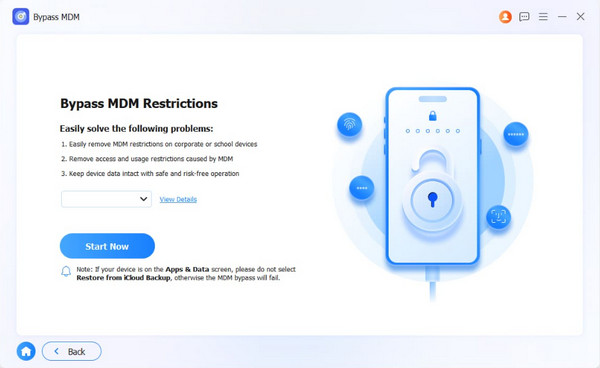
Screen Time and MDM profile are two of the security features that restrict content, apps, or other features on your iPhone or iPad. However, some users accidentally forget the passcodes or other information to turn them off. Use FoneLab iOS Unlocker to bypass screen time passcode and MDM profile on your iPhone and iPad. Use the steps below as your reference.

FoneLab Helps you unlock iPhone screen, Removes Apple ID or its password, Remove screen time or restriction passcode in seconds.
- Helps you unlock iPhone screen.
- Removes Apple ID or its password.
- Remove screen time or restriction passcode in seconds.
Step 1Click the Free Download option on the main website of FoneLab iOS Unlocker. Then, set up, install, and open it.

Step 2Plug the iPhone or iPad into the computer. Then, click the Bypass MDM or Unlock Screen Time feature on the screen.
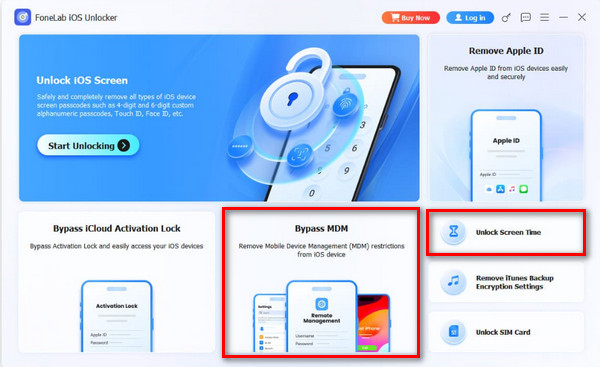
Step 3Click the Start Now option at the bottom left. Then, perform the on-screen instructions to bypass the mentioned restrictions on your iPhone and iPad.
Part 7. FAQs about How to Turn Off Restricted Mode on YouTube
How long does a YouTube restriction last?
It depends on the restriction that has been setup to your YouTube account. If the Restricted Mode restricts it, it lasts forever until you turn off the feature. On the other hand, you need to sign in to your account if the Age Restriction on YouTube’s feature is enabled to confirm your age.
How do I prove I am 18 on YouTube?
You can prove your age on YouTube using your valid ID or credit card information. Verifying your age will help you view all the content YouTube has.
An unrestricted YouTube is enjoyable to use because there will be no limits to the videos you can watch. Turning off the Restricted Mode feature can be discovered in this post. FoneLab iOS Unlocker is here to help you remove multiple restrictions on your iPhone or iPad. It includes Screen Time, MDM profile, and more. Download the tool if you want to know more about it!



