
 iPhone Data Recovery
 iOS System Recovery
 iOS Data Backup & Restore
 iOS Unlocker
 iPhone Password Manager
 Location Changer
 Android Data Recovery
 Broken Android Data Extraction
 Android Data Backup & Restore
 Android Unlocker
 FoneTrans for iOS
 iPhone Data Eraser
 iPhone Cleaner
 HEIC Converter
 HyperTrans
 WhatsApp Transfer for iOS
 Mac Sweep
 Data Retriever
 Mac Data Retriever
 Video Converter Ultimate
 Screen Recorder
 Phone Mirror
- Part 1. How to Block YouTube on Safari with iPhone/iPad Settings
- Part 2. How to Block YouTube on Safari on Mac System Settings
- Part 3. How to Block YouTube App on iPhone and iPad
- Part 4. How to Turn Off YouTube App Restrictions on iPhone or iPad Without a Passcode
- Part 5. FAQs about How to Block YouTube on Safari
- Unlock Apple ID
- Bypass iCloud Activation Lock
- Doulci iCloud Unlocking Tool
- Factory Unlock iPhone
- Bypass iPhone Passcode
- Reset iPhone Passcode
- Unlock Apple ID
- Unlock iPhone 8/8Plus
- iCloud Lock Removal
- iCloud Unlock Deluxe
- iPhone Lock Screen
- Unlock iPad
- Unlock iPhone SE
- Unlock Tmobile iPhone
- Remove Apple ID Password
How to Block YouTube from Safari in Dependable Practices
 Updated by
 Hi! I have been doing my school task for almost an hour. I cannot focus because I am watching my favorite show on YouTube. I want to block YouTube on Safari to focus on my task. I hope you can help me with this matter. Thank you!
Safari allows you to access different social media platforms. YouTube is one of the most popular streaming services that you can visit. It contains various types of content that can be accessed by its users. However, it might be a distraction for some people. Learn to block YouTube on your Safari as you scroll in this article.

Guide List
- Part 1. How to Block YouTube on Safari with iPhone/iPad Settings
- Part 2. How to Block YouTube on Safari on Mac System Settings
- Part 3. How to Block YouTube App on iPhone and iPad
- Part 4. How to Turn Off YouTube App Restrictions on iPhone or iPad Without a Passcode
- Part 5. FAQs about How to Block YouTube on Safari
Part 1. How to Block YouTube on Safari with iPhone/iPad Settings
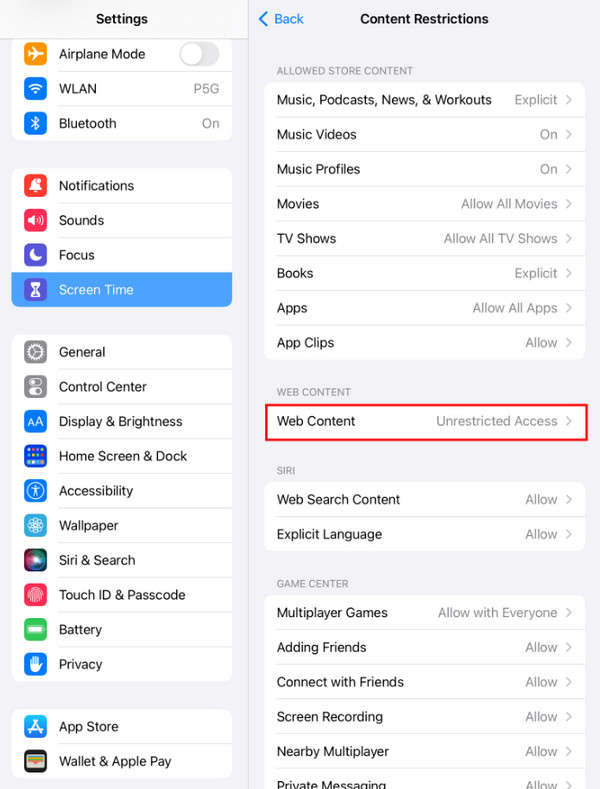
Screen Time is the feature that is commonly used to block your iPhone or iPad Safari. It allows you to block content or websites from your Safari app. Learn how to block YouTube on Safari on iPhone and iPad with the steps below.
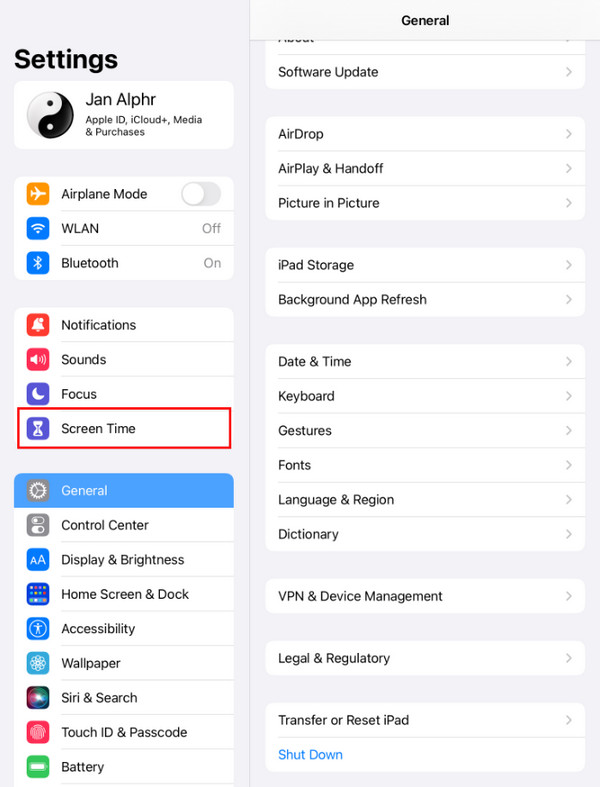
Open Settings on your iPhone or iPad. After that, select the Screen Time button from the list. Tap the Content & Privacy Restrictions button. Tap the Content Restrictions button and Web Content buttons afterward. Select the Limit Adult Websites section and tap the Never Allow button. Add the URLs of YouTube that can be used to access it.
Part 2. How to Block YouTube on Safari on Mac System Settings
Besides iPhone and iPad, Screen Time is also available on Mac. They have almost the same procedure for blocking the YouTube website on Safari. Please use the steps below as your guide.
Step 1Open your Mac and click the Apple button at the top left corner. Then, select the System Settings button from the drop-down menu. A small window will appear. Please select the Screen Time button on the left.
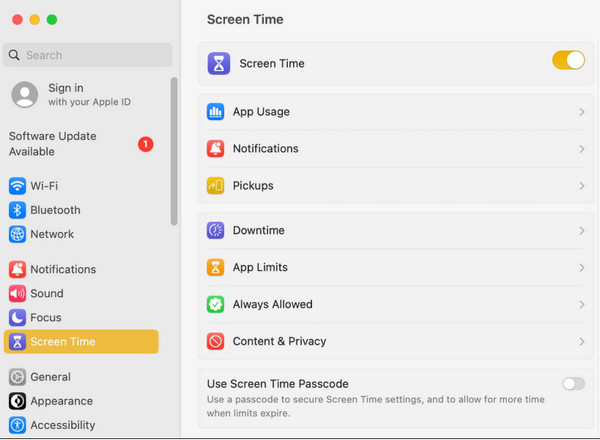
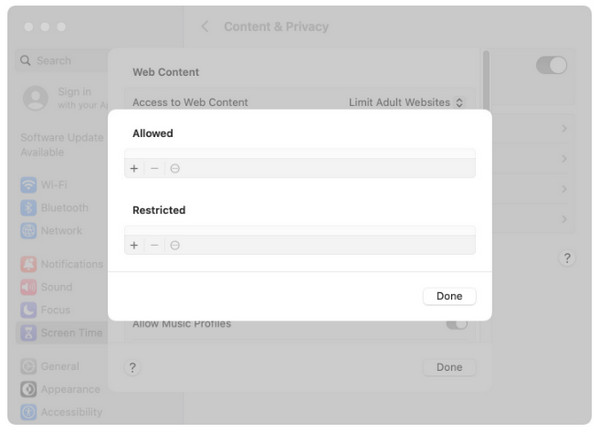
Step 2If you have not turned on your Screen Time, you need to tap the Use Screen Time Passcode button on the screen. Set a passcode afterward. Then, tap the Content & Privacy button. Select the Limit Adult Websites button. Select the Customize button and click the Add button. Enter the URLs of YouTube from your Safari and click the Done button to complete the process.
Part 3. How to Block YouTube App on iPhone and iPad
Screen Time can directly limit the YouTube app. The best thing about it is that after the limitation, you can block it automatically. It is way better because some prefer using the YouTube app compared to searching for it on the web. However, blocking the app will not block it from its websites. The steps below will discuss how to block the iPhone or iPad YouTube app.
Open Settings on your iPhone or iPad. Then, select the Screen Time button. Later, select the App Limits button. Tap the Add Limit button. Select the Entertainment button from the screen. Tap the YouTube app and set the limit to 1 Minute. Enable the Block at End of Limit option.
Part 4. How to Turn Off YouTube App Restrictions on iPhone or iPad Without a Passcode
Turning off Screen Time will remove or unblock the YouTube website or app restrictions. However, you cannot do that if you forgot the Screen Time passcode. Unfortunately, some of you accidentally forgot the passcode of the mention feature. Turn off restrictions on iPhone and iPad Screen Time without the passcode with the 2 easy methods below.
1. Use Your Apple ID
Screen Time can also be associated with your Apple ID. The account can be used as the authentication to reset your Screen Time passcode. In this case, there will be no affected data from your iPhone and iPad. Please refer to the steps below to do the process correctly.
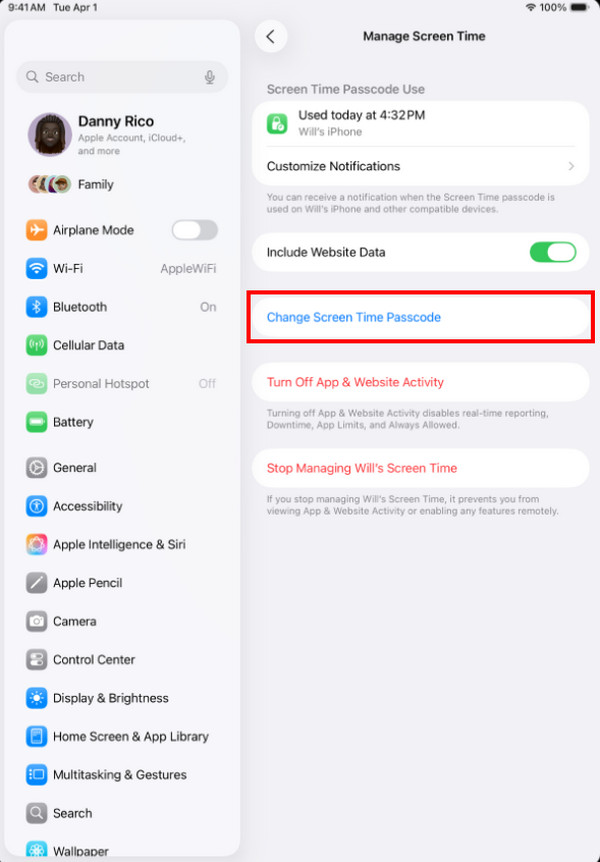
Tap the iPhone or iPad Settings app to open it from your Home Screen. Then, select the Screen Time button from the list. After that, select the Change Screen Time Passcode button. You will be asked for the current Screen Time passcode. Please tap the Forgot Passcode button from the small window. Enter your Apple ID account. Later, enter your new Screen Time passcode.
2. Use FoneLab iOS Unlocker

FoneLab Helps you unlock iPhone screen, Removes Apple ID or its password, Remove screen time or restriction passcode in seconds.
- Helps you unlock iPhone screen.
- Removes Apple ID or its password.
- Remove screen time or restriction passcode in seconds.
FoneLab iOS Unlocker can also help! It is a third-party program that allows you to remove the Screen Time restrictions when the passcode is forgotten by bypassing it. Like the Apple way above, it will not delete even a single piece of data on your iPhone or iPad. An internet connection is not needed as the tool functions with a USB cable. Also, you can operate it to remove the Apple ID, MDM profile, iCloud Activation Lock, and other security features on your iPhone and iPad. Kindly use the steps below as your guide to using the tool.
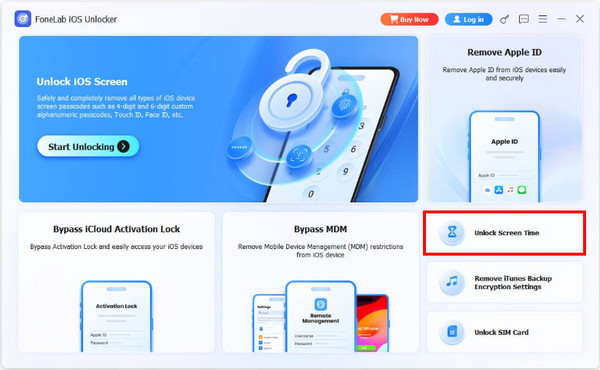
Step 1Click the Unlock Screen Time feature on the first interface of FoneLab iOS Unlocker after installing and opening it. Then, plug an iPhone or iPad into the computer using a USB cable.
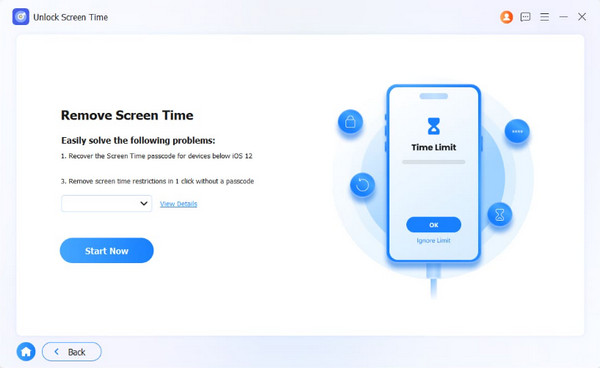
Step 2Select the iPhone or iPad name at the bottom left. Then, choose the Start Now button at the bottom left. Later, follow the on-screen instructions to turn off Find My on your iPhone or iPad. Then, you can proceed with the procedure.
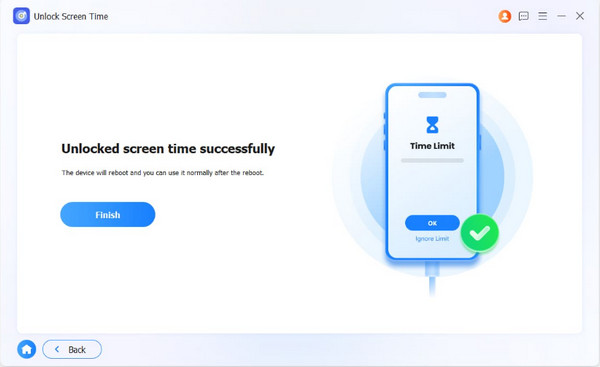
Step 3Click the Unlock button at the bottom center of the screen. Then, the procedure will start. Please wait for the Screen Time bypassing procedure to be completed. Later, click the Finish button on the left. Finally, unplug your iPhone or iPad from the computer to complete the process.
Part 5. FAQs about How to Block YouTube on Safari
Is blocking YouTube on Safari permanent?
Yes. Blocking YouTube on your iPhone, iPad, and Mac is permanent unless you unblock it. Also, it is attainable when the passcode from the Screen Time restriction is forgotten. Resetting or bypassing it is the best way to address this issue.
How do I disable YouTube ads in Safari?
You can use a YouTube ad blocker to remove or disable the mentioned app’s ads. Some of the most recommended are 1Blocker, AdBlock Pro, and AdGuard. However, some of them cannot block all ads on your Safari due to malfunctions.
This article explains how to block YouTube on Safari on iPad, iPhone, and FoneLab iOS Unlocker is also here to help you remove the restrictions on your iPhone or iPad Screen Time when the passcode is forgotten. It can also be used to remove the Apple ID, MDM, and other security features. Download it now to explore it!



