
 iPhone Data Recovery
 iOS System Recovery
 iOS Data Backup & Restore
 iOS Unlocker
 iPhone Password Manager
 Location Changer
 Android Data Recovery
 Broken Android Data Extraction
 Android Data Backup & Restore
 Android Unlocker
 FoneTrans for iOS
 iPhone Data Eraser
 iPhone Cleaner
 HEIC Converter
 HyperTrans
 WhatsApp Transfer for iOS
 Mac Sweep
 Data Retriever
 Mac Data Retriever
 Video Converter Ultimate
 Screen Recorder
 Phone Mirror
- Unlock Apple ID
- Bypass iCloud Activation Lock
- Doulci iCloud Unlocking Tool
- Factory Unlock iPhone
- Bypass iPhone Passcode
- Reset iPhone Passcode
- Unlock Apple ID
- Unlock iPhone 8/8Plus
- iCloud Lock Removal
- iCloud Unlock Deluxe
- iPhone Lock Screen
- Unlock iPad
- Unlock iPhone SE
- Unlock Tmobile iPhone
- Remove Apple ID Password
How to Block a Website on Safari in 4 Easy Practices
 Updated by
 Good day! How to block websites on Safari on iPhone, iPad, and Mac? My kids are using these Apple devices, and I am afraid that they will access some websites that are not appropriate for their age. Can you help me block these websites? Thank you!
Blocking websites on your iPhone, iPad, and Mac is easy. You can use their built-in features and third-party apps or tools. In this article, you will see the 4 leading methods to block websites on your Apple devices. Kindly scroll below to know them.

Guide List
Part 1. How to Block Website on iPhone or iPad Safari
iPad and iPhone are combined in this section for blocking websites on Safari because they have the same procedure. Kindly scroll below to know the 2 easy ways to block your iPad and iPhone Safari website.
1. Use Screen Time
Built-in methods are the most convenient because you do not need to install and download them. Apple offers Screen Time to block websites on your iPhone and iPad. This feature is commonly used by parents who want to protect their children from different websites or content that is not suitable for their age, including violent and adult content. See how Safari blocks website using Screen Time on your iPhone and iPad with the steps below.
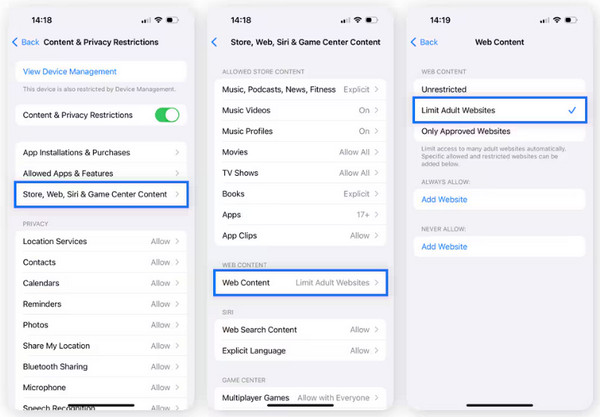
Step 1Go to the Settings app on your iPhone. Then, tap the Screen Time button from the list. Later, tap the Content & Privacy Restrictions button from the Restrictions section. Then, select the Store, Web, Siri, & Game Center Content button on the next screen.
Step 2Go to the Web Content section and tap the button with the same name. Later, tap the Limit Adult Content button. Alternatively, you can go to the Never Allow section. Tap the Add Website button and enter all the URLs that can be used to access the websites you want to block.
2. Use a Third-party App
Third-party apps can also be useful for blocking your Safari websites on your iPhone and iPad. Dumb Phone is one of them! It is an app that allows you to block websites from your Safari, including other web browsers, such as Mozilla Firefox and Google Chrome. Block websites on Safari with the steps below using this app.
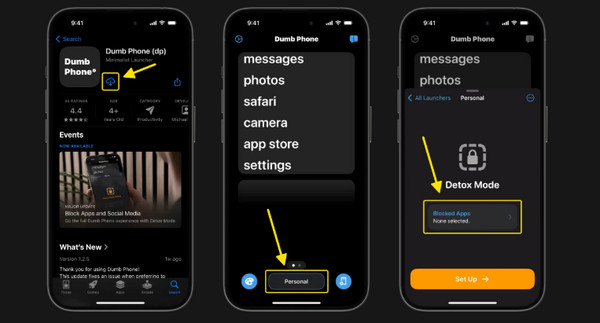
Step 1Go to the App Store and search for Dumb Phone. After that, please tap the Download button and wait for the app to be installed. Later, select the Personal button at the bottom center. Choose the Blocked Apps button. Tap the Select Apps to Block button.
Step 2Search for Safari and tap its button from the options list. Then, tap the Start Defox button at the bottom center. Finally, the websites will be blocked.
Part 2. How to Block a Website on Mac Safari
Can you block websites on Safari Mac? Definitely! The 2 best ways for the blocking process are presented below.
1. Use Screen Time
Mac has Screen Time to block your Safari websites, too! Ensure that the Screen Time passcode is known. If not, you need to bypass Screen Time passcode, which will be a difficult process. The steps below will help you block some websites on your Mac's Safari.
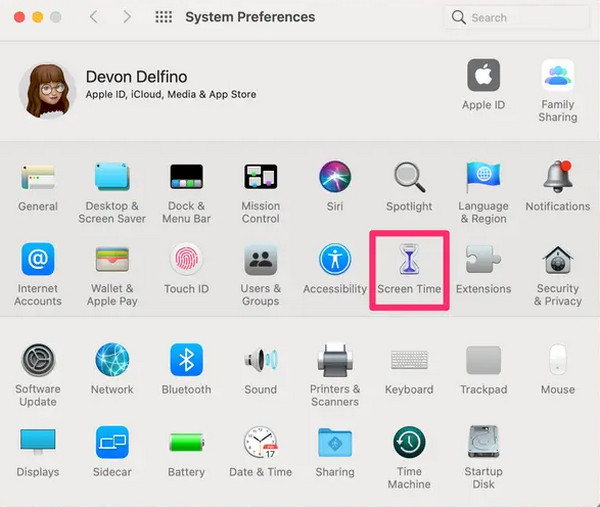
Step 1Click the Apple button at the top left and choose the System Preferences button. Select Screen Time from the list afterward. Click the Content and Privacy button from the list. Click the Turn On button to enable it.
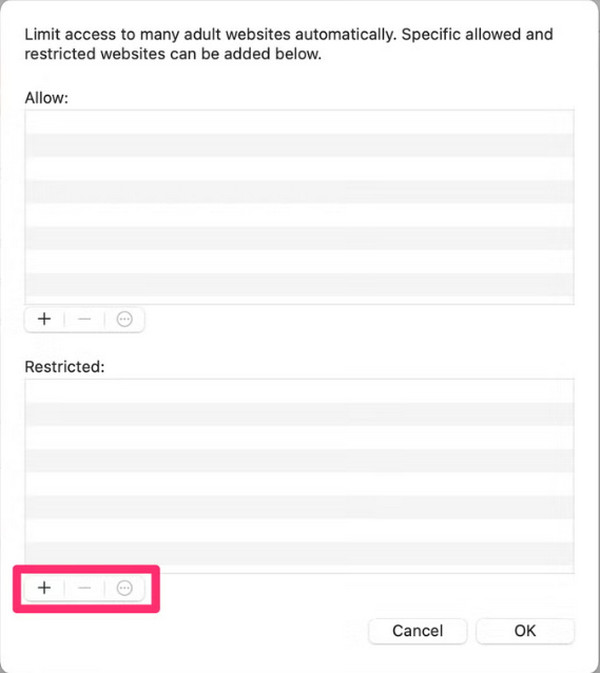
Step 2Select the Limit Adult Websites button. You can also click the Customize button at the bottom. Go to the Restricted section and click the Plus button at the bottom left. Enter the URLs of the websites you want to block. Finally, click the OK button to block the websites.
2. Use Safari Extension
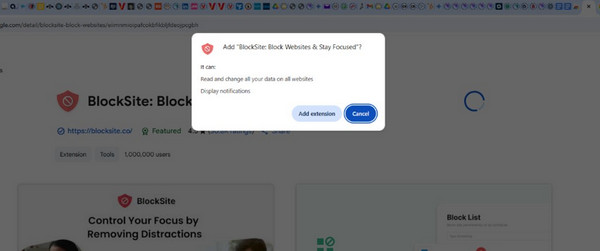
BlockSite is a Safari extension that allows you to block websites on your Mac. It is completely free! It can also be used on your Google Chrome and Mozilla Firefox. Please use the tool by following the detailed instructions below.
Download BlockSite on your web browser. Then, locate the file and click the Add Extension button at the top center. Later, the extension will run automatically. It blocks the websites that have violent and adult content. You cannot access the websites afterward, unless you deleted the mentioned extension.
Part 3. How to Remove Restrictions on iPhone or iPad With FoneLab iOS Unlocker
After blocking the Safari websites, some users cannot access them when needed due to the forgotten iPhone or iPad Screen Time passcode. FoneLab iOS Unlocker will be a great help! It can turn off retrictions on iPhone and iPad Safari without the code. The best thing about it is that it does not wipe out the data stored from the mentioned Apple devices. iOS 26, iOS 27 Beta and earlier versions are supported by this tool.

FoneLab Helps you unlock iPhone screen, Removes Apple ID or its password, Remove screen time or restriction passcode in seconds.
- Helps you unlock iPhone screen.
- Removes Apple ID or its password.
- Remove screen time or restriction passcode in seconds.
Furthermore, other restrictions from the iPhone and iPad can also be removed. It includes the iCloud Activation Lock, MDM, SIM lock, and more. Please use the steps below to know how to use the tool.
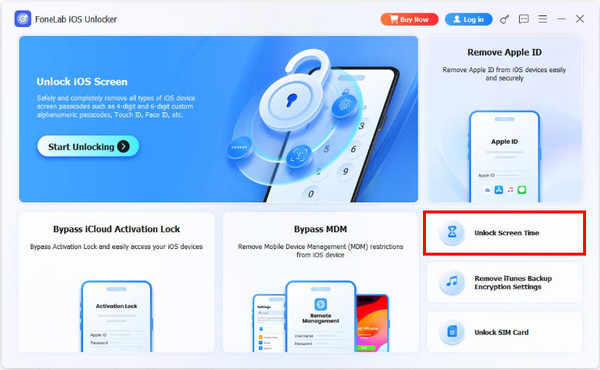
Step 1Go to the main website of FoneLab iOS Unlocker. Download, install, and open the tool on your computer afterward. The supported features of the tool will be prompted. Click the Unlock Screen Time feature on the right.
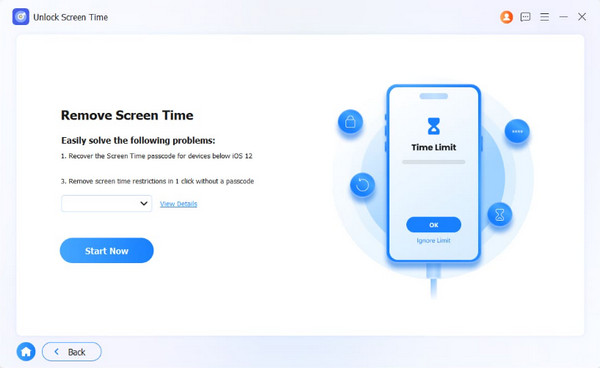
Step 2Plug your iPhone or iPad into the computer with your USB cable. Later, please choose the Start Now button at the bottom left.
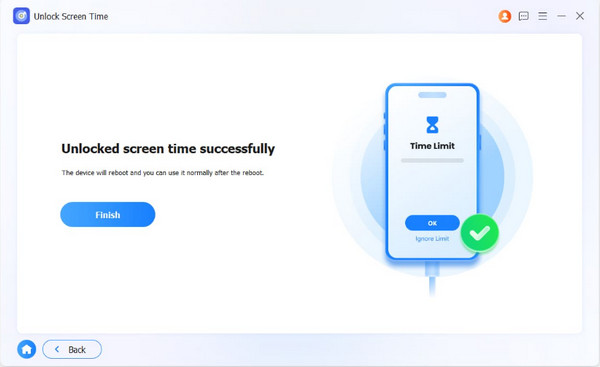
Step 3Follow the on-screen instructions to proceed. Click the Unlock button, and the bypass process for your Screen Time will start. Finally, click the Finish button at the bottom left to complete the process.
Part 4. FAQs about How to Block Website on Safari
How to access blocked websites?
Some websites are blocked in different countries due to security threats. If you want to access them, you can use a proxy server or VPN. In this case, you can choose a server location without revealing your data.
Which browser opens all restricted websites?
Multiple websites allow users to access some blocked social media, gaming, and more. It includes Aloha Browser, Brave Browser, etc.
All in all, this article teaches you how to block website on Safari using your Mac, iPad, and iPhone. You can use their built-in feature and third-party applications. FoneLab iOS Unlocker is presented in this article to help you bypass Screen Time on your iPhone and iPad when you've forgotten the passcode. You can also use it to remove Apple ID, bypass iCloud Activation, and more on the mentioned devices. Download it now to explore more of what it can do!



