
 iPhone Data Recovery
 iOS System Recovery
 iOS Data Backup & Restore
 iOS Unlocker
 iPhone Password Manager
 Location Changer
 Android Data Recovery
 Broken Android Data Extraction
 Android Data Backup & Restore
 Android Unlocker
 FoneTrans for iOS
 iPhone Data Eraser
 iPhone Cleaner
 HEIC Converter
 HyperTrans
 WhatsApp Transfer for iOS
 Mac Sweep
 Data Retriever
 Mac Data Retriever
 Video Converter Ultimate
 Screen Recorder
 Phone Mirror
- Part 1. How to Block Apps on iPhone by Locking or Hiding Apps
- Part 2. How to Block Apps on iPhone With Screen Time
- Part 3. How to Block Apps on iPhone by Using Guided Access
- Part 4. How to Block Apps on iPhone Using Content & Privacy Controls
- Part 5. How to Bypass Screen Time Passcode When You Forgot
- Part 6. FAQs about How to Block Apps on iPhone
- Unlock Apple ID
- Bypass iCloud Activation Lock
- Doulci iCloud Unlocking Tool
- Factory Unlock iPhone
- Bypass iPhone Passcode
- Reset iPhone Passcode
- Unlock Apple ID
- Unlock iPhone 8/8Plus
- iCloud Lock Removal
- iCloud Unlock Deluxe
- iPhone Lock Screen
- Unlock iPad
- Unlock iPhone SE
- Unlock Tmobile iPhone
- Remove Apple ID Password
How to Block Apps on iPhone in 4 Proven Techniques
 Updated by
 The iPhone has built-in applications that offer different operations for its users. Besides that, you can also download apps from the App Store. Having an account can let you do that, either digitally or for free. However, some applications have age restrictions. Some content is not appropriate for kids.
Can you block apps on iPhone? Definitely, yes! Apple allows you to block apps on iPhone in multiple ways. In this article, we will show you the 4 most convenient approaches for the process. Please proceed to read this article to know the blocking processes.

Guide List
- Part 1. How to Block Apps on iPhone by Locking or Hiding Apps
- Part 2. How to Block Apps on iPhone With Screen Time
- Part 3. How to Block Apps on iPhone by Using Guided Access
- Part 4. How to Block Apps on iPhone Using Content & Privacy Controls
- Part 5. How to Bypass Screen Time Passcode When You Forgot
- Part 6. FAQs about How to Block Apps on iPhone
Part 1. How to Block Apps on iPhone by Locking or Hiding Apps
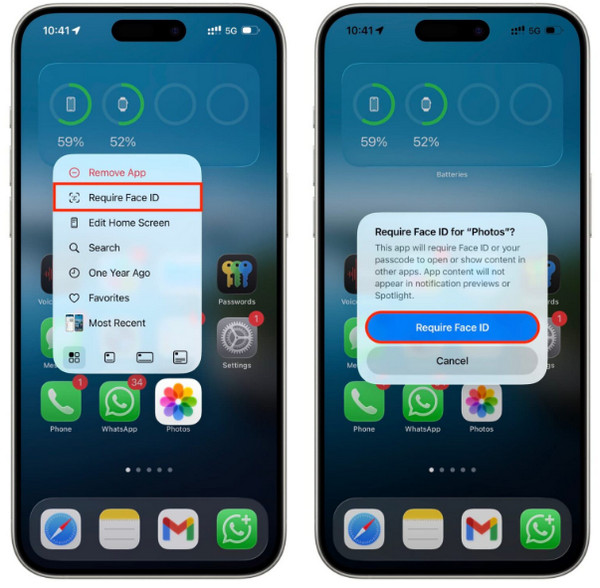
How to block a specific app on iPhone? You can hide or lock the applications on your iPhone to do that. The app will require a passcode, Touch ID, or Face ID to access them. Please see the steps below.
If you want to lock or hide your iPhone app, please locate it on the Home Screen. Then, long-press it and select the Require Face ID/Touch ID/Passcode. Select the Hide and Require Face ID/Touch ID/Passcode. Confirm the process by tapping the Hide App button.
Part 2. How to Block Apps on iPhone With Screen Time
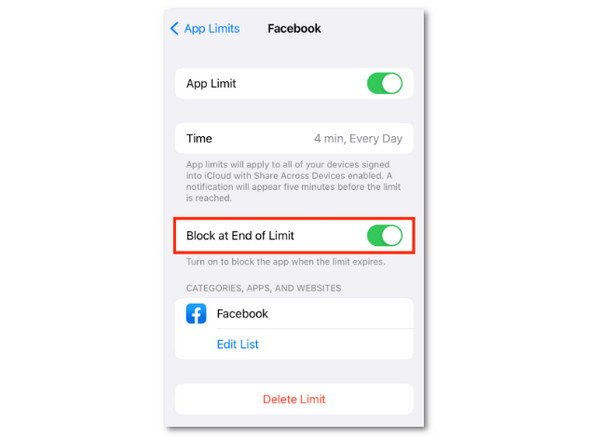
How to set screen time on iPhone? It is easy! Turning on App Limits will help you block applications on your iPhone. It has an additional feature, which is the Block at End of Limit to block the apps after reaching the limit. See how to block apps on kids iPhone with Screen Time.
Open the iPhone Settings. Tap the Screen Time button, then select App Limits. Later, select the Add Limit button. Choose which app categories you want to limit. Tap the Next button and set the daily amount. Turn on the Block at End of Limit button also.
Part 3. How to Block Apps on iPhone by Using Guided Access
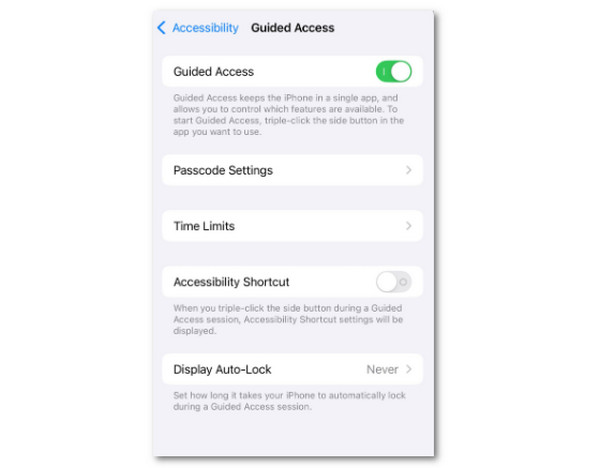
Guided Access is a feature on an iPhone that allows you to lock a single app. So, you cannot access the others. Accessing and using it is simple. Please refer to the steps below to know how to block app on iPhone with Guided Access.
Open the Settings app on your iPhone. Select the Accessibility button, then choose Guided Access. Later, it will be turned on. Activate the guided access after opening the app you want to open. To do that, triple-click the Side or Home button.
Part 4. How to Block Apps on iPhone Using Content & Privacy Controls
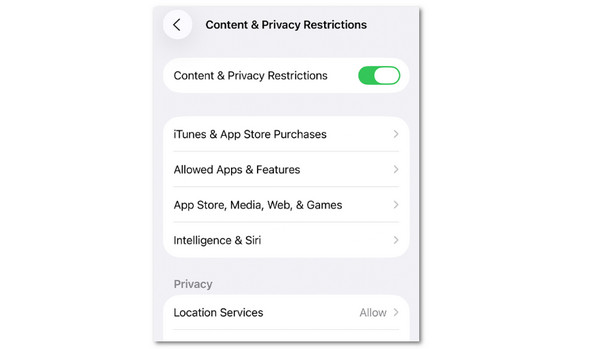
Besides the App Limits feature, Screen Time can also block applications on your iPhone with the Content & Privacy Restrictions feature it supports. It can block App Store purchases, explicit content, privacy settings, and more. The steps below will help you with the mentioned process.
Please unlock the iPhone and go to the Home Screen section. After that, please tap the Screen Time option from the list. Later, tap the Content & Privacy Restrictions button. Enter the Screen Time passcode. Finally, you can select one of the features it supports to block applications on your iPhone. You can see them in the screenshot below.
Part 5. How to Bypass Screen Time Passcode When You Forgot
However, iPhone users can forget the Screen Time passcode. So, they cannot make any changes to the feature. Below are two methods to safely bypass and reset it without data loss.
1. Reset Screen Time Passcode With Apple ID
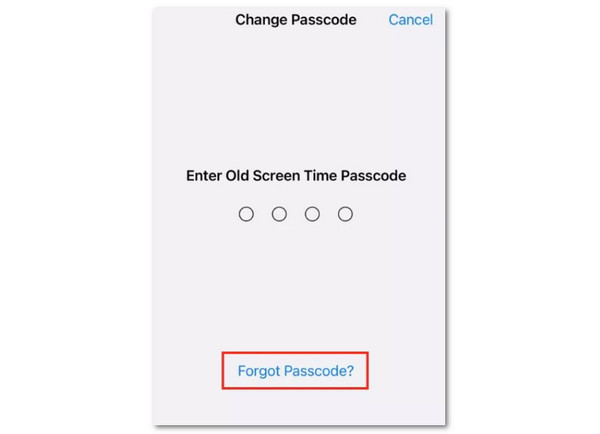
If you do not know the Screen Time passcode, it is better to reset it first. An Apple ID is required for verification. The iPhone will allow you to create a new passcode afterward. This method requires an internet connection. It will not delete your data stored on your iPhone. Please use the steps below to reset your iPhone Screen Time passcode.
Open the iPhone and go to the Settings application. After that, please select the Screen Time button on the list. Tap the Change Screen Time Passcode button. Tap the same button and select the Forgot Passcode button. Finally, enter your Apple ID for verification, then create your new Screen Time passcode.
2. Use FoneLab iFoneWiz
FoneLab iFoneWiz is a tool that can bypass Screen Time passcode on your iPhone. The tool can do this without an internet connection. You will find this tool convenient because it will not delete your content and settings on your iPhone before, during, and after the process. Your data is safe with the tool!

iFoneWiz Helps you unlock iPhone screen, Removes Apple ID or its password, Remove screen time or restriction passcode in seconds.
- Helps you unlock iPhone screen.
- Removes Apple ID or its password.
- Remove screen time or restriction passcode in seconds.
The tool has an intuitive interface, which novices will find helpful. Besides the Screen Time passcode, it can also remove the Apple ID, iCloud Activation Lock, iTunes backup encryption, and more. Please use the steps below to know how to operate the tool easily.
Step 1Get the tool by clicking the Free Download option. Then, choose the file and set it up. Later, install and open the tool on your computer as the first process.

Step 2Click the Unlock Screen Time feature at the bottom right. Plug your iPhone into your computer. Later, please click the Start Now button at the bottom left.
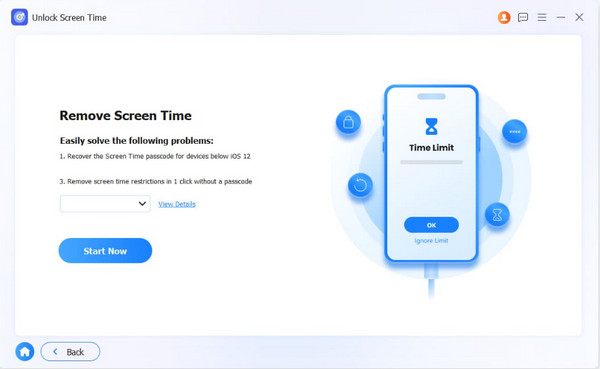
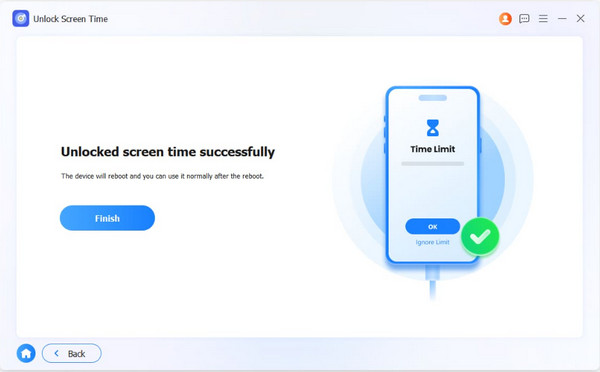
Step 3Please follow the on-screen instructions for the other operations you need to perform on your iPhone. Then click the Unlock button in the center to start bypassing iPhone Screen Time. Click the Finish button to end the unlocking process for your iPhone Screen Time.
Part 6. FAQs about How to Block Apps on iPhone
How to block apps from being downloaded on iPhone?
Open the Settings app available on your iPhone. Then, select the Screen Time button from the options list. Select the Content & Privacy Restrictions button. Later, turn it on, then choose the iTunes & App Store Purchases option. Choose the Don’t Allow button from the Installing Apps section.
Is there an app blocker for an iPhone?
Yes. There are app blockers on an iPhone using the downloaded versions. AppBlock, Opal, and Freedom are some of them. However, these apps are not recommended due to security risks.
How to block apps on kids iPhone? This article explains the 4 leading methods to do the process. FoneLab iFoneWiz is here to help you bypass the Screen Time passcode when you've forgotten it. It can also be used to remove the iPhone’s MDM, Apple ID, iTunes backup encryption settings, and more features. Download it now to know more about it!



