
 iPhone Data Recovery
 iOS System Recovery
 iOS Data Backup & Restore
 iOS Unlocker
 iPhone Password Manager
 Location Changer
 Android Data Recovery
 Broken Android Data Extraction
 Android Data Backup & Restore
 Android Unlocker
 FoneTrans for iOS
 iPhone Data Eraser
 iPhone Cleaner
 HEIC Converter
 HyperTrans
 WhatsApp Transfer for iOS
 Mac Sweep
 Data Retriever
 Mac Data Retriever
 Video Converter Ultimate
 Screen Recorder
 Phone Mirror
- Convert AVCHD to MP4
- Convert MP4 to WAV
- Convert MP4 to WebM
- Convert MPG to MP4
- Convert SWF to MP4
- Convert MP4 to OGG
- Convert VOB to MP4
- Convert M3U8 to MP4
- Convert MP4 to MPEG
- Embed Subtitles into MP4
- MP4 Splitters
- Remove Audio from MP4
- Convert 3GP Videos to MP4
- Edit MP4 Files
- Convert AVI to MP4
- Convert MOD to MP4
- Convert MP4 to MKV
- Convert WMA to MP4
- Convert MP4 to WMV
Extract Audio from Video Using Outstanding Approaches
 Updated by
 Greetings! Please inform me how to extract audio from video. My favorite actress recently released a music video, but her management hasn't released the official audio yet. So, I downloaded the video and plan to extract its audio. This way, I can listen to her music as much as I want whenever and wherever. Does anyone have a suggestion or advice? Thank you!
Are you facing something like the situation above? If so, your mind can now be at ease because extracting a video's audio is no longer a problem with the program we will present below. Audio extraction means removing the sound or music from the video and saving it as a new file. Aside from getting your favorite music from the media, it is also performed for many purposes.
For instance, you intend to edit only the video's audio using a specialized audio editor. However, since this editor only accepts audio formats, it is necessary to extract the audio first. Different situations are possible, but no worries. You no longer have to tire yourself to find an effective tool for such a concern. Simply explore the following parts, and all your troubles will be resolved.

Guide List
Part 1. Extract Audio from Video with FoneLab Video Converter Ultimate
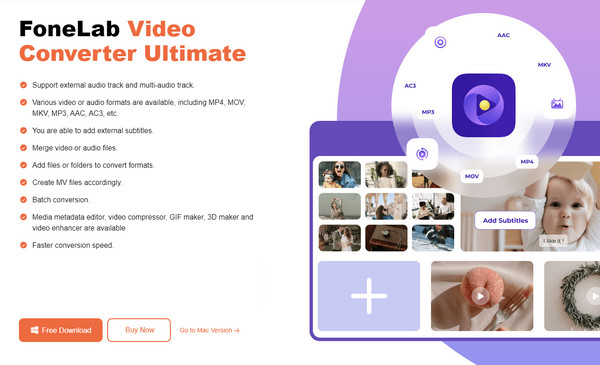
If you wish to save the audio of a certain video as another file, FoneLab Video Converter Ultimate can help you. This tool’s conversion feature lets you easily save your media file’s audio to almost any format, including MP3, AAC, WAV, FLAC, WMA, AC3, AIFF, MKR, AMR, OGG, M4A, and more. It also supports countless input formats, so you can import almost any video you like and extract its audio accordingly. You may also enhance the sound afterward.

Video Converter Ultimate is the best video and audio converting software which can convert MPG/MPEG to MP4 with fast speed and high output image/sound quality.
- Convert any video/audio like MPG, MP4, MOV, AVI, FLV, MP3, etc.
- Support 1080p/720p HD and 4K UHD video converting.
- Powerful editing features like Trim, Crop, Rotate, Effects, Enhance, 3D and more.
Fortunately, FoneLab Video Converter Ultimate doesn’t only allow you to extract and save a video’s audio. It also offers features like Noise Remover to make your output sound better and more professional. Aside from that, the audio compressor is available, allowing you to reduce the file size if needed. That’s not all. If you suddenly need to enhance videos later, this tool’s editing features are already prepared, and you only have to explore them in the Toolbox section.
Comprehend the untroubled procedure underneath as a pattern for using the video audio extractor, FoneLab Video Converter Ultimate:
Step 1On the FoneLab Video Converter Ultimate site, select Free Download, and the tool’s installer will be directed to your Downloads section. After saving, double-click the file from the folder to show the program’s Install tab and click it. The installation will then be processed shortly, displaying the Start tab. Select it to start the program finally.
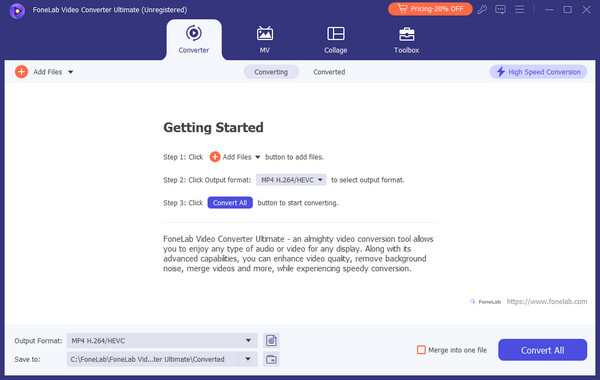
Step 2After launching, hit Add Files on the main interface’s top left or center to exhibit the quick-access folder. Browse it quickly until you find your video, then open it to import to the program. Various options, like Edit, Rename, etc., will also be displayed, so modify them.
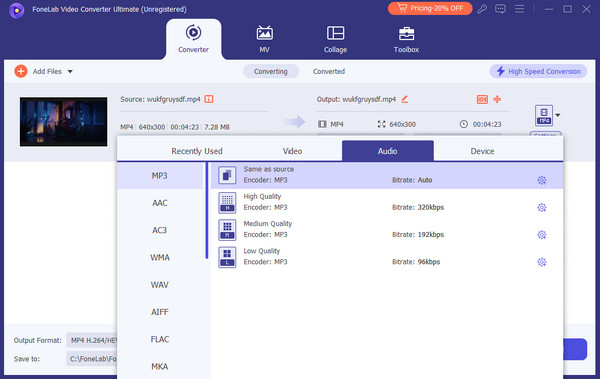
Step 3Once you’re content with your audio modifications, it's time to click the Format button on the right. It will show the video formats on another window, so click Audio at the top first, then pick your preferred audio format in the left column. Finally, tick the Convert All button to save only your chosen video’s audio.
Video Converter Ultimate is the best video and audio converting software which can convert MPG/MPEG to MP4 with fast speed and high output image/sound quality.
- Convert any video/audio like MPG, MP4, MOV, AVI, FLV, MP3, etc.
- Support 1080p/720p HD and 4K UHD video converting.
- Powerful editing features like Trim, Crop, Rotate, Effects, Enhance, 3D and more.
Part 2. Extract Audio from Video Using Online Tool
Restream Audio Extractor is also an excellent option to extract audio from your video files. Unlike the previous program, this one is online-based, making it suitable for many devices. Thus, you can use it on almost any browsing app or program, whether on a mobile device or computer. What makes it more convenient is its clean and simple conversion page design. You will immediately understand its process or navigation, especially because it only offers basic functions. You only have to upload and extract the file directly to finish.
Bear in mind the basic instructions below to grasp how to extract audio from video on a phone or computer browser using Restream Audio Extractor:
Step 1Access Restream Audio Extractor’s official page, and the Choose Files button will be displayed at the center. Select it to view the shortcut folder and explore its content. When you locate the video with the audio you wish to extract, open it to add to the page.
Step 2Everything will immediately be set once the video is uploaded. Thus, click Extract Audio to process the media extraction. Finally, hit Download on the next page to save the file.
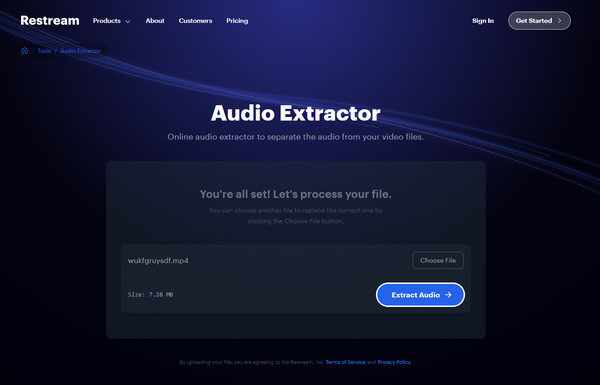
Restream Audio Extractor’s are limited, as mentioned. Hence, you won’t be able to upgrade any audio aspect, even if you only want to trim or cut unnecessary parts. It is only for direct audio extraction; thus, if you also intend to modify your video’s audio, FoneLab Video Converter Ultimate would be the better option. It offers features for media modification and more.
Video Converter Ultimate is the best video and audio converting software which can convert MPG/MPEG to MP4 with fast speed and high output image/sound quality.
- Convert any video/audio like MPG, MP4, MOV, AVI, FLV, MP3, etc.
- Support 1080p/720p HD and 4K UHD video converting.
- Powerful editing features like Trim, Crop, Rotate, Effects, Enhance, 3D and more.
Part 3. How to Extract Audio from Video on an iPhone through The iMovie App
On the other hand, the iMovie app will be enough if you only plan to extract a video’s audio on your iPhone. It is built into the device, so its main advantage is that you no longer have to install or go to any other platform. The app is already pre-installed in the comfort of your iPhone, and you only have to open it to use. Meanwhile, some know iMovie only as a basic video editor. It’s true at some point since most of its features are basic, but you must also know it can detach a video file’s audio. You can also look forward to its hassle-free process.
Pay attention to the simple operation below to extract audio from video on iPhone iMovie:
Step 1Launch the iMovie interface on your iPhone screen, then tap Start New Project at the bottom. Afterward, choose Movie and select your video from the available media files to import.
Step 2Once imported, tap the video clip from the timeline and hit Detach at the bottom. Its audio will then be separated from the video, so start managing it to achieve your desired result. Pick the Done tab on the uppermost left to finish and save the output when satisfied.
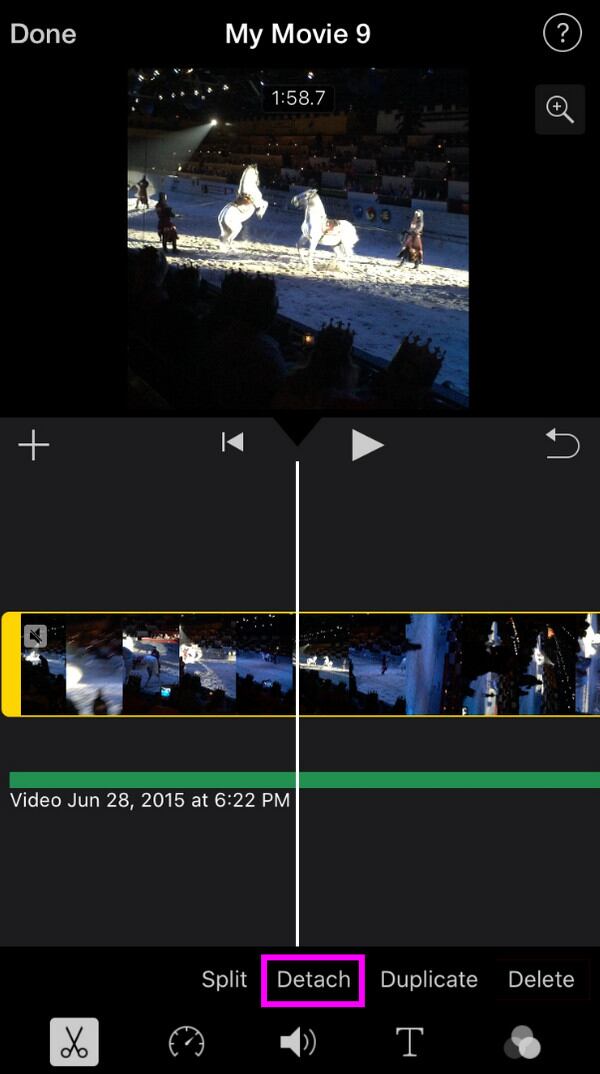
As you know, iMovie is only accessible for Apple device users. So, it won’t be suitable if you use a Windows computer, Android device, etc. Instead, the other tools above will be more appropriate.
Moreover, you can also try recording audio from the video files to extract the audio you want. Choosing an outstanding recording tool will be very helpful. For example, FoneLab Screen Recorder, which is a user-friendly tool with many useful features, can make your audio or video files more attractive.
Video Converter Ultimate is the best video and audio converting software which can convert MPG/MPEG to MP4 with fast speed and high output image/sound quality.
- Convert any video/audio like MPG, MP4, MOV, AVI, FLV, MP3, etc.
- Support 1080p/720p HD and 4K UHD video converting.
- Powerful editing features like Trim, Crop, Rotate, Effects, Enhance, 3D and more.
Part 4. FAQs about Extract Audio from Video
What video formats allow audio extraction?
Most video formats allow audio extraction, especially the popular ones like MP4, MOV, MKV, AVI, and more. However, it may also depend on the audio extractor you use. Hence, FoneLab Video Converter Ultimate is strongly suggested since it supports countless input formats.
Is it possible to extract audio from a YouTube video?
It also depends on the audio extractor. Unfortunately, only a few support such an extraction feature, so you may have to search thoroughly for that, but ensure you use a reliable one.
Video Converter Ultimate is the best video and audio converting software which can convert MPG/MPEG to MP4 with fast speed and high output image/sound quality.
- Convert any video/audio like MPG, MP4, MOV, AVI, FLV, MP3, etc.
- Support 1080p/720p HD and 4K UHD video converting.
- Powerful editing features like Trim, Crop, Rotate, Effects, Enhance, 3D and more.
Audio extraction can sometimes go wrong if you use an unsuitable method to follow incorrect steps. Hence, ensure your methods will be appropriate for a successful media extraction.



