
 iPhone Data Recovery
 iOS System Recovery
 iOS Data Backup & Restore
 iOS Unlocker
 iPhone Password Manager
 Location Changer
 Android Data Recovery
 Broken Android Data Extraction
 Android Data Backup & Restore
 Android Unlocker
 FoneTrans for iOS
 iPhone Data Eraser
 iPhone Cleaner
 HEIC Converter
 HyperTrans
 WhatsApp Transfer for iOS
 Mac Sweep
 Data Retriever
 Mac Data Retriever
 Video Converter Ultimate
 Screen Recorder
 Phone Mirror
- Unlock Apple ID
- Bypass iCloud Activation Lock
- Doulci iCloud Unlocking Tool
- Factory Unlock iPhone
- Bypass iPhone Passcode
- Reset iPhone Passcode
- Unlock Apple ID
- Unlock iPhone 8/8Plus
- iCloud Lock Removal
- iCloud Unlock Deluxe
- iPhone Lock Screen
- Unlock iPad
- Unlock iPhone SE
- Unlock Tmobile iPhone
- Remove Apple ID Password
Apple Verification Code: Complete Information You Must Know
 Updated by
 What is a verification code? It is a 4 to 8-digit code that will be sent to an account to confirm your identity or action. It is commonly used for singing in, resetting a password, confirming a transaction, or more. Apple also requires a verification code for your Apple ID account.
In this article, we will further explain what an Apple ID verification code is. Also, you will know how to get one. Additional methods for not getting a verification code from the mentioned account are also included. Know the full details about this topic as you scroll below.

Guide List
Part 1. What is Apple ID Verification Code
Accounts, like Apple ID, are secure. It is due to the 4, 8, or 6 digit verification code that is needed for authentication. It is a security feature that allows you to block unauthorize access from your Apple ID. In this case, no one can access or make changes to your Apple ID without your consent. Also, a verification code is needed to sign in with another device or iCloud.
Part 2. How to Get Apple ID Verification Code
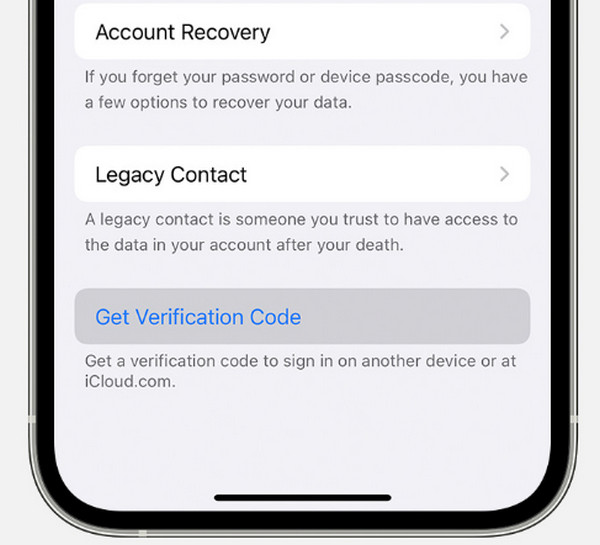
You may get an Apple ID verification code from your iPhone, including the other devices where the Apple ID is signed in. On the other hand, how to get Apple ID verification code without phone? You can use your email associated with your device. Use the steps below to know more.
Tap the Settings app. Then, select your name at the top of the main interface. Then, tap the Password & Security button. Later, tap the Get Verification Code button.
Part 3. What If You Can't Receive Apple Verification Code
However, there are instances where you cannot receive an Apple ID verification code. See the methods below to remove or reset your Apple ID account.
1. Reset Password for Apple ID
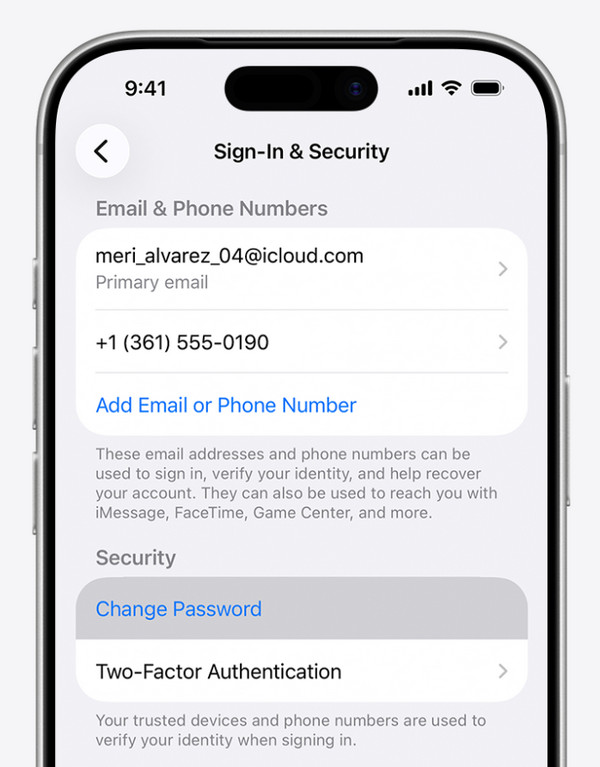
You can reset Apple ID password on your iPhone. If you do not know the password, you can use the iPhone screen lock passcode instead. If the mentioned security is unknown, this section is impossible to attain. You may skip this part and use the other methods. Use the steps below for this procedure.
Go to the Settings application on your iPhone. After that, select the account name at the top of the main interface. Then, select the Sign-In & Security button from the list. Later, select the Change Password button from the Security section. Enter your current iPhone passcode for authentication. Finally, create your new Apple ID password and confirm it by following the on-screen steps.
2. Restore iPhone in Recovery Mode
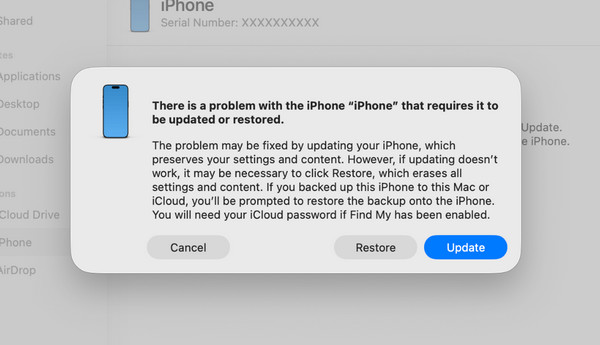
Recovery mode is an advanced process that is commonly used when the iPhone faces issues. It needs a computer to be executed. Please use the steps below as your guide.
Step 1Put your iPhone into its recovery mode. If the iPhone that you have has a Home button, kindly press the Side and Volume Down or Home button. Then, wait for the Connect to Computer screen interface.
If the iPhone has no Home button, press and quickly release its Volume Up button. The same goes for its Volume Down button. Later, long-press the Side button of your iPhone. The mentioned screen must be prompted.
Step 2Grab your USB cable. Then, use it to plug the iPhone into the computer. Open Finder, Apple Devices, or iTunes. Then, a small window will appear. The program will scan for available errors on your iPhone. Please click Restore at the bottom right. An iPhone will be restored to its factory settings after a few minutes. Set it up as new afterward.
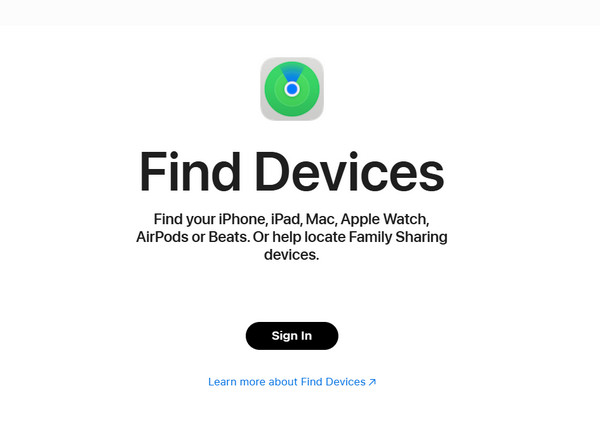
3. Erase iPhone with iCloud
Besides tracking your iPhone, it can also remove the Apple ID from it. It can also erase the iPhone to remove the account. See the steps below to know how.
Access the most trusted browser on the device you choose to use. After that, search for the iCloud Find My main website. The full information on the website will appear. Please select the Sign In button. Enter the associated Apple ID. Then, please go to the All Devices section and choose your iPhone name. Finally, select the Remove This Device or Erase This Device button.
4. Remove Apple ID Using FoneLab iOS Unlocker

FoneLab Helps you unlock iPhone screen, Removes Apple ID or its password, Remove screen time or restriction passcode in seconds.
- Helps you unlock iPhone screen.
- Removes Apple ID or its password.
- Remove screen time or restriction passcode in seconds.
FoneLab iOS Unlocker can remove the Apple ID from iPhone. It deleted all the content and settings your iPhone contains. It does not need any authentication information to remove the account. It uses a USB cable, so an internet connection is not necessary. Also, you can use it to remove Screen Time restrictions, screen lock, SIM lock, iCloud Activation Lock, iTunes backup encryption settings, and MDM profile. See how to use the tool with the steps below.
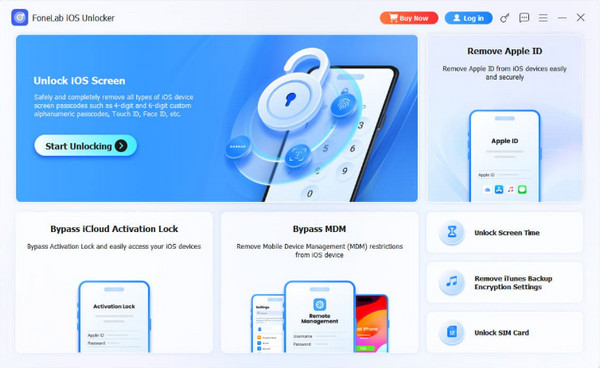
Step 1Click Free Download on the main website of FoneLab iOS Unlocker. After that, locate the file and set it up, depending on the required setup for your computer. Then, install it to automatically open it on the said device. On the first interface, please choose the Remove Apple ID feature at the top right.
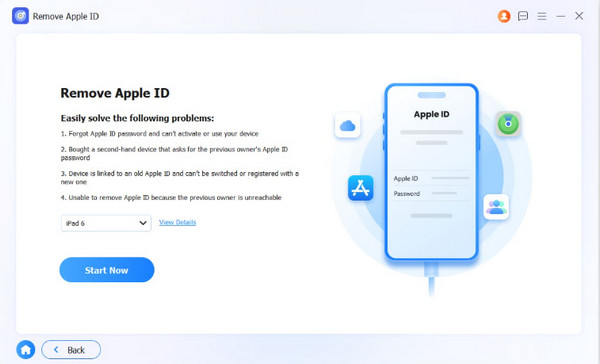
Step 2The procedure will be explained on the next screen. First, plug an iPhone into the computer using your compatible and working USB cable. Later, click the Start Now button at the bottom left. Tap the Trust button from your iPhone afterward. Later, click the Trusted button on the software’s interface.
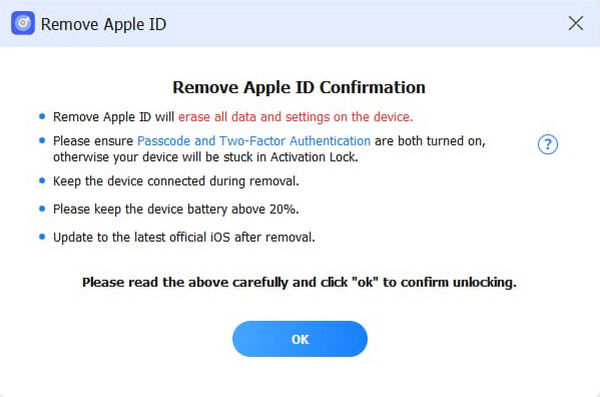
Step 3Please ensure that the Find My feature is off. Then, click OK at the bottom center of the screen. The tool will ask for confirmation. You only need to click the Confirm Again button at the bottom. The tool will begin to remove the Apple ID from your iPhone.
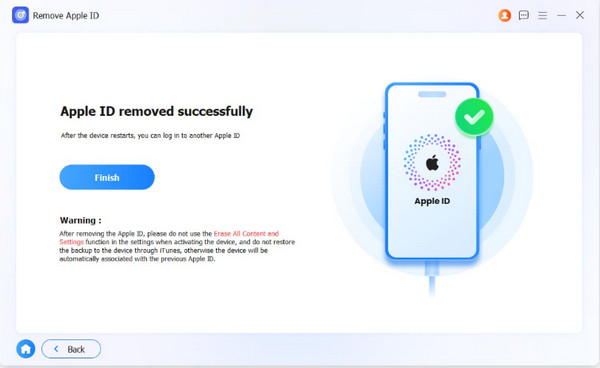
Step 4The tool will notify you if the Apple ID is successfully removed. Select the Use Device Password button afterward. This way, you can use a new Apple ID afterward. Click Finish at the bottom center of the tool to complete the process afterward. Unplug the iPhone from the computer for the safety of your data or device.
Part 4. FAQs about Apple ID Verification Code
What verification code shows if your phone is hacked?
There is no specific code to show when your phone, including an iPhone, is hacked. On the other hand, you can check if the mentioned device has strange behavior, like shutting down, rebooting repeatedly, etc. The mentioned issues are common behavior when the phone is hacked.
Why did I get a verification code I didn't request?
Getting a verification code means that you want to access or make changes to your account. If you receive it without doing anything to your account, it means that someone is trying to make changes or access to your account. It is better to secure your account even more.
This article teaches you how to get an Apple verification code. FoneLab iOS Unlocker is here to help you get rid of the mentioned account from your iPhone or iPad. Besides that, it can bypass Screen Time restrictions, MDM profile, screen lock, and more. Download it to know more.



