
 iPhone Data Recovery
 iOS System Recovery
 iOS Data Backup & Restore
 iOS Unlocker
 iPhone Password Manager
 Location Changer
 Android Data Recovery
 Broken Android Data Extraction
 Android Data Backup & Restore
 Android Unlocker
 FoneTrans for iOS
 iPhone Data Eraser
 iPhone Cleaner
 HEIC Converter
 HyperTrans
 WhatsApp Transfer for iOS
 Mac Sweep
 Data Retriever
 Mac Data Retriever
 Video Converter Ultimate
 Screen Recorder
 Phone Mirror
- Unlock Apple ID
- Bypass iCloud Activation Lock
- Doulci iCloud Unlocking Tool
- Factory Unlock iPhone
- Bypass iPhone Passcode
- Reset iPhone Passcode
- Unlock Apple ID
- Unlock iPhone 8/8Plus
- iCloud Lock Removal
- iCloud Unlock Deluxe
- iPhone Lock Screen
- Unlock iPad
- Unlock iPhone SE
- Unlock Tmobile iPhone
- Remove Apple ID Password
Eminent Ways on How to Track A Samsung Phone Easily
 Updated by
 Would it be possible to track my Samsung phone? I misplaced it a few days ago and hadn’t had enough time to search for it, so I’m currently using my spare device in its place. I know it’s only inside my house, but I really can’t recall where I last used or saw it. Would anyone be able to suggest an effective service to help me locate my missing Samsung phone? Thanks!
A lost or misplaced device is a common concern in people’s daily lives, especially those who are too busy to take note of the details in their surroundings. After all, a phone is something you can easily bring everywhere, but at the same time, it is also one that you can easily forget. Luckily, developers like Samsung have already prepared for such concerns, providing services to help users track their devices. We have given enough details and directions below; continue reading.

Guide List
Part 1. How to Track Samsung Phone with SmartThings Find
First and foremost, Samsung users are lucky because the brand has its own device-tracking service called SmartThings Find. This integrated service acts as your digital link to your Samsung devices and accessories, including phones, tablets, and earphones. By accessing the designated website, you can easily view your phone’s location, allowing you to track and find it without difficulty.
Besides, one of the great things about this service is that it automatically turns on after you register your Samsung account on the device. Hence, even if you haven’t activated the feature on your Samsung phone, as long as you already have an account, you can use it to access SmartThings Find’s site and enjoy its management features, including the device-tracking page.
Bear in mind the simple navigation below to determine how to track Samsung phone with SmartThings Find:
Step 1As mentioned, this service is automatically activated after logging into a Samsung account, but if you want to be sure, head to Settings and select Security and privacy. After that, choose Lost device protection > Find My Mobile, then toggle Allow this phone to be found.
Step 2Once you’re ready to track your Samsung phone, open SmartThings Find’s website through your trusted browser and sign in with your Samsung email and password. Click it to view its location on the page once your device’s name appears on the left.
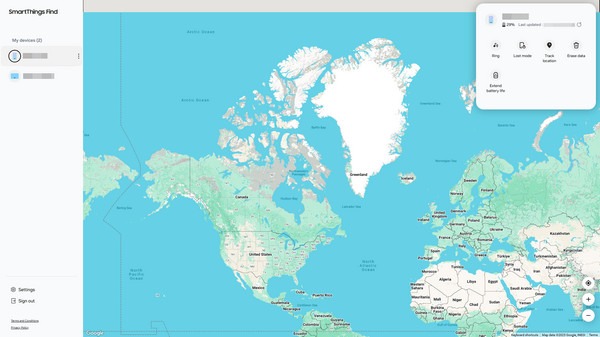
As you can see, Find My Mobile is the feature that must be enabled to use SmartThings Find and track your Samsung device. Thus, don’t be confused, as this service is generally known as Find My Mobile to many, especially since it’s also the SmartThings Find website’s former name.
Part 2. How to Track A Samsung Phone with Google Find My Device
Other than Samsung’s very own SmartThings Find, learning Google’s Find My Device will also help track your Samsung phone. As you may know, many Google services are also integrated into Android devices, and among the ones you can count on is this device-tracking feature. Like the previous part, it automatically activates once you register your Google account on the Android phone, whether Samsung or other brands. So, visit Find My Device’s main site using the account, and you will be presented with the device’s location on its map-like page.
Imitate the unchallenging process below to track a Samsung phone with Google’s Find My Device:
Step 1Activate Find My Device through Settings > Google > All services. When Google services appear, tap Find Hub in the lower portion and turn on Allow device to be located afterward.
Step 2Log in using your Google account credentials on Find My Device’s site through your browser. Then, opt for your Samsung phone’s name on the left part to track its location.
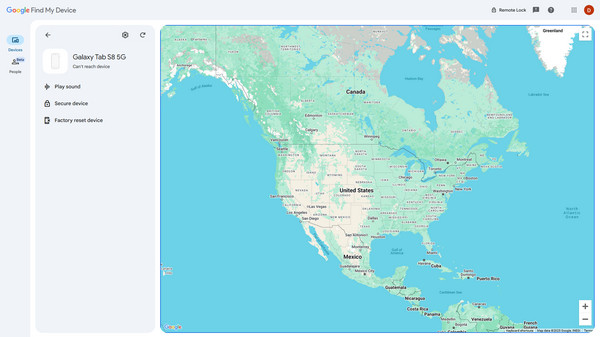
Device-locating isn’t the only service Find My Device provides. If you notice, Play Sound, Secure Device, and Erase Device are included in the page’s management options. Therefore, use them accordingly to manage your Samsung phone or other device remotely.
Part 3. How to Bypass FRP Lock from Samsung
What if you used the option to erase your Samsung device on one of the services above and faced the FRP lock? This is a usual occurrence to some users, especially beginners, since they aren’t aware that the Factory Reset Protection lock automatically turns on on the device after logging into a Google account. Continue below to see how you can bypass it.
Bypass FRP Lock from Samsung Using A Password
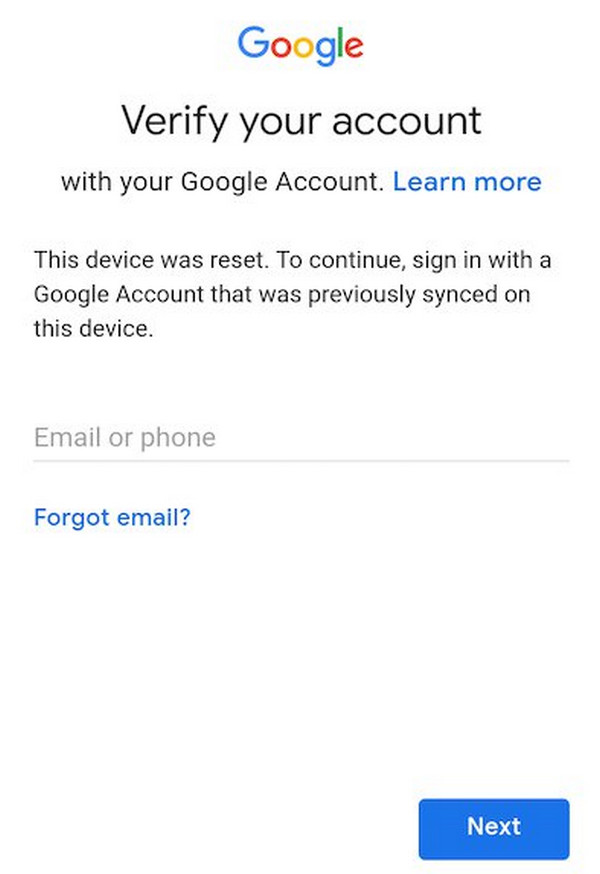
The first solution is the official process that your Samsung phone provides during the FRP lock. You will be able to bypass it easily by simply providing your account credentials. You can instantly navigate the unlocking process since the screen will automatically give you the text field for your credentials.
Act according to the simplified task below to bypass the FRP lock from Samsung using a password:
Step 1On your Samsung phone’s FRP lock screen, enter your email in the provided text field and hit the Next button on the lower screen.
Step 2Once another prompt appears, provide your password and go through the following instructions until you bypass the lock and reaccess your Samsung phone.
Bypass FRP Lock from Samsung via FoneLab Android Unlocker
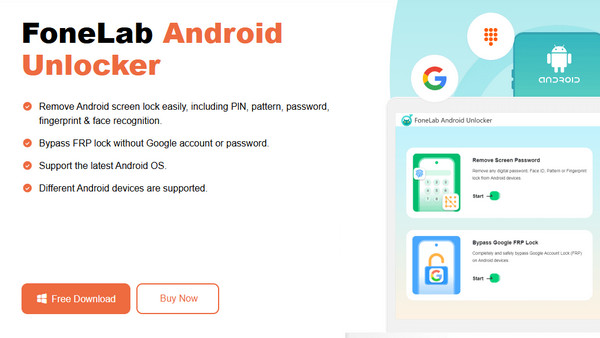
What if you don’t remember your Google account details? Unfortunately, the FRP lock screen won’t let you go through easily. But the good news is that FoneLab Android Unlocker is competent enough to bypass this difficulty. Whether or not you remember your Google credentials, this program will help you, even if you don’t have advanced or technical knowledge about the FRP lock. Its unlocking feature’s process and comprehensive interface are enough to let you complete unlocking the device with ease.

FoneLab Helps you remove Android screen lock easily.
- Unlock PlN, pattern, password on Android.
- Android fingerprint & face recognition are available.
- Bypass Google FRP lock in seconds.
View the secure guidelines below as a sample for bypassing the FRP lock from Samsung via FoneLab Android Unlocker:
Step 1Begin by opting for Free Download on the FoneLab Android Unlocker webpage. This way, the tool’s installer will be downloaded, letting you set up the program afterward. Once the unlocker is ready, initialize it and select Bypass Google FRP Lock on the key interface.
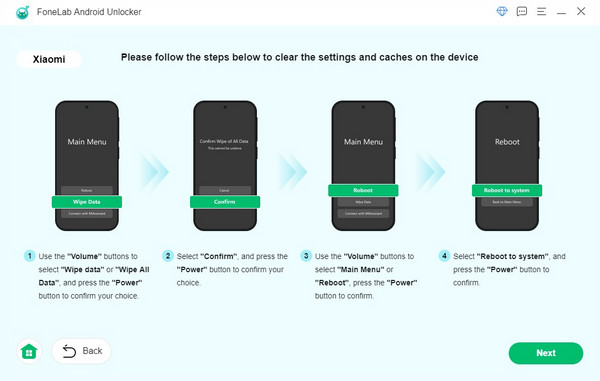
Step 2The supported device brands will be on the succeeding screen, so pick Samsung from it and attach your phone with a USB cable. Ensure it will connect successfully, then, when asked, put it into recovery mode as instructed on the interface. Additional guidelines will be exhibited, so follow them accordingly until your phone bypasses the FRP lock.
Part 4. FAQs about Tracking A Samsung Phone
Can I track my Samsung if it’s turned off?
Unfortunately, you can’t. Since the phone is turned off, the device-tracking service won’t be able to run, especially without the internet. The least you can do is to track its last known location.
Can I track a Samsung phone I left in another country?
Yes, you can. Even if you have already gone home and left your device in a distant place, it’s still possible for device-tracking services to locate it as long as the requirements are met.
Optimize the device-tracking services’ usage above, and you will no longer have to worry about losing your Samsung phone or other devices. Besides, FoneLab Android Unlocker is available if you decide to use the other management features and get locked out. Install it anytime!



