
 iPhone Data Recovery
 iOS System Recovery
 iOS Data Backup & Restore
 iOS Unlocker
 iPhone Password Manager
 Location Changer
 Android Data Recovery
 Broken Android Data Extraction
 Android Data Backup & Restore
 Android Unlocker
 FoneTrans for iOS
 iPhone Data Eraser
 iPhone Cleaner
 HEIC Converter
 HyperTrans
 WhatsApp Transfer for iOS
 Mac Sweep
 Data Retriever
 Mac Data Retriever
 Video Converter Ultimate
 Screen Recorder
 Phone Mirror
- Unlock Apple ID
- Bypass iCloud Activation Lock
- Doulci iCloud Unlocking Tool
- Factory Unlock iPhone
- Bypass iPhone Passcode
- Reset iPhone Passcode
- Unlock Apple ID
- Unlock iPhone 8/8Plus
- iCloud Lock Removal
- iCloud Unlock Deluxe
- iPhone Lock Screen
- Unlock iPad
- Unlock iPhone SE
- Unlock Tmobile iPhone
- Remove Apple ID Password
Secure Methods to Track Android Phone Effortlessly
 Updated by
 Is it possible to track my Android using any apps or services? I admit that I’m not very organized with my belongings, which is why I often misplace my gadgets, especially my phone. So, if there is anything I can use to track my device, it would be significantly helpful. Would anybody please recommend a reliable service? It would be highly appreciated. Thank you!
Have you ever patted your pockets or rummaged through your bag, only to realize your Android phone is nowhere to be found? Whether it's simply buried under a couch cushion or left in a taxi, the feeling is stressful. Thankfully, tracking your device doesn't have to be complex. Simply read this post outlining secure methods to find your device, turning such a crisis into a minor concern.

Guide List
Part 1. How to Track an Android Phone with Google Find My Device
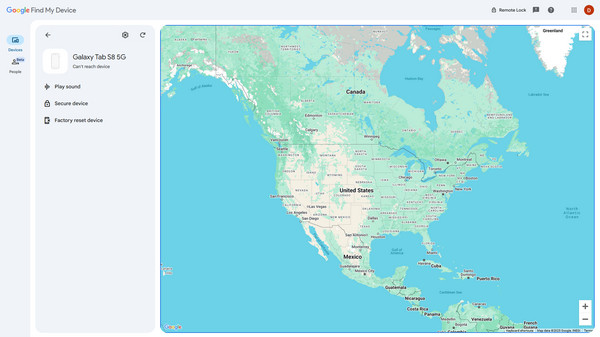
When your Android phone goes missing, time is of the essence. Thus, choosing the fastest path to locate it would be the best option. In this case, that will be Google’s own Find My Device service. Designed specifically for Android, it's a powerful tool you can quickly activate on your phone through the Settings app. Once turned on, you will be able to track it anytime by logging into the service’s official site. It even offers more device management options, such as Play Sound, Secure Device, and Erase Device, which you can use if you need to navigate your phone remotely later.
Note the user-friendly process below to grasp how to track an Android phone for free with Google’s Find My Device:
Step 1Enable Find My Device by heading to your Android’s Settings and tapping Google > All services. Next, find and select Find Hub, then turn on Allow device to be located.
Step 2Once enabled, proceed to Google’s Find My Device site and log in accordingly. You will see your device in the left column afterward, so click it, and the page will provide your phone location.
Part 2. How to Track Android Phone with SmartThings Find
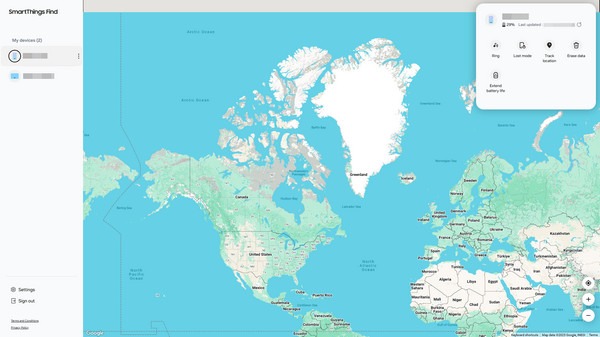
Formerly known as Find My Mobile, Samsung’s SmartThings Find is among the most popular phone-tracking services from device brands. It works similarly to Google’s Find My Device, so no worries about complications. Its website’s interface is straightforward and also offers various management options. Meanwhile, one of the advantages of this feature is that it automatically turns on once you log into a Samsung account on the device. Hence, even if you didn’t activate anything, as long as you have set up an account, you can simply visit SmartThings Find’s website and log in to track your Android phone.
Abide by the unexacting steps below to track an Android phone with SmartThings Find:
Step 1Since Samsung’s Find My Mobile feature is automatically activated, you can go immediately to the official SmartThings website and log in with your Samsung credentials.
Step 2Like the previous service, the following page will show you your devices in the left column. Hence, click on your Samsung phone’s name to track it on the page’s map-like interface.
Note: As mentioned, SmartThings Find is a brand service, so it is available only on Samsung devices, but no worries. If you don’t use Samsung, other brands’ device-tracking services also exist, including Xiaomi’s Find Device, HUAWEI’s Find My Phone, and Apple’s Find My.
Part 3. How to Bypass FRP Lock from Android
Other than Find My Device, Google also provides FRP, or Factory Reset Protection Lock, on Android devices. As the feature’s name indicates, it protects your phone after performing a factory reset through account verification. So, if you don’t remember your credentials, it is highly possible you will be locked out of your Android phone. After all, this feature automatically gets activated after you register a Google account on the device. Then, it will only turn off if you log out of all your accounts before factory resetting.
However, the thing is that many users aren’t prepared when encountering the FRP lock on their devices. Fortunately, it is possible to bypass this lock with or without a password. It’s either you get through the official process requiring your Google credentials or use a professional unlocker that can help you get past it, even without a password. Simply choose your preferred method.
Option 1. Bypass FRP Lock from Android with A Password
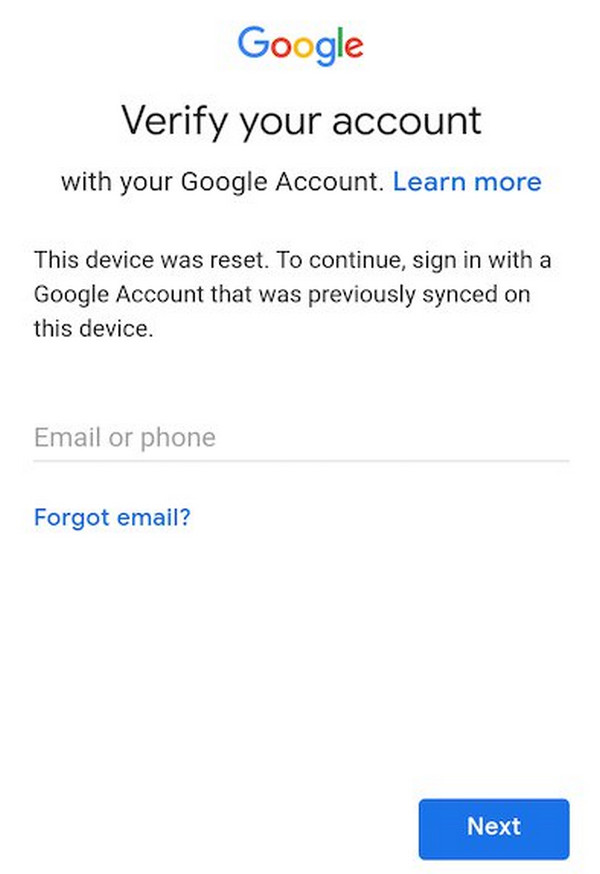
Your Google account credentials or password are the primary requirement for the Factory Reset Protection lock. If you remember them, you won’t have problems bypassing the lock screen through this official way since the process will be straightforward. Your device automatically presents the text field for inputting the required information, so you must only follow the prompts.
Mirror the stress-free task below to bypass the FRP lock on Android with a password:
Step 1The FRP lock screen offers a text field where you can enter your account credentials under Verify your account. Thus, input your email first and tap Next.
Step 2Then, provide your password when prompted to verify your account successfully and bypass the Factory Reset Protection lock.
Option 2. Bypass FRP Lock from Android with FoneLab Android Unlocker
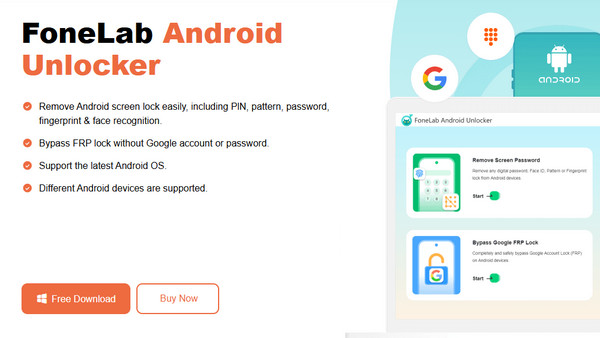
Meanwhile, FoneLab Android Unlocker is the professional tool to trust if you can no longer recall your credentials but want to bypass the FRP lock. It has a specialized feature, Bypass Google FRP Lock, that can easily get you through this problem. Also, unlike other solutions, this program doesn’t cater to only one phone brand. You can use it on different Android devices, including Samsung, HUAWEI, Xiaomi, Oppo, Motorola, and more. It also won’t bring you complications. Besides its user-oriented interface, its functions offer easy processes, requiring only a few navigations to unlock.

FoneLab Helps you remove Android screen lock easily.
- Unlock PlN, pattern, password on Android.
- Android fingerprint & face recognition are available.
- Bypass Google FRP lock in seconds.
Accept the simple instructions below as a pattern to bypass the FRP lock on Android with FoneLab Android Unlocker:
Step 1Open a browser to click Free Download when you visit FoneLab Android Unlocker’s website. Once the program file is saved, get on with the installation, then launch the unlocker when done. Its features will be on the interface, so pick Bypass Google FRP Lock in the lower portion and attach your Android through a USB cable to the computer.
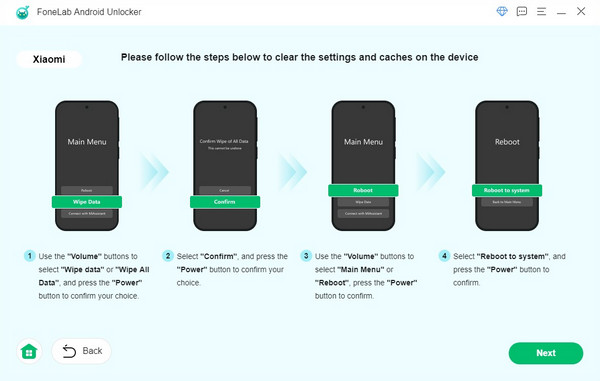
Step 2Various device brands will show up next; thus, choose yours and follow the instructions, which lead your Android phone to recovery mode. Afterward, more directions will be presented. Simply understand and follow them to bypass your device’s FRP lock successfully.
Part 4. FAQs about How to Track An Android Phone
How do you track an Android phone without a computer?
The recommended services above are web-based, so even if you don’t have a computer, you can use your mobile browser instead to track your Android phone.
Can someone track my phone without my knowledge?
Usually, others can’t track your location unless you willingly share it. However, this can be possible if the tracker is knowledgeable enough about such technicalities.
Tracking a lost or misplaced Android phone has been made easy with the built-in services mentioned above. But aside from that, you are free to bring your device management skills to the next level with the professional program, FoneLab Android Unlocker. It will prevent you from being locked out of any Android locks, so install it anytime!



