
 iPhone Data Recovery
 iOS System Recovery
 iOS Data Backup & Restore
 iOS Unlocker
 iPhone Password Manager
 Location Changer
 Android Data Recovery
 Broken Android Data Extraction
 Android Data Backup & Restore
 Android Unlocker
 FoneTrans for iOS
 iPhone Data Eraser
 iPhone Cleaner
 HEIC Converter
 HyperTrans
 WhatsApp Transfer for iOS
 Mac Sweep
 Data Retriever
 Mac Data Retriever
 Video Converter Ultimate
 Screen Recorder
 Phone Mirror
- Part 1. How to Reset iPad Without Password via Recovery Mode
- Part 2. Reset iPad Without Password Using FoneLab iOS Unlocker
- Part 3. Reset iPad Without Screen Passcode on Find My
- Part 4. How to Reset iPad without Apple ID Password on Settings App
- Part 5. Comparison Table of Methods to Reset iPad Without Passcode
- Part 6. FAQs about How to Reset iPad Without Password
- Unlock Apple ID
- Bypass iCloud Activation Lock
- Doulci iCloud Unlocking Tool
- Factory Unlock iPhone
- Bypass iPhone Passcode
- Reset iPhone Passcode
- Unlock Apple ID
- Unlock iPhone 8/8Plus
- iCloud Lock Removal
- iCloud Unlock Deluxe
- iPhone Lock Screen
- Unlock iPad
- Unlock iPhone SE
- Unlock Tmobile iPhone
- Remove Apple ID Password
How to Reset an iPad Without Password in Convenient Ways
 Updated by
 Apple offers multiple security features for its devices, including the iPad. The lock screen password is one of them. It is the most essential one when it comes to securing the iPad data. The password serves as the gateway to access the iPad data and information. Without it, you will not have access to the iPad features and apps.
What if you accidentally forgot the password? You can reset your iPad if that’s the case. However, your data and content will indeed be deleted. Reset iPad without passcode with the methods in this post by discovering them below.


Guide List
- Part 1. How to Reset iPad Without Password via Recovery Mode
- Part 2. Reset iPad Without Password Using FoneLab iOS Unlocker
- Part 3. Reset iPad Without Screen Passcode on Find My
- Part 4. How to Reset iPad without Apple ID Password on Settings App
- Part 5. Comparison Table of Methods to Reset iPad Without Passcode
- Part 6. FAQs about How to Reset iPad Without Password
Part 1. How to Reset iPad Without Password via Recovery Mode
There are times when the iPad is unresponsive during the process of iPad reset without passcode. This might be due to system glitches or other issues. If so, entering the iPad into recovery mode is the most suggested way to reset your iPad without a password. However, this procedure requires professional skills because novices will find it difficult, as you need to learn how to put iPad in recovery mode first.
Additionally, the process requires a computer during the iPad has entered recovery mode. The guide on how to reset a iPad without password using recovery mode is posted below.
Step 1Please prepare your computer, USB cable, and iPad. After that, plug the iPad into the computer using the working USB cable and ensure that the iTunes or Finder software is updated to get its latest features. Now, enter your iPad into recovery mode.
- If your iPad does not have the Home button, press and release Volume close to the Top button. Then, press and quickly release the Volume physical button farther from it. Press and hold the Top physical button until the recovery mode screen is shown.
- For the iPad that has a Home button, press and hold the Home and Top physical buttons. Then, wait for the iPad to be turned off. Release the Top button afterward and keep holding your Home button until the recovery screen is prompted.
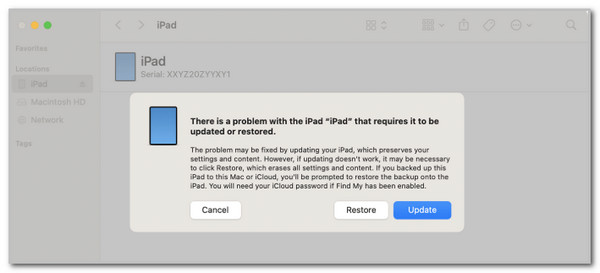
Step 2On your computer, you will see a small dialog box on the screen. Please click the Restore, and the iPad will be reset. Wait for the procedure to be completed before you unplug the iPad.
Part 2. Reset iPad Without Password Using FoneLab iOS Unlocker
FoneLab iOS Unlocker is a third-party tool that can be used to reset your iPad without the passcode. Besides the iPad, it can also be used with your iPhone. It can be used in different scenarios that your iPad experiences. It can remove the passcode from a broken or unresponsive iPad screen, a second-hand iPad, a disabled iPad, and more. This tool requires no internet connection for the process. Please use the tool with the steps below.

FoneLab Helps you unlock iPhone screen, Removes Apple ID or its password, Remove screen time or restriction passcode in seconds.
- Helps you unlock iPhone screen.
- Removes Apple ID or its password.
- Remove screen time or restriction passcode in seconds.
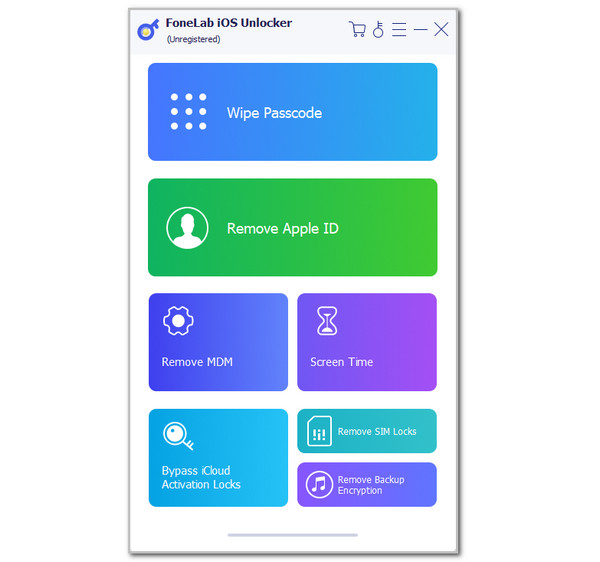
Step 1Download and open the mentioned software on a computer. Then, select Wipe Passcode at the top of the screen.
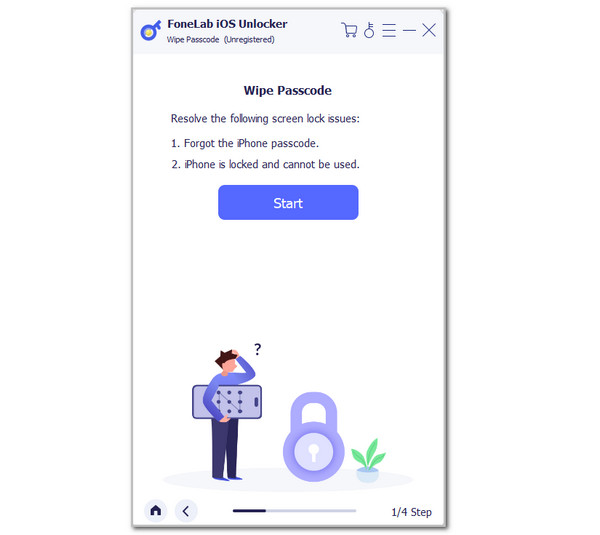
Step 2Please click the Start button in the center. This way, you can proceed with the process.
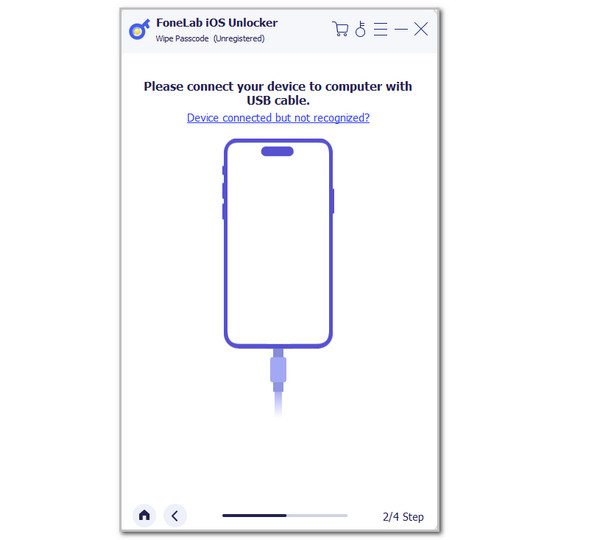
Step 3The interface will be changed. Please plug the iPad into the computer, and you must see the OK screen. Click Start and enter 0000. Click Unlock to start removing the iPad passcode.
Part 3. Reset iPad Without Screen Passcode on Find My
On the other hand, how to reset iPad without password or computer? This procedure is possible with the Find My feature that iCloud offers. You can use another tablet or mobile phone to access your account. You only need the associated Apple ID account from the iPad that has a forgotten password. This requires an internet connection, so you need to have a strong one for a quick resetting process. Also, Find My drains the battery when using.
Furthermore, this feature cannot be used when the iPad is powered off. This procedure does not eliminate the Activation Lock feature due to security measures. Discover how to reset passcode on iPad with the steps below.
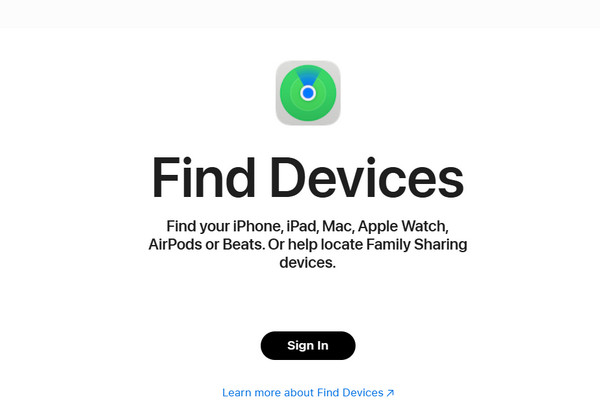
Step 1Open the web browser of the device you prefer using for resetting the iPad using Find My. After that, type the Find My iCloud keyword and select the primary link from the screen. The sign-in interface will appear on the screen. Tap the Sign In button in the center. You will be required to enter your associated Apple ID information. Enter the Apple ID email or phone number, including the password.
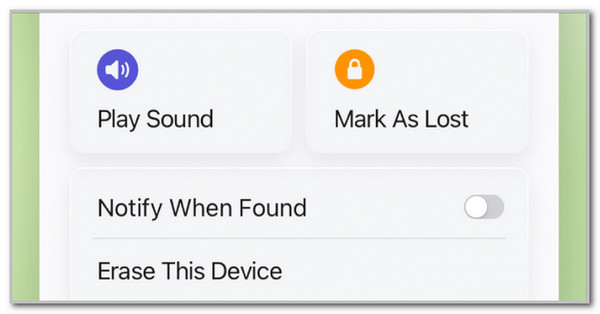
Step 2The map screen will be prompted. Please select the All Devices section at the top left of the screen. Then, choose the iPad name from the list to see the features that can be applied to it. Finally, select the Erase This Device button and enter the needed information to start erasing your iPad.
Part 4. How to Reset iPad without Apple ID Password on Settings App
You can reset your iPad from the Settings app, but it requires your Apple ID credentials. So, how to reset iPad without Apple ID password? You need to reset your iPad Apple ID password first and then proceed to reset it. Follow the steps below.
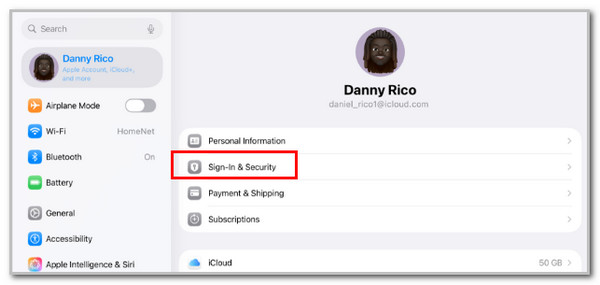
Step 1Open the iPad and select Settings. Tap your account name and tap Sign-in & Security. Choose Password & Security. Later, tap Change Password. Follow the on-screen authentication process and enter your iPad passcode to create a new Apple ID password.
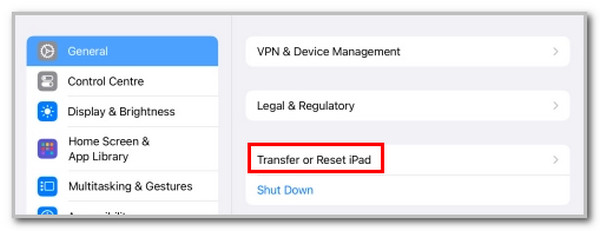
Step 2Now, reset your iPad. Choose Settings and tap General. Tap Transfer or Reset iPad and select Erase All Content and Settings. Then, enter iPad passcode. Tap Continue and Erase iPad.
Part 5. Comparison Table of Methods to Reset iPad Without Passcode
The previous methods are indeed helpful for resetting iPad without passcode. Here is their summarized information. The table below will be your quick reference.
| Method | Success Rate | Activation Lock Removal | Internet Requirements | Ease of Use |
| Recovery Mode | High | No | No | Professional |
| FoneLab iOS Unlocker | High | No | No | Beginner |
| Find My (iCloud) | High | No | Yes | Intermediate |
| Settings App | Low | No | No | Intermediate |
Part 6. FAQs about How to Reset iPad Without Password
Can a stolen iPad be reset?
Yes. A stolen iPad can be reset. This happens even when the Find My feature is turned off. Thieves will have an easy reset process in this case. However, they do need to deal with the Activation Lock feature.
What is the 3-word passcode rule?
The 3-word passcode rule refers to the lock screen password that has three random words combined. This is primarily used to have a strong and memorable password on your iPad.
This post is all about how to reset iPad without passcode. It has methods for resetting the iPad without a password, requiring an internet connection or a USB. FoneLab iOS Unlocker is here to remove the lock screen password or Apple ID password to regain access to the tablet. Download it now if you want to explore more of its functionalities.



