
 iPhone Data Recovery
 iOS System Recovery
 iOS Data Backup & Restore
 iOS Unlocker
 iPhone Password Manager
 Location Changer
 Android Data Recovery
 Broken Android Data Extraction
 Android Data Backup & Restore
 Android Unlocker
 FoneTrans for iOS
 iPhone Data Eraser
 iPhone Cleaner
 HEIC Converter
 HyperTrans
 WhatsApp Transfer for iOS
 Mac Sweep
 Data Retriever
 Mac Data Retriever
 Video Converter Ultimate
 Screen Recorder
 Phone Mirror
- Unlock Apple ID
- Bypass iCloud Activation Lock
- Doulci iCloud Unlocking Tool
- Factory Unlock iPhone
- Bypass iPhone Passcode
- Reset iPhone Passcode
- Unlock Apple ID
- Unlock iPhone 8/8Plus
- iCloud Lock Removal
- iCloud Unlock Deluxe
- iPhone Lock Screen
- Unlock iPad
- Unlock iPhone SE
- Unlock Tmobile iPhone
- Remove Apple ID Password
How to Undisable an iPad in 3 Stress-free Practices
 Updated by
 You can use your iPad with or without a lock screen password. But the iPad will be much secure if you add a lock screen password to it. It could be numeric, alphanumeric, PIN, etc. However, some iPad users forget their lock screen password. The worst thing is that they have entered multiple consecutive passcodes, which leads to the iPad Disabled error message.
How to fix a disabled iPad? This issue can be fixed by unlocking it with a third-party tool or the supported features of the iPad. Scroll down below to discover the 3 methods to unlock your iPad that is disabled.


Guide List
Part 1. How to Undisable an iPad with iCloud
When the iPad is lost, stolen, or misplaced, iCloud Find My is the best service to use. The reason is that it can track it wirelessly. This free service can also guide you on how to fix disabled iPad as it can erase the iPad wirelessly and unlock it from being disabled. It removes the passcode and wipes the personal data it contains. This procedure requires the Apple ID and password associated with the disabled iPad.
Please note that the Activation Lock remains the primary verification that will be undergone during the setup procedure of your iPad after erasing it. Erase a disabled iPad using Find My below.
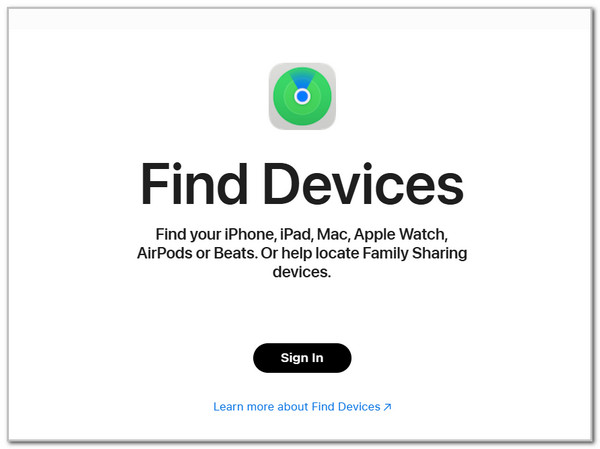
Step 1Open one of the web browsers on your device. It could be on your mobile phone or computer. Then, search for the official website of iCloud Find My. After that, select the Sign In button in the center and enter your Apple ID account credentials to sign in.
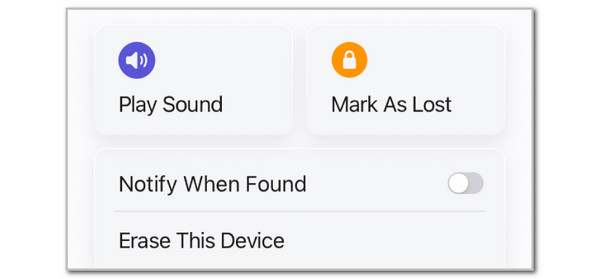
Step 2Go to the All Devices section at the top left of the map interface. Then, select the iPad name from the list that you want to erase. Then, select the Erase This Device button from the available features. Enter the authentication information to confirm.
Part 2. How to Reset Disabled iPad via Recovery Mode
How to reset disabled iPad? The recovery mode on your iPad is the official method of Apple to help you restore or erase it using a computer. iTunes and Finder are the primary tools that can be used for the procedure. It creates a complete system restore and removes the lock screen passcode. This procedure can be performed without an internet connection, unlike the previous method. Besides that, it helps you fix software errors on your iPad, including failed updates, boot loops, freezing features or apps, and more.
But first, you need to know how to put iPad in recovery mode. This procedure is a bit demanding. So, refer to the steps below.
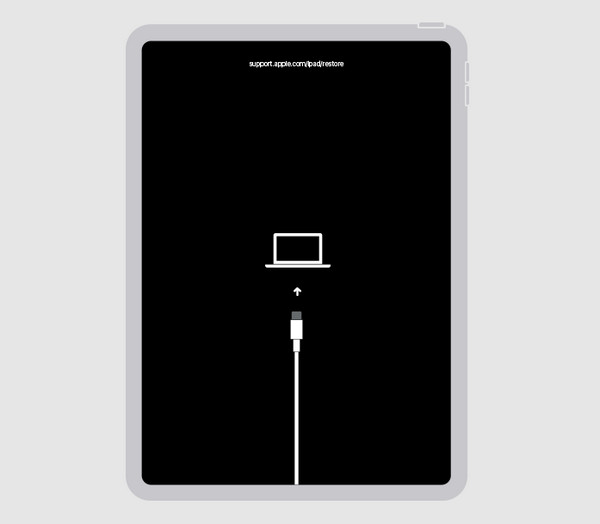
Step 1Open Finder if you have the latest macOS version. On the other hand, open iTunes if you have an earlier version of macOS. Then, plug the iPad into the computer and ensure that it is prompted to the menu. Keep the iPad connected to the computer until the recovery screen is shown. Now, it is time to put the iPad into recovery mode.
- • If your iPad does not have the Home button or it is the latest version of iPad, press and release the Volume Down physical button closest to the Top button. Next, press and release the Volume Down physical button far from the Top button. Then, press and hold the Top physical button. Keep holding it until the recovery mode interface is shown.
- • On the other hand, if your iPad has a Home button or the earlier version of iPad, press and hold the Home and Top physical buttons simultaneously. Then, the iPad will be turned off. Release the Top physical button and keep holding the Home button. Then, you will see the recovery mode interface.
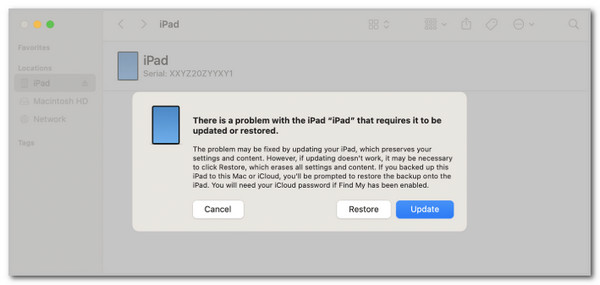
Step 2The computer will detect the issue on your iPad. Please click the Restore or Update button from the small window that will appear on the main screen. Wait for the restore procedure to be finished before unplugging the iPad from the computer.
Part 3. How to Unlock a Disabled iPad without iTunes Using FoneLab iOS Unlocker
How to unlock disabled iPad without iTunes or Finder? You can use FoneLab iOS Unlocker! You can unlock a disabled iPad using this third-party tool by removing the unknown lock screen password. It could be a PIN, password, Face ID, Touch ID, etc. This tool will erase your iPad in a few clicks! The speed of the unlocking procedure is fast, which will not take much of your time.

FoneLab Helps you unlock iPhone screen, Removes Apple ID or its password, Remove screen time or restriction passcode in seconds.
- Helps you unlock iPhone screen.
- Removes Apple ID or its password.
- Remove screen time or restriction passcode in seconds.
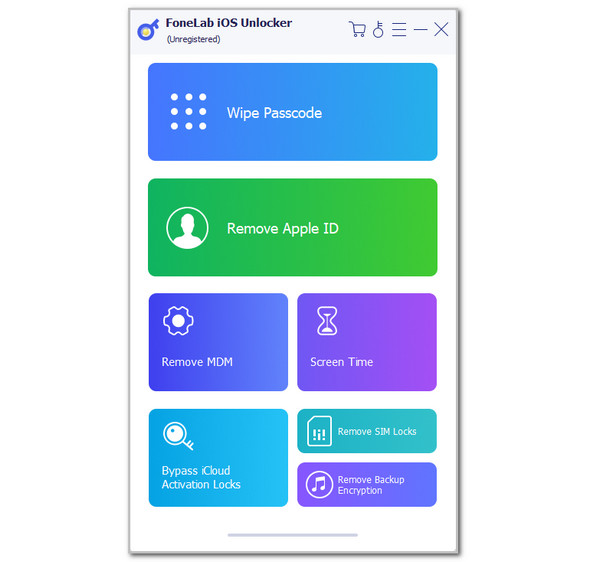
This tool has other features that will surely benefit you. It includes Remove Apple ID, Remove MDM, Screen Time, Bypass iCloud Activation Locks, Remove SIM Locks, and Remove Backup Encryption. The guide is presented below for this tool.
Step 1Get or download the tool from its main website. After that, set it up based on the requirements to install and open it afterward. Then, select the Wipe Passcode button at the top when the primary features of the software are prompted.
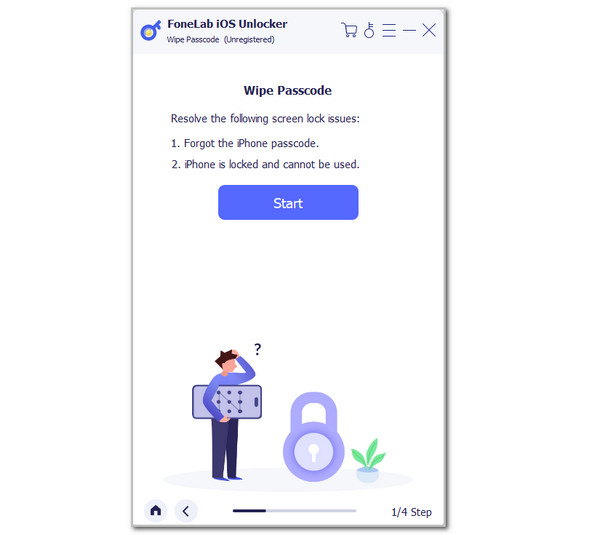
Step 2The tool will list down the primary operations and results for the wiping passcode process. Please read it carefully to understand it. Then, click the Start button at the center of the main interface. The screen will change afterward.
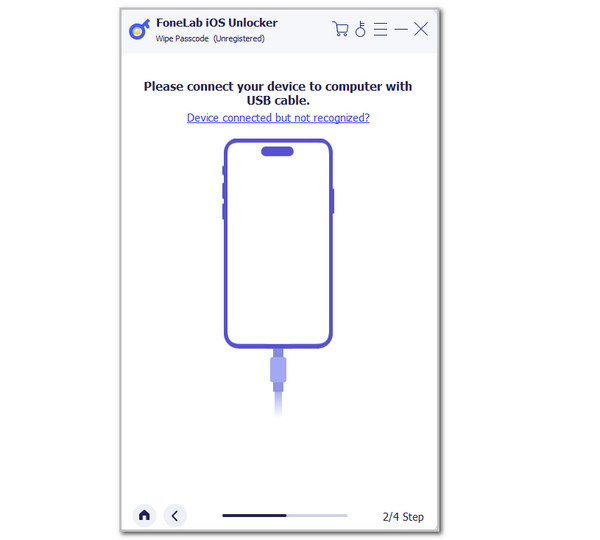
Step 3Please plug the iPad into the computer. Use a compatible USB cable. The OK screen will appear if it is successful. Then, click Start on the screen. The tool will start to download the firmware package that will be used for unlocking your disabled iPad. Next, please enter the 0000 code from the empty space and click the Unlock button. Wait for the unlocking procedure to be completed and unplug the iPad from the computer afterward.
Part 4. Comparison of Unlocking iPad Disabled Methods
iCloud Find My, recovery mode, and FoneLab iOS Unlocker are indeed helpful methods or guides on how to fix a disabled iPad. The table below serves as a summary of their information. Please browse if you are interested in the comparison for quick knowledge.
| Functionality | Find My/iCloud | Recovery Mode | FoneLab iOS Unlocker |
| How to Unlock iPad | It erases the iPad remotely. | It connects the iPad to a computer and uses iTunes or Finder to restore or update it. | A third-party software that will erase the iPad by removing the lock screen password without the correct one. |
| Ease of Use | Moderate. You only need to know or have the associated Apple ID from the disabled iPad. | Hard. This method requires a professional skill to operate the physical button combinations needed. | Simple. This tool has user-friendly features and an interface that are best for novices in unlocking a disabled iPad. |
| Internet | Yes | No | No |
| Security & Privacy | High | High | High |
| Speed | It depends on the internet connection. A slow one can slow down the erasing procedure for your iPad. | Slow. It is due to the demanding procedure that is required. | Fast. It is due to the simple interface and features it supports. |
| When to Use | When the Apple ID associated with the iPad is known, and you have a strong internet connection. | When you have a computer and you possess the professional skills to erase your iPad using physical buttons. | If you want to use an easy-to-use and user-friendly third-party tool to unlock your disabled iPad. |
Part 5. FAQs about iPad is Disabled
How to disable iMessage on iPad?
Open the Settings app on your iPad, and you will see the options list on the first screen. Select the Messages button from the apps list. After that, go to the iMessage section and toggle off the switch to turn it off.
How many attempts are there before an iPad is permanently disabled?
You have 10 attempts to unlock your iPad from its lock screen. After 10 consecutive wrong attempts, the iPad will be disabled.
What is the longest time the iPad has been disabled?
The iPad will be disabled indefinitely. It means that it will be disabled forever if it is not unlocked. If so, you need to unlock it manually, and you can use the methods in this post, especially FoneLab iOS Unlocker.
The disabled iPad will be unlocked with the help of this post. It has showcased the 3 stress-free procedures that can help you with the unlocking procedure. FoneLab iOS Unlocker can be used as an alternative if you do not have iTunes or Finder to unlock the disabled iPad. Get the tool on your computer now for more helpful features!



