
 iPhone Data Recovery
 iOS System Recovery
 iOS Data Backup & Restore
 iOS Unlocker
 iPhone Password Manager
 Location Changer
 Android Data Recovery
 Broken Android Data Extraction
 Android Data Backup & Restore
 Android Unlocker
 FoneTrans for iOS
 iPhone Data Eraser
 iPhone Cleaner
 HEIC Converter
 HyperTrans
 WhatsApp Transfer for iOS
 Mac Sweep
 Data Retriever
 Mac Data Retriever
 Video Converter Ultimate
 Screen Recorder
 Phone Mirror
- Unlock Apple ID
- Bypass iCloud Activation Lock
- Doulci iCloud Unlocking Tool
- Factory Unlock iPhone
- Bypass iPhone Passcode
- Reset iPhone Passcode
- Unlock Apple ID
- Unlock iPhone 8/8Plus
- iCloud Lock Removal
- iCloud Unlock Deluxe
- iPhone Lock Screen
- Unlock iPad
- Unlock iPhone SE
- Unlock Tmobile iPhone
- Remove Apple ID Password
Safe Approaches If You Forgot Apple Watch Password
 Updated by
 Greetings! Can anybody tell me what to do if I forgot my Apple Watch password? I thought about trying the passwords I remember, but I’m afraid it would only worsen the situation if I don’t get it right. I heard it could get disabled if too many incorrect passwords are attempted. Hence, I want to rely on someone’s trusted knowledge about this instead. Please lend me a hand.
No matter what device you use, a forgotten password can affect your daily life, even if it’s only the Apple Watch. After all, it is designed always to be close to you, managing various activities from as simple as notifications, fitness, to as crucial as payments. So, the moment of panic is understandable when you suddenly can’t access the watch due to a forgotten password. In this case, you must wonder about the measures you should take to resolve the problem or at least avoid damaging the watch. Luckily, the safest approaches are discussed below, so check them.


Guide List
Part 1. Reset your Apple Watch with A Charger
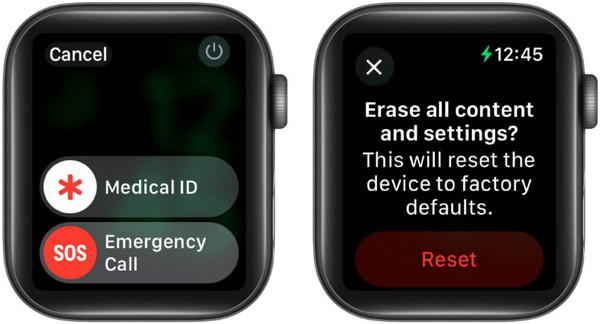
Starting with Apple’s initial remedy, resetting your Apple Watch with a charger. You may think that your charger only has a specific task, which is to fill up the device’s battery, but no. The good news is that Apple also designed it to serve as a troubleshooting method when a user faces such a problem. By placing the Apple Watch on its charger, you can activate the option to perform a reset, which then can remove the password, allowing you to reaccess it.
Stick to the smooth process below to grasp how to reset Apple Watch without password with a charger:
Step 1Begin by placing your locked Apple Watch on its charger, leaving it connected throughout the entire process. Long-press the Side button until the power off slider appears, then firmly press and hold the Digital Crown to reveal Erase All Content and Settings.
Step 2Tap Erase, then confirm your choice using the prompts to initiate the reset. Once done, you can start and proceed to set it up again from the beginning.
Part 2. Unpair Apple Watch from iPhone
Aside from using the charger, unpairing your Apple Watch from the iPhone it is connected to will erase everything from the watch, including your forgotten password. So, it will also be a practical approach to reaccess your locked Apple Watch without damaging it. Besides, unlike the last process, this will be remotely performed on the iPhone’s Apple Watch app, letting you gain better control of the device. The procedure is also quick and straightforward.
Observe the simple directions below to know what to do if you forgot your Apple Watch password by unpairing your Apple Watch from your iPhone:
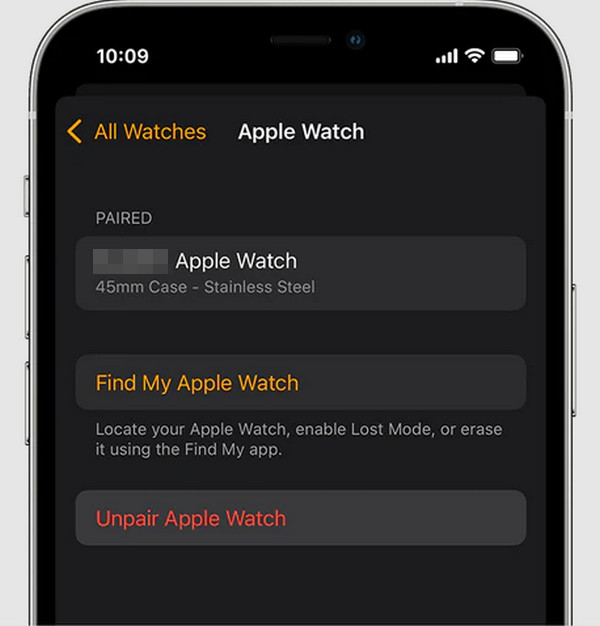
Step 1First, ensure your Apple Watch and iPhone are placed close together. Then, initialize the Apple Watch app on the iPhone and navigate to its My Watch section.
Step 2Afterward, tap All Watches, then select the info icon next to the watch you intend to remove. Finally, tap Unpair Apple Watch to initiate and confirm the process.
Part 3. Erase Apple Watch via Find My
If you notice, all the methods’ similarity is resetting or erasing the Apple Watch to remove its lock as well. You can expect the same with Apple’s Find My. It is among the services you can find in iCloud, offering an Erase This Device or Erase Apple option, depending on your preferred deletion method.
Option 1. Use Find My App
The Find My app is available if you prefer to do the process on your iPhone. You won’t have to use a browser because this app offers an interface containing various options for managing all devices linked to your Apple ID. Thus, since your Apple Watch is also among the available devices, performing remote actions, like erasing the Apple Watch, will be convenient. It only requires your Apple ID credentials, and you will be free to manage the Find My iPhone app without a problem.
Be guided by the painless task below to erase your Apple Watch using the Find My app:
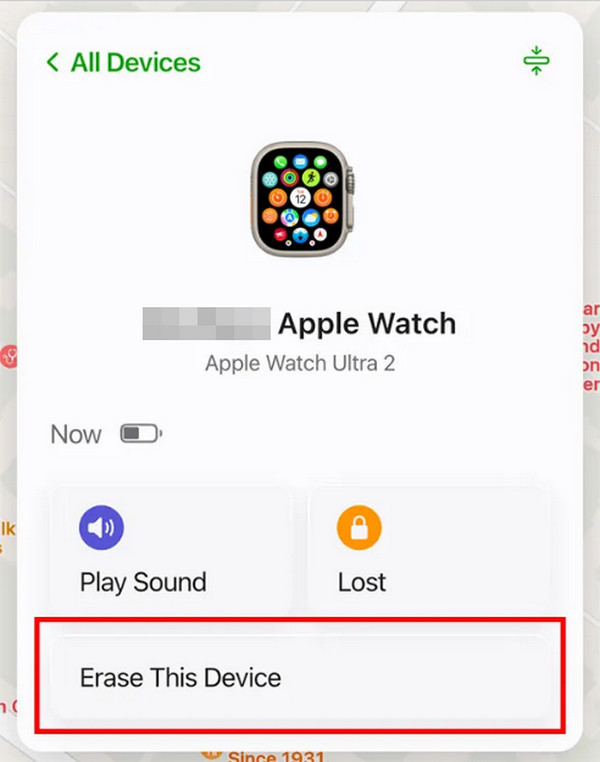
Step 1Begin by launching the Find My application on your iPhone and heading immediately to the Devices section. Then, from the devices list, choose your Apple Watch.
Step 2Once your watch’s screen is displayed, choose the option to Erase This Device.
Option 2. On iCloud Page
Meanwhile, this option provides a universal, web-based solution that is accessible from almost any computer or mobile browser. By visiting the iCloud page, you can utilize the full Find My features remotely if you do not have your paired iPhone readily available, but have access to your Apple ID credentials. It offers the same erasure capability as the last process, ensuring you can securely erase the Apple Watch’s content and passcode, but this time, from the website.
Mimic the easy operation below to erase the Apple Watch from the iCloud page:
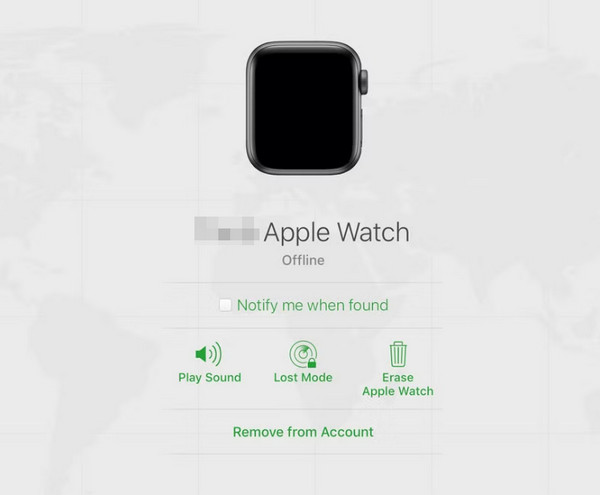
Step 1Navigate to icloud.com in a web browser and utilize your Apple credentials to log in. Once your account is accessed, click Find My and hit the top tab on the succeeding page.
Step 2Opt for your Apple Watch from the appearing devices list, and when the watch’s options are displayed, select Erase Apple Watch and confirm your action.
Part 4. How to Unlock iPhone without Password Using FoneLab iOS Unlocker
While the previous methods rely on official Apple services, this section introduces a trusted third-party solution for related, yet critical, scenarios. FoneLab iOS Unlocker offers multiple dedicated tools designed to bypass lock screens on Apple devices when official recovery methods are unavailable. Thus, this approach is particularly relevant if your Apple Watch passcode issue is part of a broader access problem, such as a forgotten iPhone password.
Therefore, don’t hesitate to unlock iPhone without password using this capable tool, FoneLab iOS Unlocker. It can securely remove the password you have forgotten, letting you access the iPhone again while ensuring its safety at the same time. Besides, the program’s Wipe Passcode feature and even its other unlockers are known to be user-friendly. So, it doesn’t matter if you have no technical knowledge or it’s your first time using it. You can rely on this tool regardless.

FoneLab Helps you unlock iPhone screen, Removes Apple ID or its password, Remove screen time or restriction passcode in seconds.
- Helps you unlock iPhone screen.
- Removes Apple ID or its password.
- Remove screen time or restriction passcode in seconds.
Identify the proper navigation below as a model to unlock your iPhone without a password using FoneLab iOS Unlocker:
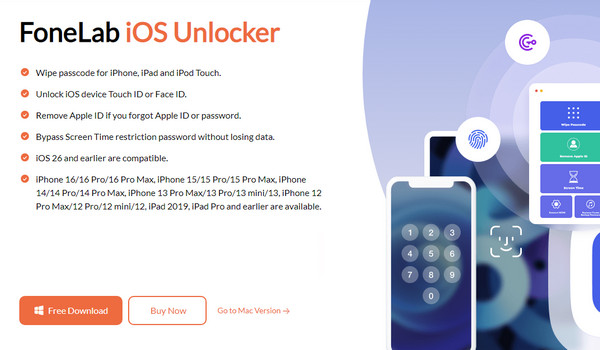
Step 1The FoneLab iOS Unlocker website can be accessed on almost any computer browser, so visit it and select the presented Free Download button. Use the file that will be downloaded to install the tool, and afterward, launch its interface.
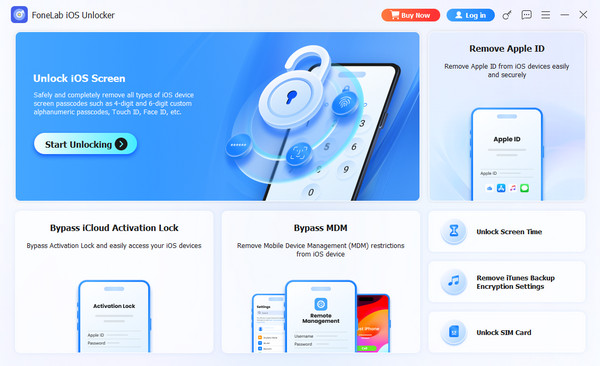
Step 2After that, select Start Unlocking and link your iPhone with a forgotten password using a Lightning cable. Once everything is set, manage the prompts and perform the screen’s instructions accordingly.
Part 5. FAQs about Forgotten Apple Watch Password
What do I do if I forgot my Apple Watch password and it got disabled?
If you forgot your Apple Watch password and attempted too many incorrect ones to the point that it got disabled, you can still use the methods above, especially the ones that work remotely. They will allow you to manage the watch, even if it’s disabled.
Can I retrieve my Apple Watch passcode?
Unfortunately, you can’t. You can only reset it using the suggested techniques above.
An Apple Watch password, like other devices, is essential, as forgetting it can bring so much hassle in your digital life. Fortunately, this post’s methods have your back, and FoneLab iOS Unlocker is even available if you experience other related concerns.



