
 iPhone Data Recovery
 iOS System Recovery
 iOS Data Backup & Restore
 iOS Unlocker
 iPhone Password Manager
 Location Changer
 Android Data Recovery
 Broken Android Data Extraction
 Android Data Backup & Restore
 Android Unlocker
 FoneTrans for iOS
 iPhone Data Eraser
 iPhone Cleaner
 HEIC Converter
 HyperTrans
 WhatsApp Transfer for iOS
 Mac Sweep
 Data Retriever
 Mac Data Retriever
 Video Converter Ultimate
 Screen Recorder
 Phone Mirror
- Unlock Apple ID
- Bypass iCloud Activation Lock
- Doulci iCloud Unlocking Tool
- Factory Unlock iPhone
- Bypass iPhone Passcode
- Reset iPhone Passcode
- Unlock Apple ID
- Unlock iPhone 8/8Plus
- iCloud Lock Removal
- iCloud Unlock Deluxe
- iPhone Lock Screen
- Unlock iPad
- Unlock iPhone SE
- Unlock Tmobile iPhone
- Remove Apple ID Password
Efficient Guide on How to Unlock iPad with iTunes Easily
 Updated by
 Many people wonder if it’s possible to unlock iPad with iTunes. With numerous concerns regarding forgotten passwords worldwide, it’s no longer surprising when users try to find other ways to regain access to their devices, such as unlocking their iPad with iTunes. After all, being locked out of your device could cause real hassle and disruption in your digital life, whether for work, socializing, or leisure. Thus, it will greatly help to find out the effective processes to unlock.
That said, let us discover the possibility of unlocking your iPad using iTunes by browsing the sections below. Afterward, don’t hesitate to proceed to the recommended processes, as they will allow you to reaccess the device, whether or not you can provide your screen passcode. The given guidelines will help you step-by-step for smooth iPad unlocking procedures.


Guide List
Part 1. Can You Unlock an iPad with iTunes
Can you unlock an iPad with iTunes? The answer is, yes, you can. Various ways are also available to unlock the device, but iTunes is among the earliest and most official methods that Apple offers to help its users with this lock concern. Hence, it is also understandable if iTunes is the program you try to rely on first when you forget your passcode, especially since it has long been a solution for various Apple device issues and has been proven effective repeatedly.
So, yes, it is possible to unlock your iPad by connecting to iTunes. It is an efficient process you can trust your iPad with, which you may be using for important matters like business, work, or school. However, note that it comes with specific conditions. We will discuss this further in the following part, so keep reading and learn the requirements for unlocking your iPad with iTunes.
Part 2. Unlock an iPad with iTunes
Before proceeding to the main process, it would be helpful to understand how the process works, making it easier for you to navigate the steps. First, be aware that unlocking an iPad with iTunes involves restoring the device. Yes, that’s right. This method will provide you with the restore option that will erase everything on the iPad, restoring it to its original state. This means all its content and settings will be deleted, including the passcode, unlocking your iPad afterward.
Meanwhile, it is also important to know and be ready with the requirements, as a lack of preparation can easily cause the unlocking process to fail. For instance, booting your iPad into Recovery mode is necessary; hence, your device’s buttons must be functional to press the designated key combination.
Aside from that, a computer with iTunes installed is required since it will be the one to present the Restore option. However, we understand that not all computers support iTunes, so as an alternative, you can use Finder or Apple Devices instead, if the program isn’t available or accessible on your computer. After all, the appropriate program depends on your computer's operating system version.
Part 3. Unlock an iPad with iTunes Recovery Mode
Now that you are aware and ready with the requirements, it’s time to unlock your iPad with iTunes via Recovery mode. The process might be confusing for first-timers, but once you grasp it, it’s actually straightforward and can be done within a few minutes. Meanwhile, as mentioned, iTunes may be unavailable on your computer, as it is usually accessible only on Windows and older macOS versions. In this case, you can use Finder for later macOS and Apple Devices for both later macOS and Windows. Use the program that can run on your computer.
Follow the hassle-free navigation below to unlock iPad with iTunes Recovery mode:
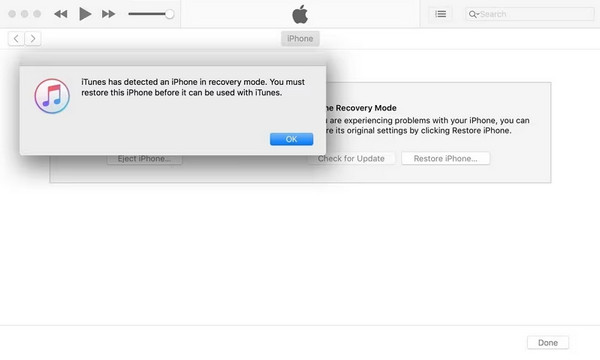
Step 1Run the accessible program on your desktop and link your iPad via a Lightning cable. Then, boot it into Recovery mode with a key combination.
On iPad without Home key: Press Volume Up, then Down first before long-pressing the Power key. A few seconds later, the Recovery mode screen will be presented.
On iPad with Home key: Concurrently press the iPad’s Home and Power keys. Shortly, the device will be booted into Recovery mode.
Step 2Once the program detects the action, its interface will display the Restore tab. Select it to restore your iPad to its factory settings, which will unlock it afterward.
Part 4. Unlock iPad with Fonelab iFoneWiz
As mentioned, iTunes is only one of the solutions for unlocking an iPad. Another method we highly recommend is FoneLab iFoneWiz. Even if your lock screen displays a message such as "iPad is disabled, connect to iTunes," this program can still unlock your device without a passcode. It is also suitable for all users, so don’t worry if it’s your first time using the tool.
FoneLab iFoneWiz’s intuitive interface is enough to help you comprehend the unlock functions, especially with the labels and on-screen guides. Meanwhile, almost all iPadOS versions and models are also supported; thus, compatibility issues won’t be on your way. Other than that, more features are offered for later, such as Bypass MDM, Remove Apple ID, and more.
Recognize the straightforward steps below as a model of how to unlock an iPad with FoneLab iFoneWiz:

iFoneWiz Helps you unlock iPhone screen, Removes Apple ID or its password, Remove screen time or restriction passcode in seconds.
- Helps you unlock iPhone screen.
- Removes Apple ID or its password.
- Remove screen time or restriction passcode in seconds.
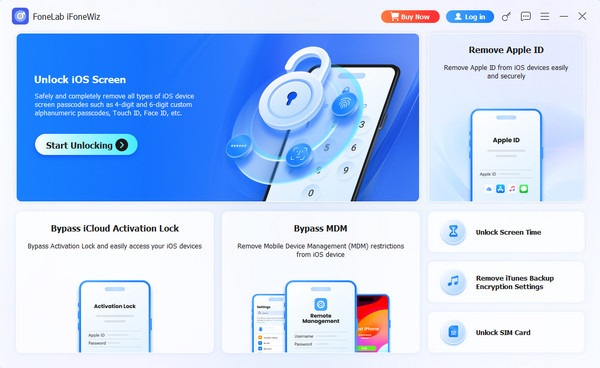
Step 1Use the Free Download tab to obtain the installer for FoneLab iFoneWiz, then open it from your Downloads. This way, you can manage the initial setup, presenting the Start tab afterward. Click it to exhibit the tool’s key interface and click Unlock iOS Screen.
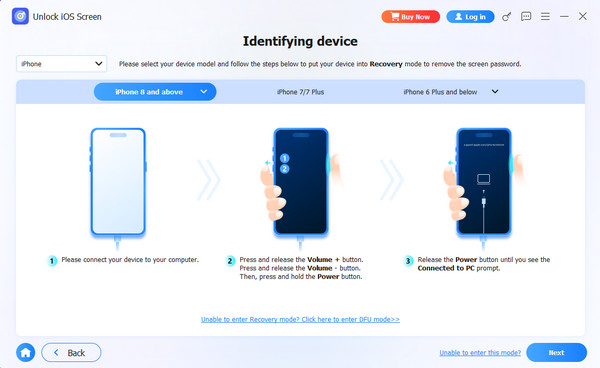
Step 2On-screen guides will immediately be available on the succeeding interface. Link your iPad through a Lightning cable, as instructed, then follow the further directions. If any on-screen prompts appear, follow them until your iPad is unlocked successfully.
Part 5. Unlock iPad with Find My
Heading to the Find My page can also help unlock your iPad. Find My iPad is enabled by default on the device, so if you didn’t turn it off, you will be able to manage your iPad remotely. Among the actions you can take is to erase the device. Like the other methods, this will delete all the content and settings on the device, even the passcode. Then, you can reaccess it afterward.
Follow the simplified task below to unlock the iPad with Find My:
Step 1Enter iCloud’s site and use your credentials to sign in. On the homepage, hit Find My.
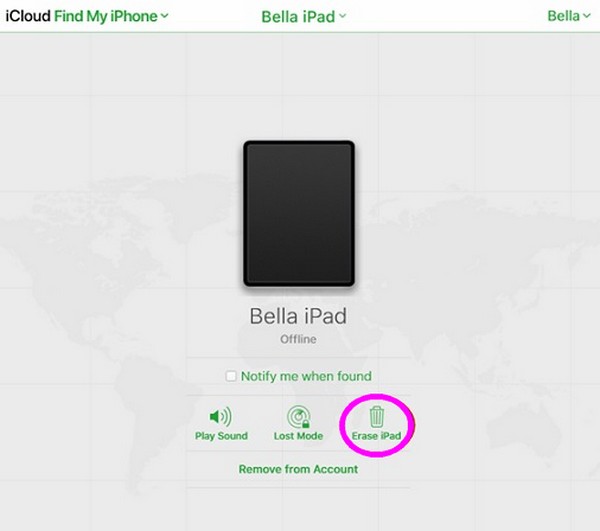
Step 2Choose All Devices on the next page, then pick your locked iPad. When its management options are shown, select Erase iPad to erase and unlock the device.
Part 6. Comparison of Ways to Unlock iPad
| Features | iTunes Recovery Mode | FoneLab iFoneWiz | Find My |
|---|---|---|---|
| Technical Difficulty | Moderate | Easy | Easy |
| Requires Computer | Yes | Yes | No. It can be done on a mobile browser or the Find My app. |
| Requires Apple ID Password | No | No | Yes |
| Success Rate | High | High | High |
Part 7. FAQs about How to Unlock iPad with iTunes
Did my computer need to trust my iPad before?
Yes, this is very important. If you have never connected your iPad to that computer and tapped "Trust This Computer," iTunes will not recognize your locked iPad.
Is using iTunes to unlock an iPad free?
Yes, iTunes is completely free. Apple provides it for all Mac and Windows users.
Unlock your iPad with the professional and safest methods with the help of our abovementioned guidelines. FoneLab iFoneWiz is especially suggested, as it offers the most advantages, not only for this specific issue but also for general lock-related problems. Get the tool anytime.



