
 iPhone Data Recovery
 iOS System Recovery
 iOS Data Backup & Restore
 iOS Unlocker
 iPhone Password Manager
 Location Changer
 Android Data Recovery
 Broken Android Data Extraction
 Android Data Backup & Restore
 Android Unlocker
 FoneTrans for iOS
 iPhone Data Eraser
 iPhone Cleaner
 HEIC Converter
 HyperTrans
 WhatsApp Transfer for iOS
 Mac Sweep
 Data Retriever
 Mac Data Retriever
 Video Converter Ultimate
 Screen Recorder
 Phone Mirror
- Part 1. Remove Specific Limits to Turn Off Time Limit on iPhone
- Part 2. Turn Off All Screen Time to Turn Off Time Limit on iPhone
- Part 3. Reset the Screen Time Passcode on Your iPhone
- Part 4. How to Remove Screen Time Limit on iPhone Without Passcode with FoneLab iOS Unlocker
- Part 5. FAQs about How to Turn Off Time Limit on iPhone
- Unlock Apple ID
- Bypass iCloud Activation Lock
- Doulci iCloud Unlocking Tool
- Factory Unlock iPhone
- Bypass iPhone Passcode
- Reset iPhone Passcode
- Unlock Apple ID
- Unlock iPhone 8/8Plus
- iCloud Lock Removal
- iCloud Unlock Deluxe
- iPhone Lock Screen
- Unlock iPad
- Unlock iPhone SE
- Unlock Tmobile iPhone
- Remove Apple ID Password
How to Remove Time Limit on iPhone in Quick Techniques
 Updated by
 Screen Time is an essential feature on your Apple devices, including your iPhone. This feature offers multiple limitations on your iPhone apps and features. It monitors the usage of your iPhone. Managing the content restrictions is also allowed.
Additionally, Screen Time sets app limits on your iPhone. This way, the person who is using the iPhone will have a limitation in using the apps. It is commonly used to avoid overusing the iPhone for a long time. However, some iPhone users want to turn it off because they need more screen time during the day. How to turn off time limit on iPhone? Please scroll below to know the easy methods in this article.

Guide List
- Part 1. Remove Specific Limits to Turn Off Time Limit on iPhone
- Part 2. Turn Off All Screen Time to Turn Off Time Limit on iPhone
- Part 3. Reset the Screen Time Passcode on Your iPhone
- Part 4. How to Remove Screen Time Limit on iPhone Without Passcode with FoneLab iOS Unlocker
- Part 5. FAQs about How to Turn Off Time Limit on iPhone
Part 1. Remove Specific Limits to Turn Off Time Limit on iPhone
Screen Time can set limitations on specific applications. This action will not affect the other apps on your iPhone. The limitations of the particular app will not be applied to the different applications. However, turning off the limits from the specific applications might be time-consuming. It happens when the number of apps you have turned off is high. On the other hand, it will be convenient if you remove limits from a smaller group of apps.
Additionally, this procedure requires the Screen Time passcode. Without it, you cannot turn off the limitations from specific applications. Please use the steps below as your guide.
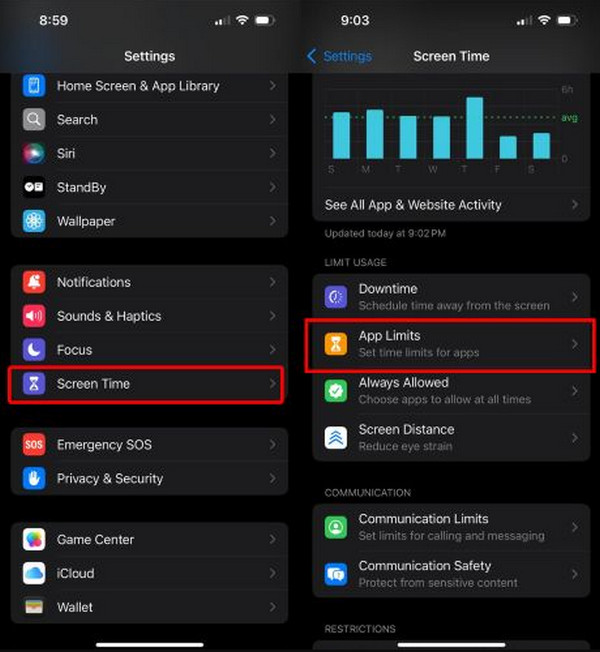
Step 1Open the Settings app on the iPhone. Then, tap the Screen Time button, and you will see its menu screen. Please tap the App Limits button from the Limit Usage section. More options will be shown on the screen.
Step 2Select the app you need to remove the limitations. Then, tap the Edit List button from the Categories, Apps, and Websites section. Then, toggle off the App Limits slider at the top of the main interface. Authenticate the procedure by entering the correct Screen Time passcode.
Part 2. Turn Off All Screen Time to Turn Off Time Limit on iPhone
On the other hand, some users need to turn off limitations from different apps and features. In this case, it is recommended to turn off the Screen Time feature on your iPhone. This procedure also requires the password of the mentioned feature. You can proceed with the steps below to know how.
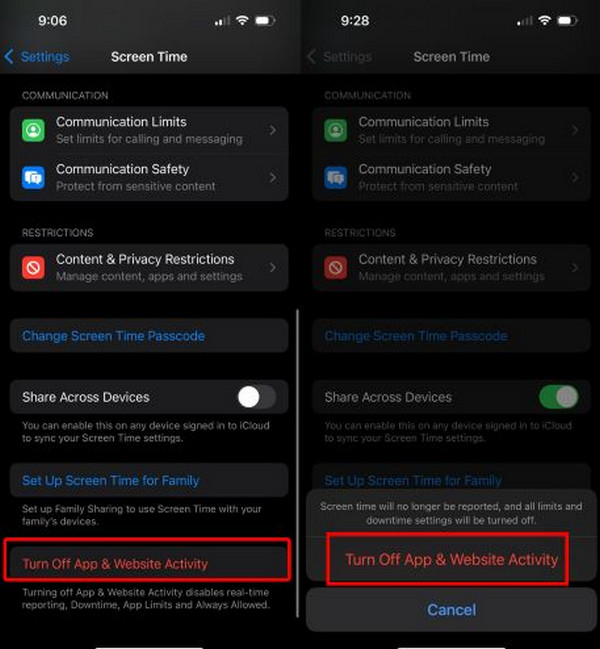
Step 1Open the Settings app on your iPhone. After that, tap the Screen Time button from the list. After that, please choose the Turn Off App & Website Activity button at the bottom of the screen. For earlier iPhone models, please tap the Turn Off Screen Time button.
Step 2The screen will ask for the Screen Time passcode. Please enter the correct one to authenticate the process. This process will apply the changes.
Part 3. Reset the Screen Time Passcode on Your iPhone
However, some iPhone users forget the Screen Time passcode. So, they cannot proceed with turning off the restrictions or limits on the applications. The best thing to do is to reset Screen Time Passcode. Your Apple ID account is needed for this procedure. It is used for authenticating the reset process for the Screen Time passcode. Please use the steps to discover how to remove time limit on iPhone without passcode of Screen Time.
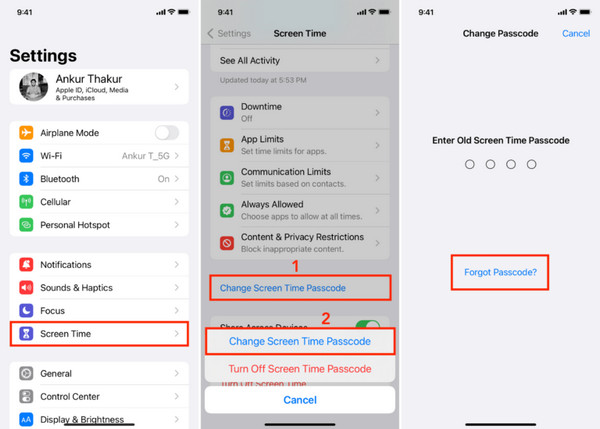
Step 1Access the Settings app on your iPhone. After that, please choose the Screen Time button from the list. Then, tap the Change Screen Time Passcode button at the bottom. A small window will be prompted. Please tap the same button again to confirm the process.
Step 2Enter your Apple ID account information. Then, tap the OK button. Enter your new Screen Time passcode afterward. Complete the process by following the on-screen instructions. Later, perform the previous methods to turn off limits on your iPhone.
Part 4. How to Remove Screen Time Limit on iPhone Without Passcode with FoneLab iOS Unlocker
But some of you cannot turn off Screen Time due to a forgotten Apple ID account and Screen Time passwords. If so, use FoneLab iOS Unlocker. This third-party tool allows you to turn off Screen Time restrictions without the password, including the Apple ID that needs to authenticate the process. The best thing about it is that you will not lose even a single piece of data during the bypass process.

FoneLab Helps you unlock iPhone screen, Removes Apple ID or its password, Remove screen time or restriction passcode in seconds.
- Helps you unlock iPhone screen.
- Removes Apple ID or its password.
- Remove screen time or restriction passcode in seconds.
Also, the Apple ID, screen lock, and more security features can be bypassed with this tool. Please refer to the steps below to know how to bypass Screen Time limit with the tool.
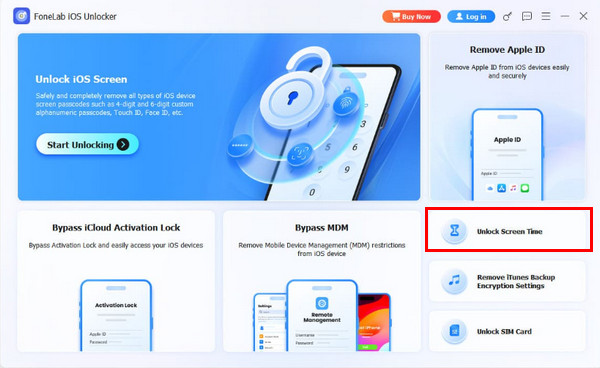
Step 1Download, install, and open FoneLab iOS Unlocker. To do that, you need to visit its official website. Select the Free Download option. After that, click the Unlock Screen Time feature on the right. After that, select the current situation of the feature.
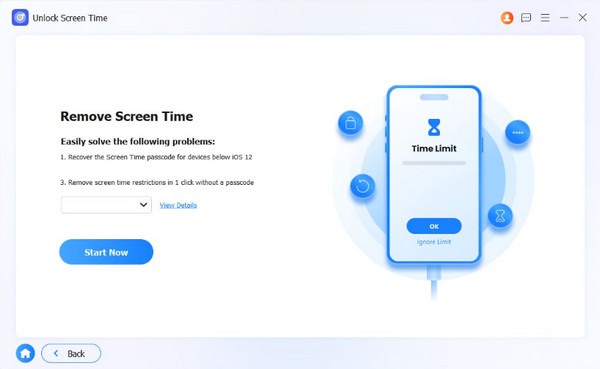
Step 2Click the Start section at the bottom left. Then, you will be asked to turn off your Find My iPhone feature. Then, an authentication must be turned on. Later, click the Continue button at the bottom right.
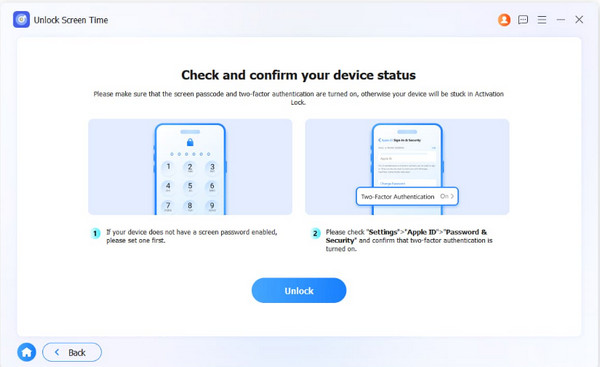
Step 3Please click the Unlock button at the bottom center of the main screen. Later, the Unlocking Screen Time screen will be enabled. Please click the Finish button on the left side. Finally, please click the Finish button once again. The passcode will be revealed on the screen. Please use it to remove the limits on your iPhone. You can follow the previous methods for this process.
Part 5. FAQs about How to Turn Off Time Limit on iPhone
How do I change the screen time limit on my iPhone?
Open the iPhone and tap the Settings app to open it. Then, select the Screen Time button from the list. All supported operations will appear. Please tap the App Limits button and select an app or category. Tap the Time button and set a new daily limit.
Can you delete the Screen Time feature on your iPhone?
No. Deleting the Screen Time feature on your iPhone is impossible. It is a built-in feature that Apple offers. You can disable it on your iPhone instead. This way, you will not receive the operations it provides.
How to remove time limit on iPhone? In this article, you will see the leading methods to turn off Screen Time limitations. FoneLab iOS Unlocker is an effective tool that can remove the Screen Time limitations without the passcode. It also allows you to remove MDM restrictions, Apple ID without the password, and more. Download it if you want to know it more deeply.



