
 iPhone Data Recovery
 iOS System Recovery
 iOS Data Backup & Restore
 iOS Unlocker
 iPhone Password Manager
 Location Changer
 Android Data Recovery
 Broken Android Data Extraction
 Android Data Backup & Restore
 Android Unlocker
 FoneTrans for iOS
 iPhone Data Eraser
 iPhone Cleaner
 HEIC Converter
 HyperTrans
 WhatsApp Transfer for iOS
 Mac Sweep
 Data Retriever
 Mac Data Retriever
 Video Converter Ultimate
 Screen Recorder
 Phone Mirror
- Part 1. Can You Remove Device Supervision from iPad
- Part 2. Contact the Administrator to Remove Device Supervision from iPad
- Part 3. Remove MDM Profile from Settings to Remove Device Supervision from iPad
- Part 4. Factory Reset to Remove Device Supervision from iPad
- Part 5. Remove Device Supervision from iPad with FoneLab iFoneWiz
- Part 6. Comparison of Techniques to Remove Device Supervision from iPad
- Part 7. FAQs about How to Remove Device Supervision from iPad
- Unlock Apple ID
- Bypass iCloud Activation Lock
- Doulci iCloud Unlocking Tool
- Factory Unlock iPhone
- Bypass iPhone Passcode
- Reset iPhone Passcode
- Unlock Apple ID
- Unlock iPhone 8/8Plus
- iCloud Lock Removal
- iCloud Unlock Deluxe
- iPhone Lock Screen
- Unlock iPad
- Unlock iPhone SE
- Unlock Tmobile iPhone
- Remove Apple ID Password
How to Remove Device Supervision from iPad Correctly
 Updated by
 This post discusses how to remove supervision from iPad. If it’s your first time hearing about it, this feature is a special mode often enabled by schools, businesses, or other organizations on the devices of their students, employees, or members. This allows them to supervise or control many of the iPad's settings and install specific apps remotely.
This mode works by adding the administrator's Mobile Device Management (MDM) profile to the iPad or other Apple device. It helps manage many devices at once. However, it can be frustrating if you own the iPad personally or need to access features that have been restricted by supervision. Hence, we have prepared the following sections to walk you through the proper procedures to remove your iPad’s supervision. Check them below.

Guide List
- Part 1. Can You Remove Device Supervision from iPad
- Part 2. Contact the Administrator to Remove Device Supervision from iPad
- Part 3. Remove MDM Profile from Settings to Remove Device Supervision from iPad
- Part 4. Factory Reset to Remove Device Supervision from iPad
- Part 5. Remove Device Supervision from iPad with FoneLab iFoneWiz
- Part 6. Comparison of Techniques to Remove Device Supervision from iPad
- Part 7. FAQs about How to Remove Device Supervision from iPad
Part 1. Can You Remove Device Supervision from iPad
Before anything else, many people want to clarify if it's possible to remove device supervision from an iPad. The short answer is yes, you can. However, it is not as easy as flipping a switch in the Settings app.
As mentioned, supervision is usually linked to a Mobile Device Management (MDM) system, which allows the organization to keep control over the iPad even when you are using it at home. Thus, without the proper permission or login details, you cannot simply turn supervision off.
Don’t worry, though. Whether or not you have the administrator’s credentials, the succeeding parts will introduce the most reliable techniques to remove the supervision successfully. Choose the method that best suits your situation using the information provided, and perform the process carefully.
Part 2. Contact the Administrator to Remove Device Supervision from iPad
The simplest and most proper way to remove the supervision from your iPad is to contact the administrator. The administrator is the person or organization that originally set up the supervision on your device. It could be your school's IT team, your company's manager, or the previous owner of the iPad.
When you reach out to the administrator, they can check their records to see if your device is still under their management. They will then know exactly what steps to take on their end to release your device. After that, you only need to wait for them to remove the supervision. If they provide instructions, simply follow them to ensure a smooth removal process.
Part 3. Remove MDM Profile from Settings to Remove Device Supervision from iPad
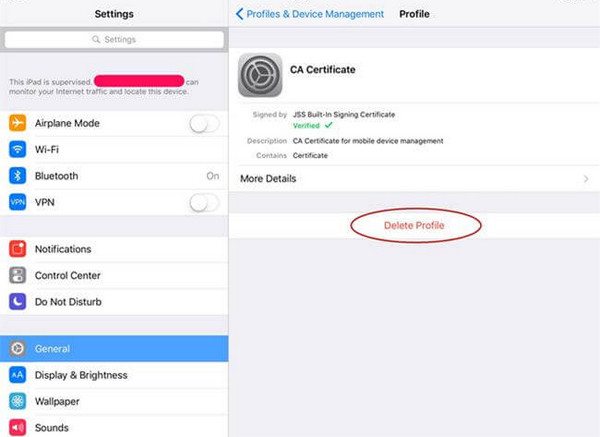
You can also remove the supervision on your own by managing the MDM profile in your iPad’s Settings. However, the administrator’s credentials, specifically the passcode, will still be required, so make sure you have it available. If you have the passcode, the removal process will be straightforward, as the Settings interface is user-friendly.
Follow the user-oriented operation below to grasp how to remove device supervision from iPad by removing the MDM profile:
Step 1Start on the Settings app by choosing General, then VPN & Device Management.
Step 2Once the management profile that controls your device appears, tap it and select Remove Management. As mentioned, you must then provide the passcode to remove it.
Part 4. Factory Reset to Remove Device Supervision from iPad
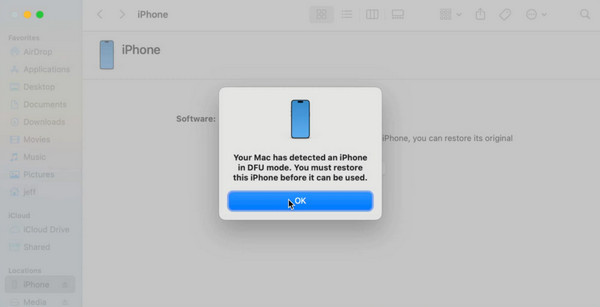
Meanwhile, factory resetting the iPad can also help you remove the device supervision. Just note that the standard reset process isn’t effective – putting the iPad into DFU mode is what works. Yes, you read that correctly. To remove MDM from iPad via a factory reset, the DFU mode is necessary. Hence, expect this method to be more advanced than the others.
Follow the unchallenging directions below to determine how to remove supervision from iPad via a factory reset:
Step 1First, link your iPad to a computer with the Finder, iTunes, or Apple Devices running. Then, boot the device into DFU mode using the designated button combination.
On iPad without Home button: Press Volume Up, then Volume Down, then hold the Top button for 3 seconds. Add Volume Down for 10 seconds, release Top, but keep Volume Down for 5 seconds until the iPad boots to DFU mode.
On iPad with Home button: Hold both the Power and Home buttons for 8 seconds, then release Power but keep holding Home for 5 more seconds until you’re in DFU mode.
Step 2Once the program detects your device in DFU mode, click the designated option to restore or factory reset the iPad, removing the supervision afterward.
Part 5. Remove Device Supervision from iPad with FoneLab iFoneWiz
Another effective approach to removing device supervision from your iPad is using the FoneLab iFoneWiz tool. It offers a Bypass MDM feature that is designed especially to remove the Mobile Device Management profile from an iPad, even without a passcode. It can also be used for the iPhone and iPod Touch, making it useful for your other devices as well.

iFoneWiz Helps you unlock iPhone screen, Removes Apple ID or its password, Remove screen time or restriction passcode in seconds.
- Helps you unlock iPhone screen.
- Removes Apple ID or its password.
- Remove screen time or restriction passcode in seconds.
You don't need to worry about complications since FoneLab iFoneWiz’s interface is intended for all users, including beginners. Thus, you’ll be able to remove remote management from iPad effortlessly. Moreover, it will be useful for other unlock issues you may face on your iOS device later, thanks to its other key features.
Comprehend the simplified task below as a sample of how to remove device supervision from iPad with FoneLab iFoneWiz:
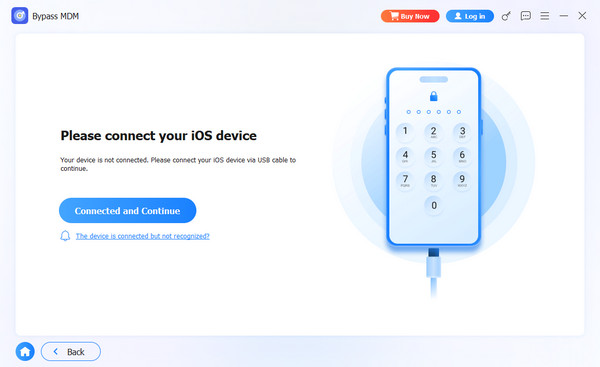
Step 1Obtain the FoneLab iFoneWiz file using the Free Download tab, and when it’s saved in your Downloads, use it to install the program. After setting up, run the program to display the key interface and choose Bypass MDM.
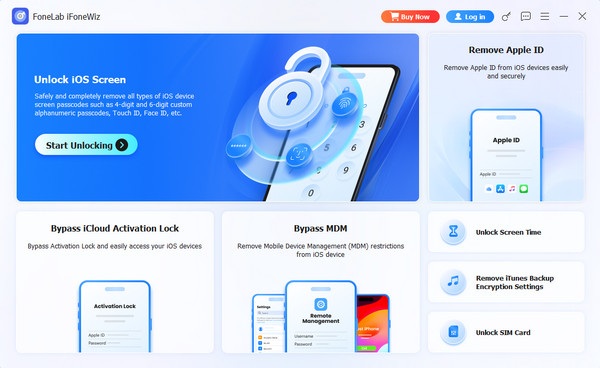
Step 2Following that, you will be instructed to connect your iPad. Simply use a working Lightning cable until the tool recognizes the device. Then, you will be provided with more prompts and instructions on the interface. Follow them to remove the device supervision.
Part 6. Comparison of Techniques to Remove Device Supervision from iPad
| Techniques | Contact the Administrator | Remove MDM Profile from Settings | Factory Reset | FoneLab iFoneWiz |
|---|---|---|---|---|
| Best For | Organization-owned devices. | BYOD devices where the admin made the profile removable. | Devices with functional buttons and a computer. | Users who want a professional yet convenient approach. |
| Password Needed? | No | Yes | No | No |
| Technical Skill | None (just communication) | Low (navigate Settings) | Medium (boot into DFU mode) | Low (follow on-screen steps) |
| Success Rate | High | High | Low | High |
Part 7. FAQs about How to Remove Device Supervision from iPad
Can I remove supervision by myself without help?
Yes, you can. In most cases, especially with school or work iPads, the administrator's help is needed. But you can also bypass this feature with effective methods, like FoneLab iFoneWiz.
How can I tell if my iPad is supervised?
Go to Settings > General > VPN & Device Management. If you see a message saying "This iPad is supervised and managed by..." then it is supervised.
There are several ways to remove supervision from an iPad, ranging from contacting the administrator to using software tools. Choose the method that is right for your situation. If you want a recommendation, FoneLab iFoneWiz is a reliable and effective option.



