
 iPhone Data Recovery
 iOS System Recovery
 iOS Data Backup & Restore
 iOS Unlocker
 iPhone Password Manager
 Location Changer
 Android Data Recovery
 Broken Android Data Extraction
 Android Data Backup & Restore
 Android Unlocker
 FoneTrans for iOS
 iPhone Data Eraser
 iPhone Cleaner
 HEIC Converter
 HyperTrans
 WhatsApp Transfer for iOS
 Mac Sweep
 Data Retriever
 Mac Data Retriever
 Video Converter Ultimate
 Screen Recorder
 Phone Mirror
- Unlock Apple ID
- Bypass iCloud Activation Lock
- Doulci iCloud Unlocking Tool
- Factory Unlock iPhone
- Bypass iPhone Passcode
- Reset iPhone Passcode
- Unlock Apple ID
- Unlock iPhone 8/8Plus
- iCloud Lock Removal
- iCloud Unlock Deluxe
- iPhone Lock Screen
- Unlock iPad
- Unlock iPhone SE
- Unlock Tmobile iPhone
- Remove Apple ID Password
How to Lock the Screen on iPhone for Baby Conveniently
 Updated by
 Need to learn how to lock iPhone screen for kids or babies? If you have ever handed your device to a little one, you already know what happens next. Within seconds, you will find the screen in different sections, and sometimes, even on personal apps, like Messages. Hence, learning to lock the screen properly while your baby is using or watching on the iPhone would be a great idea, giving you peace of mind. The question is, how will you set up this type of lock on your device? Well, wonder no more, as browsing the following parts will give you the answer.

Guide List
Part 1: How to Lock the Screen on iPhone for Baby
An iPhone feature called Guided Access is the key to locking the device’s screen for your baby. It can be enabled in the Settings app, and once ready, you can start locking your screen whenever needed. Below are the following processes to perform, so browse them accordingly.
1. Guided Access Initial Setup (One-Time)
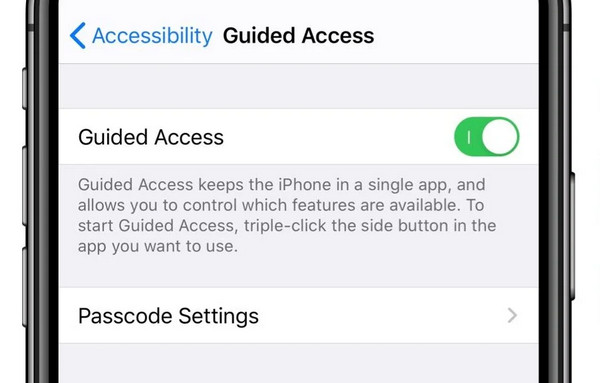
Unlike other built-in features on the iPhone, Guided Access isn’t turned on by default. Hence, you must first manage its initial setup to be able to use its function later. As mentioned, this specific process will be in the Settings app, providing the necessary options for the feature’s activation. You don’t need to turn it on every time, though. You only have to set it up one time, and locking the screen for your baby each time later will be much easier. Besides, it doesn’t involve technicalities, and you must only follow the straightforward navigation.
Bear in mind the comfortable task below to grasp how to lock phone screen for baby iPhone by setting it up first:
Step 1On your Settings, enter the Accessibility section. Different selections will be listed, but choose Guided Access and enable it by tapping the toggle at the uppermost part.
Step 2Once turned on, configure the feature’s options, like Passcode Settings, Time Limits, Accessibility Shortcut, and more, according to your preferences regarding Guided Access.
2. Locking the Screen for a Baby
After turning on the Guided Access feature, you can start unlocking your iPhone’s screen whenever you hand it to a baby. It works on most apps, including content-sharing video platforms, like YouTube, allowing your little one to watch without accidentally tapping any other options on the device’s screen. Just note that it doesn’t work on the Home screen, so if you plan to give the iPhone to the baby while it is open, better to lock the device instead.
Be guided by the convenient process below to lock iPhone screen for kids or babies:
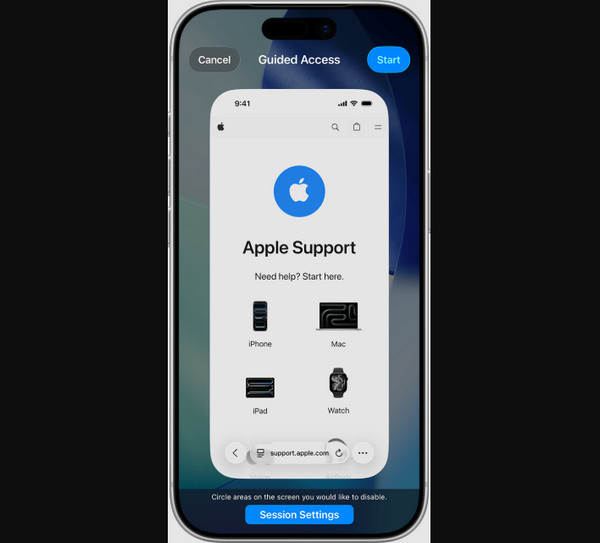
Step 1Open the app your baby will use, whether YouTube or another platform. After that, triple-press your iPhone’s Power key for the necessary options to show up.
Step 2From Accessibility Shortcut buttons, pick Guided Access. You should then manage further prompts to set up the feature further. Once ready, choose the Start selection above.
3. How to Unlock and Exit Guided Access
Once your baby is done with the iPhone, unlock your screen and exit it without complications. Like when locking the screen, the process is also straightforward when unlocking. It doesn’t even take a minute, so you will be able to get out of the Guided Access feature anytime. Then, you can just lock the screen again using the same process above, later when needed.
Imitate the worry-free instructions below to unlock the screen and exit the feature:
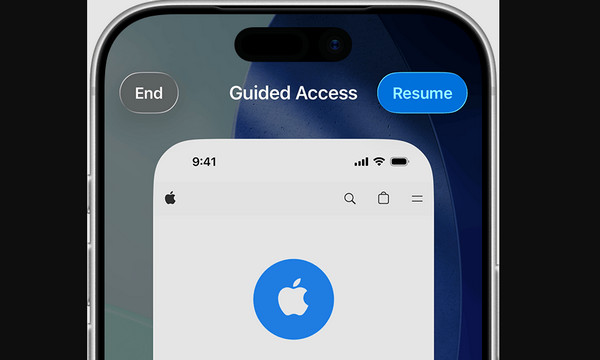
Step 1Like before, triple-press your iPhone’s Power key. Then, authenticate your identity by entering the Guided Access passcode you have set, Face ID, or Touch ID.
Step 2If the panel reappears, tap Guided Access and hit the End tab at the upper left.
Part 2. How to Parentally Control Your Child's iPhone
Other than Guided Access, managing parental controls on the iPhone is also many parent’s way to handle their children’s devices. Unlike the previous feature with only a single function, Screen Time offers various parental controls that help users keep their children’s devices safe and age-appropriate. These specific features are built into the iPhone, so all you need to do is set them up in Settings, including Family Sharing, without the need to download or install anything.
Act under the secure operation below to manage parental controls on your child’s iPhone:
Step 1First, activate the Family Sharing feature in Settings by tapping Family > Continue. Next, use the on-screen prompts to set it up and add your child to your family members.
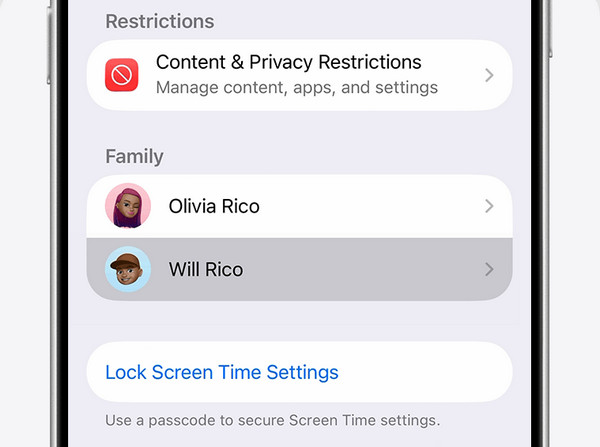
Step 2Next, proceed to the Screen Time section and turn it on before tapping your child’s name under Family. Then, tap Content & Privacy Restrictions to enable it as well. Afterward, set your desired parental controls to manage your child’s iPhone efficiently. You can choose your Allowed Apps, iTunes & App Store Purchases, Content Restrictions, and more.
Part 3. How to Remove Screen Time on iPhone
Although Screen Time offers several advantages for managing your child’s device, some users still face difficulties that mostly stem from a forgotten passcode. The feature can be easily enabled during initial setup. Still, when you try to modify or turn Screen Time off later, you may be faced with this concern, which will prevent you from accessing the apps or services you have previously restricted. Luckily, FoneLab iOS Unlocker can help bypass Screen Time passcode.

FoneLab Helps you unlock iPhone screen, Removes Apple ID or its password, Remove screen time or restriction passcode in seconds.
- Helps you unlock iPhone screen.
- Removes Apple ID or its password.
- Remove screen time or restriction passcode in seconds.
For those who haven’t heard about this program yet, it is a known unlocking professional that handles various locks on the iPhone and other iOS devices. Among its key functions is to bypass Screen Time to allow users to reaccess specific apps or services that they previously restricted using the feature. It also doesn’t require advanced knowledge, as its intuitive design is enough to guide all users. Besides, it can also remove MDM from iPhone, Apple ID, and more.
Comprehend the proper procedure below as a model to remove Screen Time on iPhone with FoneLab iOS Unlocker:
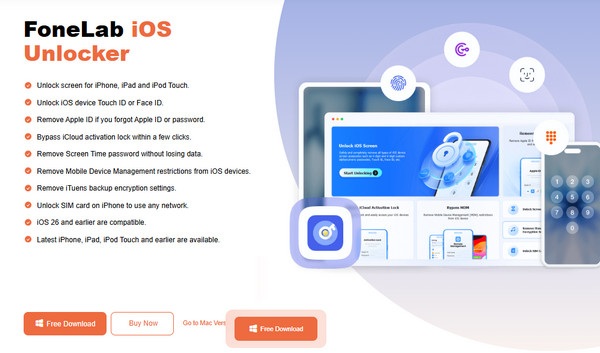
Step 1Start by saving FoneLab iOS Unlocker’s installation file from its website by selecting Free Download. You can then find it in your Downloads afterward; hence, open the file and follow the prompts to set up and install the unlocker. Then, tick the pop-up Start button.
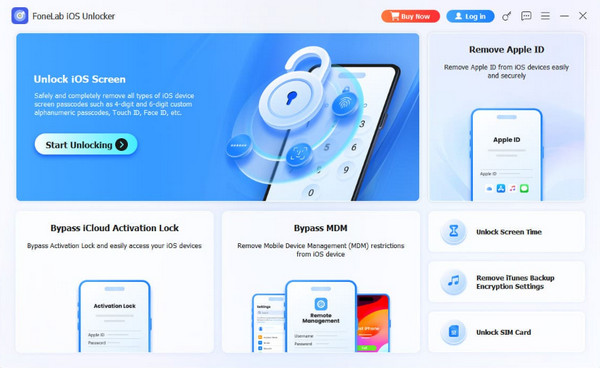
Step 2Listed on the program’s interface are its key features, including the Unlock Screen Time box on the right. Opt for it to proceed before linking the iPhone with a Lightning cable. Once connected, handle the appearing prompts and directions to remove the Screen Time.
Part 4. FAQs about How to Lock the Screen on iPhone for Baby
Is there a Kids mode iPhone?
There isn’t a direct Kids mode feature on the iPhone, but you can consider Guided Access as one. You must only set it up according to the device options that suit your child’s age. Other than that, you can also use Screen Time.
Can you lock the iPhone screen for games?
Yes, you can. Other than watching, kids like to play games, but risks of accidental touches. Luckily, the guide above can also help in this situation, so browse the information.
Learning to lock your iPhone for your baby keeps your device safe, protects your privacy, and gives you peace of mind. Therefore, don’t miss the locking procedures in this post, including the additional program, FoneLab iOS Unlocker, to be ready for later concerns.



