
 iPhone Data Recovery
 iOS System Recovery
 iOS Data Backup & Restore
 iOS Unlocker
 iPhone Password Manager
 Location Changer
 Android Data Recovery
 Broken Android Data Extraction
 Android Data Backup & Restore
 Android Unlocker
 FoneTrans for iOS
 iPhone Data Eraser
 iPhone Cleaner
 HEIC Converter
 HyperTrans
 WhatsApp Transfer for iOS
 Mac Sweep
 Data Retriever
 Mac Data Retriever
 Video Converter Ultimate
 Screen Recorder
 Phone Mirror
- Part 1. How to Erase iPhone Without Passcode with FoneLab iOS Unlocker
- Part 2. How to Erase iPhone Without Password with Settings App
- Part 3. How to Erase an iPhone Without Passcode with Erase iPhone Feature
- Part 4. How to Erase iPhone Without Password with Find My Website
- Part 5. FAQs about How to Erase iPhone Without Password
- Unlock Apple ID
- Bypass iCloud Activation Lock
- Doulci iCloud Unlocking Tool
- Factory Unlock iPhone
- Bypass iPhone Passcode
- Reset iPhone Passcode
- Unlock Apple ID
- Unlock iPhone 8/8Plus
- iCloud Lock Removal
- iCloud Unlock Deluxe
- iPhone Lock Screen
- Unlock iPad
- Unlock iPhone SE
- Unlock Tmobile iPhone
- Remove Apple ID Password
How to Erase an iPhone Without Passcode in 4 Practices
 Updated by
 The iPhone contains different security features to secure the user’s data and information. The factory reset is secured using a password or passcode. This technique is indeed one of the most crucial procedures that can be performed on your iPhone because it will wipe all your data.
However, some iPhone users tend to forget their iPhone passcode or Apple ID account password accidentally. Are you one of them? You landed on the right post! This article will show you how to erase an iPhone without password. The 4 leading methods for the procedure can be seen as you scroll below.

Guide List
- Part 1. How to Erase iPhone Without Passcode with FoneLab iOS Unlocker
- Part 2. How to Erase iPhone Without Password with Settings App
- Part 3. How to Erase an iPhone Without Passcode with Erase iPhone Feature
- Part 4. How to Erase iPhone Without Password with Find My Website
- Part 5. FAQs about How to Erase iPhone Without Password
Part 1. How to Erase iPhone Without Passcode with FoneLab iOS Unlocker
FoneLab iOS Unlocker is your best choice to discover how to erase iPhone without iCloud password. This tool supports different scenarios for unlocking your iPhone. It includes broken or unresponsive iPhone screens, second-hand, disabled after multiple passcode attempts, accidentally forgotten credentials, and Face ID or Touch ID issues.

FoneLab Helps you unlock iPhone screen, Removes Apple ID or its password, Remove screen time or restriction passcode in seconds.
- Helps you unlock iPhone screen.
- Removes Apple ID or its password.
- Remove screen time or restriction passcode in seconds.
Besides the mentioned features, this software can also remove other security features on your iPhone. iCloud Activation Lock, Screen Time restrictions, MDM, and iTunes backup passwords are the additional features. Please follow the steps below to know how the tool works for erasing your iPhone without a password or passcode.
Step 1Pay a visit to the main website of FoneLab iOS Unlocker. After that, click the downloaded file and set up the tool based on the requirements. Later, install and open the tool on your computer.

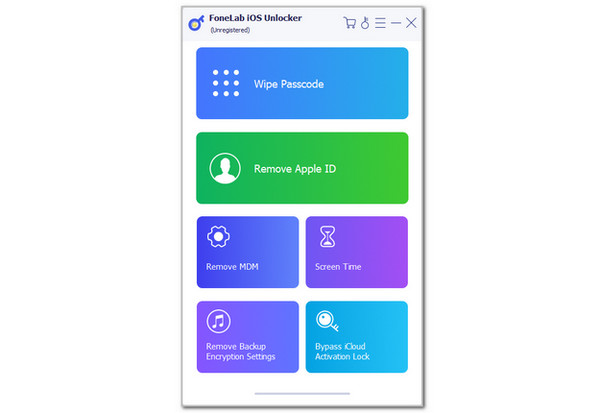
Step 2The six major features of the tool will appear on the software screen. Select the Wipe Passcode button at the top. Then, the interface will be replaced, containing other options for the procedure.
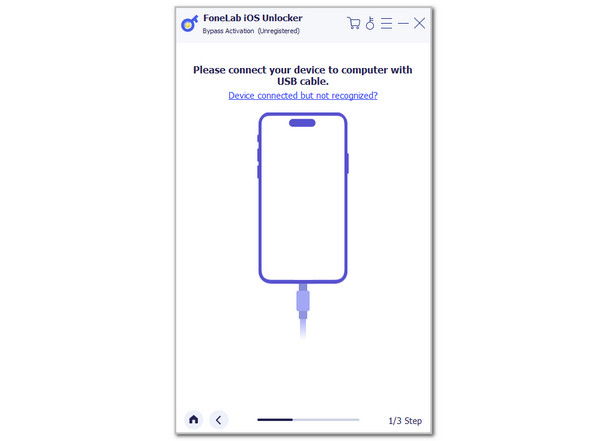
Step 3A demonstration will be shown on the screen. Please get a USB cable and follow the on-screen instructions to plug the iPhone into the computer. Later, click the Start button once the iPhone information is shown. Click the Unlock button and enter the 0000 code. Finally, click the Unlock button again to start wiping your iPhone.
Part 2. How to Erase iPhone Without Password with Settings App
The iPhone has a built-in way to factory reset its content and settings. You may use its Settings application, which is responsible for holding the customizations for its operations and features. The factory reset allows you to perform it on an iPhone with its lock screen passcode as authentication. Please imitate the steps below to factory reset your iPhone with its Settings app.
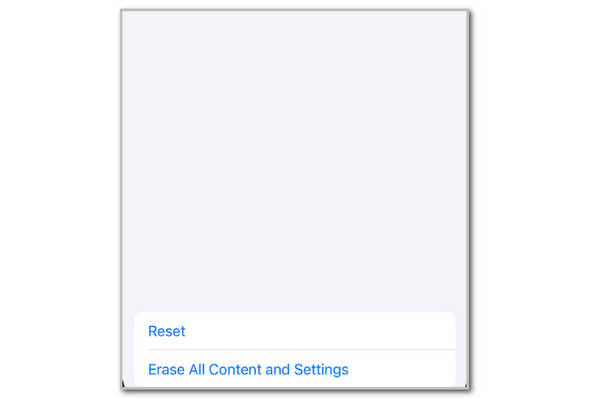
Step 1Open the iPhone Settings app and tap the General button on the first interface. After that, select the Transfer or Reset iPhone button at the bottom of the screen. You will be directed to a new interface and tap Erase All Content and Settings button at the bottom afterward.
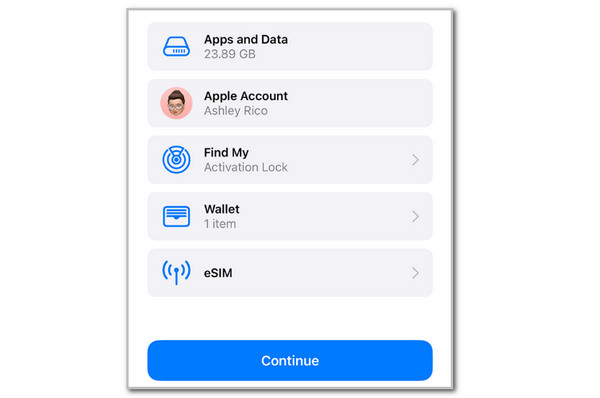
Step 2Enter the iPhone passcode afterward for the authentication. Then, select the data you want to keep or erase. Finally, tap Continue at the bottom center of the main interface. The erase process might take a few seconds or minutes. You only need to wait patiently.
Part 3. How to Erase an iPhone Without Passcode with Erase iPhone Feature
The Apple device mentioned has an Erase iPhone feature that can factory reset it. This feature appears on the iPhone lock screen when multiple wrong passcode attempts are performed. However, this feature is strictly available to iOS 15.2 and later versions. Unlike the previous method that requires a lock screen passcode, this process is contradictory. The reason is that the Apple ID password is the one that is needed. Please imitate the steps below to perform this procedure to erase your iPhone.
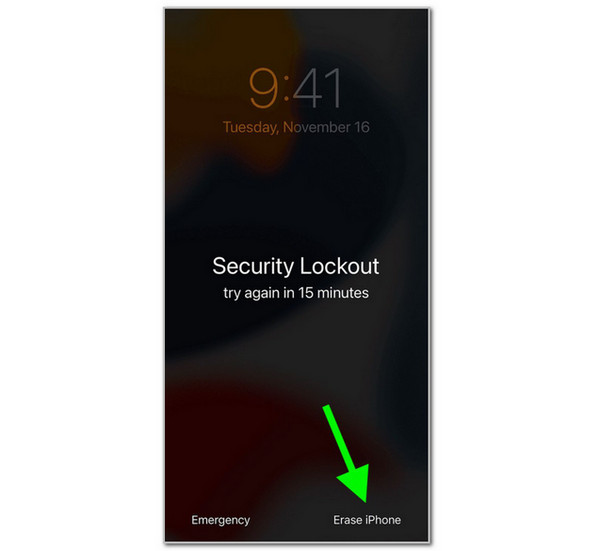
Step 1Enter several wrong attempts on your iPhone lock screen. Keep entering a wrong passcode until the Security Lockout screen is shown.
Step 2There will be two available options at the bottom of the screen. Please tap the Erase iPhone button at the bottom right. Then, tap the same button again to confirm. Later, enter the Apple ID password that is associated with the iPhone. Then, tap theErase iPhone button once again to start erasing your iPhone.
Part 4. How to Erase iPhone Without Password with Find My Website
The iPhone has the Find My service, offered by iCloud, to track it when it is lost or misplaced. Did you know that this feature can be used to erase your iPhone wirelessly? That’s true! You can simply sign in to the associated Apple ID account on its website. Additionally, you can erase your iPhone with the Family Sharing feature. How convenient, right? The steps below will guide you on how to use Find My to erase your iPhone.
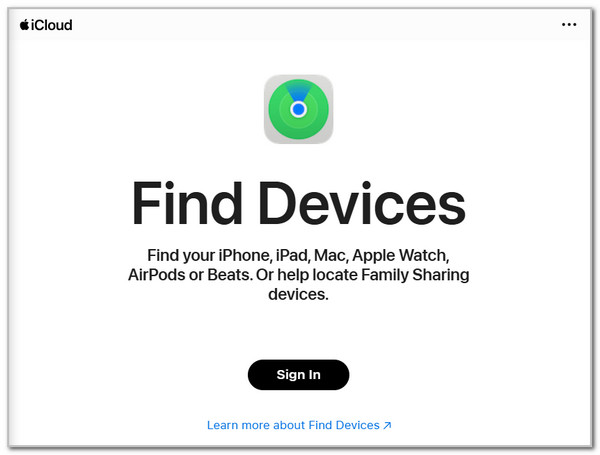
Step 1Open your web browser and select the Sign In button at the bottom center of the main interface of the iCloud Find My website. Then, enter your email or phone number in the first empty box. Then, choose the Arrow button to proceed. Next, enter the iCloud account Apple ID password. Click Arrow at the bottom right again to sign in to the account.
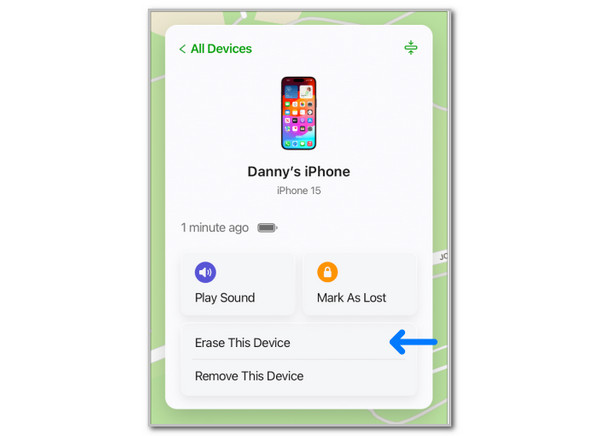
Step 2You will see the digital map, containing the current or last location of the Apple devices associated with the iCloud account. Select the All Devices button at the top left. The related devices with the account will appear. Select the iPhone you want to erase afterward. Later, choose the Erase This Device button and enter the Apple ID password of the account to authenticate the procedure.
Part 5. FAQs about How to Erase iPhone Without Password
Does erasing an iPhone remove the Activation Lock?
No. Simply erasing the iPhone does not remove the Activation Lock. During the setup process after the factory reset, you need to enter the Apple ID credentials associated with it. You can use FoneLab iOS Unlocker to bypass iPhone Activation Lock.
Does erasing an iPhone delete everything?
Yes. The factory reset will wipe everything from the iPhone. The system data and features will be left. Don’t worry. You can bring back your iPhone data by restoring it if you have backups before the factory reset.
This post is all about how to erase iPhone without password. FoneLab iOS Unlocker is the best option because it can erase the iPhone! Erasing the iPhone deleted all its data, user information, files, etc. It is the best way to prepare your iPhone for its new owner if you plan to give it away or sell it. Wipe it now!



