
 iPhone Data Recovery
 iOS System Recovery
 iOS Data Backup & Restore
 iOS Unlocker
 iPhone Password Manager
 Location Changer
 Android Data Recovery
 Broken Android Data Extraction
 Android Data Backup & Restore
 Android Unlocker
 FoneTrans for iOS
 iPhone Data Eraser
 iPhone Cleaner
 HEIC Converter
 HyperTrans
 WhatsApp Transfer for iOS
 Mac Sweep
 Data Retriever
 Mac Data Retriever
 Video Converter Ultimate
 Screen Recorder
 Phone Mirror
- Part 1. How to Delete Stickers on iPhone in a Conversation
- Part 2. How to Delete a Sticker on iPhone Messages Sticker Pack
- Part 3. How to Remove Stickers from iPhone Photos
- Part 4. How to Remove Stickers from Keyboard on iPhone
- Part 5. Bonus Tip: How to Free Up iPhone Storage
- Part 6. FAQs about How to Delete a Sticker on iPhone
 FoneLab iPhone Cleaner
Easily erase all contents and settings on iPhone, iPad or iPod completely and permanently.
- Clear iPhone Junk Files
- Clear iPad Cache
- Clear iPhone Safari Cookies
- Clear iPhone Cache
- Clear iPad Memory
- Clear iPhone Safari History
- Delete iPhone Contacts
- Delete iCloud Backup
- Delete iPhone Emails
- Delete iPhone WeChat
- Delete iPhone WhatsApp
- Delete iPhone Messages
- Delete iPhone Photos
- Delete iPhone Playlist
- Delete iPhone Restrctions Passcode
How to Delete a Sticker on iPhone in 4 Trusted Ways
 Updated by
 Some individuals love to use stickers in different ways. They can be sent through messages, stored on the iPhone Photos app, and more. However, these stickers can accumulate over time, causing the device to reach its full storage capacity. Additionally, some individuals are bound to send the stickers to specific contacts accidentally.
Deleting stickers can help with better organization by deleting the old or unused ones. How to remove stickers on iPhone? Eyes here! This article introduces the 4 leading ways to delete your stickers from your iPhone quickly. Please scroll down below to see more details.

Guide List
- Part 1. How to Delete Stickers on iPhone in a Conversation
- Part 2. How to Delete a Sticker on iPhone Messages Sticker Pack
- Part 3. How to Remove Stickers from iPhone Photos
- Part 4. How to Remove Stickers from Keyboard on iPhone
- Part 5. Bonus Tip: How to Free Up iPhone Storage
- Part 6. FAQs about How to Delete a Sticker on iPhone
Part 1. How to Delete Stickers on iPhone in a Conversation
The stickers on your iPhone can be used in conversation. You can send them to express emotions, mood, etc. How to delete iPhone stickers in a conversation? This procedure is simple because it is like you are only deleting regular messages. The best thing about this is that you can delete one or more stickers from your iPhone messages or conversations. It is best for iPhone users who love sending stickers and decide to delete countless of them. The steps are your guide for this process.
Step 1Open the Messages app on your iPhone and locate the message that contains the stickers you want to delete. Then, find the sticker from the conversation. After that, long-press it to see more options on the screen.
Step 2Tap the Delete section at the bottom left corner. Later, confirm the procedure by tapping the Delete Message button.

Part 2. How to Delete a Sticker on iPhone Messages Sticker Pack
There are sticker packs that are offered on your iPhone. These can be purchased from digital stores, like the App Store. Can you delete iPhone sticker packs? Yes! This procedure is the quickest way to delete a bulk of stickers on your iPhone. The steps below will be your best guide.
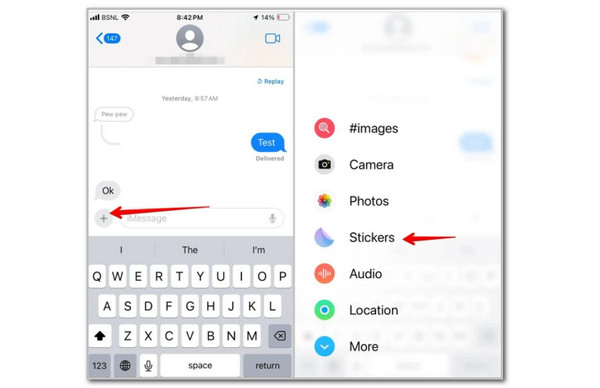
Step 1Go to the Messages app on your iPhone. After that, open any conversation from the list and tap the Plus button at the top left of your digital keyboard. Then, more selections will appear on the screen. Tap the Stickers button from the options to proceed with the process.
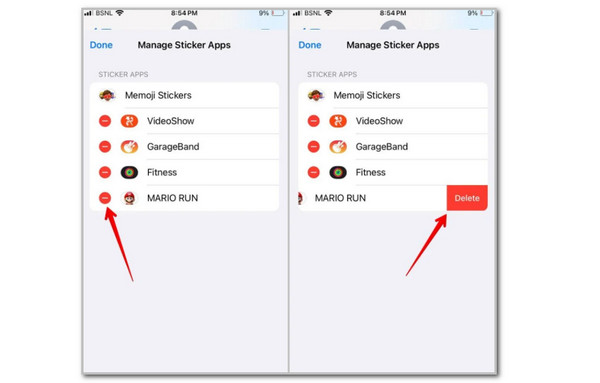
Step 2Tap the Edit button and tap the same button on the next screen at the top left of the main interface. Locate the sticker you need to delete. Swipe it to the left and tap the Delete button that is prompted on the right. Finally, tap the Delete button in the small dialogue box to confirm the procedure.
Part 3. How to Remove Stickers from iPhone Photos
The iPhone Photos application allows you to create stickers using your images. You can share and send them to other people. You can make as many stickers as you want by getting the picture’s subject. If you think that your iPhone Photos app already contains multiple of them, it is time to delete a few.
How do I delete stickers on iPhone? The steps below will be your best guide on how to delete the stickers from your iPhone photos.
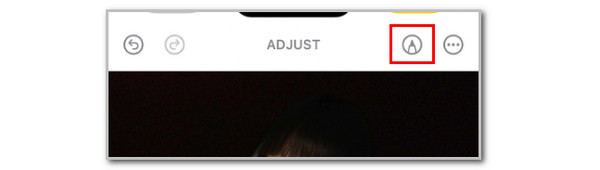
Step 1Open the Photos app on an iPhone and locate the photos that have the sticker. After that, tap the Edit button from the options list that will appear on the screen. Then, select the Pencil button from the screen.
Step 2Tap the Plus option on the screen and tap the Add Sticker button. Touch and hold the sticker you prefer to delete. Finally, tap the Remove button from the list to delete the customized sticker.
Part 4. How to Remove Stickers from Keyboard on iPhone
How to remove stickers from keyboard on iPhone? That’s easy. Your iPhone digital keyboard is one of the responsible tools that can help you send stickers. Good news! You can remove the stickers from the iPhone keyboard to avoid sending new ones to your chats or conversations.
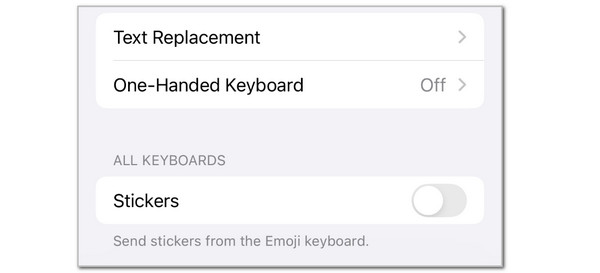
Step 1Open the iPhone Settings app and tap the General button that you will see on the screen. Then, a list of more options will appear on the screen. Tap the Keyboard button from the list, and you will be directed to a new screen.
Step 2Go to the Emoji or All Keyboards section at the bottom by swiping up the iPhone screen. Finally, please toggle off the Stickers slider to delete the stickers from your iPhone keyboard.
Part 5. Bonus Tip: How to Free Up iPhone Storage
Here is FoneLab iPhone Cleaner as a bonus third-party tool to give you a smooth performance in freeing up your iPhone storage space. This program allows you to clear junk files, uninstall apps, delete private data, and more. The best feature of this tool is that it is ideal for beginners because of its simple interface. Please follow the steps below to discover how the tool works to free up your iPhone storage space.
FoneLab iPhone Cleaner is the best iOS data cleaner which can easily erase all contents and settings or specific data on iPhone, iPad or iPod Touch.
- Clean unwanted data from iPhone, iPad or iPod touch.
- Erase data quickly with one-time overwriting, which can save you time for plenty of data files.
- It is safe and easy to use.
Step 1Select the Free Download button from the official website of FoneLab iPhone Cleaner. After that, locate the downloaded file to set it up. Finally, install and launch the tool on your computer to start the process.

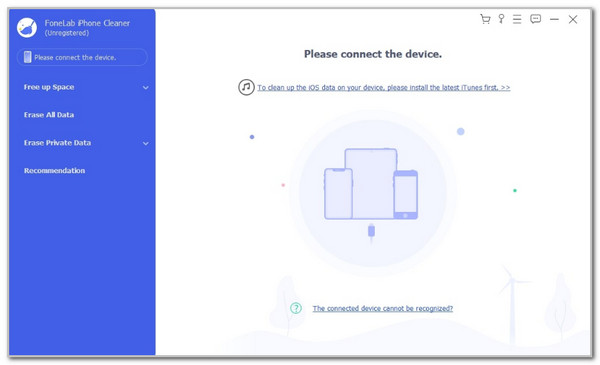
Step 2The interface will require you to plug the iPhone into the computer. Then, get a USB cable as the primary requirement of this process.
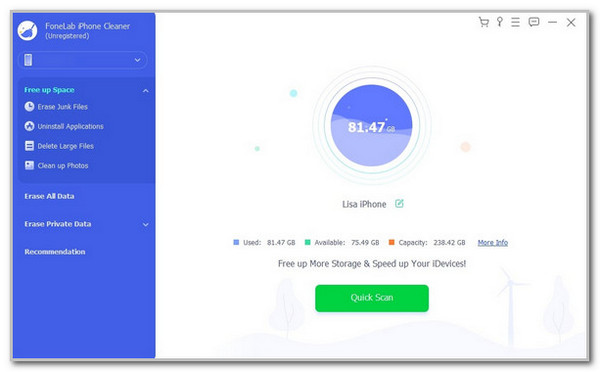
Step 3The iPhone name and other information must be seen from the software’s screen. Then, select the Quick Scan button under this information. The tool will find data that can free up your iPhone storage space. Click the Erase section at the bottom right afterward to delete the junk files.
Part 6. FAQs about How to Delete a Sticker on iPhone
How do I make my own iPhone stickers?
Open the iPhone Photos app and select a photo. Then, tap and hold the subject in the photo until the outline appears. Tap the Add Sticker button and save the sticker to your library.
Do stickers only work on iPhone?
No. Stickers are graphics that are used for digital content. These files can be used on other devices, aside from iPhone or other Apple devices. You can also access them from Android and Windows devices.
How do you delete stickers on iPhone? We hope that this article has been a reliable reference, providing four quick methods to delete your iPhone stickers. FoneLab iPhone Cleaner is also used to free up iPhone storage. Stickers are a fun and convenient way to express your emotions or expressions in chats or texts. However, too many of them can be inconvenient due to their quantity or file size. If that’s the case, delete your iPhone stickers now!



