
 iPhone Data Recovery
 iOS System Recovery
 iOS Data Backup & Restore
 iOS Unlocker
 iPhone Password Manager
 Location Changer
 Android Data Recovery
 Broken Android Data Extraction
 Android Data Backup & Restore
 Android Unlocker
 FoneTrans for iOS
 iPhone Data Eraser
 iPhone Cleaner
 HEIC Converter
 HyperTrans
 WhatsApp Transfer for iOS
 Mac Sweep
 Data Retriever
 Mac Data Retriever
 Video Converter Ultimate
 Screen Recorder
 Phone Mirror
 FoneLab iPhone Cleaner
Easily erase all contents and settings on iPhone, iPad or iPod completely and permanently.
- Clear iPhone Junk Files
- Clear iPad Cache
- Clear iPhone Safari Cookies
- Clear iPhone Cache
- Clear iPad Memory
- Clear iPhone Safari History
- Delete iPhone Contacts
- Delete iCloud Backup
- Delete iPhone Emails
- Delete iPhone WeChat
- Delete iPhone WhatsApp
- Delete iPhone Messages
- Delete iPhone Photos
- Delete iPhone Playlist
- Delete iPhone Restrctions Passcode
How to Delete Text Messages on iPhone in Proven and Tested Ways
 Updated by
 The messages on your iPhone are one of the most critical data. However, due to their quantity, they take up much of your iPhone storage. If so, most iPhone users want to delete all or lessen the messages to free up space. How to permanently delete text messages on iPhone? There are various ways to do this procedure. In fact, this article has different ways to delete your iPhone messages individually, in bulk, or completely. Do you want to know their complete information? Please scroll down for more details about the topic.

Guide List
Part 1. How to Delete Text Messages on iPhone Messages App
The Messages app on your iPhone is responsible for receiving and sending messages. This application can hold hundreds and even thousands of messages in a day, month, or year. The best thing about it is that it does not automatically delete the old and new messages your iPhone is receiving.
However, due to this function, the messages are filling up your iPhone storage. The good thing about it is that it allows you to delete the messages from your iPhone simultaneously or manually, individually. There are 3 methods on how to delete sent messages on iPhone. Please discover them below.
1. Delete an Entire Conversation
Whenever we send or receive a message on our iPhone's Messages app, it will not store them individually. In short, it will not save them in one column as you receive and send messages. It stores them in one conversation. It means that the messages from one contact will be separated from the other messages from different contacts. The best thing about it is that you can delete the entire conversation in a few taps. It does not last for more than a minute when it is performed correctly. How to delete multiple messages on iphone through the entire conversation? The steps are provided below for your reference.
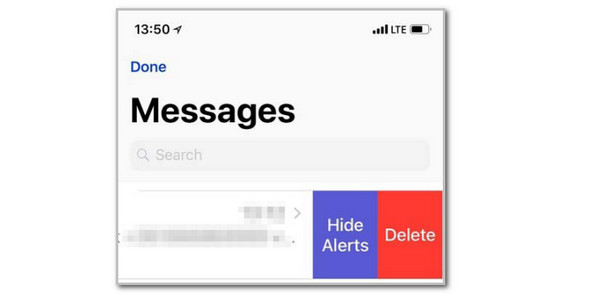
Step 1Go to the Messages app on your iPhone. After that, the recently sent or received messages from the conversations will appear on the main interface. Please locate the conversation you want to delete. After that, swipe it to the left, and you will see more options on the side of the main interface.
Step 2Alternatively, please long-press the conversation, and a new option will appear on the screen. Finally, please tap the Delete button from the main interface. The conversation will be removed, and it will vanish from the iPhone Messages app.
2. Delete Specific Messages or Attachments in a Thread
Besides the blue and green bubbles that contain your iPhone messages, this device also allows you to send or receive attachments in a thread. These attachments can contain different data types, including photos, videos, location, voice messages, and more. Deleting the entire conversation can delete them.
However, it will delete all the messages from the conversation, including the old and new messages. The good thing about the iPhone is that it allows you to delete individual messages from a conversation. How to delete messages on iPhone permanently and individually? Please perform the steps below to achieve this procedure.
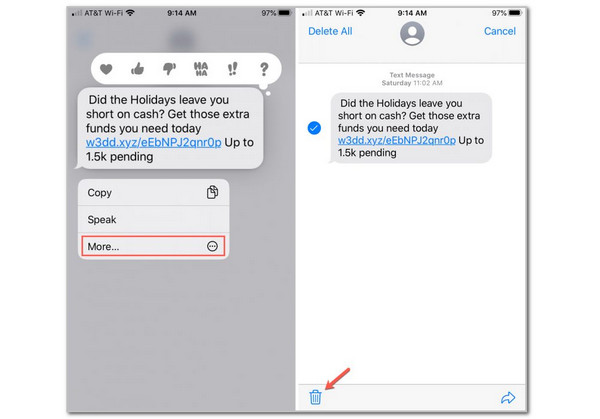
Step 1Open the Messages app on your iPhone. After that, the conversation and the recently sent or received messages from the conversation will appear on the main interface. Please select the conversation where the attachments are stored, sent, or received. Then, long-press the attachments from the list. Then, drop-down options will appear on the screen. Tap the More button from the list to proceed with the process.
Step 2The iPhone Messages app will show you more options at the bottom of the main interface. Then, tap the Delete selection at the bottom left corner. Then, the message or attachment will be deleted from the conversation without affecting the other messages in the list.
3. Delete Multiple Conversations at Once
As mentioned, the iPhone stores the messages based on the recipient or contact who sent or received the messages. How to delete multiple text messages on iPhone with numerous conversations? That’s easy! In fact, there is a similarity with the procedure mentioned in the previous sections. Please follow the steps below to discover how to delete multiple conversations on your iPhone easily.
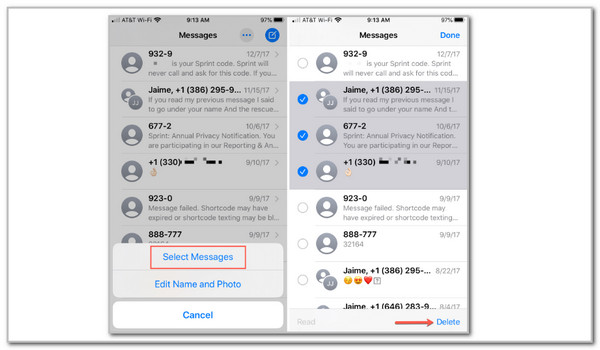
Step 1Open the iPhone Messages app and locate the conversations you want to delete from the mentioned app. After that, long-press the first conversation you want to delete from the Messages app. After that, more options will appear at the bottom center of the main interface. Please tap the Select Messages button at the bottom.
Step 2Please select the conversations you want to delete. You only need to tap them afterward for selection. Finally, tap the Delete option at the bottom corner of the main interface. The conversations will be deleted afterward.
Do you also want to delete multiple contacts on iPhone? This procedure is almost similar to the process above. You only need to open the Contacts app and long-press the contacts you want to delete and drag them using your two fingers. Finally, tap the Delete [Quantity] Contacts button as the final option.
Part 2. How to Delete All Messages on iPhone with FoneLab iPhone Cleaner
How to permanently delete messages on iPhone? You can utilize a third-party tool, like FoneLab iPhone Cleaner. This tool has the Erase All Data feature that can achieve the mentioned erasing procedure for your messages. The good thing about this tool is that it has 3 security levels that can be used before erasing your iPhone. The tool requires you to disable some of the security features on your iPhone, like Find My. Do not worry. The reason is that the program will assist you with the procedure by posting the detailed instructions. It can also be used to delete a contact on iPhone.
FoneLab iPhone Cleaner is the best iOS data cleaner which can easily erase all contents and settings or specific data on iPhone, iPad or iPod Touch.
- Clean unwanted data from iPhone, iPad or iPod touch.
- Erase data quickly with one-time overwriting, which can save you time for plenty of data files.
- It is safe and easy to use.
Please follow the steps to discover how to delete all text messages on iPhone using this tool. Move one.
Step 1Open your web browser and search for the website of FoneLab iPhone Cleaner. Then, click the Free Download button on the screen. Set up, install, and launch it afterward. Then, the tool will show its main interface. Please plug the iPhone into the computer with a USB wire or cable. The software must recognize the iPhone by allowing all the permissions it requires. Finally, the iPhone name will appear on the screen.
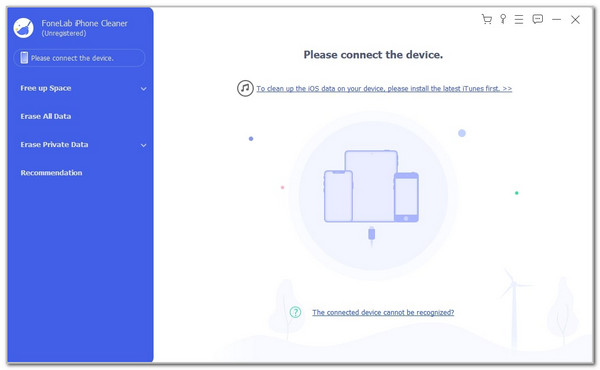
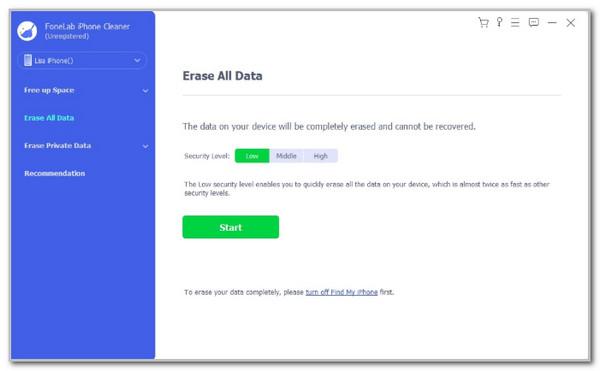
Step 2Please click the Erase All Data button on the left side of the main interface. Then, the tool will show you the related feature for the mentioned tool. Go to the Security Level section and choose the level you prefer for your iPhone. You can select the Low, Medium, and High buttons. Finally, click the Start button under the levels to proceed with the process.
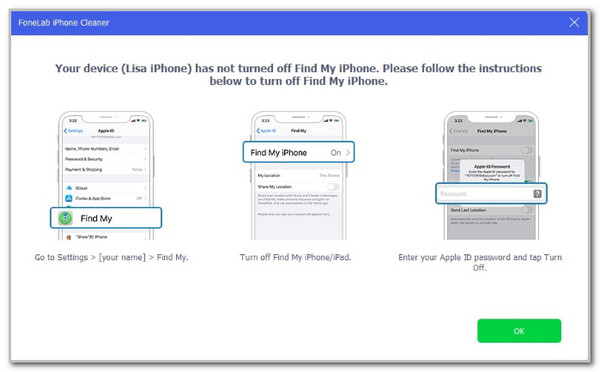
Step 3The tool will require you to undergo different procedures on your iPhone. Don’t worry. There are on-screen instructions on how you can do that. After that, click the OK button in the bottom right of the main interface to proceed with the procedure.
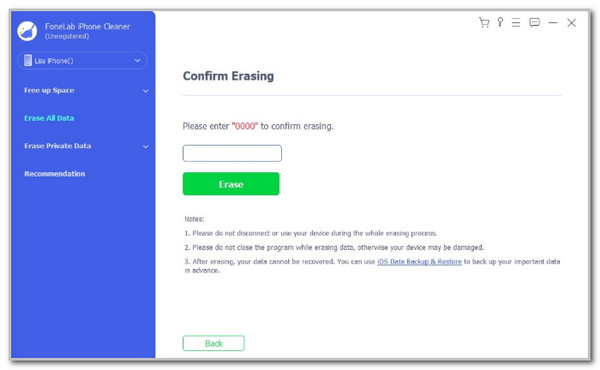
Step 4The Confirm Erasing screen will appear afterward. Once sure with the erasing procedure, please enter the 0000 code from the empty section. Then, please click the Erase button under it to start erasing your iPhone. Wait for the erasing procedure to be completed and unplug the iPhone from the computer once the procedure is done.
Part 3. FAQs about How to Delete Messages on iPhone
How to delete deleted messages on iPhone?
The iPhone Messages app features a Recently Deleted folder, where you can see the recently deleted messages. Open the Messages application and tap the Menu button at the top right corner. Then, select the deleted messages you want and tap the Delete section at the bottom right.
How to delete text messages on iPhone for both sides?
For the earlier versions of iPhone, you cannot delete the messages from both you and the recipients. Luckily, you can do this on iOS 16 and the latest versions. However, you have 2 minutes to do this. Touch and hold the message and tap the Undo Send button on the screen.
All in all, you have witnessed the various methods on how to delete all messages on iPhone or individually. FoneLab iPhone Cleaner is here to clear all the messages on your iPhone in one process. There are more features you can discover about this tool. Download it now!



