
 iPhone Data Recovery
 iOS System Recovery
 iOS Data Backup & Restore
 iOS Unlocker
 iPhone Password Manager
 Location Changer
 Android Data Recovery
 Broken Android Data Extraction
 Android Data Backup & Restore
 Android Unlocker
 FoneTrans for iOS
 iPhone Data Eraser
 iPhone Cleaner
 HEIC Converter
 HyperTrans
 WhatsApp Transfer for iOS
 Mac Sweep
 Data Retriever
 Mac Data Retriever
 Video Converter Ultimate
 Screen Recorder
 Phone Mirror
- Part 1. Delete Multiple Contacts on iPhone Contacts/Phone App
- Part 2. How to Mass Delete Contacts on iPhone from iCloud
- Part 3. Mass Delete Contacts on iPhone Using FoneTrans for iOS
- Part 4. Comparison Table Methods to Delete Multiple Contacts on iPhone
- Part 5. FAQs about How to Delete Multiple Contacts on iPhone
How to Mass Delete Contacts on iPhone in 3 Dependable Ways
 Updated by
 Good day! I have been using my iPhone for a couple of years. I was deleting some files to free up its storage. Unfortunately, I have countless saved contacts on my iPhone, which will cost me much of my time to delete the inactive ones due to their quantity. Can I mass delete contacts on iPhone? Please help me. Thank you!
Deleting the contacts on iPhone individually is indeed time-consuming. It is better if you delete them simultaneously to save time. In this article, you can use the 3 proven methods to delete your iPhone contacts in large numbers. Kindly scroll below to discover them.

Guide List
- Part 1. Delete Multiple Contacts on iPhone Contacts/Phone App
- Part 2. How to Mass Delete Contacts on iPhone from iCloud
- Part 3. Mass Delete Contacts on iPhone Using FoneTrans for iOS
- Part 4. Comparison Table Methods to Delete Multiple Contacts on iPhone
- Part 5. FAQs about How to Delete Multiple Contacts on iPhone
Part 1. Delete Multiple Contacts on iPhone Contacts/Phone App
Every data or file on your iPhone has a designated application that is responsible for storing it. For your contacts, you can access or manage them from the iPhone Contacts and Phone application. These applications allow you to add and delete contacts from iPhone.
Some think that these applications cannot delete multiple contacts. The reason is that it is a hidden technique that only a few users know. Also, the procedure of iPhone Contacts and Phone apps are the same. Your iPhone must run iOS 16 and later. Discover how to delete multiple contacts at once on iPhone Contacts and Phone app with the steps below.
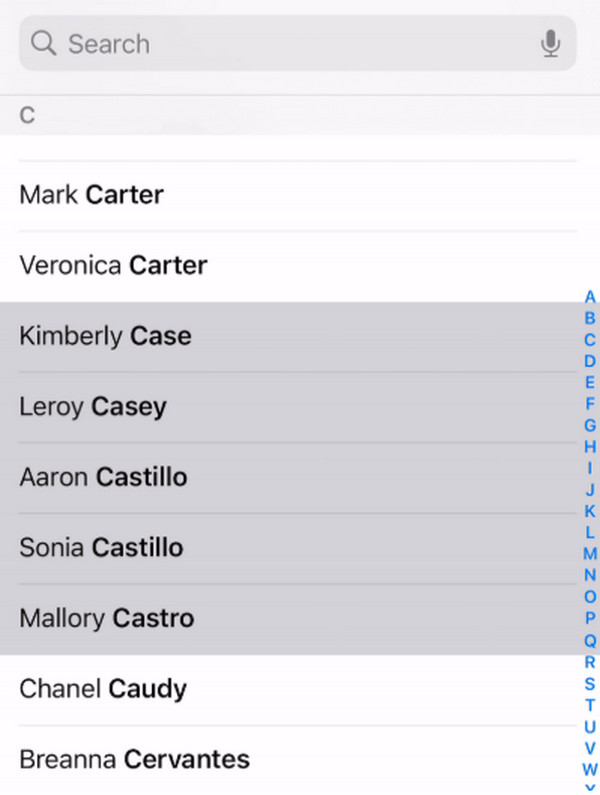
Open the Contacts or Phone app on your iPhone. After that, the contacts will appear on the main interface. Place your 2 fingers at the top of the contacts you want to delete. Then, slide your fingers to select the contacts you want to delete. Later, press and hold on a space, and a small window will appear. Tap the Delete [Quantity] Contacts button from the list. Confirm the action afterward to complete the process.
Part 2. How to Mass Delete Contacts on iPhone from iCloud
Besides the iPhone Contacts and Phone apps, you can also store your contacts on your iCloud account. iCloud can store your contacts forever, including managing them for any changes. Can you mass delete contacts on iPhone iCloud? Definitely, yes! This free service allows you to delete your contacts. However, ensure that the iPhone is synced with iCloud to achieve this procedure.
Additionally, the Apple ID associated with iCloud is present. Without it, you cannot delete the contacts from your iPhone using the main website of iCloud. Please use the steps below to know how.
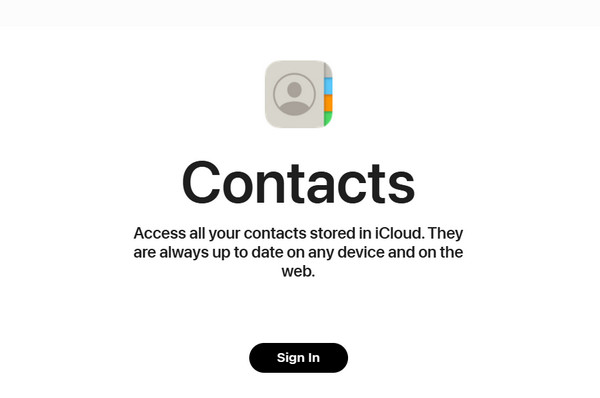
Step 1Grab your device and search for the Contacts - Apple iCloud website. After that, the first interface of the website will ask you to sign in with your Apple ID. Please click Sign In at the bottom center of the screen.
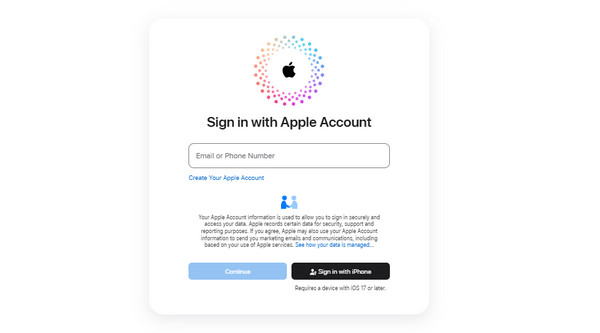
Step 2The Sign In with Apple Account screen will appear. Please enter an email or phone number associated with the account. Click the Continue button and enter the password afterward. Later, please click the Sign In button to sign in.
Alternatively, you can select the Sign In with iPhone button at the bottom right. You can click the Use a Phone or Tablet or Use an External Security Key button. However, your iPhone version must be iOS 17 or later.
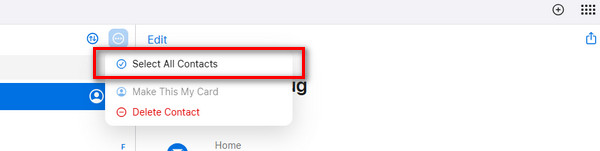
Step 3Click the All Contacts list from the main interface. Then, select all the contacts you want to delete. Later, click the Three Dots button on the side. Drop-down options will appear. Please click the Select All Contacts button. Finally, click the Delete Contacts button at the top right to delete them.
Part 3. Mass Delete Contacts on iPhone Using FoneTrans for iOS
Aside from the Apple way, you can also use FoneTrans for iOS to delete multiple contacts on your iPhone. It can do this by managing them through a USB connection. The tool can also be used to transfer contacts from iPhone to another. You are also allowed to manage your contacts from your iPhone, including adding new ones. Besides contacts, it can also transfer images, music, videos, messages, and other data types. You may transfer the files to your computer, iPhone, and other Apple devices. How to delete multiple contacts on iPhone at once with this tool? Please follow the steps below to proceed.

With FoneTrans for iOS, you will enjoy freedom to transfer your data from iPhone to computer. You can not only transfer iPhone text messages to computer, but also photos, videos and contacts can be moved to PC easily.
- Transfer photos, videos, contacts, WhatsApp, and more data with ease.
- Preview data before transferring.
- iPhone, iPad and iPod touch are available.
Step 1Go to the main website of FoneTrans for iOS. Then, click the Free Download button prompted on the left side of the screen. After that, locate the downloaded file and set it up. Install it from the small window, and it will be automatically launched on your computer.

Step 2Get a USB cable. Then, plug the iPhone into the computer using the mentioned accessory. Later, the iPhone information must be prompted on the right side of the screen. Click the Contacts button on the left side. This way, the tool will scan the available contacts from your iPhone.
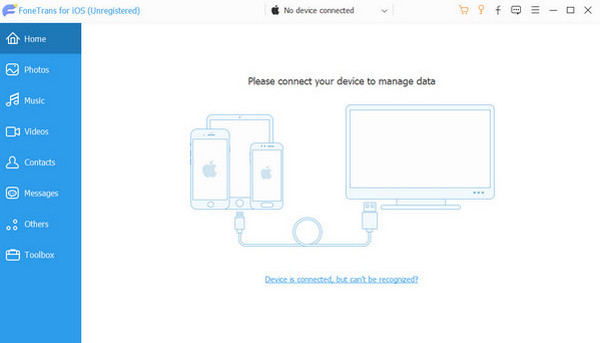
Step 3Find the contacts you want to delete and click the Box button beside them to add them to the deletion process. Later, click the Delete option from the main interface. Confirm the action to complete it. Finally, unplug your iPhone from the computer to complete the deletion process safely.
Part 4. Comparison Table Methods to Delete Multiple Contacts on iPhone
| Method | Steps Complexity | Speed | Extra Features |
| Phone/Contacts App | Moderate | Slow. iPhone sometimes experiences lagging issues during the selection process. | It only manages the contacts. |
| iCloud | Moderate | Slow. It is due to the sign-in process of the website. | It can sync contacts to different Apple devices. |
| FoneTrans for iOS | Easy | Fast. | It can share or transfer different data files from your iPhone to other devices. |
Part 5. FAQs about How to Delete Multiple Contacts on iPhone
Can an iPhone detect duplicates in the Contacts app?
Yes. iPhone can detect duplicate contacts in your Contacts app. In fact, it will immediately notify you. It will appear at the top of the mentioned application. You only need to tap the View Duplicates button. It allows you to merge the contacts by tapping the Merge All button. If you do not want to, you need to tap the Ignore All button.
How many contacts can be stored in an iPhone?
The number of contacts that you can store on your iPhone depends on its storage, including iCloud storage. Approximately, iPhone users can store 50 thousand contacts. Each contact will cost 256KB of storage. However, too many of them can be the reason why your iPhone will run out of storage space.
This post is all about how to delete multiple contacts on iPhone. You can use the 3 leading methods it offers. FoneTrans for iOS is also here to help you with the deletion process. Also, it can help you transfer different files from your iPhone to different devices. Download the tool if you want to experience more of its features.



