
 iPhone Data Recovery
 iOS System Recovery
 iOS Data Backup & Restore
 iOS Unlocker
 iPhone Password Manager
 Location Changer
 Android Data Recovery
 Broken Android Data Extraction
 Android Data Backup & Restore
 Android Unlocker
 FoneTrans for iOS
 iPhone Data Eraser
 iPhone Cleaner
 HEIC Converter
 HyperTrans
 WhatsApp Transfer for iOS
 Mac Sweep
 Data Retriever
 Mac Data Retriever
 Video Converter Ultimate
 Screen Recorder
 Phone Mirror
How to Backup an iPhone on iTunes in Proficient Practice
 Updated by
 iTunes is a third-party tool accessible on your earlier macOS versions. It is entirely accessible to your Windows computer, on the other hand. It is usually used to organize and play your media files. Additionally, it can restore your iPhone to its factory settings to fix major issues in its system. It can also sync your Apple devices’ data for quick access.
The best thing about iTunes is that it can be used to back up your iPhone data. This feature is helpful for you because you can restore the backups once the iPhone data is deleted or lost. How to back up an iPhone on iTunes? You’re in luck! This article focuses on this question. Please scroll below to continue reading this post.

Guide List
Part 1. What iTunes iPhone Backup Can Do
Before the iTunes iPhone backup, it is recommended to know what iTunes backup does. This way, you have a background about the process you will take. By default, iTunes is a complete snapshot of the iPhone data. It not only saves them in one file. Instead, it divides them into separate folders that can be restored in a single process.
The best thing about iTunes is that it allows you to set a passcode for your iPhone backup, using the Encrypt Local Backup feature. This passcode is needed when you restore the backups made on iTunes to your iPhone. Without the passcode, you cannot restore the backups, even with the help of Apple Support. You can also use iPhone backup to iTunes local backup, which does not require a passcode.
Supported Data
- • Messages
- • Photos
- • Videos
- • Some Device Settings
- • Voicemail
- • Call History
- • App Data
- • Health Data
- • Screen Time Settings
Unsupported Data
- • iTunes Store and App Store Purchases.
- • iCloud Data
- • Synced Media Files from Platforms
- • Apple Pay Settings and Information
- • Mail Data from external Services, like Gmail and Yahoo.
Please note that iTunes backup is not a clone of your iPhone. You cannot use it like the mirror image of your iPhone data.
Part 2. How to Back Up iPhone to iTunes
Now, it is time to know how to back up iPhone to iTunes. Before the process, please ensure that you have a compatible and working USB cable ready. Make sure that the version of iTunes installed on a computer is updated. These are some of the requirements for backing up your iPhone using iTunes. You will undergo the same procedure with these tools.
Are you ready to back up your iPhone data with iTunes? Please imitate the steps below for a quick and successful procedure.
Step 1Open the iTunes program on your Mac or Windows. After that, please plug the iPhone into the computer using the working USB cable. Then, the iPhone button will appear at the top left of the screen. Please click the button to see the iPhone information from the main interface of the tool.

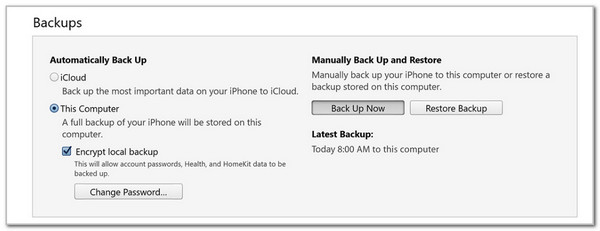
Step 2Click the Summary button at the top left of the main interface. Then, the iPhone information will appear. Please click the Back Up Now button at the bottom right. Then, the backup procedure will start immediately. You will see the current backup data under it. It means that the backup process is completed.
Part 3. Best iTunes iPhone Backup Alternatives
In contrast, some individuals do not want to use iTunes due to its performance issues. It lags and crashes during the backup process. In this case, the backup procedure will be interrupted, and you might need to restart. Here are the two best alternatives to iTunes you can consider. Their complete information will be seen at the bottom.
1. FoneLab iOS Data Backup & Restore
iTunes does not use an internet connection to back up your iPhone data. So, as FoneLab iOS Data Backup & Restore, too! This is the best alternative to iTunes, which can also back up your iPad and iPod Touch. It supports iOS 26, iOS 27 Beta and earlier versions. Additionally, you can back up the iPhone files without overwriting the previous ones. You can also selectively back up your desired iPhone data.
FoneLab enables you to backup and restore iPhone/iPad/iPod without data loss.
- Backup and restore iOS data to your PC/Mac easily.
- Preview data in detail before you restore data from backups.
- Backup and restore iPhone, iPad and iPod touch data Selectively.
The good thing about this software is that it allows you to preview the data in detail before you restore your backups from the iPhone. The steps below will be your guide on how to use this tool to back up your iPhone.
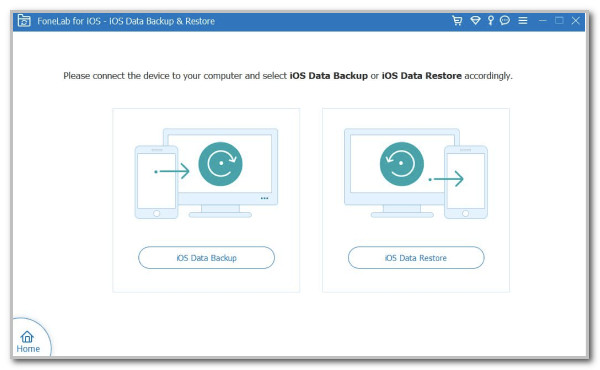
Step 1Click the Free Download option from the main interface of the FoneLab iOS Data Backup & Restore main website. After that, please set up and install the tool on your computer. Click the iOS Data Backup & Restore button on the screen to continue.
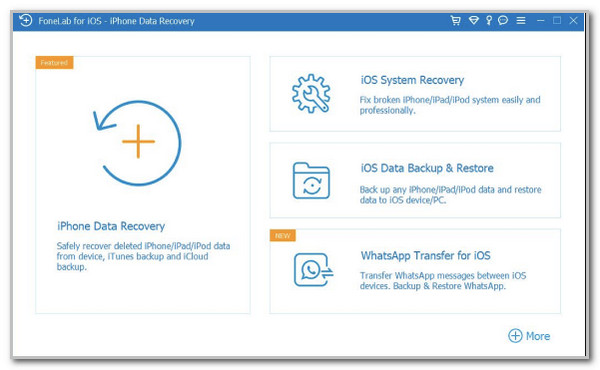
Step 2Select the iOS Data Backup button on the left. Then, please plug the iPhone into the computer to proceed with the procedure.
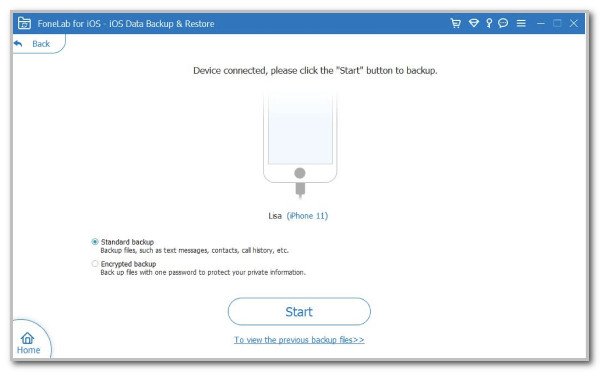
Step 3Select between Local Backup and Encrypted Backup mode. After that, please choose the Start button at the bottom right of the screen. This way, the backup procedure for your iPhone using the tool will start.
2. iCloud
iCloud is another alternative to iTunes for backing up your iPhone data. In fact, it is built into the iPhone system to back up and restore your data. The primary difference between iCloud and iTunes, as well as previous third-party tools, is that they require a stable internet connection. Additionally, iCloud overwrites the backups from the earlier days when another backup is made. It also offers only 5GB of free storage space per account. The steps below will guide you on how to use iCloud to back up your iPhone.
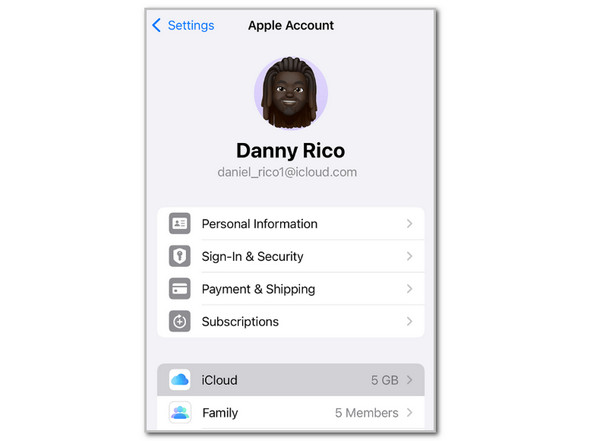
Open the Settings app on your iPhone. After that, tap the iCloud or Apple ID account name at the top of the screen. Then, tap the iCloud button on the screen to proceed. Tap the Back Up This iPhone button to automatically back up your iPhone when the Wi-Fi network is turned on. Tap the Back Up Now option at the bottom to start backing up your iPhone data.
Part 4. FAQs about How to Backup iPhone on iTunes
When backing up an iPhone on iTunes, where does it save?
The iTunes iPhone backup location is usually stored in the ~/Library/Application Support/MobileSync/Backup/ folder. You can locate this folder from Finder. Click the Go button and click the Go to Folder button. Just paste the folder name to see it. On Windows, search C:\\Users\\Your username\\AppData\\Roaming\\Apple Computer\\MobileSync\\Backup\\ on File Explorer.
How long does it take to back up an iPhone with iTunes?
The iPhone backup created with iTunes typically lasts between one and two hours. However, this time duration can be longer due to the file size. Additionally, it may be due to an interrupted process.
The iTunes backup iPhone is beneficial for earlier macOS and Windows users. For both of them, this article introduces FoneLab iOS Data Backup & Restore. Prevent losing your iPhone data with iTunes. Protect your iPhone data by backing it up with the tool today!



