
 iPhone Data Recovery
 iOS System Recovery
 iOS Data Backup & Restore
 iOS Unlocker
 iPhone Password Manager
 Location Changer
 Android Data Recovery
 Broken Android Data Extraction
 Android Data Backup & Restore
 Android Unlocker
 FoneTrans for iOS
 iPhone Data Eraser
 iPhone Cleaner
 HEIC Converter
 HyperTrans
 WhatsApp Transfer for iOS
 Mac Sweep
 Data Retriever
 Mac Data Retriever
 Video Converter Ultimate
 Screen Recorder
 Phone Mirror
How to Back Up iPhone to PC in 3 Most Recommended Ways
 Updated by
 Do you often accidentally delete your iPhone data, or they suddenly disappear due to unknown reasons? It is your sign to back up your iPhone data. PCs are one of the devices that can back up your iPhone data easily!
There are countless ways to backup iPhone to PC. Due to their quantity, you might not know which one is the best to use. This article has got your back! It outlines the 3 most straightforward ways to back up your iPhone data to a PC. Scroll below to see their full details and procedures.


Guide List
Part 1. How to Back Up iPhone to PC with FoneLab iOS Data Backup & Restore
There is no built-in way to back up your iPhone data to your PC. The first way we would like to introduce is FoneLab iOS Data Backup & Restore. This tool offers two primary backup modes to its users. You can back up your iPhone with its Standard Backup or Encrypted Backup modes. This tool features a straightforward interface that is ideal for first-time users who need to back up their iPhone data.

FoneLab enables you to backup and restore iPhone/iPad/iPod without data loss.
- Backup and restore iOS data to your PC/Mac easily.
- Preview data in detail before you restore data from backups.
- Backup and restore iPhone, iPad and iPod touch data Selectively.
Additionally, the tool does not overwrite the previous backups when you make a new backup for your iPhone. This tool can be accessed on your Windows and Mac computers. Back up iPhone to PC with this tool following the instructions below.
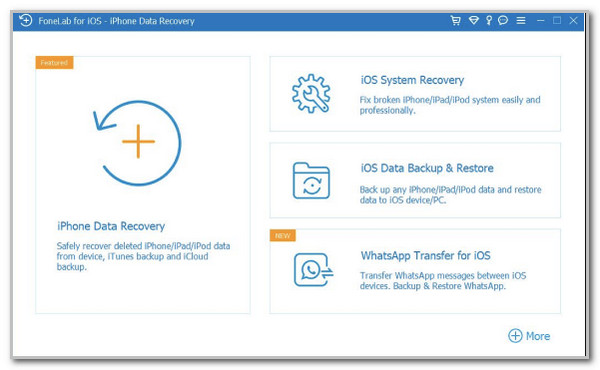
Step 1Please download FoneLab iOS Data Backup & Restore on your PC. To do this, please click the Free Download button on the website’s first screen. Then, set up the downloaded file to proceed and install it to launch it on your PC. Select the iOS Data Backup & Restore button on the right to proceed with the process.
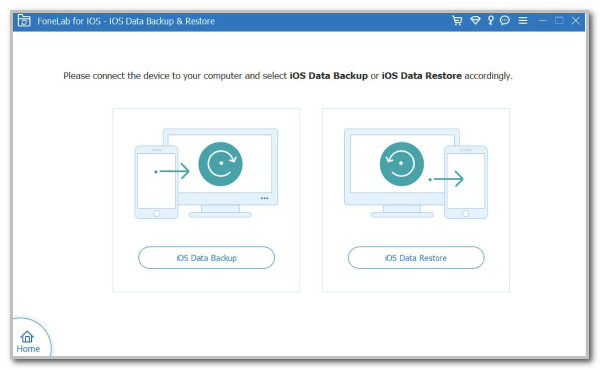
Step 2The two primary tools or features of FoneLab iOS Data Backup & Restore will appear on the next screen. Please click the iOS Data Backup button on the left side of the screen. This way, you will see the proper tools to back up your iPhone data to your PC.
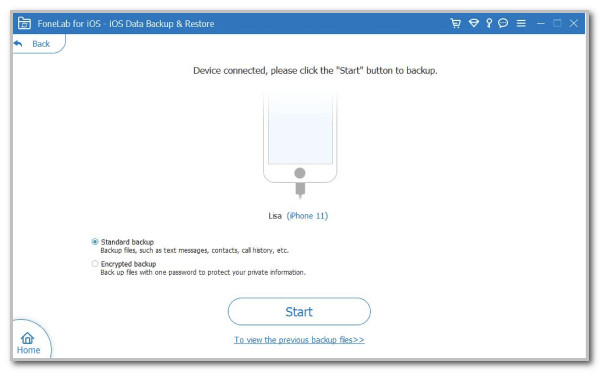
Step 3You will be required to plug the iPhone into a computer. Please do this procedure by getting a USB cable that will be used for the process. Then, the iPhone name must be seen on the screen once it is successful. Click the Standard Backup or Encrypted Backup mode on the left, depending on your preference. Then, click the Start option at the bottom center to start backing up your iPhone to your PC.
Part 2. How to Backup iPhone to PC with iTunes
iTunes is also one of the most used tools to backup iPhone on PC. This program also has a simple interface that you will love using. However, iTunes overwrites the previous backups when a new backup is made, unlike the previous tool that preserves them. The tool also does not allow selective backups for the iPhone data. It is all or nothing because it backs up your iPhone content and settings. If you don’t want to use iTunes, please check back up iPhone without iTunes.
iTunes is also known for backing up the iPhone in large size in a slow procedure. Furthermore, this program often experiences crashing and lagging issues that might be inconvenient during the backup procedure. It is due to outdated iTunes versions. Back up iPhone on PC with iTunes using the guide below.
Step 1Open iTunes on your PC and ensure that you have plugged the iPhone into it using a USB cable. After that, click the iPhone button at the top under the Account tab. Then, the iPhone information will be visible to the iTunes interface.

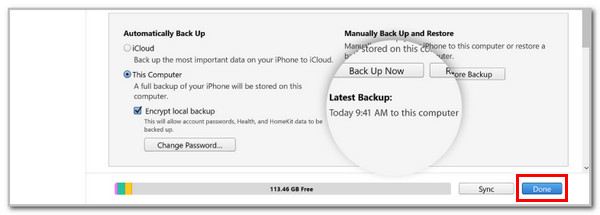
Step 2Select the Summary button at the top left of the screen. Then, go to the Backups section at the bottom right. Click the Back Up Now button from the options list.
Note: You can click the Encrypt Local Backup button at the bottom left. Then, set up or change the backup password if you prefer.

Step 3Let the backup procedure be completed. Then, the Latest Backup section will be updated to the current date of the backup when it is finished. Click the Done button to complete the procedure.
Part 3. How to Backup iPhone on PC with an External Hard Drive
Do you have an external hard drive? You can use it to back up your iPhone data on your PC! This technique is commonly used when individuals do not prefer to consume more storage space on their PC. These drives are removable and can be stored anywhere. Discover how to copy files from iPhone to PC using an external hard drive with the steps below.
Step 1Please plug the iPhone into the computer. After that, ensure that all the permissions required are enabled to let the PC read the iPhone data. Then, click the iPhone name on the left side of File Explorer. Then, select the data you want to back up to the external hard drive. Right-click on the data and click the Copy button.

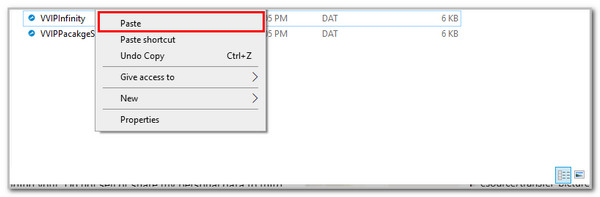
Step 2Now that the data are stored on your PC clipboard, click the external hard drive name on the left side of File Explorer. Then, go to the folder where you want to store them. Next, right-click on the empty side of the folder and click the Paste button. Finally, please unplug the iPhone from the PC safely.
Part 4. Where is iPhone Backup Stored on PC
Where is iPhone backup stored on PC? The backup files' destination depends on the method used. If you use FoneLab iOS Data Backup & Restore, they will be stored in the location you choose, like the external hard drive process. On the other hand, the backups will be stored on the %USERPROFILE%\Apple\MobileSync\Backup folder if you use iTunes.
Part 5. FAQs about How to Back Up iPhone to PC
Why can't I back up my iPhone to my computer?
Countless reasons can be the cause why the iPhone cannot be backed up on your computer, depending on the requirements of the method used. Ensure that you have an internet connection if required, enough storage space, allowed permissions, and more.
How to fix a corrupt iPhone backup on iTunes?
You only need to delete it and then create a new backup for your iPhone. Go to iTunes and go to the Preferences section, and click the Devices button. After that, select the corrupted backup and click the Delete Backup button. Finally, create a new backup.
You have witnessed the 3 leading guides on how to back up iPhone on PC, including FoneLab iOS Data Backup & Restore. Digital data are indeed prone to accidental deletion due to some operations we perform on an iPhone. Back them up using the methods in this post before it is too late!



