
 iPhone Data Recovery
 iOS System Recovery
 iOS Data Backup & Restore
 iOS Unlocker
 iPhone Password Manager
 Location Changer
 Android Data Recovery
 Broken Android Data Extraction
 Android Data Backup & Restore
 Android Unlocker
 FoneTrans for iOS
 iPhone Data Eraser
 iPhone Cleaner
 HEIC Converter
 HyperTrans
 WhatsApp Transfer for iOS
 Mac Sweep
 Data Retriever
 Mac Data Retriever
 Video Converter Ultimate
 Screen Recorder
 Phone Mirror
- Part 1. How Many Attempts to Unlock iPhone
- Part 2. Unlock iPhone With iTunes/Finder/Apple Devices
- Part 3. Unlock iPhone With FoneLab iFoneWiz
- Part 4. Unlock iPhone Using iCloud
- Part 5. Unlock iPhone With Forgot Passcode Option
- Part 6. Comparison Table of Methods to Unlock iPhone
- Part 7. FAQs about How Many Attempts to Unlock iPhone
- Unlock Apple ID
- Bypass iCloud Activation Lock
- Doulci iCloud Unlocking Tool
- Factory Unlock iPhone
- Bypass iPhone Passcode
- Reset iPhone Passcode
- Unlock Apple ID
- Unlock iPhone 8/8Plus
- iCloud Lock Removal
- iCloud Unlock Deluxe
- iPhone Lock Screen
- Unlock iPad
- Unlock iPhone SE
- Unlock Tmobile iPhone
- Remove Apple ID Password
How Many Attempts to Unlock iPhone: 4 Quick Unlocking Process
 Updated by
 Hi! I forgot my old iPhone passcode because it had been a long time since I used it. I am afraid that I enter wrong passcodes and it will be the reason for my iPhone to be locked out. How many attempts to unlock iPhone? Please help me. Thank you!
When unlocking the iPhone, you need to enter the correct passcode. This way, there will be no problem encountered. But there are things you need to consider, including the number of attempts you can make. Know how many attempts are allowed in this post, including the unlocking process when the iPhone is locked out. Continue browsing the article to know all the details.

Guide List
- Part 1. How Many Attempts to Unlock iPhone
- Part 2. Unlock iPhone With iTunes/Finder/Apple Devices
- Part 3. Unlock iPhone With FoneLab iFoneWiz
- Part 4. Unlock iPhone Using iCloud
- Part 5. Unlock iPhone With Forgot Passcode Option
- Part 6. Comparison Table of Methods to Unlock iPhone
- Part 7. FAQs about How Many Attempts to Unlock iPhone
Part 1. How Many Attempts to Unlock iPhone
The iPhone allows you to enter 10 unlock attempts. If you enter the wrong passcode, timers will appear before you can try again. Below is the list.
- • 1–5 Incorrect Attempts: No Timer.
- • 6 Incorrect Attempts: 1-minute Lockout.
- • 7 Incorrect Attempts: 5-minute Lockout.
- • 8 Incorrect Attempts: 15-minute Lockout.
- • 9 Incorrect Attempts: 1-hour Lockout.
However, there will be no timer when the iPhone enters 10 consecutive passcodes. You will see the iPhone Unavailable, iPhone Disabled, or Security Lockout. Also, the iPhone might automatically be erased when the Erase Data feature is enabled.
Part 2. Unlock iPhone With iTunes/Finder/Apple Devices
iTunes, Finder, and Apple Devices are tools that can help you fix issues on your iPhone through restoring. However, it requires professional skills due to the recovery mode. Additionally, the computer that will be used must be trusted before the iPhone is locked out. But there’s nothing to worry about. This section will guide you step-by-step. Unlock iPhone with iTunes, Finder, or Apple Devices with the steps below.
Step 1Enter the iPhone recovery mode state. Without the Home button, press and release Volume Up, then Volume Down. Then, long-press Side. If the Home button is accessible, press and hold Side and Volume Down or Home.
Step 2Open iTunes, Finder, or Apple Devices. Then, plug an iPhone into the computer with your USB cable. Later, click the Restore button in the small window. Later, confirm the process to start unlocking your iPhone.
Part 3. Unlock iPhone With FoneLab iFoneWiz
How can you get into a locked iPhone if the tools above are not trusted before it is locked out? FoneLab iFoneWiz is the best alternative. This tool can unlock different screen lock types on your iPhone. It includes PIN, numeric, Face ID, alphanumeric, and Touch ID. Also, iPhone Disabled, iPhone Unavailable, and Security Lockout screens can be unlocked.

iFoneWiz Helps you unlock iPhone screen, Removes Apple ID or its password, Remove screen time or restriction passcode in seconds.
- Helps you unlock iPhone screen.
- Removes Apple ID or its password.
- Remove screen time or restriction passcode in seconds.
Moreover, the tool can bypass other security features on the device mentioned above. It can remove the Apple ID without the credentials, bypass iCloud Activation Lock, remove Screen Time, and more. If you would like to use the mentioned tool, please follow the steps below for proper use.
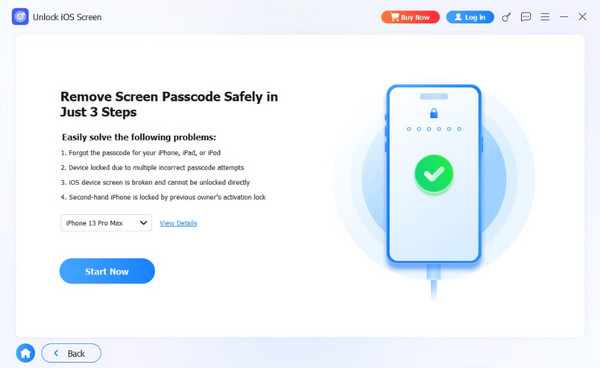
Step 1Please click the Free Download option to start downloading FoneLab iFoneWiz. After that, set up and install the file so you can open it. Later, select the Unlock iOS Screen feature at the top left.

Step 2Please plug your iPhone using a USB cable. Then click the Start Now button and follow the on-screen instructions. The firmware package will be downloaded afterward.
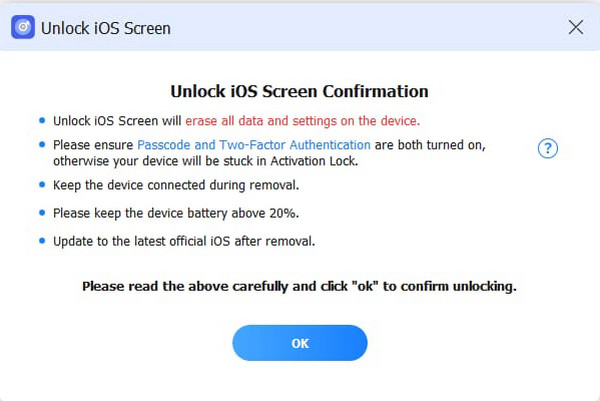
Step 3Click the OK button. Later, click the Confirm Again button at the bottom. The iPhone unlocking process will start. Please click the Finish button to end the mentioned process.
Part 4. Unlock iPhone Using iCloud
A wireless unlocking process can also be made. However, a stable internet connection is required to have a faster unlocking process. iCloud is one of the services you can use for the wireless unlocking of your iPhone. The Apple ID associated with the iPhone is the main requirement. Please use iCloud to unlock your iPhone if you forget your passcode.
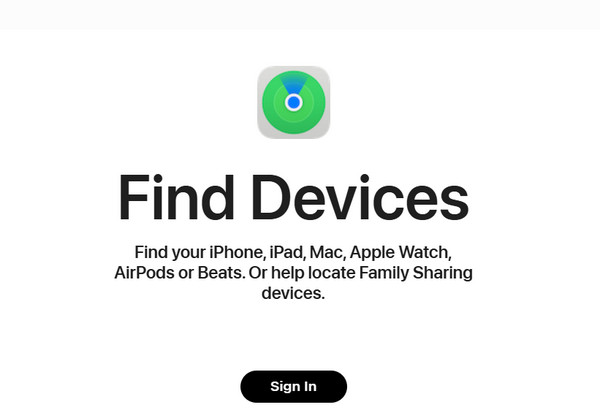
Step 1Search for iCloud Find My's main website. Then, click the Sign In button on the first screen that will appear. Then, click the Continue option at the bottom left to sign in to the website. The digital map will appear. Please go to the All Devices section at the top left.
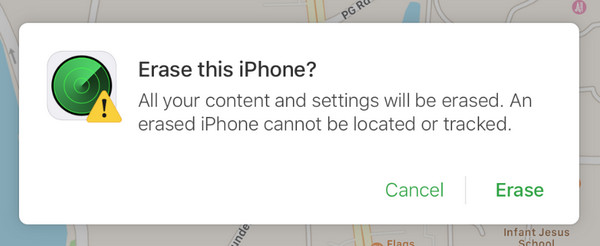
Step 2The list of devices linked with the Apple ID will be accessed. Please select the iPhone name. Select the Erase This Device button. A small window will appear. Please tap the Erase button to confirm erasing your iPhone.
Part 5. Unlock iPhone With Forgot Passcode Option
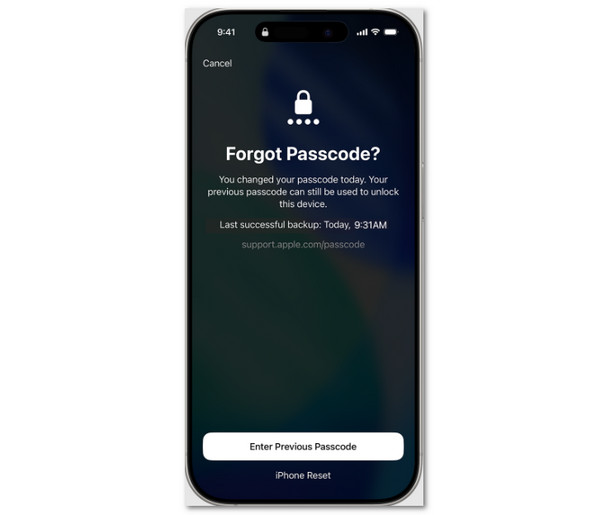
The Forgot Passcode option is only accessible when the iPhone is disabled or locked out. So, it just means you need to enter 10 consecutive incorrect passcodes on your iPhone. In this case, you can access the mentioned feature. Please use the steps below as your guide for the use of the mentioned feature on the iPhone Home Screen.
Open your iPhone. If the iPhone Disabled, iPhone Unavailable, or Security Lockout is still not posted, enter 10 consecutive passcodes to see the Forgot Passcode option. Then, tap the iPhone Reset button at the bottom. Enter the associated Apple ID on your iPhone and imitate the on-screen instructions to confirm the process. Set up the iPhone as new afterward.
Part 6. Comparison Table of Methods to Unlock iPhone
| Methods | Required Connection | Apple ID Requirement | Speed |
| iTunes/Finder/Apple Devices | USB Connection | After the Restoring Process for iCloud Activation Lock | Slow |
| FoneLab iFoneWiz | USB Connection | None | Fast |
| iCloud | Internet Connection | For Signing In and iCloud Activation Lock | Moderate |
| Forgot Passcode Option | Internet Connection | For Authentication | Moderate |
Part 7. FAQs about How Many Attempts to Unlock iPhone
Can I go back to a 4-digit passcode on my iPhone?
Yes. To do that, select the Settings app on your iPhone and choose the Face ID/Touch ID & Passcode button on the list. Then, tap the Change Passcode button on the next screen. Enter your current passcode. Later, please choose the Passcode Options button. Finally, choose the 4-Digit Numeric Code and enter the new passcode.
Can someone guess my passcode?
Someone can guess your iPhone passcode if it is one of the most common ones. But there is a high chance that people cannot guess your passcode if you use unique ones.
How many attempts to unlock iPhone? In conclusion, you have 10 attempts before the iPhone will be locked out or erased. In this article, you will also know the 4 easy ways to unlock your iPhone when disabled or locked out. FoneLab iFoneWiz is one of them. Besides that, the tool can also bypass MDM, iCloud Activation Lock, Screen Time, etc. Download it to know the other features!



