
 iPhone Data Recovery
 iOS System Recovery
 iOS Data Backup & Restore
 iOS Unlocker
 iPhone Password Manager
 Location Changer
 Android Data Recovery
 Broken Android Data Extraction
 Android Data Backup & Restore
 Android Unlocker
 FoneTrans for iOS
 iPhone Data Eraser
 iPhone Cleaner
 HEIC Converter
 HyperTrans
 WhatsApp Transfer for iOS
 Mac Sweep
 Data Retriever
 Mac Data Retriever
 Video Converter Ultimate
 Screen Recorder
 Phone Mirror
- Part 1. What is Google Family Link
- Part 2. Google Family Link Features
- Part 3. Google Family Link iPhone Compatibility
- Part 4. How to Set Up Google Family Link
- Part 5. Alternative to Parental Controls on iPhone
- Part 6. How to Remove Parental Control on iPhone Screen Time
- Part 7. FAQs about Google Family Link
- Unlock Apple ID
- Bypass iCloud Activation Lock
- Doulci iCloud Unlocking Tool
- Factory Unlock iPhone
- Bypass iPhone Passcode
- Reset iPhone Passcode
- Unlock Apple ID
- Unlock iPhone 8/8Plus
- iCloud Lock Removal
- iCloud Unlock Deluxe
- iPhone Lock Screen
- Unlock iPad
- Unlock iPhone SE
- Unlock Tmobile iPhone
- Remove Apple ID Password
Outstanding Guide to Google Family Link with Alternative
 Updated by
 As many families today struggle to balance technology and real-life activities, the Google Family Link app has become a great way for parents to manage their children’s digital activities. It allows them to set rules for device use and keep an eye on their family members’ screen time. If you’re interested in using this service, let this article guide you through its essential information, including the features and processes. That said, kindly head to the succeeding parts.

Guide List
- Part 1. What is Google Family Link
- Part 2. Google Family Link Features
- Part 3. Google Family Link iPhone Compatibility
- Part 4. How to Set Up Google Family Link
- Part 5. Alternative to Parental Controls on iPhone
- Part 6. How to Remove Parental Control on iPhone Screen Time
- Part 7. FAQs about Google Family Link
Part 1. What is Google Family Link
Family Link app Google is a free parental control app designed to help parents manage their children’s device usage. The app works by linking your Google account with your child’s, and once connected, you will be able to set digital ground rules, such as approving or blocking apps that the child may want to download. Aside from that, you can also check how much time your child spends on their device each day, making it easy to handle their time management.
That’s not all. Another helpful feature of Google’s Family Link app is its ability to see your child’s device location, as long as the device is turned on. The app is meant for families with children under 13 years old, or the applicable age of consent in your country. Once the child gets older, they can choose to manage their own account, but for now, you can let Family Link give you peace of mind by optimizing the service’s parental control functions for your child’s device.
Part 2. Google Family Link Features
Google Family Link features help parents stay involved in their child's digital life. Below is a simple breakdown of what the app can do, so don’t miss them.
- • Screen Time Management - Set a daily bedtime for your child's device. Once that time arrives, the device locks automatically.
- • App Management - When your child tries to download a new app from the Google Play Store, you receive a request on your phone. You can then approve or block that app.
- • Activity Reporting - View weekly or monthly reports showing your child's total screen time, most used apps, and how many times they unlocked their device.
- • Location Sharing - As long as your child's device is turned on and linked to the internet, you can see its location on a map through your own Family Link app.
- • Content Restrictions - Block mature content on Google Chrome and filter search results on Google Search.
Part 3. Google Family Link iPhone Compatibility
Are you curious about the Google Family Link iPhone compatibility? Well, it works differently depending on whether you use an iPhone or an Android phone. Here is a simple explanation.
- • Parent uses iPhone, child uses Android – Works fine. You can manage your child's Android device from your iPhone.
- • Parent uses Android, child uses iPhone – Does not work. Family Link can’t control an iPhone.
- • Both parent and child use iPhones – Does not work. As mentioned, this service can’t control an iPhone.
- • Both use Android – Works fully. This is the best setup.
So the main requirement is that the child's device must be an Android phone or tablet. If your child uses an iPhone, Google’s Family Link won’t be the best choice.
Part 4. How to Set Up Google Family Link
Setting up the Family Link app by Google is a straightforward process, but you must note its requirements to finish smoothly. First, the parent and the child’s devices, in which the child’s must be running Android 5.0 or higher. The app should also be installed on both, and lastly, your Google accounts for each device must also be ready to log into the app.
Adhere to the guidelines below to grasp how to set up Google Family Link:
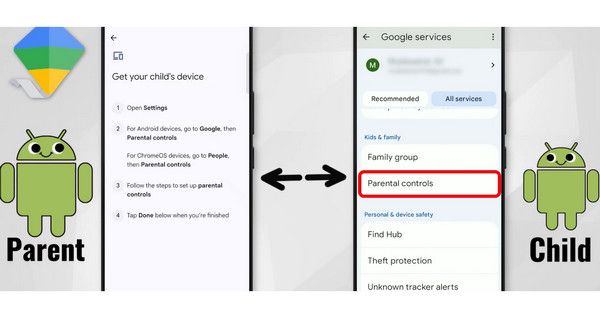
Step 1Install and launch the Family Link app on the parent's device, then log in to your Google account. Next, tap Yes when asked if your child has a Google account. After that, proceed to your child’s device and tap Settings > Google > All services, then choose Parental controls.
Step 2On the next screen, select Let’s do this and enter your child’s Google account, then tap Supervise account. Follow the prompts afterward until the device asks you to provide your own account. Enter its credentials and be guided by the prompts, mostly Nexts, again until it's done.
Part 5. Alternative to Parental Controls on iPhone
So, if your child uses an iPhone, what would be the alternative feature or service that can let you set parental controls? Wonder no more because Apple provides its own built-in parental control tool called Screen Time. It is built into iPhones, so installation is no longer required. Like the Family Link, it lets you set limits on apps, block inappropriate content, monitor your child’s screen time, etc. It works along with Family Sharing, which will be included in the process.
Mimic the procedure below to set parental controls on your iPhone using the Family Link alternative, Screen Time:
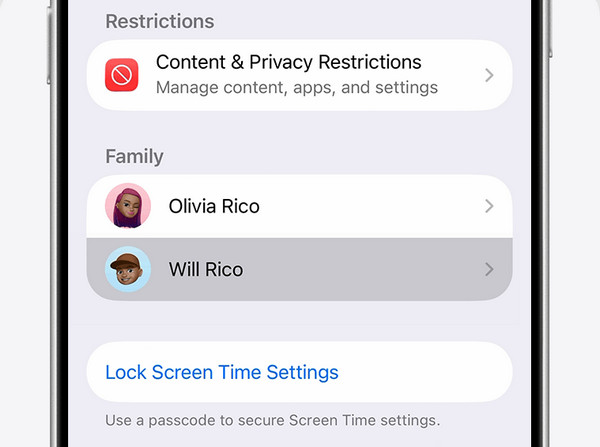
Step 1First, link your child’s iPhone by heading to Settings and tapping your profile photo before picking Family. Add your child’s device from there and proceed to Screen Time after.
Step 2If you haven’t yet set it up, enable the feature’s toggle and manage the options, like the passcode. When done, access the Family section and tap Content & Privacy Restrictions. Turn it on, and when ready, start managing the available parental controls accordingly.
Part 6. How to Remove Parental Control on iPhone Screen Time
Sometimes parents forget the Screen Time passcode they set up. In this situation, you need a way to turn off restrictions on iPhone without knowing the passcode. Luckily, FoneLab iOS Unlocker has your back, and its Unlock Screen Time feature is the perfect solution to unlock the iPhone’s Screen Time, removing the parental controls.

FoneLab Helps you unlock iPhone screen, Removes Apple ID or its password, Remove screen time or restriction passcode in seconds.
- Helps you unlock iPhone screen.
- Removes Apple ID or its password.
- Remove screen time or restriction passcode in seconds.
It offers excellent performance while providing a beginner-friendly function as well. And that best part is that the program won’t erase anything on the device, keeping your data and other content safe. Apart from that, it can also bypass the MDM profile that may be used to control your device. Its additional features are also available anytime, allowing you to unlock the iOS screen, remove Apple ID, bypass iCloud activation lock, and more when needed.
Distinguish the effortless task below as a pattern to remove parental controls on an iPhone with FoneLab iOS Unlocker:
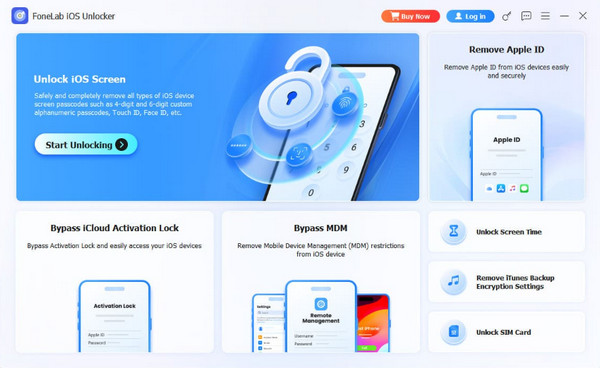
Step 1Acquire the FoneLab iOS Unlocker’s installer. It will provide you with the file afterward, which you can access in your Downloads. So, from there, set up the program and click Start when it pops up to run the unlocker.
Step 2Different unlocking functions are accessible on the main interface. Choose Unlock Screen Time on the right, and attach your iPhone when asked. The connection will prompt further guidelines, which you can easily follow until the parental controls are removed.
Part 7. FAQs about Google Family Link
How much does the Google Family Link cost?
Google’s Family Link costs nothing, as it is free, like many other services that Google offers.
Can I use one account for two children on Family Link?
No, you can’t. Google’s Family Link requires one Google account per family member.
Manage and monitor your children’s devices using Google’s Family Link to keep their device usage secure and age-appropriate. Aside from that, don’t hesitate to discover FoneLab iOS Unlocker, as its many advantages can come in handy later for your lock concerns.



