
 iPhone Data Recovery
 iOS System Recovery
 iOS Data Backup & Restore
 iOS Unlocker
 iPhone Password Manager
 Location Changer
 Android Data Recovery
 Broken Android Data Extraction
 Android Data Backup & Restore
 Android Unlocker
 FoneTrans for iOS
 iPhone Data Eraser
 iPhone Cleaner
 HEIC Converter
 HyperTrans
 WhatsApp Transfer for iOS
 Mac Sweep
 Data Retriever
 Mac Data Retriever
 Video Converter Ultimate
 Screen Recorder
 Phone Mirror
- Unlock Apple ID
- Bypass iCloud Activation Lock
- Doulci iCloud Unlocking Tool
- Factory Unlock iPhone
- Bypass iPhone Passcode
- Reset iPhone Passcode
- Unlock Apple ID
- Unlock iPhone 8/8Plus
- iCloud Lock Removal
- iCloud Unlock Deluxe
- iPhone Lock Screen
- Unlock iPad
- Unlock iPhone SE
- Unlock Tmobile iPhone
- Remove Apple ID Password
Can You Unlock Face ID with a Picture: Information You Need to Know
 Updated by
 Hi! How to unlock Face ID with a picture? I just want to prank my brother this morning by messing with his iPhone. However, I do not know if it is possible. Please help or enlighten me about the process. Thank you in advance!
Face ID requires the face of the owner to unlock the iPhone. Some users wonder if they can unlock the mentioned device with a picture. This common query will be answered in this post! The information you need to know is included, including additional details. Please continue browsing to know all of them.

Guide List
Part 1. Can You Use a Picture for Face ID?
Can you use a picture for Face ID? Some believe it works, but it does not. A normal picture cannot unlock the iPhone or iPad Face ID. The mentioned feature uses more than just a camera. It can project 30,000 or more infrared dots onto someone’s face. Additionally, it builds a 3D depth map. Apple uses machine learning through the TrueDepth camera system feature.
The best thing about this feature is that it works in the dark. It uses infrared to unlock the iPhone. The system that scans the user's face is designed to resist photos and basic spoofing. Also, it adapts to changes, including glasses, aging, and facial hair.
Additionally, there are a lot of misconceptions about unlocking Face ID on your iPhone. Below are some of the misconceptions that are proven not to be true.
- Hackers can easily bypass Face ID.
- Face ID is the same as the Android Face Unlock feature.
- Face ID stores your picture or face in the cloud.
- Face ID can be unlocked with a high-quality picture.
- You can unlock Face ID with a video.
Part 2. How to Unlock iPhone Without Passcode or Face ID
If you cannot use Face ID, there are alternative ways to do it. This section contains both Apple's methods and third-party solutions. See the list below.
1. Use The Forgot Passcode Option
The Forgot Passcode option is accessible when the iPhone is locked out. It allows you to unlock your iPhone by resetting it with your Apple ID. However, it is only accessible on iOS 15.2 and above. See the process below as you scroll down.
Please enter many wrong attempts for your iPhone passcode. Then, tap the Forgot Passcode button at the bottom right. Enter your Apple ID that is associated with the iPhone. Later, tap the Erase iPhone button at the bottom.
2. Visit iCloud Find My
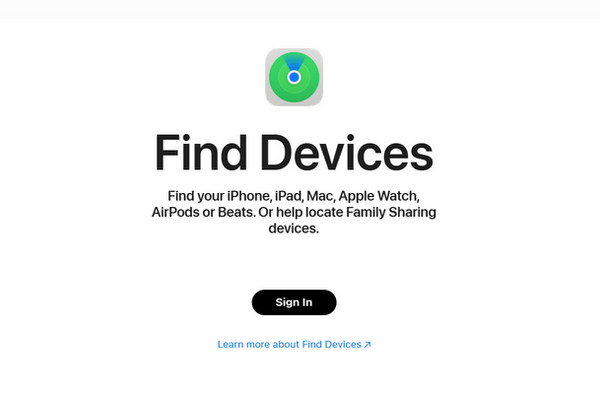
Find My iPhone is a free service that can track your iPhone when lost or misplaced. But you can also use it to erase your iPhone. It can do it remotely. Use the steps below to know how.
Visit the website of iCloud Find My. Click the Sign In button. Enter the Apple ID associated with the iPhone. Later, go to the All Devices section and choose the iPhone name. Finally, select the Erase This Device button.
3. Utilize Recovery Mode
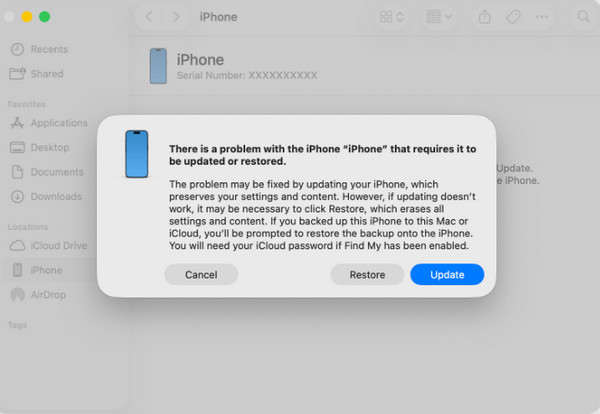
A recovery mode is a professional method used to fix certain issues on your iPhone. It requires the physical buttons to be operated since there are no features that can be used on the locked iPhone. Finder, iTunes, and Apple Devices can be used for the procedure. Please refer to the steps below to know how.
Step 1If your iPhone has no Home button, push and hold Volume Up. Do the same to the Volume Down. Press and hold Side afterward. If the iPhone has a Home button, push and hold Side and Volume Down or Home. Wait until the Connect to Computer screen is shown.
Step 2Plug your iPhone into the computer and open iTunes, Finder, or Apple Devices. A small window will appear. Select the Restore button afterward.
4. Use FoneLab iOS Unlocker
FoneLab iOS Unlocker is a third-party tool that can unlock iPhone without passcode or Face ID. Compared to the methods provided by Apple, this tool does not need an Apple ID to unlock your iPhone. It erases the content and settings of the mentioned Apple device to achieve the process. Additionally, the tool does not need an internet connection. It works offline. Please use the steps below to remove the Face ID from your iPhone.

FoneLab Helps you unlock iPhone screen, Removes Apple ID or its password, Remove screen time or restriction passcode in seconds.
- Helps you unlock iPhone screen.
- Removes Apple ID or its password.
- Remove screen time or restriction passcode in seconds.
Step 1Please download FoneLab iOS Unlocker. Set up and install the file afterward. Later, the tool will be opened. Open the tool and choose the Unlock iOS Screen feature at the top left. Please plug your iPhone into the computer afterward.
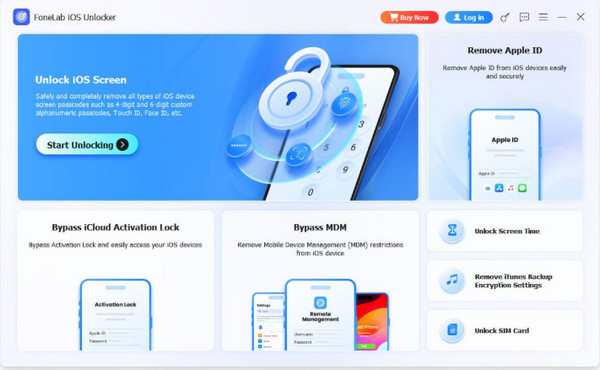
Step 2Follow the on-screen instructions to enter the iPhone recovery mode. Later, click the Next button to proceed. Click the Start Now button at the bottom left. The firmware package will start.
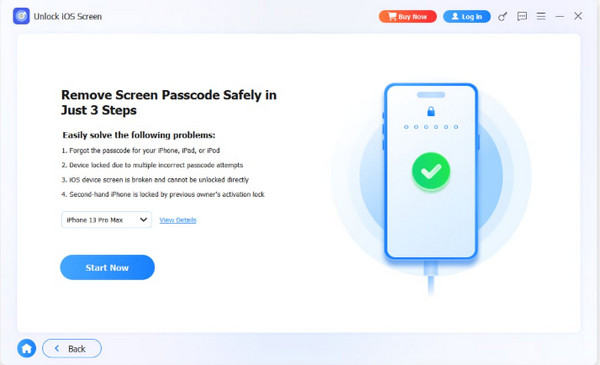
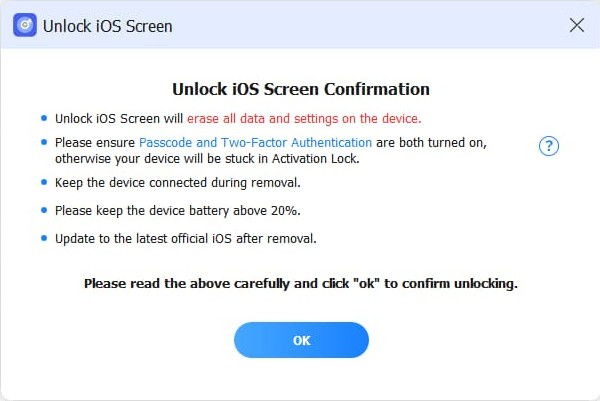
Step 3Click the OK button at the bottom center. Click the Confirm Again button to confirm the unlocking process. The unlocking procedure will start. Finally, click the Finish button at the bottom left to complete the process.
Part 3. Comparison Table of Methods to Unlock iPhone Without Passcode or Face ID
| Method | Connection Type | Difficulty | Requires Apple ID? |
| FoneLab iOS Unlocker | USB Connection. | Easy. | No. |
| iCloud Find My | Internet Connection. | Moderate. | You need the associated Apple ID to sign in. Also, you need the account for the iCloud Activation Lock. |
| Finder/Apple Devices/iTunes | USB Connection | Hard | The Apple ID is needed when the iCloud Activation Lock is encountered after the unlocking process. |
| Forgot Passcode Option | None | Hard | An Apple ID is needed to reset the iPhone. |
Part 4. FAQs about How to Unlock Face ID with a Picture
Can Face ID unlock when sleeping?
Yes. The Face ID can be unlocked while sleeping. By default, Face ID does not require you to open your eyes to unlock it. But the Require Attention for Face ID feature requires your eyes to be open to unlock Face ID.
Does Face ID work with twins?
The Apple Face ID is indeed secure. However, it can be unlocked with identical twins. Face ID often fails to distinguish between them. So, the twins can unlock each other’s iPhone or iPad using Face ID.
Can Face ID work with a picture? In short, no. Apple does not allow it to happen due to privacy risk. In this article, you will see the methods that can unlock your iPhone without Face ID. FoneLab iOS Unlocker is one of them. It can remove various screen locks from your iPhone, not just Face ID. It can also remove MDM, Screen Time, iCloud Activation Lock, and other features on your iPhone. Download it now to explore more of its features!



