
 iPhone Data Recovery
 iOS System Recovery
 iOS Data Backup & Restore
 iOS Unlocker
 iPhone Password Manager
 Location Changer
 Android Data Recovery
 Broken Android Data Extraction
 Android Data Backup & Restore
 Android Unlocker
 FoneTrans for iOS
 iPhone Data Eraser
 iPhone Cleaner
 HEIC Converter
 HyperTrans
 WhatsApp Transfer for iOS
 Mac Sweep
 Data Retriever
 Mac Data Retriever
 Video Converter Ultimate
 Screen Recorder
 Phone Mirror
- Unlock Apple ID
- Bypass iCloud Activation Lock
- Doulci iCloud Unlocking Tool
- Factory Unlock iPhone
- Bypass iPhone Passcode
- Reset iPhone Passcode
- Unlock Apple ID
- Unlock iPhone 8/8Plus
- iCloud Lock Removal
- iCloud Unlock Deluxe
- iPhone Lock Screen
- Unlock iPad
- Unlock iPhone SE
- Unlock Tmobile iPhone
- Remove Apple ID Password
Does Face ID Work with Your Eyes Closed: a Complete Guide
 Updated by
 Good day! Can you open iPhone with eyes closed? I want to confirm because my brother is using my iPhone this morning. He told me that he unlocked it while I was asleep. I hope you can help me with this. Thank you!
Securing your iPhone must be your top priority. This way, your iPhone data and other information are safe. Adding a screen lock is the most necessary, like Face ID. However, some users report that the iPhone can be unlocked with their eyes closed. Is it true? This question is the main topic of this article. Scroll below to know all the information needed to know about it.


Guide List
Part 1. Does Face ID Work with Eyes Closed
How to unlock iPhone Face ID while sleeping? Well, you only need to put the iPhone in front of your face while the Require Attention for Face ID feature is turned off. Face ID does work with eyes closed. The feature is convenient to turn off, especially if you are wearing sunglasses, lying down, etc.
However, the feature becomes the reason why your Face ID security weakens. Also, your iPhone becomes easier to unlock, including when you are asleep. You will also probably experience an accidental unlock for your iPhone, leading to accidental operations on your iPhone.
Part 2. How to Enable Eye-Open Security
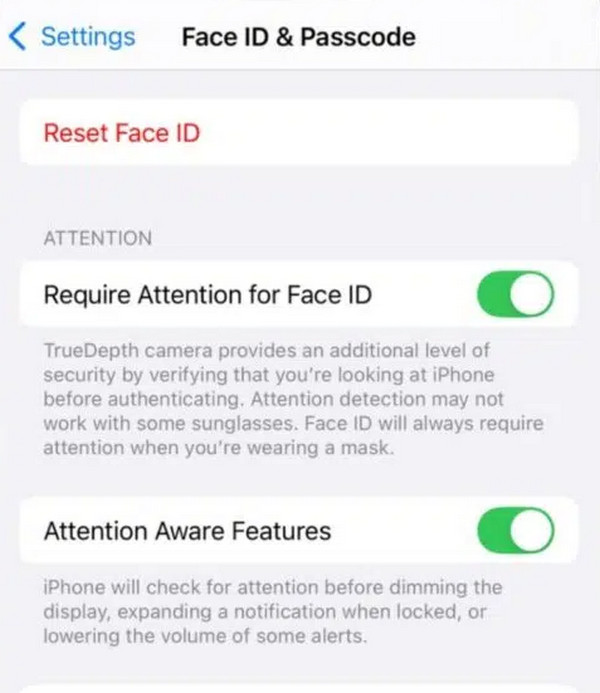
To avoid Face ID access issues, you need to enable the Require Attention for Face ID feature. This way, you are required to open your eyes to unlock Face ID. This way, your data will be more secure compared to the previous setup. However, any hindrances to the face will not allow the Face ID to scan it. It includes accessories, eyeglasses, etc. Please use the steps below to turn on the Require Attention for Face ID feature on your iPhone.
Grab your iPhone and access the Settings app. After that, select the Face ID & Passcode option from the list that appears. Later, enter the current iPhone passcode to authenticate. Please toggle on the Require Attention for Face ID slider at the top.
Part 3. What to Do If Face ID is Not Working on iPhone
However, there are instances wherein the Face ID is not working on an iPhone. It could be due to hardware failure, system glitches, or physical obstructions. In this section, we will show you the 3 leading ways to fix an iPhone Face ID not working. See their list below.
1. Use Recovery Mode
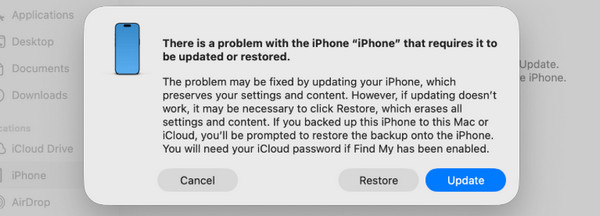
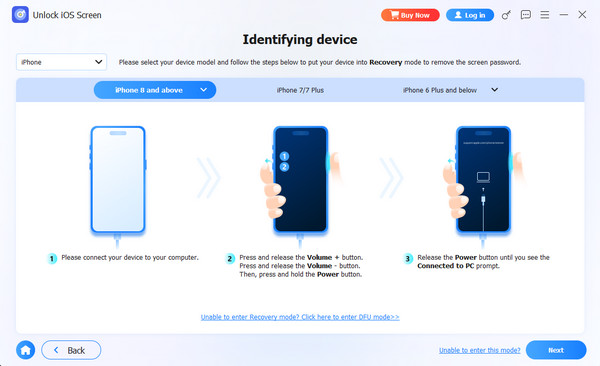
When the Face ID does not work as usual, you can only use the physical button of your iPhone. Recovery mode is the most relevant method that can be used if that’s the case. You may restore your iPhone to its factory settings with iTunes, Finder, and Apple Devices. The steps are available below.
Step 1Plug an iPhone into the computer and open Finder, iTunes, or Apple Devices. After that, put it into recovery mode.
Without Home Button: Press and immediately release the Volume Up button. Next is the Volume Down button. After that, press and hold the Side physical button until you view the Connect to Computer screen.
With Home Button: Press and hold the Top and Volume Down physical key. Or, you can press the Side and Home physical keys at the same time. Wait for the Connect to Computer screen to be prompted.
Step 2The computer will immediately scan the problem on your iPhone. Please click the Restore button in the small window that appears. Please confirm the action to start the factory reset.
2. Visit iCloud
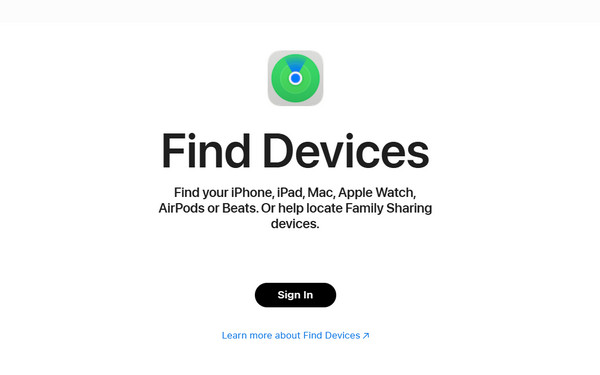
iCloud offers Find My to help you track your location in real time, including your friends and family. But did you know that this free service can also be used to erase your iPhone? That’s right! You can remotely erase your iPhone if the Face ID is not working. This way, you can have access to it again. But you can only access it if the feature is enabled and you have an internet connection. See how below.
Go to the main website of iCloud Find My. Then, click the Sign In button at the center of the screen. Later, please sign in to the associated Apple ID from the iPhone where the Face ID is not working. Select the All Devices section at the top. Click the Erase This Device button on the iPhone. Finally, perform the on-screen instructions to complete the process.
3. Use FoneLab iOS Unlocker

FoneLab Helps you unlock iPhone screen, Removes Apple ID or its password, Remove screen time or restriction passcode in seconds.
- Helps you unlock iPhone screen.
- Removes Apple ID or its password.
- Remove screen time or restriction passcode in seconds.
How to unlock iPhone without passcode or Face ID? Well, this procedure is easy with FoneLab iOS Unlocker. It can wipe your iPhone to bypass the lock screen password. It can also remove the PIN and Touch ID from your iPhone. This tool does not need an internet connection to follow. It uses a USB connection. Also, you can use it to remove other security measures features on your iPhone, including Screen Time, MDM, SIM lock, and more. Its procedure is explained in the steps below.
Step 1Click the Free Download button. Visit the official page of the software to do that. Then, set up, install, and open the tool to start the unlocking process.

Step 2Please click the Unlock iOS Screen feature at the top left. This way, the connecting interface will be accessed.
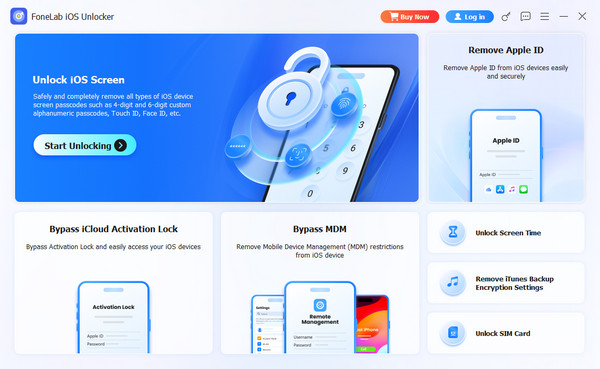
Step 3Plug the iPhone into the computer where you have downloaded the tool. Then, follow the on-screen instructions. Finally, click the Start button and enter the 0000 code. Perform the instructions given on the screen to start unlocking your iPhone.
Part 4. FAQs about What to Do If Face ID is Not Working on iPhone
What confuses Face ID?
There are many factors that can confuse the Face ID scanning. It includes poor lighting, an obstructed camera, software glitches, the face too close to the camera, inactivity, and more.
Can you unlock Face ID with a photo of someone?
No. You cannot use a 2D image to unlock Face ID on your iPhone or any other device. It uses a sophisticated 3D depth map of your face.
Can Apple Face ID be fooled?
Yes. Regardless of how secure Face ID is, it still can be fooled. According to some user reports, they have unlocked the Face ID with close relatives who look alike, especially twins. This issue is a bit alarming for your iPhone data and information.
Will Face ID work with eyes closed? In conclusion, yes. It happens when the Require Attention for Face ID feature is off. This article will post all the information you need to know about it. FoneLab iOS Unlocker is also here to help you disable Face ID on your iPhone when it is not working. The tool can also be used to remove Apple ID, Screen Time restrictions, and more. You can download it to experience these features.



