
 iPhone Data Recovery
 iOS System Recovery
 iOS Data Backup & Restore
 iOS Unlocker
 iPhone Password Manager
 Location Changer
 Android Data Recovery
 Broken Android Data Extraction
 Android Data Backup & Restore
 Android Unlocker
 FoneTrans for iOS
 iPhone Data Eraser
 iPhone Cleaner
 HEIC Converter
 HyperTrans
 WhatsApp Transfer for iOS
 Mac Sweep
 Data Retriever
 Mac Data Retriever
 Video Converter Ultimate
 Screen Recorder
 Phone Mirror
- Convert AVCHD to MP4
- Convert MP4 to WAV
- Convert MP4 to WebM
- Convert MPG to MP4
- Convert SWF to MP4
- Convert MP4 to OGG
- Convert VOB to MP4
- Convert M3U8 to MP4
- Convert MP4 to MPEG
- Embed Subtitles into MP4
- MP4 Splitters
- Remove Audio from MP4
- Convert 3GP Videos to MP4
- Edit MP4 Files
- Convert AVI to MP4
- Convert MOD to MP4
- Convert MP4 to MKV
- Convert WMA to MP4
- Convert MP4 to WMV
3 Hassle-free Ways to Convert BMP to JPG Efficiently
 Updated by
 Is it possible to change BMP to JPG? I’ve been attempting to upload some photos online, but the ones in BMP format take too long to load. Also, some didn’t display on the website when I tried viewing them after the upload. Hence, I decided converting the files to JPG would be better. Does anybody know a program that can help? Please suggest. Thanks in advance!
If you compare the BMP and JPG formats, it won’t be hard to figure out how JPG excels in many aspects – the file size being the most obvious. As mentioned above, some have difficulty uploading or sharing BMP photos on different platforms. If you’re unaware, the main cause is their larger size, which is understandable for being saved in a high-quality format like BMP.
Therefore, it’s unsurprising if you’d like to convert your BMP images to JPG instead, especially since its smaller size isn’t the only advantage you will find. It also has better compatibility with countless devices and media programs, allowing you to view, share, or edit the photos without issue. So, you will be delighted to explore the next parts, containing the stress-free converters.

Guide List
Part 1. Convert BMP to JPG with FoneLab Video Converter Ultimate
Among the most sought-after programs in terms of conversion is FoneLab Video Converter Ultimate. So, many have been thrilled upon hearing that it doesn’t only cater to converting videos. It also offers a specialized Image Converter, which can effortlessly turn your BMP files into JPG. The feature’s intuitive interface and fast conversion speed will make the process comfortable, saving you from hassle. You will also quickly grasp its function even at first use.
Other than that, Image Converter provides Zoom and Quality sliders that let you customize the output accordingly. If you want, you can even add a background color for enhancement. After processing the conversion, don’t let the program go, as it can still offer so much more. Among the additional features is the Media Metadata Editor, which can be used to modify your file’s information for better organization. Besides, 3D and GIF makers, etc., are also available.

Video Converter Ultimate is the best video and audio converting software which can convert MPG/MPEG to MP4 with fast speed and high output image/sound quality.
- Convert any video/audio like MPG, MP4, MOV, AVI, FLV, MP3, etc.
- Support 1080p/720p HD and 4K UHD video converting.
- Powerful editing features like Trim, Crop, Rotate, Effects, Enhance, 3D and more.
Understand the simple navigation underneath as a model for BMP to JPG conversion with FoneLab Video Converter Ultimate:
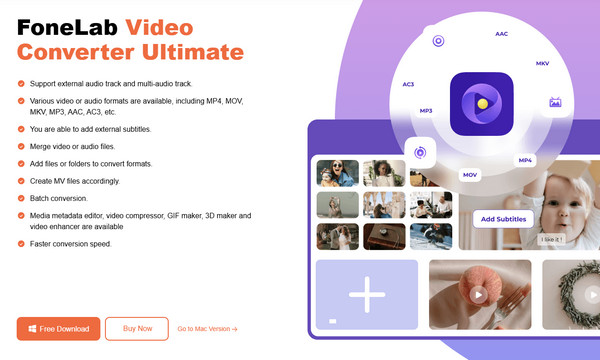
Step 1Pick the Free Download button when you use your browser and reach the FoneLab Video Converter Ultimate site. This way, the program’s installer will appear in your Downloads, and you can open it for installation. No worries; it won’t be long before the status bar below fills up, indicating the program has been installed. Then, click Start once shown later.
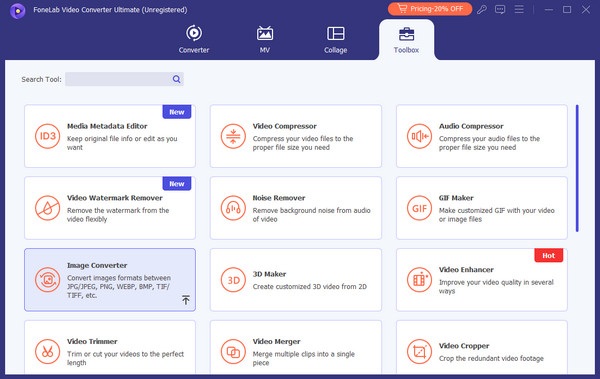
Step 2When the converter’s interface displays, the first thing to do is to tick the Toolbox selection at the top. It will quickly show you the available features, such as the Image Converter box in the first row. Choose it to proceed and select the Plus button on the upcoming interface. When a quick folder emerges, pick your BMP picture to be uploaded.
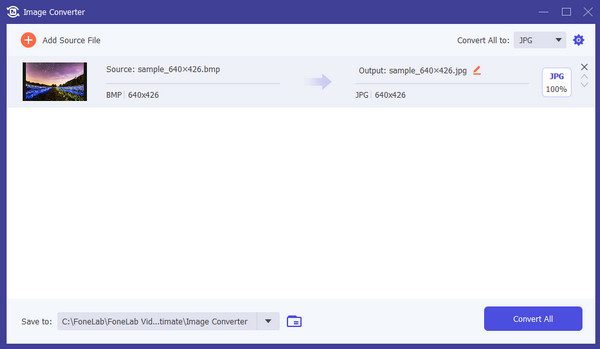
Step 3Once the chosen file is settled on the interface, click the upper-right Convert All to tab and select the JPG option. This way, it will be set as the output format. Next, you may click the Advanced Settings button for modification, but once ready, hit Convert All at the bottom.
Part 2. Convert BMP to JPG Using Image Online Convert
If the previous program works offline, Image Online Convert, on the other hand, is online-based. You will find its accessibility advantageous since its official site can be easily visited through nearly all browsers. Hence, it allows you to convert your BMP pictures to JPG, regardless of whether you use a smartphone or computer’s browsing app or program. Aside from that, you can trust its page to give you a convenient conversion process because of the intuitive design that lets users quickly understand the options. You must only access the designated page; then, you’ll be ready. Also, you are allowed to modify the Optional Settings for further enhancement.
Stick to the appropriate directions below to use the BMP to JPG converter, Image Online Convert:
Step 1Open Image Online Convert’s page, and when its conversion features are listed, choose the Convert to JPG box to proceed. After that, tick Choose File at the center of the main conversion page to display your folder. From there, pick and upload the BMP image.
Step 2The file will be uploaded and exhibited on the program page shortly. Before converting, you might want to manage the optional settings in the lower section, such as the output size, color filter, etc. Afterward, click the blue Start button on the box to process the conversion.
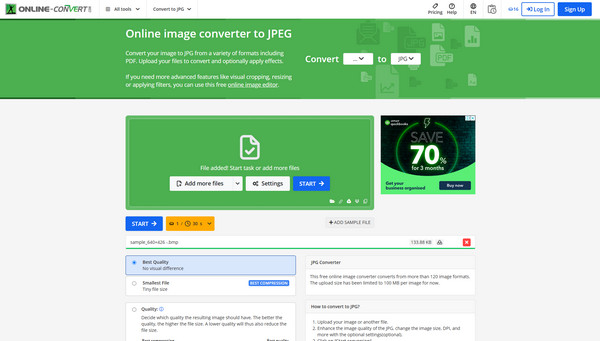
You may have noticed the program’s advantages, but unfortunately, they don’t eliminate the fact that you might still experience its disadvantages. First, the converter can only handle your BMP photos that don’t surpass the 100 MB size. Second, it has limited free credits for conversion, so once they run out, you will have to pay for a subscription to continue using the program.
Part 3. Convert BMP to JPG through Image Converter
Meanwhile, you can officially obtain the Image Converter program from Microsoft Store. Thus, the installation is expected to be quick and smooth since it will directly get the converter into your computer, and you can use it immediately. Also, its interface offers the simplest design, preventing you from facing confusion or any complex steps when converting the BMP files to JPG. On the other hand, you will find some basic options while exploring the program’s screen. It includes a Settings symbol, which you can click if you’d like to modify the output file extension, Chroma Subsampling Mode, or Image Quality. You may also choose other output formats later.
Mimic the secure operation below to convert BMP to JPG through Image Converter:
Step 1Acquire Image Converter first by heading to the Microsoft Store, finding the program, and clicking its Get button. Once installed, the Open tab will appear, so select it for the converter’s interface to be launched on your desktop.
Step 2Next, view the computer's shortcut folder using the upper right interface’s Add Images button. Find your BMP image from there, then double-click it afterward to be imported. Once added to the tool, you may use the other options accordingly. Finally, tick Convert All Images.
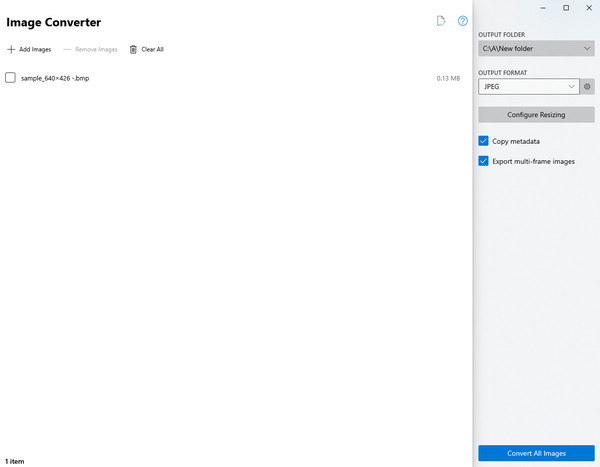
As you can see, this Image Converter program offers the simplest conversion. However, that advantage comes with the fact that it can only provide the most basic options. Thus, unlike the preceding tools, you won’t be able to use it for enhancements or a different purpose later.
Part 4. FAQs about BMP to JPG
Can I convert JPG to BMP back?
Yes, you can. If you have changed your mind and decided to keep the BMP format instead, you can always convert the file again using the same methods and processes above.
Is batch conversion possible for BMP?
Yes, it is. Numerous image converters, including FoneLab Video Converter Ultimate, support importing and converting multiple media files simultaneously.
The information given in this article has shown the most efficient yet stress-free approaches for converting BMP images to JPG, so apply them correctly for success.



