
 iPhone Data Recovery
 iOS System Recovery
 iOS Data Backup & Restore
 iOS Unlocker
 iPhone Password Manager
 Location Changer
 Android Data Recovery
 Broken Android Data Extraction
 Android Data Backup & Restore
 Android Unlocker
 FoneTrans for iOS
 iPhone Data Eraser
 iPhone Cleaner
 HEIC Converter
 HyperTrans
 WhatsApp Transfer for iOS
 Mac Sweep
 Data Retriever
 Mac Data Retriever
 Video Converter Ultimate
 Screen Recorder
 Phone Mirror
- Part 1. Best Audio Cutter - FoneLab Video Converter Ultimate
- Part 2. Alternative to The Best Audio Cutter on Computers - Audio Cutter Express
- Part 3. Leading Online Audio Cutter - Clideo Audio Cutter Online
- Part 4. Audio Cutter App - MP3 Cutter & Audio Trimmer
- Part 5. Comparison Table for Audio Cutter Apps or Tools
- Part 6. FAQs about Audio Cutter
- Convert AVCHD to MP4
- Convert MP4 to WAV
- Convert MP4 to WebM
- Convert MPG to MP4
- Convert SWF to MP4
- Convert MP4 to OGG
- Convert VOB to MP4
- Convert M3U8 to MP4
- Convert MP4 to MPEG
- Embed Subtitles into MP4
- MP4 Splitters
- Remove Audio from MP4
- Convert 3GP Videos to MP4
- Edit MP4 Files
- Convert AVI to MP4
- Convert MOD to MP4
- Convert MP4 to MKV
- Convert WMA to MP4
- Convert MP4 to WMV
4 Proven and Tested Audio Cutters You Can Consider
 Updated by
 Sometimes, the length of the audio file we have is not what we desire. Cutting the audio file leads us to our preferred length. Also, this technique removes the unwanted part of the audio from its ending or beginning point. Cutting the audio file is commonly performed when you want to make a ringtone, podcast, music project, or sound effects. There are various audio cutters you can use. But we recommend the best and tested tools and apps that can cut your audio files. You will see their list when you scroll through this post.

Guide List
- Part 1. Best Audio Cutter - FoneLab Video Converter Ultimate
- Part 2. Alternative to The Best Audio Cutter on Computers - Audio Cutter Express
- Part 3. Leading Online Audio Cutter - Clideo Audio Cutter Online
- Part 4. Audio Cutter App - MP3 Cutter & Audio Trimmer
- Part 5. Comparison Table for Audio Cutter Apps or Tools
- Part 6. FAQs about Audio Cutter
Part 1. Best Audio Cutter - FoneLab Video Converter Ultimate
Most of the methods that can be used to cut audio require a demanding process. FoneLab Video Converter Ultimate is different. This tool is an audio cutter and joiner. You can merge the multiple imported audio files into one file after cutting them. The best thing about this tool is that you may manually set the starting and ending points of the audio. Also, you can use the Fade In and Fade Out features to set up the edges of the audio file.

Video Converter Ultimate is the best video and audio converting software which can convert MPG/MPEG to MP4 with fast speed and high output image/sound quality.
- Convert any video/audio like MPG, MP4, MOV, AVI, FLV, MP3, etc.
- Support 1080p/720p HD and 4K UHD video converting.
- Powerful editing features like Trim, Crop, Rotate, Effects, Enhance, 3D and more.
Furthermore, this tool allows you to edit audio files using the other features it supports. It allows you to adjust the volume, split it, and more. Please imitate the steps below to learn the process of this tool for cutting your audio files.
Step 1Ensure that you visit the website of FoneLab Video Converter Ultimate. After that, select the Free Download button from the screen. Then, wait for the file to appear in your web browser and set it up. Finally, the software will be launched.

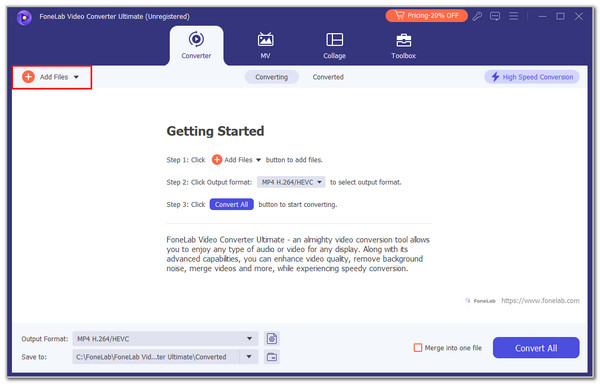
Step 2Select the Converter tab at the top left of the screen. Then, select the Add Files button at the top left, and the computer album will appear. Please choose your desired audio file to import it into the software.
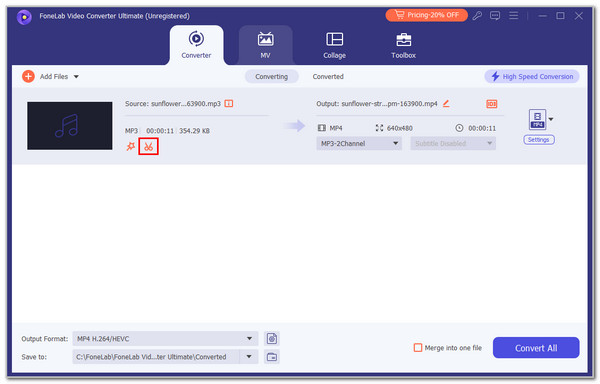
Step 3The file information will appear on the screen, including the features that can be used. Please click the Scissors button under the audio file. Then, find the section where the tool shows the audio length.
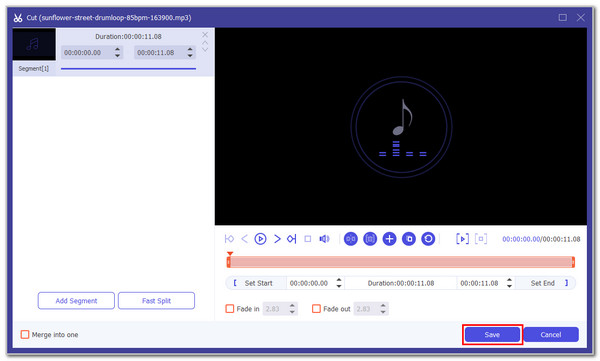
Step 4Adjust the length of the audio, depending on your preference. You can also set up the Set Start and Set End sections. Later, click the Save option at the bottom right. Finally, click the Convert All button to save the changes.
Part 2. Alternative to The Best Audio Cutter on Computers - Audio Cutter Express
The tool from the previous section is indeed beginner-friendly and does not lack features for cutting your videos. You probably look for an alternative for future reference. Audio Cutter Express is here! It is the best alternative to the tool from the previous section. However, it is not an offline or online audio cutter and joiner at the same time. It is only an audio cutter that does not contain any basic editing tools. Also, it is only available on your Windows computers.
This tool is best for individuals who aim only to cut their audio files without additional editing procedures. Do you want to use this tool? Please follow the steps below to discover how it functions.
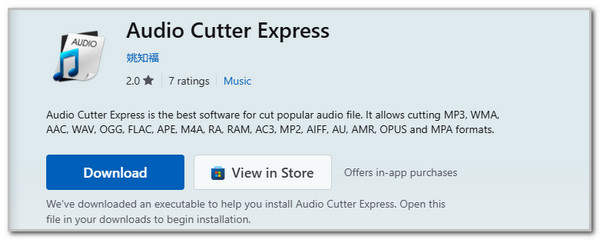
Step 1Download the software on your computer. You can search for the tool on the official website of the Microsoft Store. Alternatively, you can open the program from your Windows and search for the tool’s name. Then, click the Download selection and wait for the download procedure to be completed. Finally, open it to start the process.
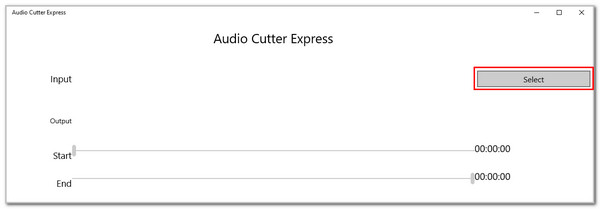
Step 2The simple interface of the tool will appear on the screen. Then, click the Select button at the top of the main interface. The computer album will appear, and you only need to select the audio file you want to cut to import it.
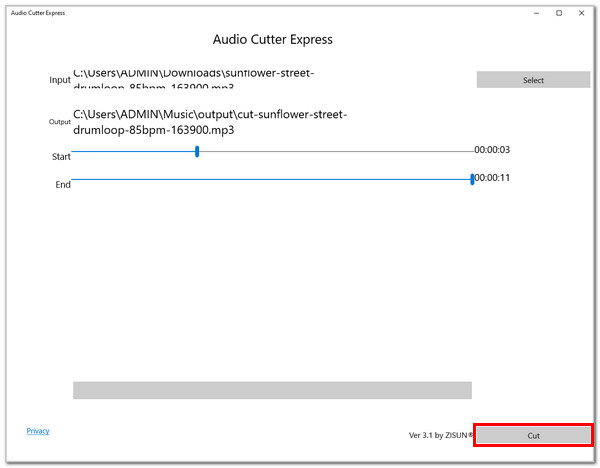
Step 3Please use the Start and End sliders to set up the starting and ending points of the audio file. After that, click the Cut button at the bottom right corner to cut your audio file.
Part 3. Leading Online Audio Cutter - Clideo Audio Cutter Online
Clideo Audio Cutter Online is the best online tool you can search for on the internet. It allows you to edit your music with ease due to its simple interface, which is best for beginners. However, this online tool supports limited audio file formats. It only supports MP3, OGG, WMA, and WAV. But the good thing about this tool is that it allows you to import the audio files from your computer, Google Drive, and Dropbox. Also, it can guide you on how to compress audio files. The tool will allow you to do this by choosing the file format that contains a smaller file size than the original file.
However, the import procedure of this tool is way slower than you expected. The reason is that it relies on the speed of your internet connection. Discover how to use this tool below.
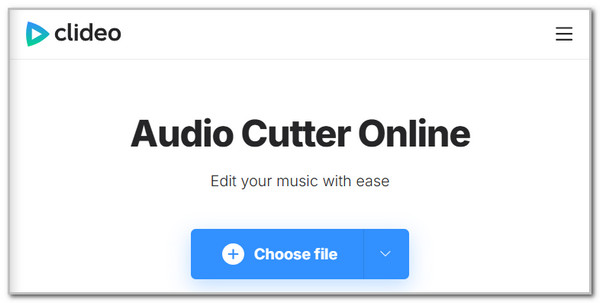
Step 1Search for the online website of Clideo Audio Cutter Online. After that, select the Choose File button at the center of the main interface. Then, the computer album will appear. You only need to choose the audio file from the list to import it afterward.
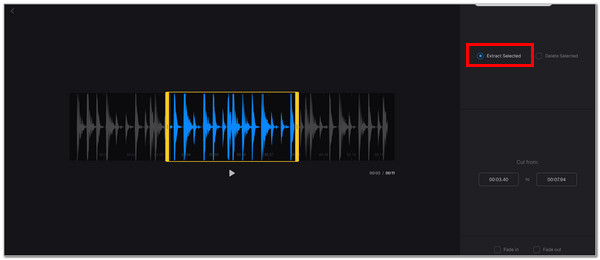
Step 2Please select the audio file sections you want to keep. You can use the Yellow slider from the audio file interface. Then, click the Extract Selected button under the audio file. Then, you can use the Fade In and Fade Out section at the bottom to add effect to the audio file. Finally, click the Export option at the bottom of the screen to save an audio file to your computer.
Part 4. Audio Cutter App - MP3 Cutter & Audio Trimmer
Lastly, you can use an audio cutter MP3, and other audio file format apps on your Android or iPhone to cut your audio files. MP3 Cutter & Audio Trimmer is recommended. This application is free, but allows you to purchase its plan at an expensive price. It will enable you to use the professional features afterward for cutting your audio files. For its free version, it requires you to watch the ads that will pop up on your screen. They will serve as your payment for their free service. It would be annoying and inconvenient for some of you. Please follow the steps below to discover the procedure for cutting your audio files.
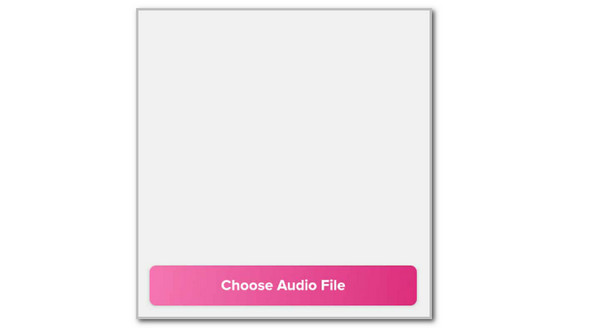
Step 1Download and open the app on an Android phone or iPhone. Then, tap the Cut Audio button at the top of the main interface. You might need to watch an ad after the process. Then, tap the Choose Audio File> button at the bottom of the screen. The mobile phone album will appear. Please select the audio file you want to cut afterward.
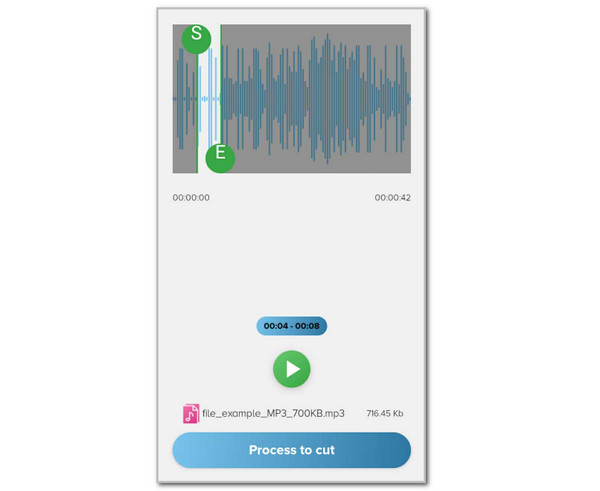
Step 2Use the E and S buttons to set your preferred length for the audio file. Then, tap the Process to Cut button at the bottom.
Part 5. Comparison Table for Audio Cutter Apps or Tools
Some of you might be overwhelmed by the information about the tools and apps for M4A, WMA, WAV, FLAC, AAC, OGG, and MP3 cutters. Here’s the table that can summarize their essential information.
| Name | Compatibility | Additional Features | Ease of Use | Supported Formats | Price |
| FoneLab Video Converter Ultimate | Windows and Mac | Converter, Collage, Audio Compressor, etc. | Beginner | MP3, AAC, WMA, etc. | Affordable Price |
| Audio Cutter Express | Windows | None | Beginner | AU, RAM, OGG, M4A, etc. | Free |
| Clideo Audio Cutter Online | All Devices (Online) | None | Beginner | MP3, OGG, WMA, and WAV | Free |
| MP3 Cutter & Audio Trimmer | iPhone and Android Phones | Trimming | Beginner | MP3 | Expensive Premium Price |
Part 6. FAQs about Audio Cutter
Do MP3 cutters reduce audio quality?
Some apps or tools can reduce the audio quality after cutting it. This is the reason why you need to choose tools or apps for cutting the audio file carefully. FoneLab Video Converter Ultimate is highly recommended, as the audio quality of the MP3 files after cutting them must be the same as the original file after processing it.
Which audio editor is best for beginners?
Beginners should use FoneLab Video Converter Ultimate for their first try at cutting their audio files. It has a simple interface and basic features for cutting the audio file. Also, you can explore its audio editing tools as a novice without difficulty.
The M4A, WMA, WAV, FLAC, AAC, OGG, and MP3 audio cutters are in this post. You should choose the best tool based on your needs, like FoneLab Video Converter Ultimate. This way, the process will be smooth. Audio cutters are essential to trim, edit, and customize your songs or sound effects. Try the audio cutters that have been introduced to make your audio files based on your preference.



