
 iPhone Data Recovery
 iOS System Recovery
 iOS Data Backup & Restore
 iOS Unlocker
 iPhone Password Manager
 Location Changer
 Android Data Recovery
 Broken Android Data Extraction
 Android Data Backup & Restore
 Android Unlocker
 FoneTrans for iOS
 iPhone Data Eraser
 iPhone Cleaner
 HEIC Converter
 HyperTrans
 WhatsApp Transfer for iOS
 Mac Sweep
 Data Retriever
 Mac Data Retriever
 Video Converter Ultimate
 Screen Recorder
 Phone Mirror
- Unlock Apple ID
- Bypass iCloud Activation Lock
- Doulci iCloud Unlocking Tool
- Factory Unlock iPhone
- Bypass iPhone Passcode
- Reset iPhone Passcode
- Unlock Apple ID
- Unlock iPhone 8/8Plus
- iCloud Lock Removal
- iCloud Unlock Deluxe
- iPhone Lock Screen
- Unlock iPad
- Unlock iPhone SE
- Unlock Tmobile iPhone
- Remove Apple ID Password
The Ultimate iPhone Unlock Guide – Official Methods & FoneLab
 Updated by
 I’ve been locked out of my iPhone more times than I’d like to admit.
Once, I changed my passcode and forgot it within an hour. Another time, I bought a used iPhone that turned out to be locked to someone else’s Apple ID. Another time, I swapped SIM cards and got hit with a SIM PIN I’d forgotten. And then there was the time I bought a used iPhone that was managed by a company – and the time I set up Screen Time on my son’s phone and promptly forgot the passcode.
Five different situations. 5 different ways to get locked out. And five different ways to get back in.
If you’re reading this, you’re probably in one of these situations yourself. Let me help you figure out which one, and what to do about it.
First, Figure Out What’s Locking You Out
Before you try anything, look at your iPhone screen. Here’s a quick guide:
| What You See | What It Means | Jump To |
|---|---|---|
| “iPhone is disabled” or a passcode entry screen | You forgot your screen passcode | Part 1 |
| “Activation Lock” or a different Apple ID email | Someone else’s Apple ID is linked | Part 2 |
| “SIM PIN Required” or “Enter PIN” with a SIM card icon | You forgot your SIM card PIN | Part 3 |
| “This iPhone is supervised and managed by…” | MDM lock (company or school device) | Part 4 |
| Screen Time passcode screen | You forgot your Screen Time passcode | Part 5 |
Let’s walk through each one.
Moreover, you can also get easy steps to unlock iPhone with a different carrier for further use. Even though your iPhone is locked to your carrier, you can still switch iPhone with a new carrier with ease. Just read and learn how to unlock iPhone without a passcode at home by yourself.

Guide List
For screen passcode: you’re going to lose your data. Every method that removes a forgotten screen passcode wipes the phone clean. I lost some old photos I forgot to back up. It stung. If you have a backup (iCloud or iTunes), you can restore after unlocking.
For Activation Lock and MDM lock: you may need proof of purchase or help from the original owner/organization.
For SIM PIN: you won’t lose your data. The SIM PIN is stored on the SIM card, not the phone. Unlocking it doesn’t affect your photos or apps.
For Screen Time passcode: you won’t lose your data if you reset with Apple ID or use a tool.
Alright, let’s get into what actually worked for me.
Part 1: Unlock iPhone Forgot Screen Passcode
This is the most common situation. You know the phone is yours. You just can’t remember the numbers you typed in a few days ago.
I’ve been there. I changed my passcode to something “more secure” and then couldn’t remember it an hour later.
Method 1: Use Your Old Passcode (No Data Loss)
If you changed your passcode recently, iOS gives you a 72-hour window to use your old one. This is the only method that won’t erase your data.
Here’s what I did:
Step 1I entered the wrong passcode a few times until a message appeared: “Enter your previous passcode?”
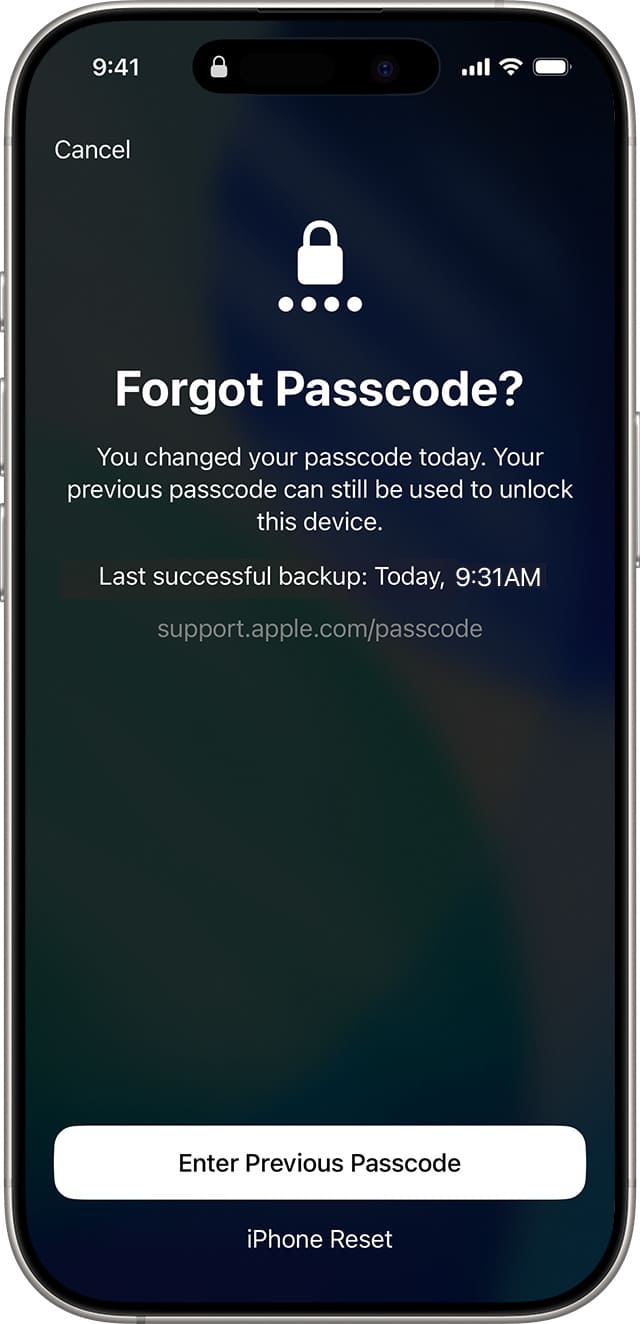
Step 2I tapped it and entered my old passcode.
Step 3I was in. All my data was still there.
When this works:
- You changed your passcode within the last 72 hours
- You still remember the old one
Method 2: Use the “Erase iPhone” Option (iOS 15+)
If you don’t remember your old passcode, or the 72-hour window has passed, your next best bet is the lock screen erase option.
Here’s what I did on another occasion:
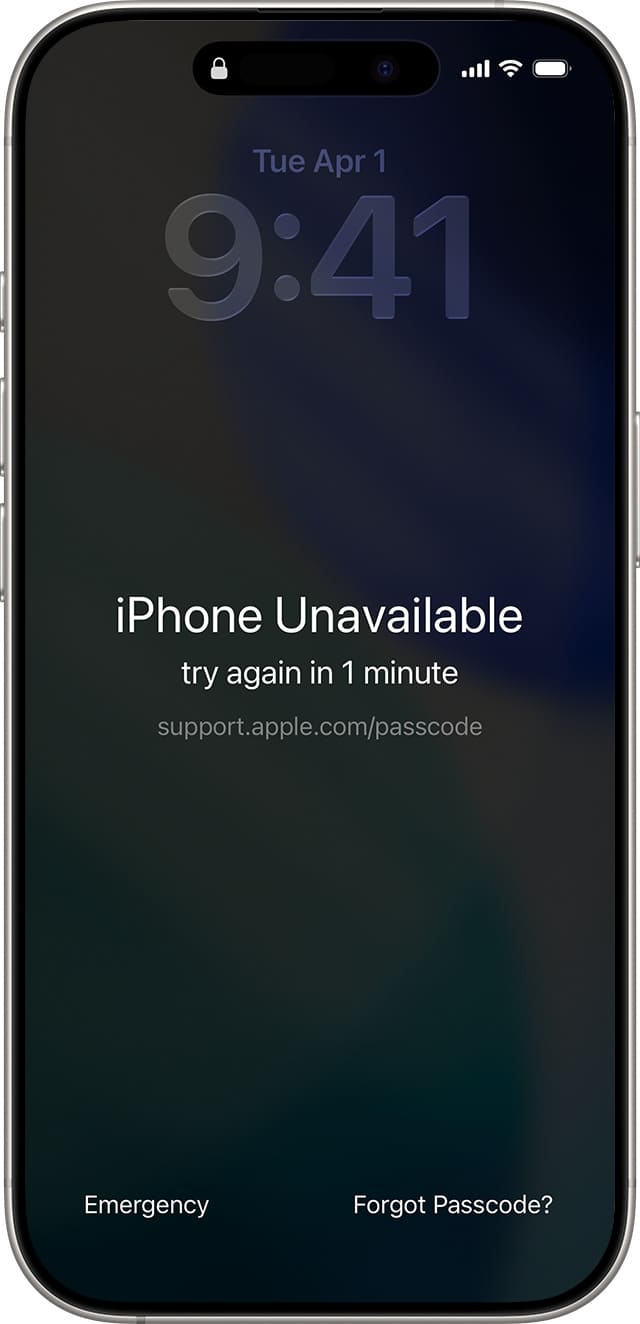
Step 1I kept entering wrong passcodes until the phone disabled itself (about 10 attempts).
Step 2The lock screen showed an Erase iPhone button at the bottom.
Step 3I tapped it, entered my Apple ID password, and the phone wiped itself.
Step 4During setup, I restored from my iCloud backup.
When this works:
- Your iPhone is on iOS 15 or later
- Your phone is connected to Wi-Fi or cellular
- You know your Apple ID password
Method 3: iCloud Erase (Computer Optional)
If your phone isn’t on iOS 15, or you can’t see the “Erase iPhone” button, you can use iCloud from any browser.
Step 1Go to icloud.com/find and sign in with your Apple ID.
Step 2Click All Devices and select your locked iPhone.
Step 3Click Erase iPhone.
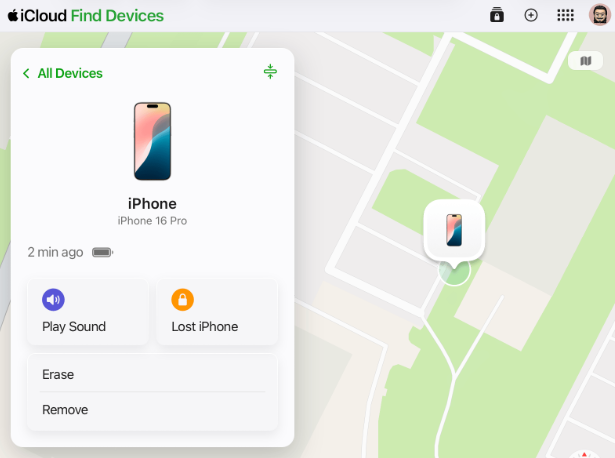
Step 4Wait for the erase to complete, then set up the phone and restore from backup.
Method 4: Restore with a Computer (iTunes, Finder, or Apple Devices)
If you don’t have Wi-Fi or can’t access iCloud, a computer can save you.
Step 1Connect your iPhone to your computer.
Step 2Open iTunes (Windows/older Macs), Finder (newer Macs), or Apple Devices (Windows).
Step 3If the computer recognizes the phone, click Restore iPhone.
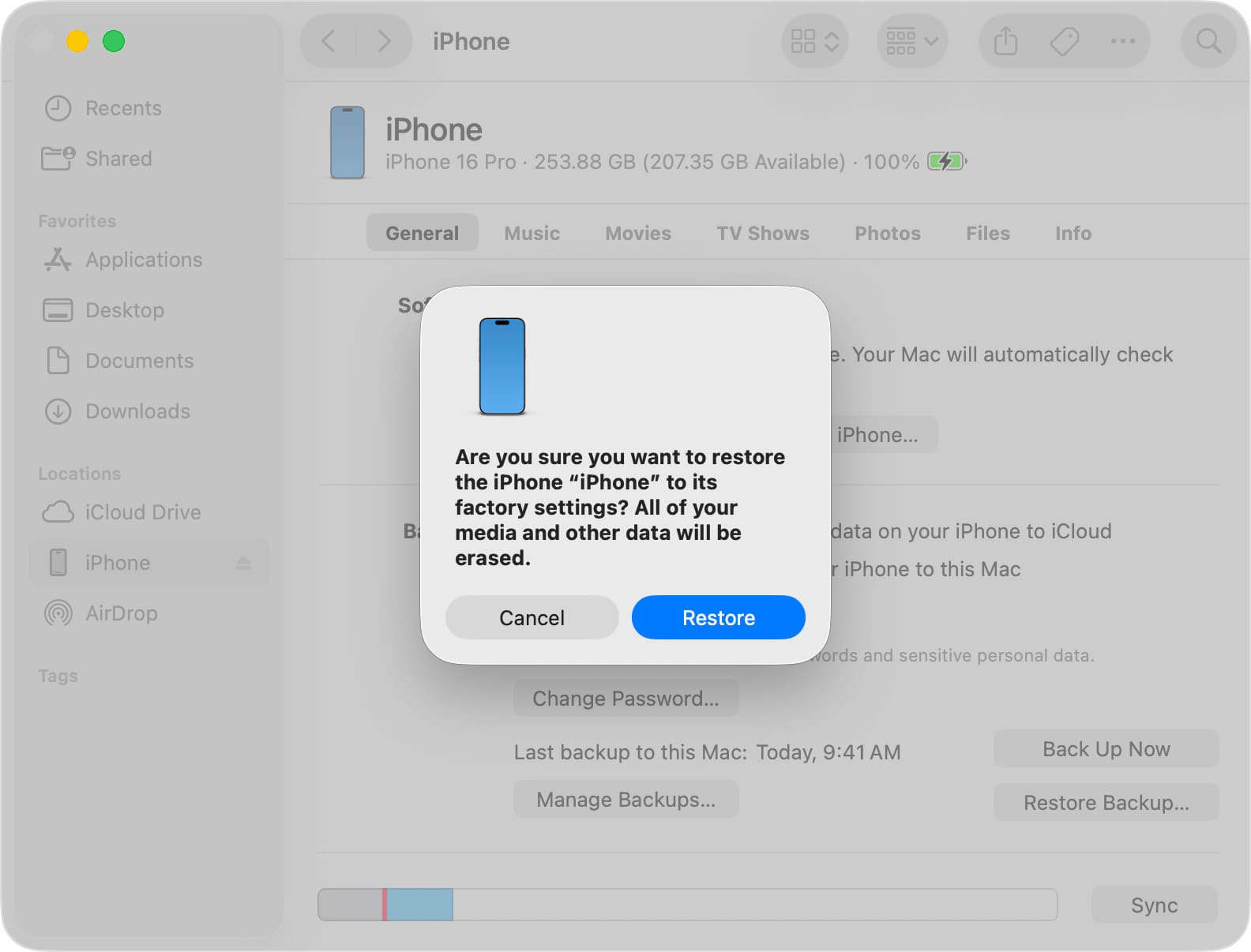
Step 4If it doesn’t, put the phone into recovery mode:
- Face ID models: Press Volume Up, Volume Down, then hold Side button until recovery screen appears.
- Home button models: Hold Home and Top/Side button until recovery screen appears.
Step 5Click Restore and wait.
Method 5: FoneLab iOS Unlocker (When Official Methods Fail)
If you forgot your Apple ID password, or the official methods didn’t work, FoneLab iOS Unlocker is a reliable fallback. It can help you bypass lock screen on iPhone.
I used this on an old iPhone where I’d forgotten both the passcode and the Apple ID password. The phone had been sitting in a drawer for two years.

FoneLab Helps you unlock iPhone screen, Removes Apple ID or its password, Remove screen time or restriction passcode in seconds.
- Helps you unlock iPhone screen.
- Removes Apple ID or its password.
- Remove screen time or restriction passcode in seconds.
Step 1Download and install FoneLab iOS Unlocker.
Step 2Open it and click Unlock iOS Screen.
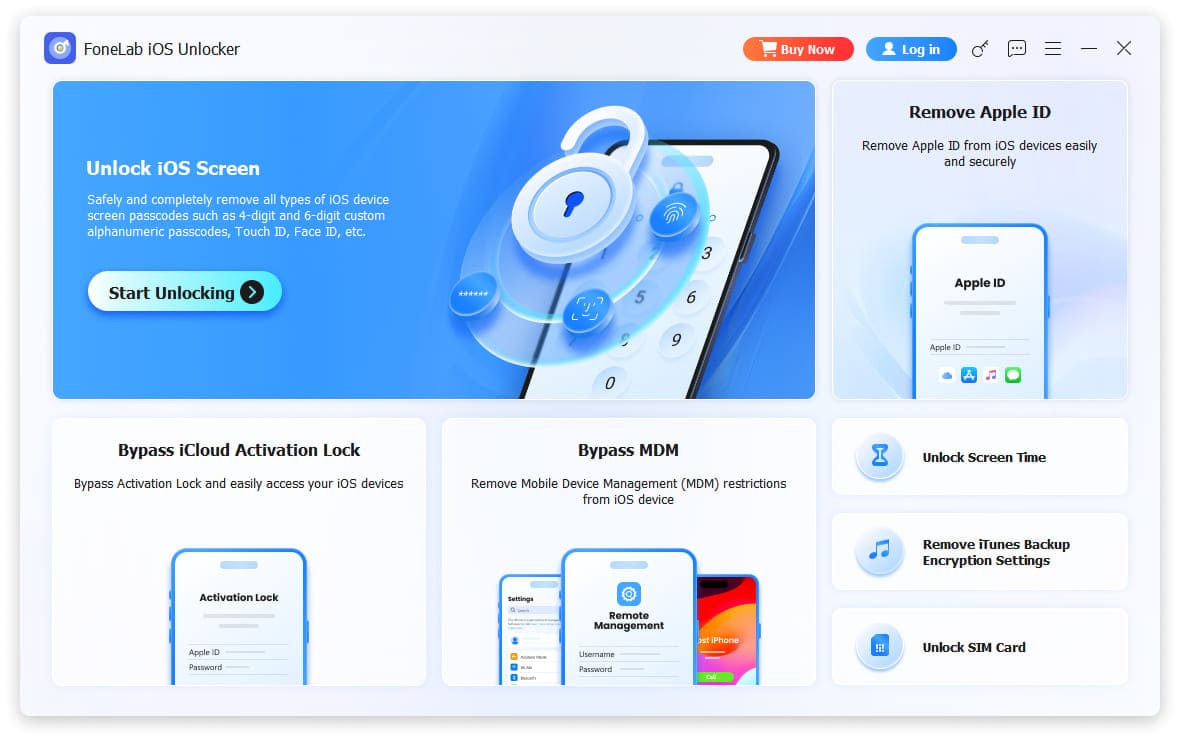
Step 3Connect your iPhone with a USB cable.
Step 4Follow the on-screen instructions to put the phone into Recovery Mode. The software shows you exactly which buttons to press for your iPhone model – it’s simple and takes less than a minute.
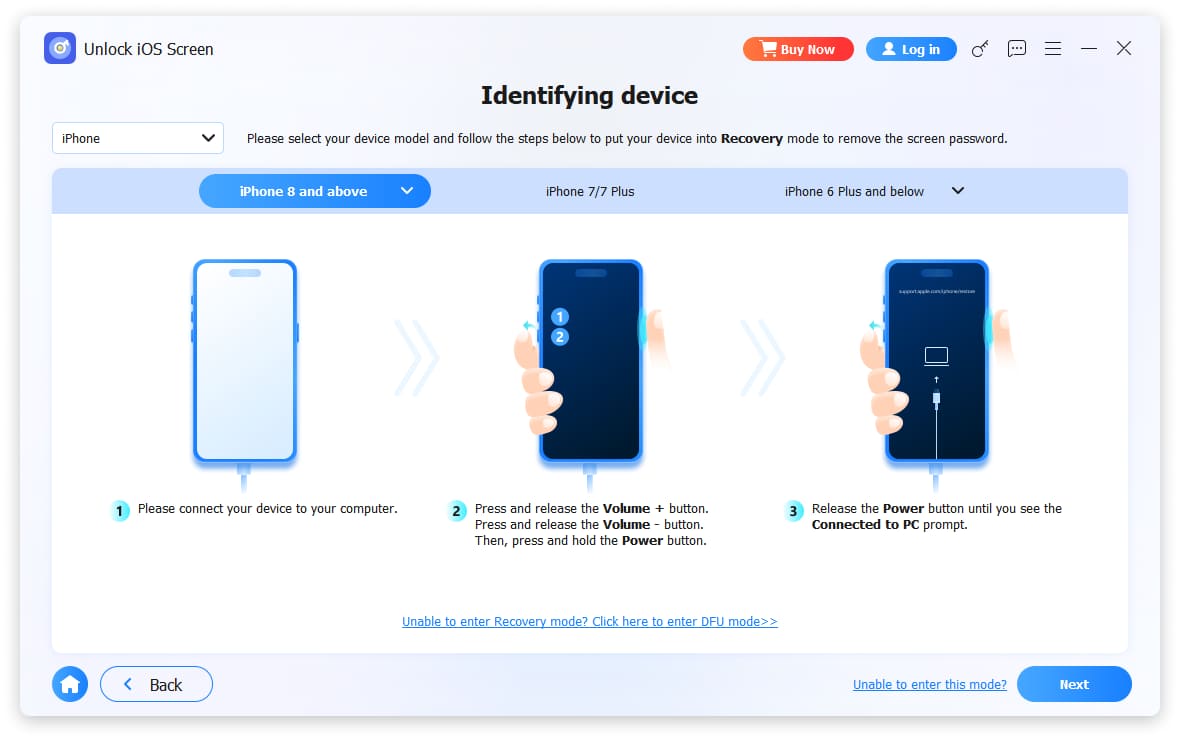
Step 5The software downloads the firmware and removes the passcode in about 15 minutes.
Step 6The phone restarts with no passcode. Set it up with your Apple ID.
Part 2: Bypass Activation Lock on iPhone
This happened to me when I bought a used iPhone from a seller who claimed they’d signed out. They hadn’t. When I got home and wiped the phone, I saw a strange Apple ID on the activation screen.
Method 1: Contact the Previous Owner
If you can reach the seller, this is the fastest solution to remove activation lock from iPhone.
Ask them to:
Step 1Go to icloud.com/find and sign in.
Step 2Click “All Devices” and select the iPhone.
Step 3Click Remove from Account.
That’s it. The lock is gone. You can now set up the phone with your own Apple ID.
Method 2: Contact Apple Support (If You Have Proof of Purchase)
If you can’t reach the previous owner but you have a receipt, Apple can help.
Apple offers two ways: by phone or online.
Option A: Call Apple Support
Step 1Call Apple Support and explain you’re the legitimate owner but the device is locked to someone else’s Apple ID.
Step 2Provide the device’s serial number (found on the original box or in Settings if accessible).
Step 3Upload or email proof of purchase (receipt must show the serial number or IMEI).
Step 4After verification, Apple starts the removal process. It usually takes 24-48 hours.
Option B: Submit an Online Request
Step 1Go to al-support.apple.com.
Step 2Fill out the request form with your name, email, and phone number.
Step 3Enter the device details – model, serial number or IMEI.
Step 4Upload proof of purchase – a photo of the receipt showing the serial number or IMEI.
Step 5Submit and wait. Apple usually responds within 3-5 days.
Important notes:
- Apple will only remove Activation Lock if you have valid proof of purchase
- The receipt must show the device’s serial number or IMEI
- If the device was reported lost or stolen, Apple won’t unlock it
Method 3: FoneLab iOS Unlocker (No Owner, No Receipt)
When I bought that locked iPhone and the seller blocked me, I had no receipt and no way to contact them. FoneLab iOS Unlocker was the only thing that worked to bypass activation lock on iPhone.
FoneLab Helps you unlock iPhone screen, Removes Apple ID or its password, Remove screen time or restriction passcode in seconds.
- Helps you unlock iPhone screen.
- Removes Apple ID or its password.
- Remove screen time or restriction passcode in seconds.
Step 1Download and install FoneLab iOS Unlocker.
Step 2Open it and click Remove Apple ID.
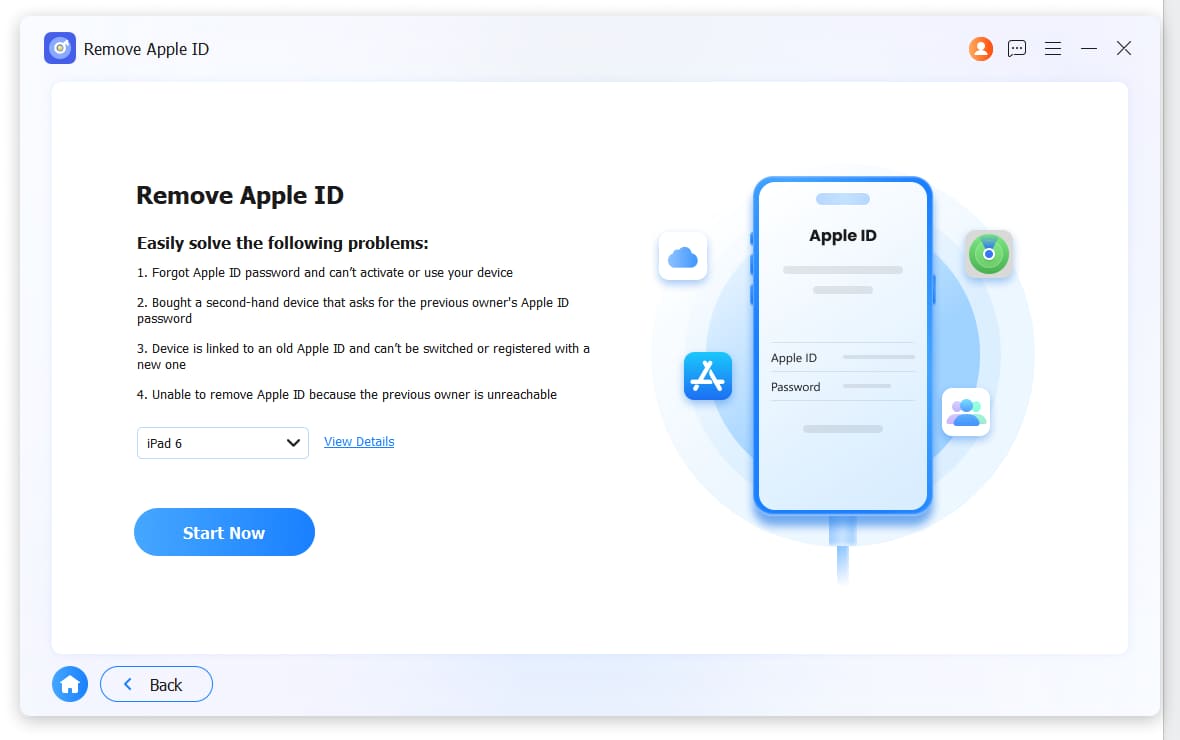
Step 3Connect your iPhone with a USB cable.
Step 4Follow the on-screen instructions to enable Two-Factor Authentication. The software walks you through the button presses – it’s easy.
Step 5Confirm your operation and the software will remove the Activation Lock in about 15-20 minutes.
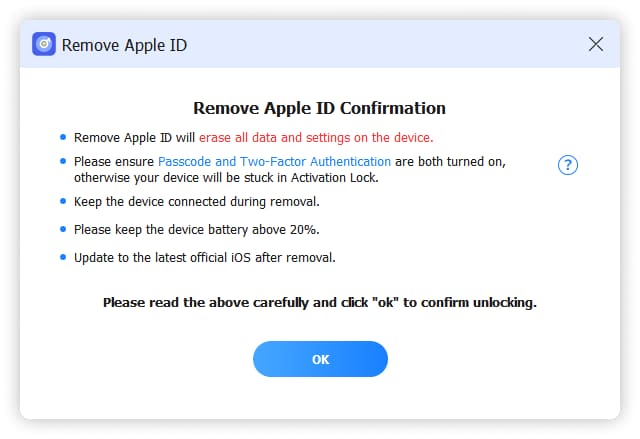
Step 6Set up the phone with your own Apple ID.
Part 3: Remove SIM Card PIN Lock on iPhone
This one caught me off guard. I swapped SIM cards between phones, and suddenly my iPhone was asking for a SIM PIN – a code I hadn’t thought about in years.
Method 1: Use the PUK Code
Every SIM card has a PUK code (Personal Unlocking Key) that can reset the SIM PIN.
Here’s what I did:
Step 1I found the PUK code. It’s usually:
- On the plastic card that the SIM card came in
- In your carrier’s online account portal
- On a sticker inside the SIM card packaging
Step 2On my iPhone, after entering the wrong SIM PIN a few times, the screen showed “SIM is locked. Enter PUK code.”
Step 3I entered the PUK code.
Step 4The phone asked me to set a new SIM PIN. I entered a new 4-digit code.
Step 5I was back in. Cellular service restored.
If you can’t find the PUK code:
- Call your carrier’s customer service. They’ll ask for your account information and can provide the PUK code over the phone.
Method 2: Contact Your Carrier
If you can’t find the PUK code anywhere, your carrier can still help.
Here’s what a friend of mine did:
Step 1She called her carrier’s customer service number (using another phone).
Step 2She verified her identity by providing her account password and answering security questions.
Step 3The rep gave her the PUK code over the phone.
Step 4She entered it on her iPhone and set a new SIM PIN.
Method 3: Get a New SIM Card (Last Resort)
If you’ve used up all your PUK attempts and the SIM is permanently locked, or if you can’t verify your identity with the carrier, your only option is a new SIM card.
Step 1Go to your carrier’s local store with your ID.
Step 2Request a replacement SIM card with the same phone number.
Step 3Insert the new SIM into your iPhone and set a new SIM PIN.
Cost: Some carriers do this for free. Others charge a small fee ($5-$10).
Method 4: FoneLab iOS Unlocker (Carrier Unlock)
If your SIM card is permanently locked and your carrier won’t help – or if you bought a used iPhone that’s locked to a different carrier – FoneLab iOS Unlocker offers a carrier unlock service.
FoneLab Helps you unlock iPhone screen, Removes Apple ID or its password, Remove screen time or restriction passcode in seconds.
- Helps you unlock iPhone screen.
- Removes Apple ID or its password.
- Remove screen time or restriction passcode in seconds.
Here’s how it works:
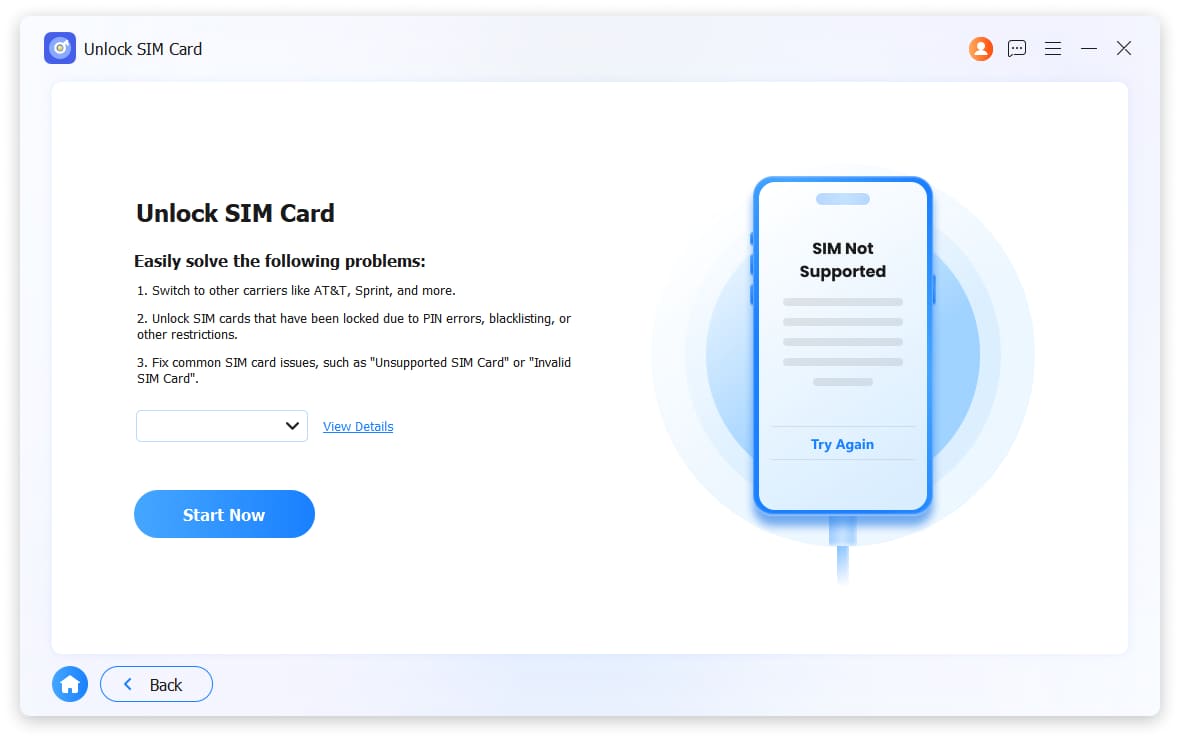
Step 1Download and install FoneLab iOS Unlocker. Choose Unlock SIM Card.
Step 2Follow the steps to forget Wi-Fi on your device. Just wait minutes.
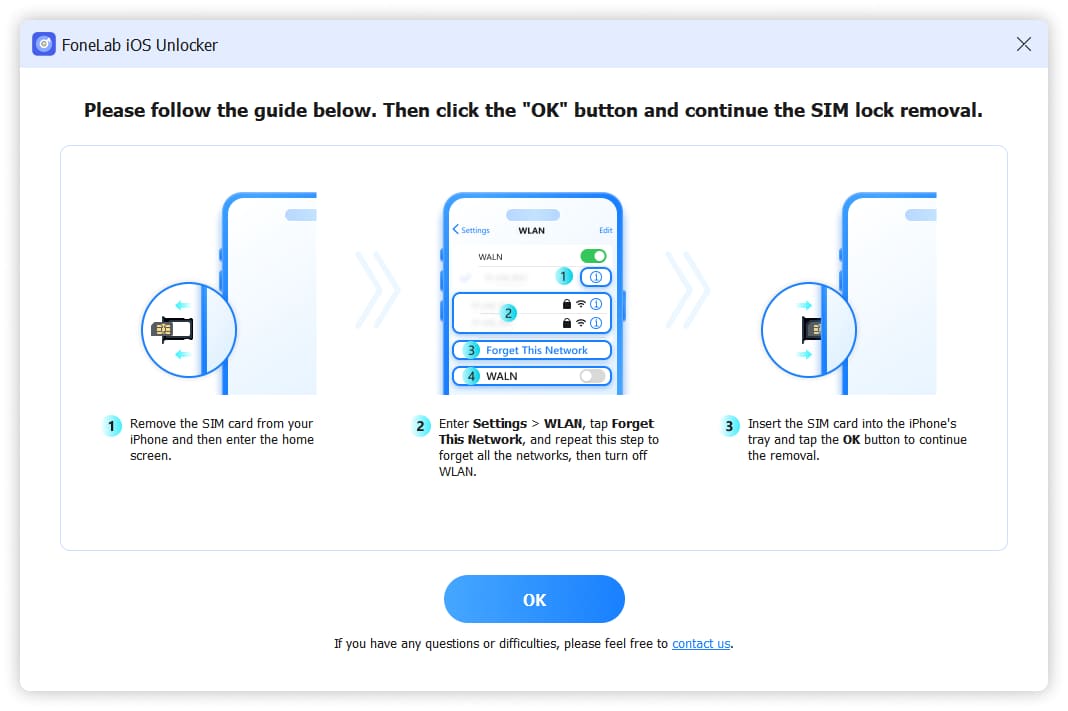
Once confirmed, restart your iPhone and insert any SIM card. The lock is gone.
This works for most carriers worldwide.
Part 4: Remove MDM Lock from iPhone
This one caught me off guard a few years ago. I bought a used iPhone from an online marketplace. Great price, looked perfect. When I set it up, everything seemed fine – until I tried to install an app. A message popped up: “This device is managed by an organization.”
I had no idea what that meant. Turns out, the iPhone was enrolled in Apple Business Manager or Apple School Manager. It was locked to a company’s MDM (Mobile Device Management) profile. The previous owner had bought it from a business liquidation sale, but the company never removed the device from their system.
If you see a message like “This iPhone is supervised and managed by…” or you can’t install apps, change settings, or update iOS, you’re dealing with an MDM lock.
Method 1: Contact the Organization (Free)
If the device belongs to a company or school, they are the only ones who can remove the MDM profile.
Here’s what I did with that iPhone:
Step 1I went to the “Device Management” section in Settings (usually under Settings > General > VPN & Device Management). I saw the organization’s name there.
Step 2I searched online for their contact information and called their IT department.
Step 3I explained that I bought the device second-hand and asked if they could remove it from their MDM system.
Step 4They asked for the device’s serial number, verified that it was no longer in their inventory, and removed it remotely.
Step 5I restarted the iPhone, and the MDM lock was gone.
Important: This only works if the organization is willing to help. If the device was reported lost or stolen, they won’t release it.
Method 2: Contact the Previous Owner
If you can reach the person who sold you the device, they might be able to help – especially if they were the one who originally set up the MDM.
Ask them to:
Step 1Log into the MDM portal they used (Apple Business Manager, Apple School Manager, or a third-party MDM system).
Step 2Find the device in their inventory and remove it.
Step 3Once removed, the MDM lock will disappear after a restart.
Method 3: FoneLab iOS Unlocker (Remove MDM)
If you can’t contact the organization or the previous owner – or if they refuse to help – FoneLab iOS Unlocker has a feature to remove MDM locks.
FoneLab Helps you unlock iPhone screen, Removes Apple ID or its password, Remove screen time or restriction passcode in seconds.
- Helps you unlock iPhone screen.
- Removes Apple ID or its password.
- Remove screen time or restriction passcode in seconds.
I used this for a friend who bought a used iPhone that was locked to a company that had gone out of business. There was no way to contact anyone.
Here’s what we did:
Step 1We downloaded and installed FoneLab iOS Unlocker.
Step 2We opened it and selected Bypass MDM.
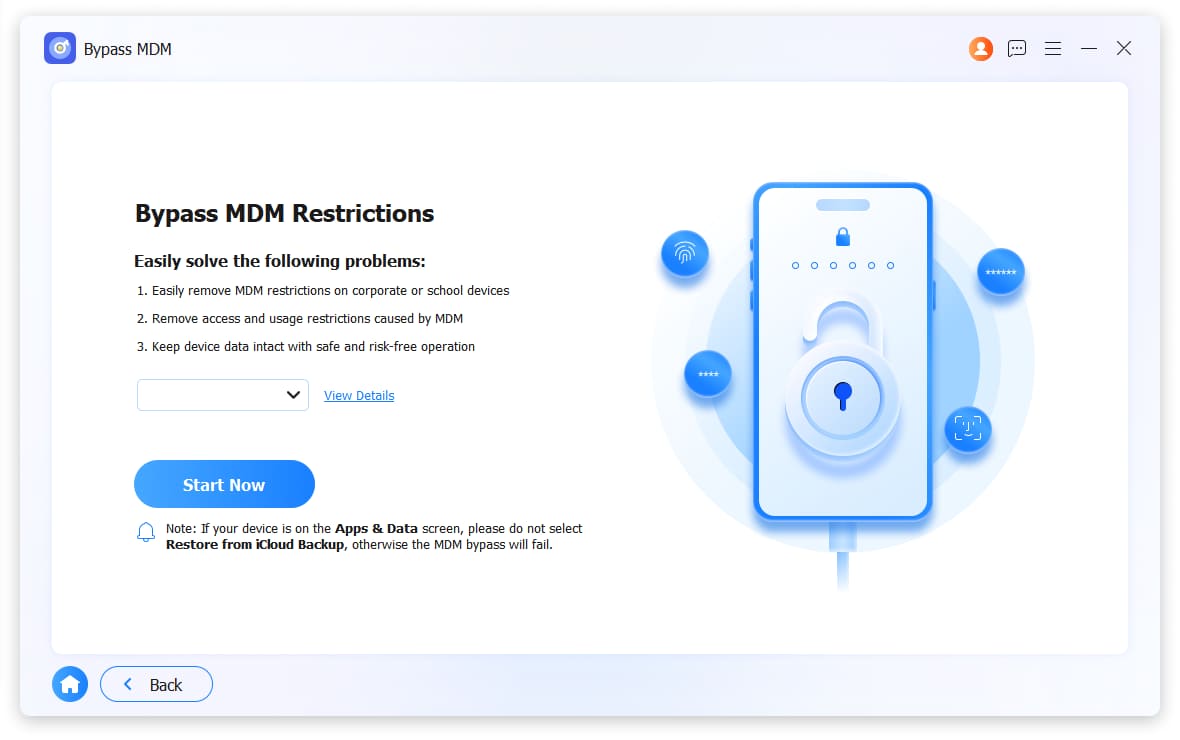
Step 3We connected the iPhone with a USB cable.
Step 4The software walked us through turning off stolen device protection or Find My feature.
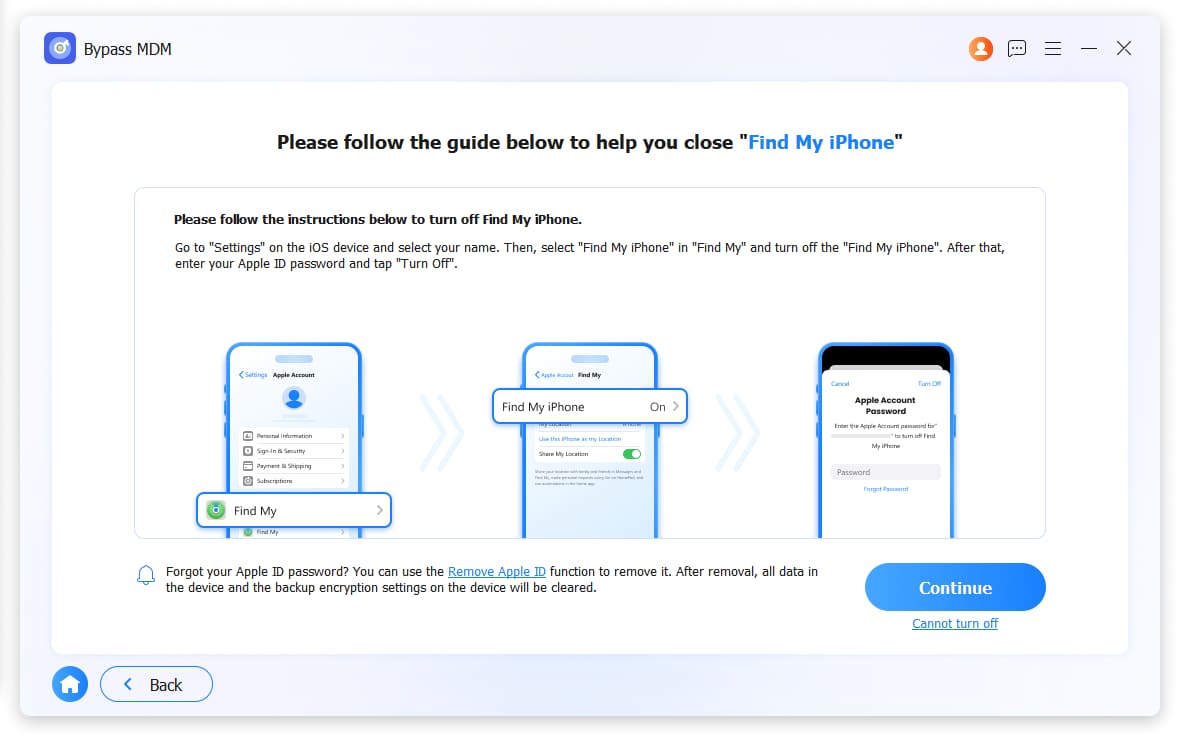
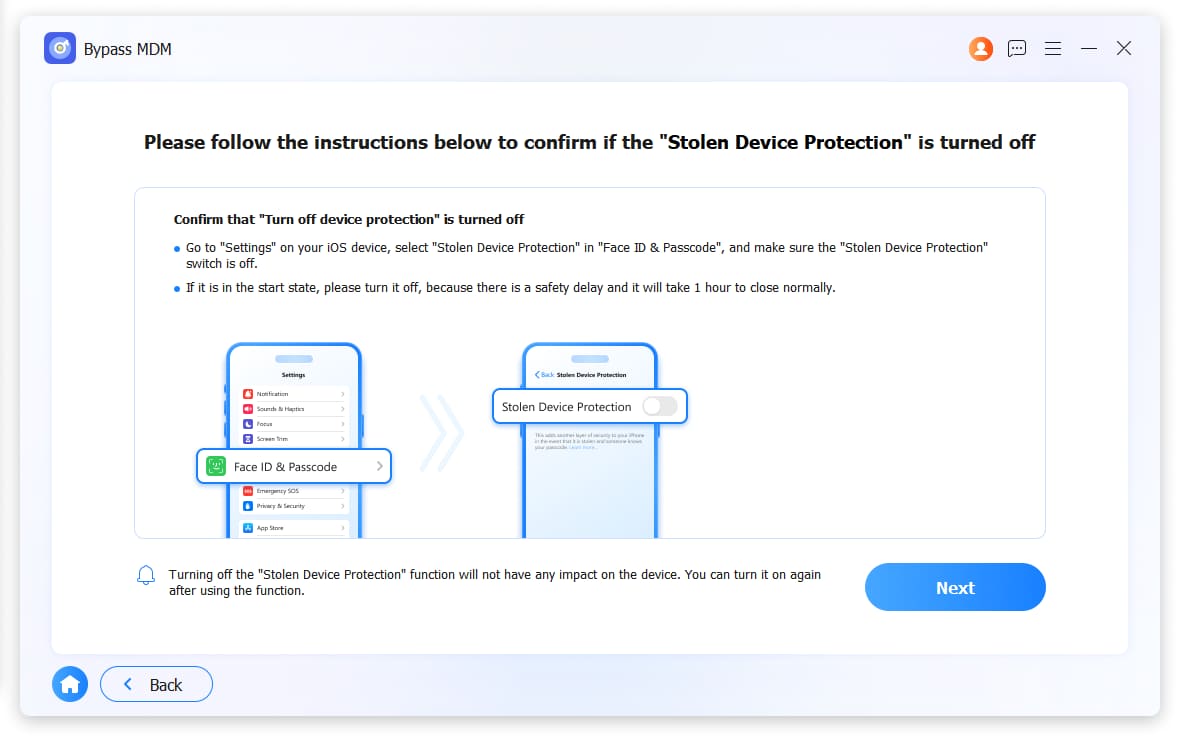
Step 5It will begin to remove MDM after confirmation.
Important: This works for most MDM locks, but if the device is enrolled in Apple Business Manager with an organization that still exists, they may be able to re-enroll it remotely. Make sure to turn off automatic enrollment in Settings after unlocking.
FoneLab Helps you unlock iPhone screen, Removes Apple ID or its password, Remove screen time or restriction passcode in seconds.
- Helps you unlock iPhone screen.
- Removes Apple ID or its password.
- Remove screen time or restriction passcode in seconds.
Part 5: Remove Screen Time Passcode on iPhone
This one frustrated me more than I’d like to admit. I set up Screen Time on my son’s iPhone to limit his app usage. A few months later, I needed to change the settings – and I couldn’t remember the Screen Time passcode I’d set.
If you’re stuck on the Screen Time passcode screen, unable to change restrictions or turn off Screen Time, here’s what worked for me.
Method 1: Use Your Apple ID to Reset (iOS 13.4+)
If you’re on iOS 13.4 or later, Apple added a way to reset Screen Time passcode using your Apple ID.
Here’s what I did:
Step 1On the Screen Time passcode screen, I tapped Forgot Passcode?.
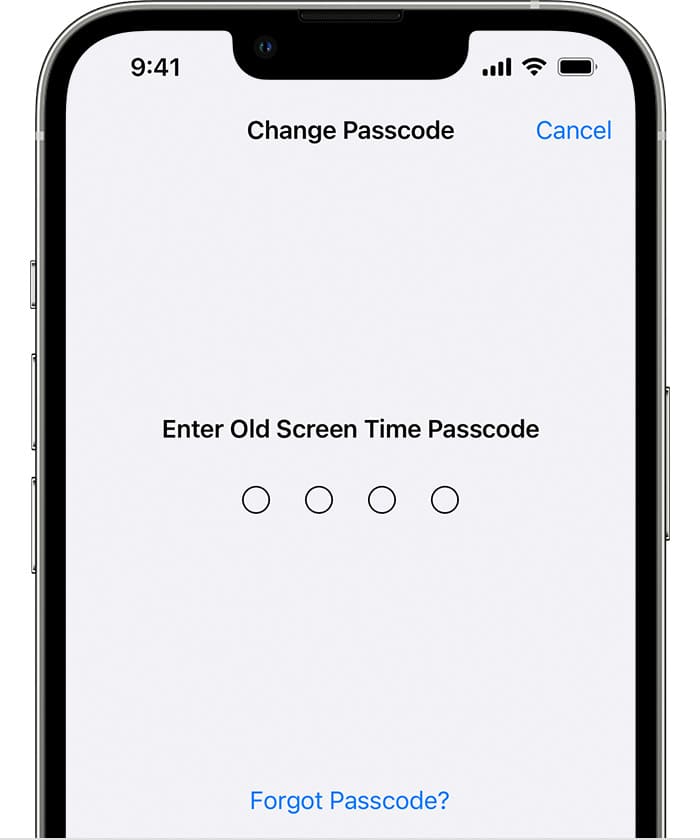
Step 2The phone asked for my Apple ID and password.
Step 3I entered them, and the Screen Time passcode was reset immediately.
Step 4I set a new passcode – and wrote it down this time.
When this works:
- Your iPhone is on iOS 13.4 or later
- You remember your Apple ID password
- You’re the one who set up Screen Time
Method 2: Restore with a Computer (If You Have a Backup)
If you can’t reset with Apple ID – maybe you don’t remember it, or you’re using an older iOS version – you can restore the iPhone from a backup before Screen Time was enabled.
Here’s what I did for an older iPhone:
Step 1I connected the iPhone to my computer and opened iTunes (or Finder on newer Macs).
Step 2I restored the iPhone from a backup I made before I set up Screen Time.
Step 3After the restore, Screen Time was disabled.
Important: This only works if you have a backup from before Screen Time was enabled. If you don’t, this method won’t help.
Method 3: FoneLab iOS Unlocker (Remove Screen Time Passcode)
If you don’t have a backup and can’t reset with Apple ID, FoneLab iOS Unlocker can remove Screen Time passcode without erasing your data.
I used this when I forgot the Screen Time passcode on my son’s iPhone and he needed the restrictions lifted immediately.
Here’s what I did:
Step 1I downloaded and installed FoneLab iOS Unlocker.
Step 2I opened it and selected Unlock Screen Time.
Step 3I connected the iPhone with a USB cable.
Step 4Choose How is your screen time password set from Set up directly on the device or Through Family settings.
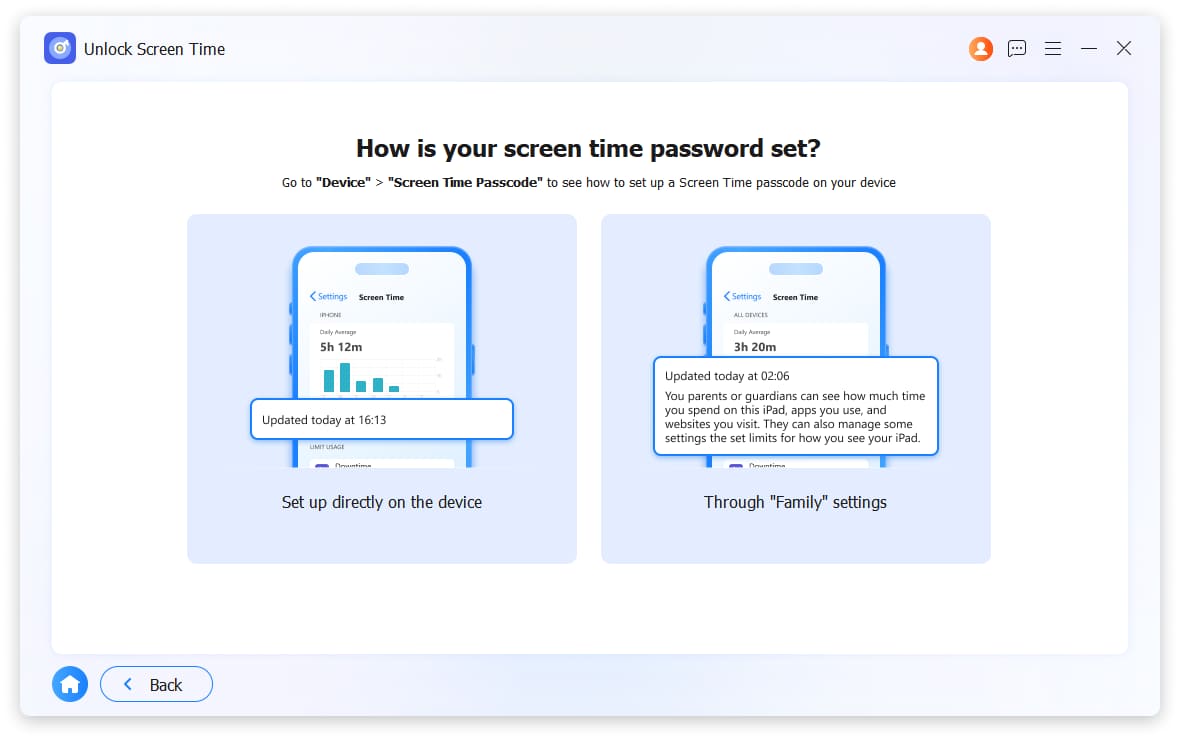
Step 5Click Start Now button.
Important: This removes the passcode, but Screen Time itself stays enabled. You can go into Settings and turn it off or set a new passcode.
FoneLab Helps you unlock iPhone screen, Removes Apple ID or its password, Remove screen time or restriction passcode in seconds.
- Helps you unlock iPhone screen.
- Removes Apple ID or its password.
- Remove screen time or restriction passcode in seconds.
Part 6: Which Method Should You Choose to Unlock iPhone
Here’s a quick reference. FoneLab iOS Unlocker works for all five lock types.
| Your Situation | Official Methods | FoneLab iOS Unlocker |
|---|---|---|
| Part 1: Forgot Screen Passcode | iCloud Erase, Computer Restore, etc. | ✅ Works |
| Part 2: Activation Lock | Contact Owner, Apple Support | ✅ Works |
| Part 3: SIM PIN Lock | PUK Code, Contact Carrier | ✅ Works |
| Part 4: MDM Lock | Contact Organization, Contact Owner | ✅ Works |
| Part 5: Screen Time Passcode | Reset with Apple ID, Computer Restore | ✅ Works |
If official methods don’t work – or if you forgot your Apple ID password, have no receipt, can’t reach the previous owner, or the organization won’t help – FoneLab is the tool that finally worked for me.
What I Learned (So You Don’t Have To)
After getting locked out of my own iPhone multiple times – and helping friends through the same situations – here’s what I’d tell my past self:
1. Back up your phone regularly. If you have a backup, wiping the phone is just an inconvenience, not a disaster.
2. If you recently changed your screen passcode, try your old one first. iOS gives you a 72-hour window. This is the only method that won’t erase your data.
3. For Screen Time passcode, try resetting with your Apple ID first. iOS 13.4 and later added this feature – it’s free and takes seconds.
4. For MDM locks, try contacting the organization first. If the device was legitimately purchased, they’ll often remove it.
5. If you’re buying a used iPhone, check for MDM lock before you pay. Go to Settings > General > VPN & Device Management. If you see a management profile, ask the seller to remove it.
6. Keep your SIM card’s PUK code somewhere safe. Take a photo of the SIM card packaging and save it in a secure note.
7. If you’re stuck on Activation Lock and have proof of purchase, use Apple’s online form. Go to al-support.apple.com. It’s free and it works.
8. If you’ve tried everything and still can’t get in, FoneLab is the tool that finally worked for me. Don’t waste time on sketchy “free unlock” websites – I almost got scammed twice.
Getting locked out of your iPhone is frustrating. Whether it’s the screen passcode, Activation Lock, SIM PIN, MDM lock, or Screen Time passcode, you’re holding a device that belongs to you and you can’t use it.
But after going through all five myself – and helping friends through theirs – I can tell you that there’s always a way back in.
For screen passcode, you have official Apple methods and FoneLab as a fallback. For Activation Lock, it’s about contacting the previous owner or Apple. For SIM PIN, your carrier is your best friend. For MDM lock, reach out to the organization or the previous owner. For Screen Time passcode, try resetting with your Apple ID first.
And when all else fails, FoneLab has you covered for all five.
I’m not here to sell you on any one tool. I’m just telling you what actually worked for me – in every single one of these situations.
Hopefully, this saves you the hours of trial and error I went through. Good luck – and don’t forget to back up your stuff next time. I sure won’t.
FoneLab Helps you unlock iPhone screen, Removes Apple ID or its password, Remove screen time or restriction passcode in seconds.
- Helps you unlock iPhone screen.
- Removes Apple ID or its password.
- Remove screen time or restriction passcode in seconds.



