
 iPhone Data Recovery
 iOS System Recovery
 iOS Data Backup & Restore
 iOS Unlocker
 iPhone Password Manager
 Location Changer
 Android Data Recovery
 Broken Android Data Extraction
 Android Data Backup & Restore
 Android Unlocker
 FoneTrans for iOS
 iPhone Data Eraser
 iPhone Cleaner
 HEIC Converter
 HyperTrans
 WhatsApp Transfer for iOS
 Mac Sweep
 Data Retriever
 Mac Data Retriever
 Video Converter Ultimate
 Screen Recorder
 Phone Mirror
- Unlock Apple ID
- Bypass iCloud Activation Lock
- Doulci iCloud Unlocking Tool
- Factory Unlock iPhone
- Bypass iPhone Passcode
- Reset iPhone Passcode
- Unlock Apple ID
- Unlock iPhone 8/8Plus
- iCloud Lock Removal
- iCloud Unlock Deluxe
- iPhone Lock Screen
- Unlock iPad
- Unlock iPhone SE
- Unlock Tmobile iPhone
- Remove Apple ID Password
Unlock Too Many Passcode Attempts on Apple Watch in 2 Quick Ways
 Updated by
 Apple Watch has a mandatory passcode feature. It allows you to secure your personal data, unlock a Mac, access Apple Pay, and more. It is convenient because you only need to unlock it when you put it on, while it stays unlocked when it is on your wrist. However, some do not know their passcodes, which leads them to the Too Many Passcode Attempts on Apple Watch error message.
Do you experience the same issue? In this article, we offer 2 easy methods to reset your Apple Watch when the mentioned error message is shown. Please continue browsing this post to see the entire information about the topic.


Guide List
Part 1. Why Do Too Many Passcode Attempts on Apple Watch Appear
The Too Many Passcode Attempts error message on Apple Watch means that the device is locked out. It happens when there are multiple wrong passcode attempts. This issue occurs when someone tries to guess your passcode, you accidentally forget the passcode, phantom touches, and more. To unlock your Apple Watch in this state, you need to reset it directly or use an iPhone that you paired it with.
To avoid lockout issues in the future, it is recommended to remember or take note of your passcode on your Apple Watch. Also, you can store it in a secure place when not using it. Here is the list of the lockout minutes after you enter multiple wrong attempts on your Apple Watch. The list will serve as your guide.
- 5 Failed Attempts: 1 Minute
- 6 Failed Attempts: 5 Minutes
- Subsequent Failures: 15 Minutes to 1 Hour
- Last Failure: The Too Many Passcode Attempts Error Message
Part 2. Reset Apple Watch Directly
When the Apple Watch is locked out, you cannot use all its apps and features. Luckily, Apple allows you to reset it with its physical buttons. However, you need to have its charger before you can perform the guide on how to reset Apple Watch without paired phone and password.
For GPS + Cellular models, you need to keep your plan if you want to pair your iPhone and Apple Watch again. On the other hand, you need to remove your plan if you do not want to pair your iPhone with the Apple Watch again. If not, you need to contact your carrier to cancel your cellular subscription first to pair the Apple Watch again. How to reset Apple Watch Too Many Passcode Attempts directly? The steps are available below.
Step 1Please put the Apple Watch on its charger. After that, keep the Apple Watch there until you complete the following steps. Push and hold the Side button of your Apple Watch. Then, you will notice the Power button at the top right corner of the screen.
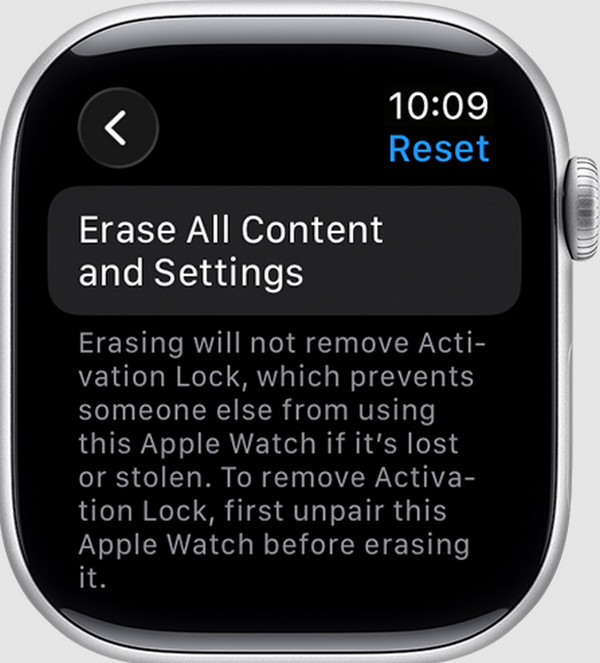
Step 2Push and hold the Digital Crown on your Apple Watch. Wait until the Erase All Content and Settings screen is shown. Tap the Reset button from the main interface. Then, confirm the action by tapping the Reset button again. Please wait for your procedure to be completed and set up your Apple Watch again afterward.
Part 3. Erase Watch Using the iPhone Watch App
Alternatively, you can also erase the Apple Watch from your iPhone where it is connected. Some do not prefer to use the previous method because, for them, it is way too complicated. It is due to the combination of buttons needed to perform. In this process, we will unpair the Apple Watch from your iPhone.
This way, the Apple Watch will be restored to its factory settings. This procedure is way more straightforward compared to the previous one. How to reset Apple Watch after too many passcode attempts with iPhone? The steps will guide you through the procedure in detail.
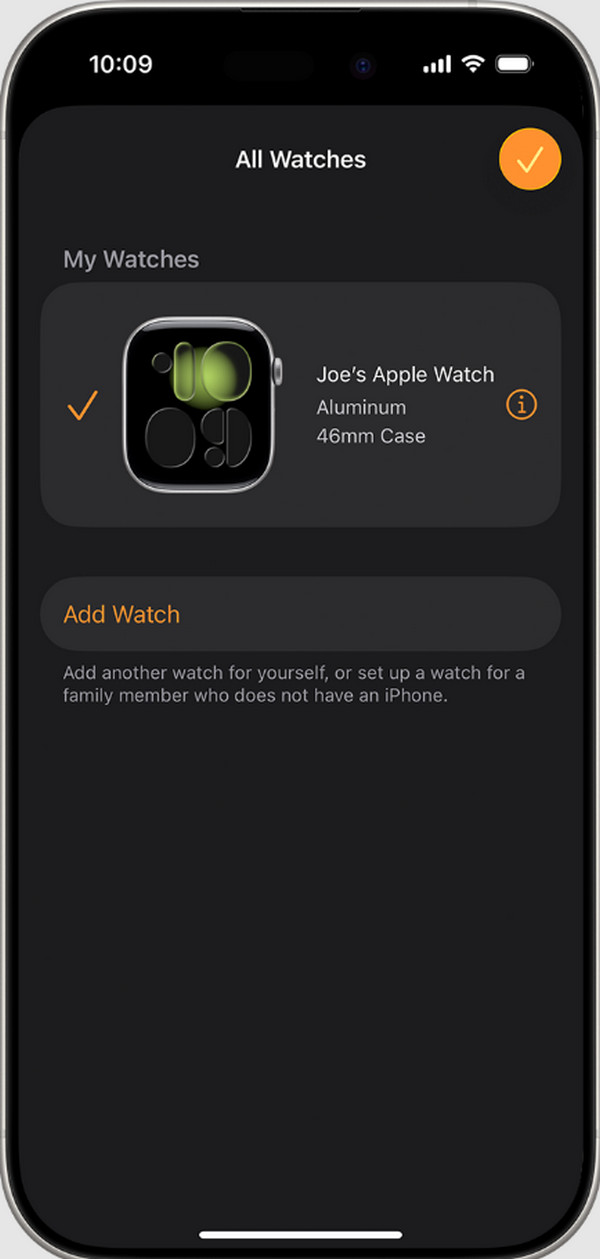
Step 1Please grab your iPhone and put it closer to your Apple Watch. After that, open the Apple Watch app on your iPhone. Then, its first features will appear on the main interface. Go to the My Watch tab and select the All Watches button from the screen. Tap the Info button of the Apple Watch name you want to unpair from the iPhone.
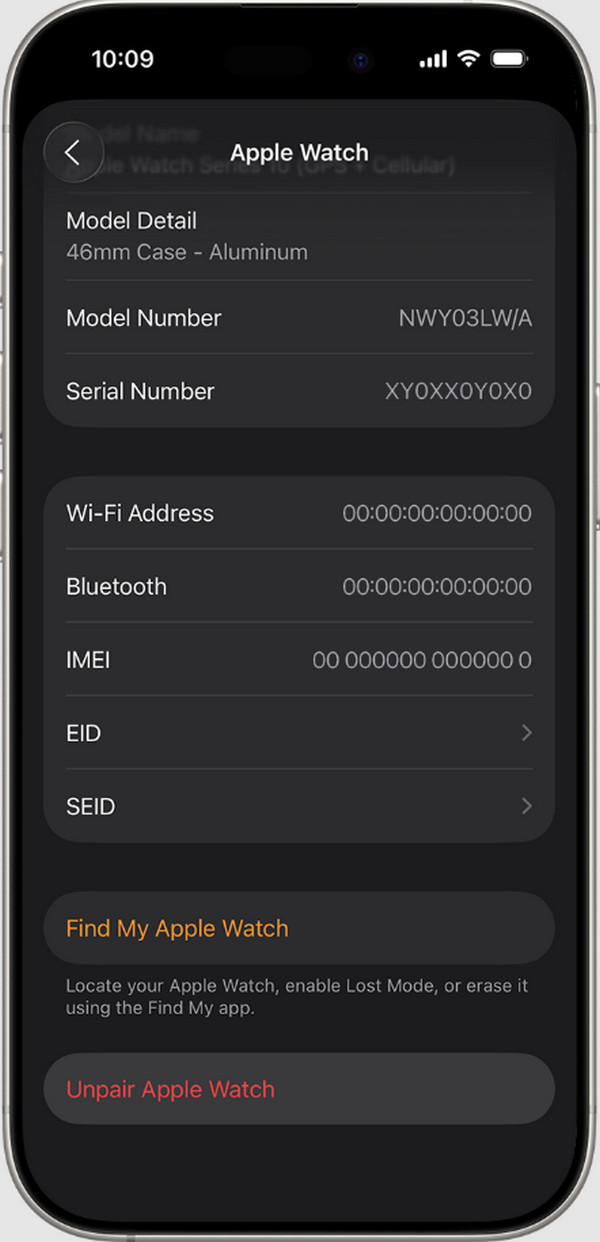
Step 2The information on your Apple Watch will be listed on the screen. Please swipe down on the screen. Later, tap the Unpair Apple Watch button at the bottom. Finally, tap the Unpair [Apple Watch Name] button. Enter your current Apple ID password to disable the iCloud Activation Lock. Tap the Unpair button to complete the process.
Part 4. Reset Locked iPhone with FoneLab iOS Unlocker

FoneLab Helps you unlock iPhone screen, Removes Apple ID or its password, Remove screen time or restriction passcode in seconds.
- Helps you unlock iPhone screen.
- Removes Apple ID or its password.
- Remove screen time or restriction passcode in seconds.
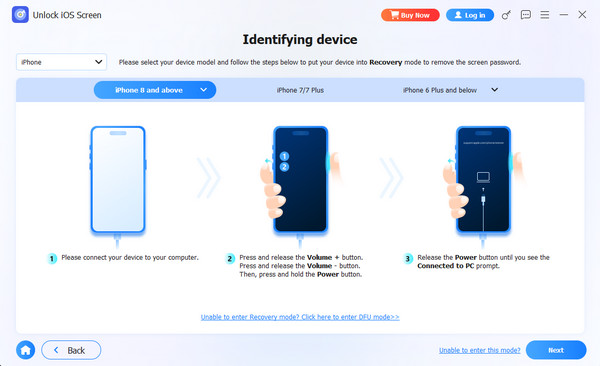
Besides a locked Apple Watch, you might also experience a locked-out iPhone. This way, you cannot perform the previous method. FoneLab iOS Unlocker is here to help! It can wipe out the content and settings of the iPhone to remove its current lock screen password. It includes the passcode, password, Touch ID, Face ID, and PIN. Also, the tool can be used to remove the MDM profile on your iPhone, Screen Time restrictions, bypass iCloud Activation Lock, and more. iPad is also supported. How to get into a locked iPhone? Learn how to use this tool with the steps below.
Step 1Download the tool on your computer. Click the Free Download option to do that. Then, set up, install, and open the software on your computer to start the process.

Step 2The offered features from the tool will be prompted. Please click the Unlock iOS Screen feature at the top left.
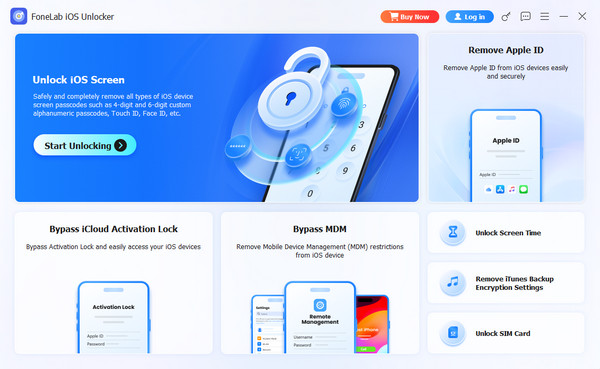
Step 3Grab your compatible USB cable. Then, plug an iPhone into the computer using it. Follow the on-screen instructions. Click the Start button and enter the 0000 code. Later, the unlocking procedure will start.
Part 5. FAQs about Too Many Passcode Attempts on Apple Watch
How long is the Apple Watch disabled after failed attempts?
While you enter the wrong passcode on your Apple Watch, the longer you need to wait before it allows you to enter the passcode. If you see the Too Many Passcode Attempts error on your Apple Watch, it cannot be unlocked unless you reset it.
How long does an Apple Watch reset take?
The reset procedure of your Apple Watch depends on your skills and its required process. Approximately, the Apple Watch reset process takes 10 to 15 minutes. However, it still depends on how you perform it.
All in all, this post teaches you how to fix issues with Too Many Passcode Attempts reset Apple Watch and pair again. You can do the process directly on your Apple Watch or iPhone. FoneLab iOS Unlocker can also help you if you have a locked-out iPhone. It can wipe its passcode without the correct password. The tool can also be used to bypass Screen Time restrictions, remove Apple ID on iPhone or iPad, and more. Download the tool to know more about its features!



