
 iPhone Data Recovery
 iOS System Recovery
 iOS Data Backup & Restore
 iOS Unlocker
 iPhone Password Manager
 Location Changer
 Android Data Recovery
 Broken Android Data Extraction
 Android Data Backup & Restore
 Android Unlocker
 FoneTrans for iOS
 iPhone Data Eraser
 iPhone Cleaner
 HEIC Converter
 HyperTrans
 WhatsApp Transfer for iOS
 Mac Sweep
 Data Retriever
 Mac Data Retriever
 Video Converter Ultimate
 Screen Recorder
 Phone Mirror
- Part 1. Retrieve Deleted Text Messages on iPhone without Backup through Recently Deleted Folder
- Part 2. Use FoneLab iPhone Data Recovery to Retrieve Deleted iPhone Text Messages without Backup
- Part 3. Comparison of Deleted Text Message Retrievers on iPhone
- Part 4. FAQs about Retrieving Deleted Text Messages on iPhone without Backup
Retrieve Deleted Text Messages iPhone without Backup Correctly
 Updated by
 Are you struggling to find a way to retrieve deleted text messages iPhone without backup? Good news! You no longer have to accept the idea that those precious conversations are gone forever. Whether the deletion was accidental, a misguided cleanup, or a sudden device issue, the loss of important texts, be it personal messages, critical information, or business details, can feel devastating, especially if you didn’t prepare a backup. In this case, you must wonder what action would be appropriate.
Fortunately, your deleted messages may not be immediately erased from your iPhone's storage. If you’re unaware, the device offers a built-in function or section containing texts you deleted, but haven’t yet permanently disappeared. Aside from that, data recovery programs can be used to restore the text messages you lost or unintentionally erased. Hence, ease your worries and learn the techniques we gathered to return your deleted texts on an iPhone, even without a backup.

Guide List
- Part 1. Retrieve Deleted Text Messages on iPhone without Backup through Recently Deleted Folder
- Part 2. Use FoneLab iPhone Data Recovery to Retrieve Deleted iPhone Text Messages without Backup
- Part 3. Comparison of Deleted Text Message Retrievers on iPhone
- Part 4. FAQs about Retrieving Deleted Text Messages on iPhone without Backup
Part 1. Retrieve Deleted Text Messages on iPhone without Backup through Recently Deleted Folder
The first and most accessible data recovery technique is a feature Apple integrated directly into your iPhone’s Messages app called Recently Deleted. It is your device’s built-in recovery mechanism, acting as a temporary storage for deleted conversations. Thus, before exploring external tools or complex procedures, you can check this section on your iPhone’s messaging app first, as it offers an entirely free and instant restoration process without requiring a backup.
If you own a Mac, it is similar to Trash, offering an immediate restoration option, but in this case, it will only contain your text messages. When you delete a specific conversation or text, it will not immediately be wiped from your device's storage. Instead, it will be relocated to this section, where it remains accessible for 30 days before being permanently erased. You can rely on its grace period to recover messages from accidental deletions or those you simply want to restore.
Emulate the unchallenging steps below to retrieve deleted text messages iPhone without backup through the Recently Deleted folder:
Step 1View the Messages app’s interface on your iPhone and opt for the Menu symbol in the upper-right corner. When the selections pop up, choose Recently Deleted.
Step 2The text messages or conversations you have erased for the past 30 days will then be presented. Simply check the ones you intend to retrieve, and once ready, hit Recover.
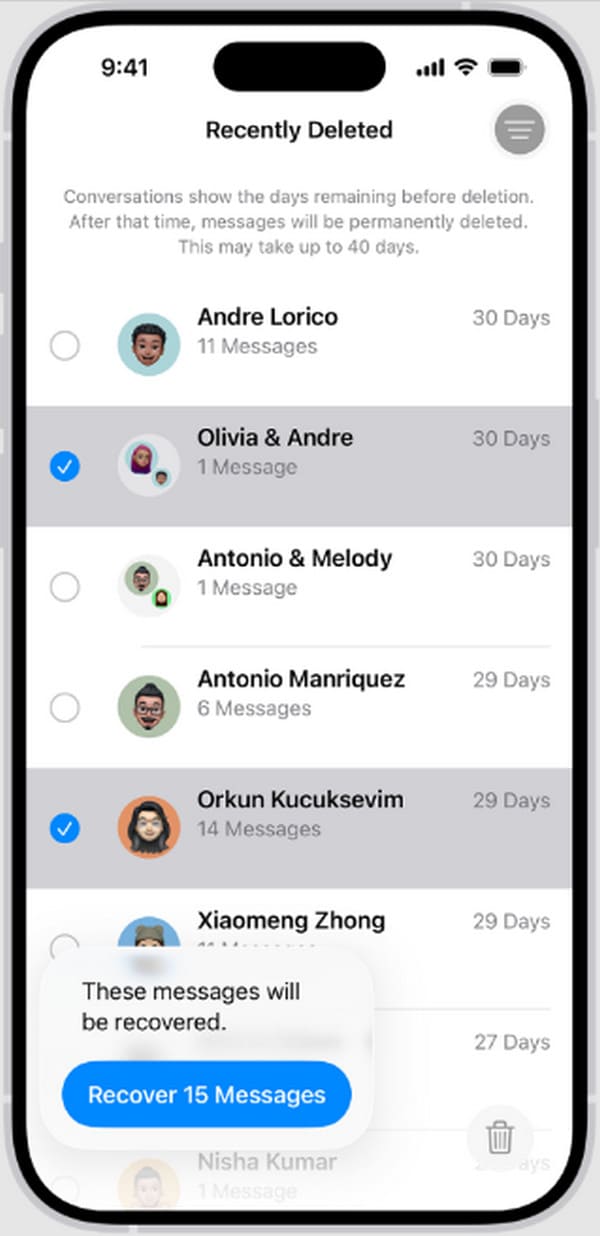
As mentioned, the deleted text messages are only temporarily stored in Recently Deleted. Hence, once the grace period of 30 days is over, they will no longer be available in this section, permanently disappearing from the iPhone. If your desired text is already in this situation, continue below instead.
Part 2. Use FoneLab iPhone Data Recovery to Retrieve Deleted iPhone Text Messages without Backup
When the Recently Deleted folder comes up empty, whether because the 30-day window has passed or the messages were cleared from it, the recovery process requires a more powerful tool. It is where a competent program, like FoneLab iPhone Data Recovery, becomes useful. It is designed to do a deep scan of your iPhone’s internal storage, presenting the deleted data, including your text messages, and letting you recover them, even without a backup.
Regardless of whether you’d like to perform an iPhone SMS recovery or from your iMessage, FoneLab iPhone Data Recovery will be a reliable partner. This advanced approach can recover messages that were deleted weeks or even months ago. No worries, though. Even if it works professionally, it won’t involve complex steps, especially with the user-friendly interface. Also, unlike backups, this allows you to restore messages selectively and not an entire group of data.

With FoneLab for iOS, you will recover the lost/deleted iPhone data including photos, contacts, videos, files, WhatsApp, Kik, Snapchat, WeChat and more data from your iCloud or iTunes backup or device.
- Recover photos, videos, contacts, WhatsApp, and more data with ease.
- Preview data before recovery.
- iPhone, iPad and iPod touch are available.
Perceive the comprehensive process below as a model to retrieve deleted text messages iPhone without backup using FoneLab iPhone Data Recovery:
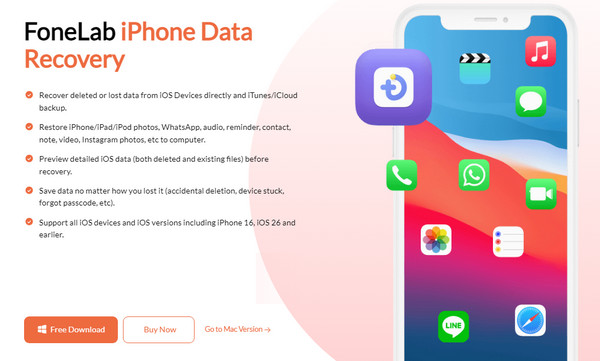
Step 1Begin on FoneLab iPhone Data Recovery’s website. A Free Download button is available, so go for it and let the installer be quickly saved to your Downloads. Afterward, launch the file to prompt the initial setup. Install the tool accordingly, and once ready, start it.
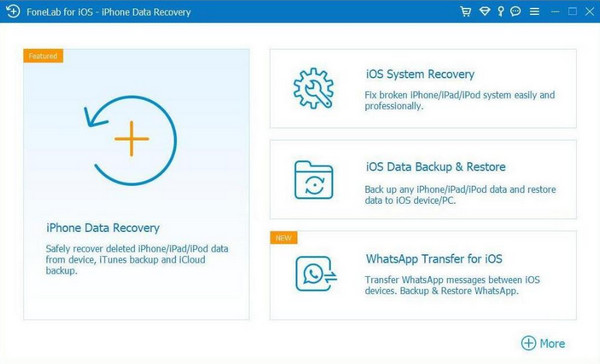
Step 2The program’s interface contains the primary features. Choose iPhone Data Recovery and associate your iPhone with the deleted text message through a Lightning cable. Once connected, let the scanning process begin for the program to present your data on the interface.
Step 3The data types and categories will be in the left section afterward. Hence, select Messages to see your deleted texts on the screen. Then, find and mark the specific texts or conversations you wish to recover before ticking Recover below to retrieve them.
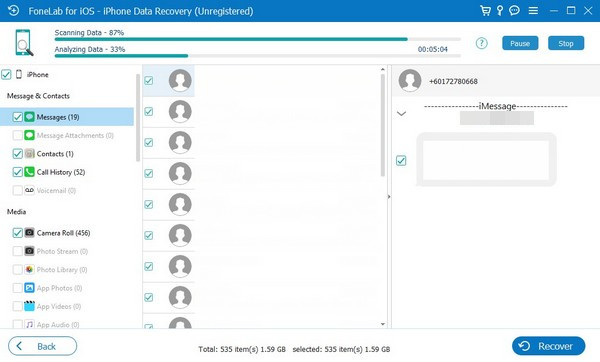
Although FoneLab iPhone Data Recovery provides a feature for direct data recovery on your iPhone, you can also use it for backup restoration. For instance, you can retrieve deleted text messages from iCloud if you have saved a backup. It can also work on iTunes, making it an effective all-in-one restoration tool. Therefore, don’t hesitate to take advantage of its functions.
Part 3. Comparison of Deleted Text Message Retrievers on iPhone
Choosing the proper recovery method depends on your specific situation. So, check the table below, as it provides a clear, side-by-side comparison of the two primary solutions discussed, helping you quickly identify which approach aligns with your needs.
| Method | Recycle Bin | FoneLab iPhone Data Recovery |
| Recovery Window | Strict 30-day limit after deletion. | Can restore data after months of deletion or longer. |
| Ease of Use | Extremely simple, done directly on the iPhone. | Requires connection to a computer and program installation. |
| Required Tools | Just the iPhone itself. | iPhone, computer (Windows or Mac), and a USB cable. |
| Selective Recovery | Yes, you can choose individual conversations. | Yes, you can preview and select specific messages before recovery. |
| Success Rate for Old Texts | 0% after 30 days. | High for both recent and old deleted text messages. |
Part 4. FAQs about Retrieving Deleted Text Messages on iPhone without Backup
Does Recently Deleted automatically save deleted text messages on iPhone?
Yes, it does. Recently Deleted is activated by default, so if you haven’t turned the feature off, it will automatically store your deleted text messages on your iPhone.
Are recovery programs safe for retrieving messages?
Many programs are safe, but FoneLab iPhone Data Recovery is the best we can recommend. It safely restores text messages on iPhone and other iOS devices without risking your privacy.
Among the text message recovery methods on iPhone, the ones above are the most efficient and trusted ones. So, rely on the Recycle Bin or install FoneLab iPhone Data Recovery to return your iPhone messages, even if you weren’t able to save a backup.



