
 iPhone Data Recovery
 iOS System Recovery
 iOS Data Backup & Restore
 iOS Unlocker
 iPhone Password Manager
 Location Changer
 Android Data Recovery
 Broken Android Data Extraction
 Android Data Backup & Restore
 Android Unlocker
 FoneTrans for iOS
 iPhone Data Eraser
 iPhone Cleaner
 HEIC Converter
 HyperTrans
 WhatsApp Transfer for iOS
 Mac Sweep
 Data Retriever
 Mac Data Retriever
 Video Converter Ultimate
 Screen Recorder
 Phone Mirror
- Part 1. Restart Phone with Buttons
- Part 2. How to Restart Phone on Settings
- Part 3. Reboot My Phone from Quick Settings Panel
- Part 4. Restart Android Phone via Intelligent Assistant
- Part 5. How to Restart Android in Recovery Mode
- Part 6. How to Fix Android Issues with FoneLab Broken Android Data Extraction
- Part 7. FAQs about Restarting Phone

How to Restart Phone in 5 Proven and Tested Practices
 Updated by
 Good day! Can you help me restart my phone? I want to be professional in this procedure because it helps a lot when I experience minor issues on my Android phone. The reason is that my phone is old and it encounters multiple simple issues every day. I hope you can help me with this. Thank you!
Restarting an Android phone is not a must, but knowing it will help you a lot. It is commonly used to fix common and simple issues on the Android phone system, including bugs and glitches. The procedure may be performed in different ways. Let us guide you about this topic by scrolling below.

Guide List
- Part 1. Restart Phone with Buttons
- Part 2. How to Restart Phone on Settings
- Part 3. Reboot My Phone from Quick Settings Panel
- Part 4. Restart Android Phone via Intelligent Assistant
- Part 5. How to Restart Android in Recovery Mode
- Part 6. How to Fix Android Issues with FoneLab Broken Android Data Extraction
- Part 7. FAQs about Restarting Phone
Part 1. Restart Phone with Buttons
Our Android phones have physical buttons that can be used for different quick operations. Restarting your Android phone is one of the most common processes. Restating your phone with the physical buttons can be performed in two ways. You can simply turn off phone, then turn it on or force restart it directly. However, there are different physical button combinations for each model and version of Android phone brands. Don’t worry. We will show you all the possible key combinations for rebooting or restarting your Android phone. How to force restart or reboot my phone? The steps are available below.
Press and quickly release the Power and Volume Up buttons. After that, please toggle off or choose the Restart option from the screen to restart your Android phone. Or you can hold both Power and Volume Up buttons until the screen turns black and on again.
Alternatively, you can turn the Android phone off and on. Press Power and select Power Off. Finally, turn on the Android phone again by pressing Power.
Part 2. How to Restart Phone on Settings
The Android phone has the Settings app that allows you to access and customize your Android phone's operations, features, and layout. This app will enable you to restart the phone. However, this procedure is a bit demanding. There are multiple buttons to use. Also, you need to set a particular time.
Don’t worry. We will show you the detailed guide on this app to restart your Android phone. Please see them below.
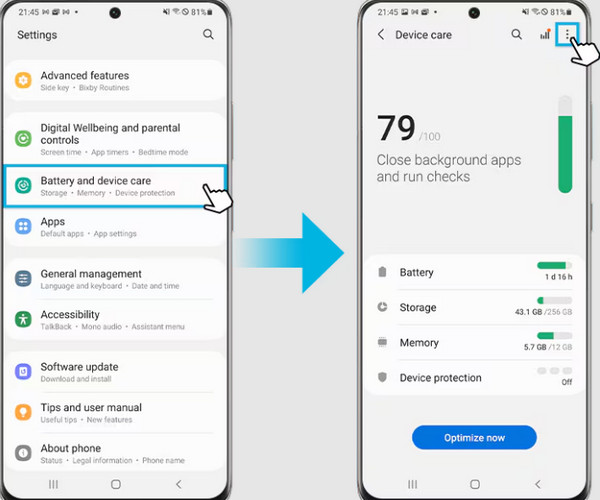
Step 1Set up the restart time and data first. To do that, open the Settings app on your Android phone and tap the Battery and Device Care button from the main interface. After that, you will see the performance information of your Android phone. Please tap the Three Dots button at the top right of the screen.
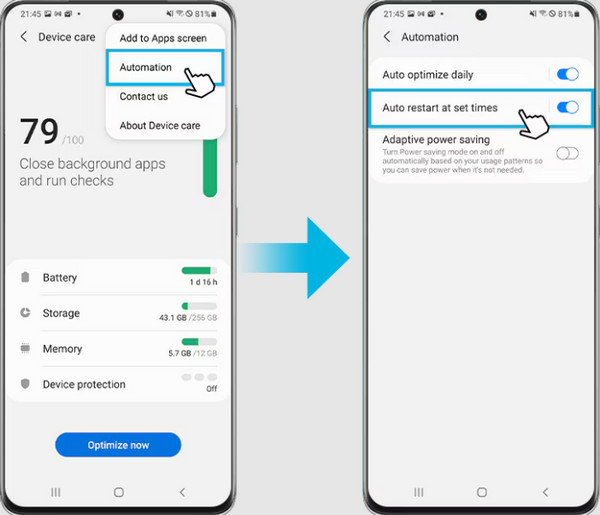
Step 2Please tap the Automation button from the small interface. Please toggle on the Auto Restart at Set Times button from the next screen. Finally, you can set the schedule to the next screen. You will see the available days and times on the screen.
Part 3. Reboot My Phone from Quick Settings Panel
Quick Settings is a feature on your Android phone that allows you to quickly access some of its features, including the Power Off feature. This feature is one of the easiest methods listed in this article. However, not all Android phone brands have this button. You can use it with different Samsung models, but not with Oppo and other brands. Does your Android phone have this button? Restart Android phone with the mentioned button using the steps below.
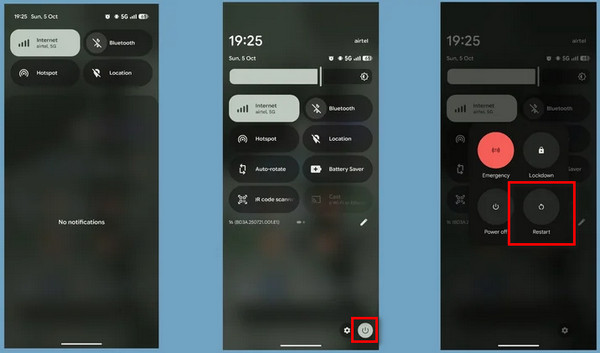
Open the Quick Settings panel on an Android phone. You can do that by swiping down the top right of the screen. Please locate the Power button at the top or bottom right of the interface. Tap it, and more options will appear on the screen. Please tap the Restart or Reboot button from the list to restart your Android phone.
Part 4. Restart Android Phone via Intelligent Assistant
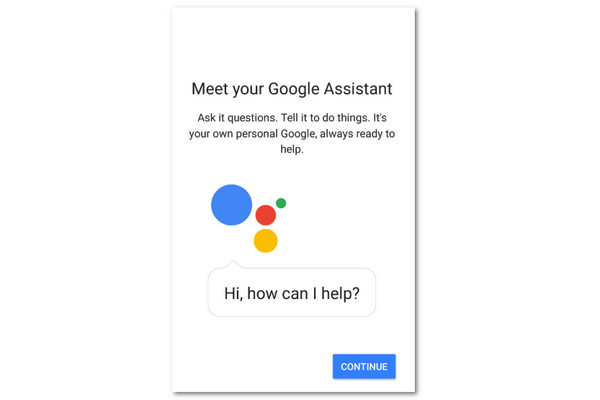
Intelligent assistants are voice commands that are built into your Android phone. Google Assistant is one of the most used on Android phones. However, there are Android brands that have their own different intelligent assistant, like Samsung, which is Bixby.
This feature may be accessed by long-pressing the Android phone’s Power button. Alternatively, you can say Hey Google, touch and hold Home, or swipe up at the bottom. You can also squeeze your Pixel. Say the Restart Android Phone word and confirm it to let the voice command restart your Android phone.
Part 5. How to Restart Android in Recovery Mode
The Android recovery mode is a function that is commonly used to fix major issues on the system. This mode can perform different procedures, including clearing caches, wiping data, applying system updates, and most especially rebooting the Android phone system, which can restart it. This procedure is the hardest among all the methods in this article. It requires professional skills to be executed. The reason is that there are multiple button combinations that are needed to do.
A small error with the combinations might have a negative impact on the Android phone system, apps, and operations. In recovery mode, we will use the Reboot System Now feature to restart the phone. Discover how to restart Android phones with the steps below using recovery mode.
Step 1Please put the Android phone into recovery mode. To do that, turn off your Android phone. To do that, press the Power button or the combination of the Power and Volume Up buttons. Then, release the buttons to see the Power Off option. Tap it afterward and wait for the Android phone to be turned off.
Step 2Now, enter recovery mode. To do that, press and hold your Power button and Volume Down or Volume Up. After that, the bootloader or FastBoot screen will appear. Use the Volume Down button to select the Recovery Mode option.
Step 3Please select the Reboot System Now button from the list. Finally, the Android phone will reboot, and it will perform a restart. Wait for the procedure to be completed.
Part 6. How to Fix Android Issues with FoneLab Broken Android Data Extraction

Fix your frozen, crashed, black-screen or screen-locked Android system to normal or Recover data from broken Android phone or SD card.
- Fix your Android disabled problems and recover data from phone.
- Extract Contacts, Messages, WhatsApp, Photos, etc. from broken android device or memory card.
- Android phone and SD card data are available.
The restart procedure is commonly used to fix Android issues. As an alternative, you can use FoneLab Broken Android Data Extraction. This tool can fix minor and major issues on your Android phone. It includes frozen screen, black screen, crashed apps, and more. The tool can also recover data from your Android phone, such as messages, call logs, videos, photos, and more. Use the tool below.
Step 1Download, set up, and install the tool. After that, select the Broken Android Data Extraction button from the first interface. The related tools will be prompted on the screen afterward.
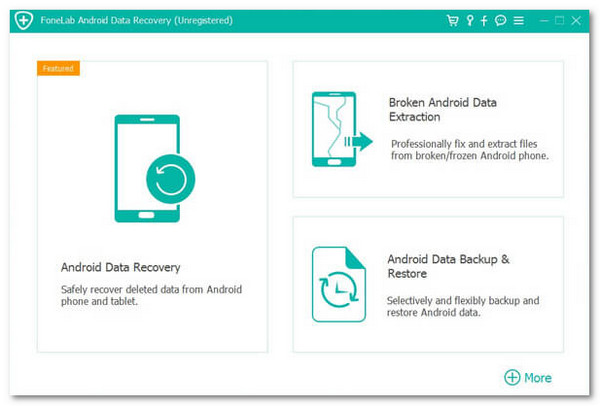
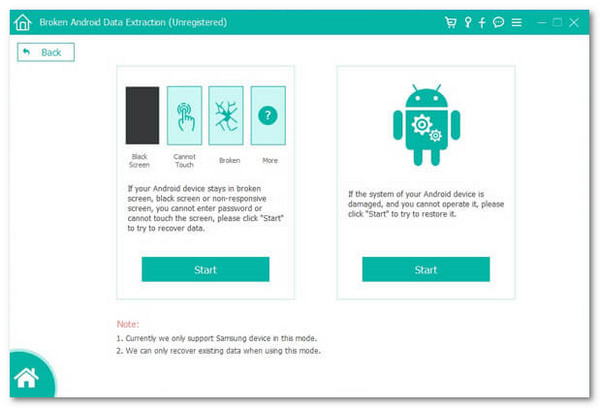
Step 2Please click the Start option on the left. After that, plug the Android phone into the computer and follow the on-screen instructions to continue.
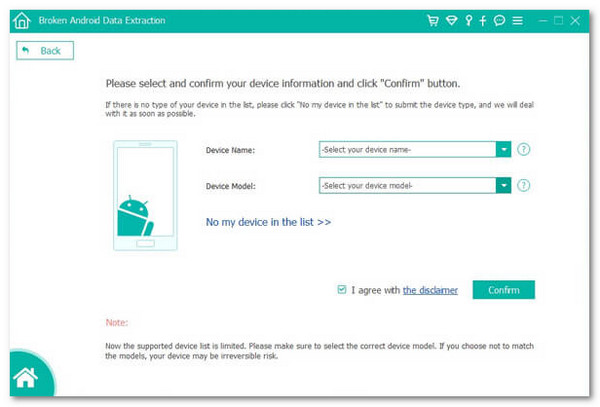
Step 3Choose your Android phone model and version. After that, please select the Confirm button to start fixing the issue.
Part 7. FAQs about Restarting Phone
Does restarting my phone delete anything?
No. Restarting your Android phone does not delete anything from your storage, including videos, photos, audio, and other data types. Restarting is a soft reset that gives your Android phone system a refresh. However, you will only lose data when you restart the Android phone if you did not save the progress of your work from some of your apps.
Is it bad if you keep restarting your phone?
No. Restarting your Android phone is not harmful to its operations and system. It can only be dangerous when there are additional operations wrongly performed during the restart process. As long as you perform the procedure correctly, it will not be bad for your Android phone.
How many times should we restart your phone?
There are no reports of how many times you should restart your Android phone. You can also choose not to restart it, and it does not have any adverse effects. However, some people restart their Android phones once a week or a month. It depends on your preference.
How do I restart my phone? We hope this article helped you about this procedure. It has 5 ways to restart your Android phone to fix minor issues or give a refresh to its system. FoneLab Broken Android Data Extraction is also here. Do you want to know more about the supported features? Please download the tool on your computer for more information about the tool.



