
 iPhone Data Recovery
 iOS System Recovery
 iOS Data Backup & Restore
 iOS Unlocker
 iPhone Password Manager
 Location Changer
 Android Data Recovery
 Broken Android Data Extraction
 Android Data Backup & Restore
 Android Unlocker
 FoneTrans for iOS
 iPhone Data Eraser
 iPhone Cleaner
 HEIC Converter
 HyperTrans
 WhatsApp Transfer for iOS
 Mac Sweep
 Data Retriever
 Mac Data Retriever
 Video Converter Ultimate
 Screen Recorder
 Phone Mirror
- Android Won't Turn On
- Dead Android Internal Memory
- Black Screen Samsung
- Water Damaged Android
- Keep Restarting Samsung
- Stuck on Samsung Logo
- Virus Infected Android
- Crashed Android
- Unlock Broken Screen Android
- WhatsApp Recovery for Broken Samsung
- Recover SnapChat Photos from Broken Android
- Frozen Android
A Complete Guide to Android Recovery Mode You Should Not Miss
 Updated by
 Good day! How to boot into recovery mode? I need to perform this procedure because I am experiencing different system issues on my Android phone. I heard that it requires professional skills to use it. Is there a way that I can use it as a beginner? Please guide me. Thank you!
The recovery mode on your Android phone can indeed fix your issues, but it requires professional skills. Beginners might have difficulty performing it. Don’t worry because we've got your back! This article has detailed information and demonstrations about the Android phone recovery mode. Kindly scroll below to know the full details about this mode.


Guide List
Part 1. What is Recovery Mode
The recovery mode is different from the factory reset on Android. It is one of the most common misconceptions about the processes. A factory reset will eliminate everything on your Android phone. What is recovery mode? A recovery mode will execute different tasks on the mentioned device. The list will discuss them with you.
1. Power Off - It will turn off your Android phone.
2. View Recovery Logs - It will show the Android phone’s system errors.
3. Reboot to Bootloader/Fastboot - This feature will flash the firmware.
4. Mount Data - It allows some advanced repair.
5. Wipe Cache Partition - It clears the temporary system files on your Android phone.
6. Apple Update from ADB - It installs the system updates using ADB commands.
7. Apply Update from SD Card/Internal Storage - Updates the firmware package on the microSD card.
8. Wipe Data/Factory Reset - It erases all the content and settings on your Android phone.
9. Reboot System Now - The reboot system now meaning is that it restarts the Android phone normally.
Part 2. How to Boot into Recovery Mode
Now that you know the procedure of recovery mode, it is time to understand how to enter recovery mode on Android. It is recommended to follow the procedure below strictly. However, there are different Android phone models. It only means that there are various ways to boot into recovery mode.
| Android Phone Brand | Recovery Mode Process |
| Samsung | Samsung recovery mode will start by turning it off. Hold the Power button to turn it off. Press and hold Volume Up and Power buttons. The Samsung logo will appear. Wait for the Android phone to enter recovery mode. |
| Google Pixel | Turn off the Google Pixel phone. Press and hold Volume Down and Power buttons. Wait for the Bootloader screen to appear. The Android recovery screen will appear afterward. |
| Motorola | Turn off the Motorola phone. Press and hold Volume Down and Power. It should be for 3 to 5 seconds. The Bootloader menu will be prompted. |
| Huawei | Press and hold Power to turn off the Huawei phone. Press Volume Up and Power until a logo appears. Release your phone’s Power button and keep holding Volume Up. The EMUI/HarmonyOS Recovery screen will be prompted afterward. |
Part 3. How to Exit Android Recovery Mode
The Android recovery screen and procedure are well explained in the previous section. However, some users do not know how to exit the recovery mode screen on their Android phones. One of the main reasons is that various features can be seen. Some do not know how to operate the Android recovery mode, which leads to confusion. You can exit the Android phone recovery mode with the steps below.
Please press and hold the Power physical button for 10 to 20 seconds. You can also press and hold Power and Volume Down for 7 to 10 seconds. After that, wait for the Android phone to be turned off. Then, turn on your Android phone by pressing the Power button for a few seconds. It will be turned on after 30 seconds. Alternatively, you can simply long-press the Power button.
Part 4. What to Do If Cannot Exit Android Recovery Mode
Learning how to get phone out of recovery mode is easy. However, there are some instances wherein the Android phone cannot exit the recovery mode screen. It happens when system issues occur. It is also possible that the Android phone user performed the wrong process during the recovery mode, leading to the mentioned issue. There are 2 ways in this section to fix errors that cause the recovery mode to not exit. See them below.
1. Restart Android
The simple restart Android phone can be a replacement for recovery mode. It is different when the recovery mode screen is shown. You will use the Reboot System Now feature of recovery mode, which is well explained in the previous sections. Imitate the steps below to restart your Android phone while in recovery mode.
While the Recovery Mode screen is shown, use the physical buttons, which are Volume Down and Volume Up, to choose the Reboot System Now button. Then, press the Power button to select the feature. Your Android phone will restart afterward.
2. FoneLab Broken Android Data Extraction
FoneLab Broken Android Data Extraction is a tool designed to fix different issues on your Android phone. Frozen, crashed, black-screen, or screen-locked Android system to normal are some of the supported problems that can be fixed. It supports the earlier and latest versions of Samsung. Contacts, messages, call logs, and photos are some of the data types that can be extracted with the tool. Follow the instructions below to know how to use the tool.

Fix your frozen, crashed, black-screen or screen-locked Android system to normal or Recover data from broken Android phone or SD card.
- Fix your Android disabled problems and recover data from phone.
- Extract Contacts, Messages, WhatsApp, Photos, etc. from broken android device or memory card.
- Android phone and SD card data are available.
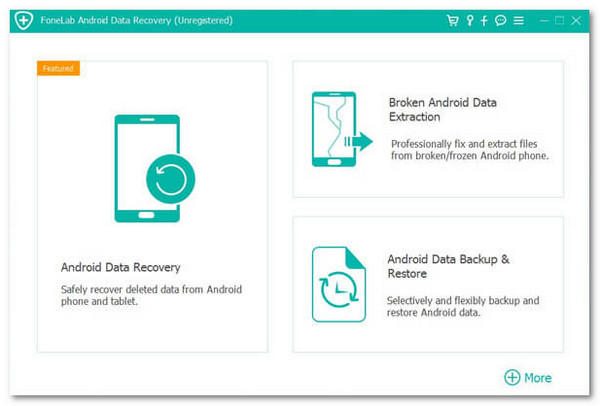
Step 1Download, set up, and install the tool. After that, select the Broken Android Data Extraction button.
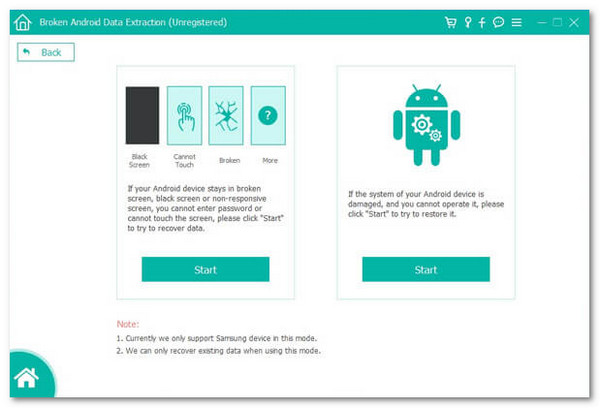
Step 2Choose the Start button from the screen. Then, plug the Android phone into the computer using a USB cable.
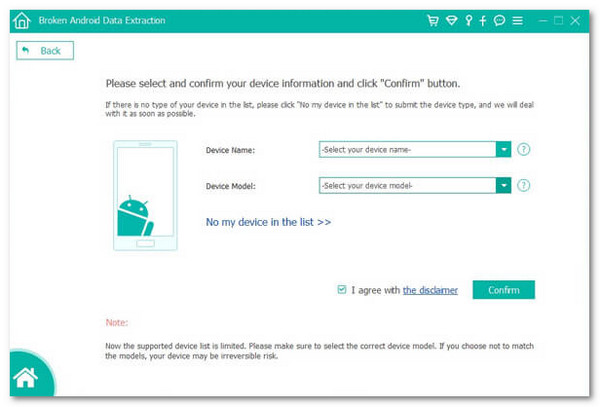
Step 3Select the model of your Android phone. Click the Confirm button to proceed. Finally, follow the on-screen instructions. This way, you can start to fix the Android phone. You can also recover data by selecting from the screen. Click the Recover button afterward at the bottom right.
Part 5. FAQs about Android Recovery Mode
What is the difference between factory resetting from Settings and recovery mode?
The factory reset from the Settings app of your Android phone and recovery mode are the same. They will both delete the content and settings on your Android phone. Their only difference is the procedure for how you do it.
Will recovery mode erase everything on my phone?
Entering the recovery mode on your Android phone does not erase everything by default. There are various features it supports. You can factory reset your Android phone when needed.
All in all, the recovery mode on Android is a helpful procedure. You can use it when issues are encountered on the mentioned device. FoneLab Broken Android Data Extraction can also be used when you cannot exit the recovery mode on your Android phone. You may download the tool now to explore and experience its features.



