
 iPhone Data Recovery
 iOS System Recovery
 iOS Data Backup & Restore
 iOS Unlocker
 iPhone Password Manager
 Location Changer
 Android Data Recovery
 Broken Android Data Extraction
 Android Data Backup & Restore
 Android Unlocker
 FoneTrans for iOS
 iPhone Data Eraser
 iPhone Cleaner
 HEIC Converter
 HyperTrans
 WhatsApp Transfer for iOS
 Mac Sweep
 Data Retriever
 Mac Data Retriever
 Video Converter Ultimate
 Screen Recorder
 Phone Mirror
- Part 1. How to Turn Off Android Phone with Buttons
- Part 2. Turn Off Android Phone through the Quick Settings Panel
- Part 3. How to Power Off Android Phone Using Bixby
- Part 4. Force Restart If You Can't Turn Off Your Phone
- Part 5. Try FoneLab Broken Android Data Extraction
- Part 6. FAQs about How to Turn Off Android Phone

Prominent Methods to Turn Off Android Phone Correctly
 Updated by
 How do I turn off my Android phone? It is lagging, and I think one of the reasons is that it’s been a while since I last shut it off. Aside from my friends’ advice, I also did my own research and found out that turning a device off indeed improves its performance. However, I’m not confident with the process, so I’m really hoping for anybody’s assistance. Help, please.
While turning off your Android phone might seem as simple as holding down the power button, doing it correctly is more important than you might think. Yes, it improves and sometimes even fixes basic issues on a device, but anything could also go wrong if you turn it off incorrectly. So, we encourage you to rely on the leading methods below to ensure your Android phone and all its content will be safe. Also, we included some fixes if you can’t turn off the device normally.

Guide List
- Part 1. How to Turn Off Android Phone with Buttons
- Part 2. Turn Off Android Phone through the Quick Settings Panel
- Part 3. How to Power Off Android Phone Using Bixby
- Part 4. Force Restart If You Can't Turn Off Your Phone
- Part 5. Try FoneLab Broken Android Data Extraction
- Part 6. FAQs about How to Turn Off Android Phone
Part 1. How to Turn Off Android Phone with Buttons
This initial section addresses the most fundamental and universal method for turning an Android phone off, which is using the device’s physical buttons. It is the most reliable technique, especially when the phone becomes unresponsive, so mastering it will be very helpful for every user. Its key strength lies in its adaptability across different devices, and you may also find it the most convenient. However, you should also be aware of the fact that this process goes way back, making it an older shutdown technique. So, it might not work on other Android models.
Pay attention to the secure navigation below to grasp how to turn off an Android phone with buttons:
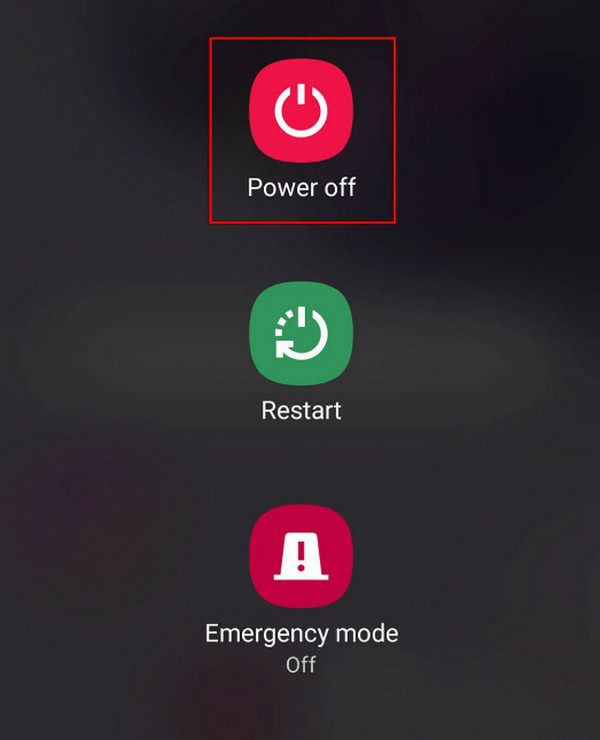
Step 1Long-press your Android phone’s Power key to view the Power menu.
Step 2Afterward, choose the Power off option or symbol, and if prompted, confirm the action. Shortly, the Android device will shut down.
Part 2. Turn Off Android Phone through the Quick Settings Panel
Turning your Android phone off through the Quick Settings panel is another primary and universal method you can try. Unlike the previous process, the designated power button won’t pop up on the screen. Instead, it is already built on the panel, allowing you to select it immediately to turn off the device without the need for physical buttons. So, if your device is a new model and the long-pressing the Power key method is unavailable, this will be the primary technique for your Android.
Adhere to the appropriate guide below to determine how to turn off my Android phone through the Quick Settings panel:
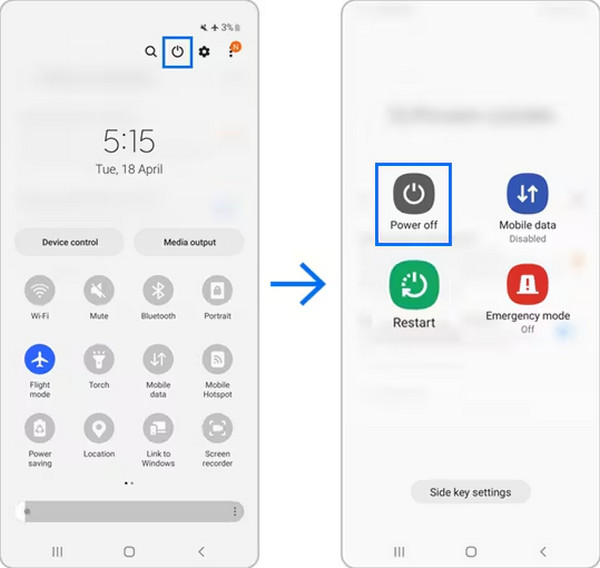
Step 1Ensure your Android phone is unlocked, then slide your finger from the top screen to the bottom, presenting the Quick Settings panel.
Step 2A Power symbol will be on the upper right, so tap it and select Power off from the exhibited menu. Once asked, confirm the shutdown to turn your device off.
Part 3. How to Power Off Android Phone Using Bixby
What if you can’t maneuver your screen because of unknown issues? No worries because you can use an intelligent assistant like Samsung’s Bixby. It works through voice commands, so since the feature is already activated by default, you simply have to prompt Bixby and order it to turn off phone to attain your goal. If you are familiar with Siri, this feature basically works the same, but you can use it on Samsung devices instead. It is beneficial when your hands are occupied, the Android phone is out of easy reach, or for users who prefer voice-enabled device management. You must only ensure to talk near the device’s mic for it to pick up your command.
Act according to the painless task below to learn how to shut down Android phone using Bixby:
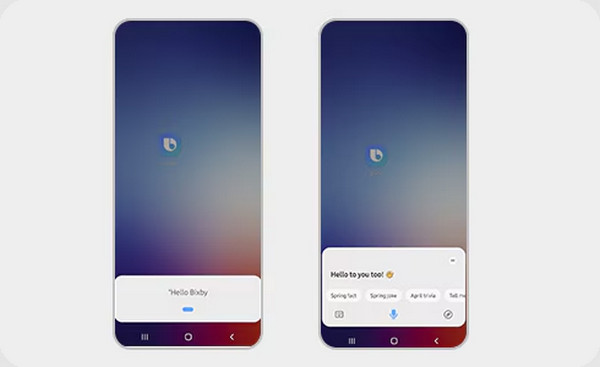
Step 1First, long-press your Samsung phone’s Side or Power button, and Bixby will shortly pop up on the screen. Ensure you are already near the device’s microphone.
Step 2Once the voice assistant appears, say “Turn off the phone” immediately. When the device picks up your command, you may have to confirm it before your Android finally shuts down.
Please remember that activating the feature beforehand is essential if you want this method to work, or you will likely fail to prompt Bixby. Also, as you can see, it’s not the most convenient method compared to the previous ones, especially if you’re trying to turn the Android phone off to fix an issue. Unfortunately, Bixby is unlikely to respond if it’s frozen or lagging severely.
Part 4. Force Restart If You Can't Turn Off Your Phone
On the other hand, you may need to rely on a force restart if the normal turn-off method doesn’t work. It is not a standard shutdown method, but rather an emergency solution used when your phone becomes completely unresponsive, and all usual techniques of powering it off have failed. Thus, if your Android phone has become unresponsive due to a frozen screen, a software crash, or a lack of response to any commands, a force restart is the reliable action you can take.
Take to heart the untroubled guide below to force restart your phone if you can’t turn it off:
Step 1Simultaneously press your Android phone’s Power and Volume Down buttons. Keep holding them firmly for about 10-15 seconds.
Step 2Later, the screen will go black, indicating the force restart process. So, once the logo is shown, release the buttons to let the device power on.
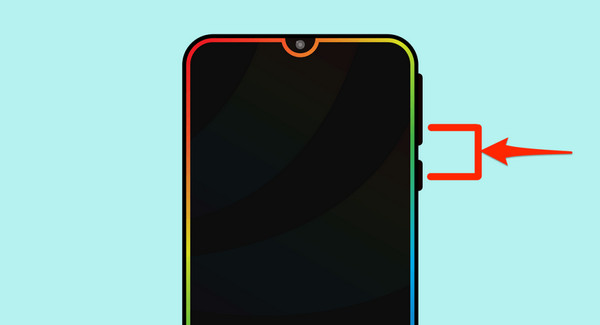
However, this method comes with a condition. Since it bypasses the normal shutdown process, we introduce it as a last resort solution. While the standard shutdown process safely closes apps, the force restart does not. Therefore, try the shutdown strategies above first before you force restart Android phone for better safety.
Part 5. Try FoneLab Broken Android Data Extraction
Meanwhile, FoneLab Broken Android Data Extraction has your back if you experience the most severe scenario. If your Android phone is deeply unresponsive to the point that it cannot be shut down or restarted, even with the last solution, this tool is the program we strongly recommend, as it is trusted for repairing numerous Android issues. Even if you don’t have advanced knowledge or experience in fixing such technical problems, it’s not a problem because of this tool’s user-friendly attributes.

Fix your frozen, crashed, black-screen or screen-locked Android system to normal or Recover data from broken Android phone or SD card.
- Fix your Android disabled problems and recover data from phone.
- Extract Contacts, Messages, WhatsApp, Photos, etc. from broken android device or memory card.
- Android phone and SD card data are available.
FoneLab Broken Android Data Extraction is a specialized program designed for resolving critical system failures. If you’re unaware, even fundamental concerns, such as a simple freeze, may indicate significant system corruption, boot loop entrapment, or severe firmware damage. Thus, it would be best to rely on a professional like this tool to ensure your Android phone will be safe. Besides, several Samsung devices are supported.
Discern the safe procedure below as a pattern to fix your device issue using FoneLab Broken Android Data Extraction:
Step 1Present the FoneLab Broken Android Data Extraction website through your Windows browsing program. The designated Free Download tab will be on the left page, so select it and let the installer be stored in your Downloads folder. Double-click the file from there to prompt the installation and manage the initial setup. Once ready, a Start tab will appear. Click it to view the tool’s interface.
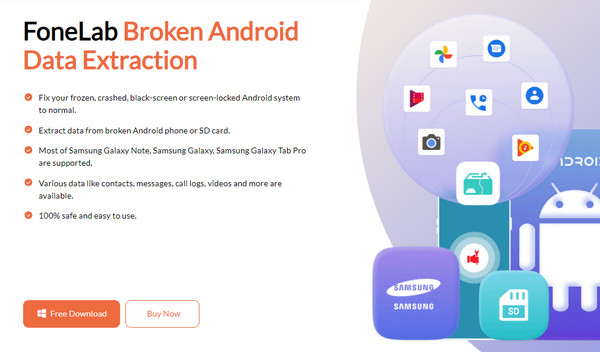
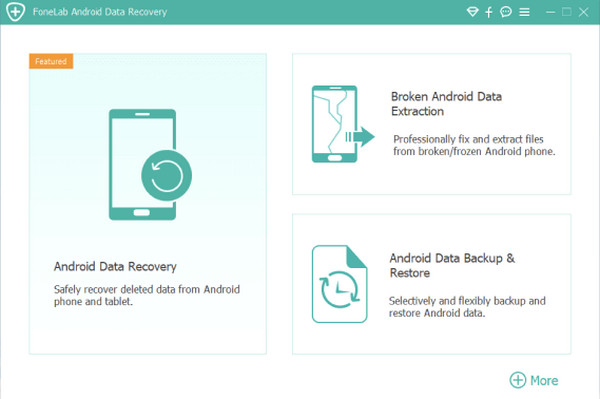
Step 2The program’s features are presented on the screen; thus, pick the Broken Android Data Extraction box, located in the right section. Two Start buttons will be available on the succeeding interface, so choose the appropriate one according to its description. Then, attach the Android phone experiencing the issue to the computer program via a USB cable.
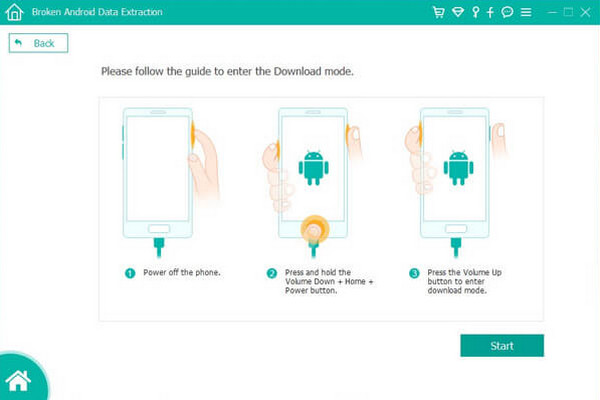
Step 3You must fill in the Device Name, Device Model, and other options afterward. Then, opt for the Confirm tab below to proceed. Following that, put your Android phone into Download mode with the help of the on-screen guides. Follow them accordingly, leading your device to be fixed.
Part 6. FAQs about How to Turn Off Android Phone
Where can I find the turn-off option on an Android phone in Settings?
Unfortunately, a turn-off option is unavailable on Android phones’ Settings app. Unlike iPhones that offer a Shutdown option, Android only provides the power off methods above that are not in Settings.
How do I turn my phone on again after shutting it down?
Turning on an Android phone is much simpler than the other processes on the device. Simply long-press its Power key for a few seconds, and it will be turned on quickly.
As you can see, the process to turn an Android phone off is almost effortless. However, it can be complicated if you face device issues. In this case, installing the repair tool, FoneLab Broken Android Data Extraction, is strongly suggested to fix your concerns right away.



