
 iPhone Data Recovery
 iOS System Recovery
 iOS Data Backup & Restore
 iOS Unlocker
 iPhone Password Manager
 Location Changer
 Android Data Recovery
 Broken Android Data Extraction
 Android Data Backup & Restore
 Android Unlocker
 FoneTrans for iOS
 iPhone Data Eraser
 iPhone Cleaner
 HEIC Converter
 HyperTrans
 WhatsApp Transfer for iOS
 Mac Sweep
 Data Retriever
 Mac Data Retriever
 Video Converter Ultimate
 Screen Recorder
 Phone Mirror
4 Proven and Tested Techniques to Turn Off Phone Effectively
 Updated by
 Hi, guys! How do I turn my phone off? I need to know how to do it because I need to save my phone’s battery percentage. We will have a comping this Saturday. I hope you can help me power off my phone. Thank you in advance!
Turning off your Android phone or iPhone indeed allows you to save battery percentage. On top of that, it also allows you to fix minor issues on your iPhone and Android phone, including bugs and glitches. It is commonly used before troubleshooting. Kindly browse the article to know the 4 easy ways to turn off your phone.

Guide List
Part 1. Turn Off Phone with Buttons
Our Android phones and iPhone have physical buttons that can help you operate them. Powering off the iPhone and Android phone can be performed using these buttons. How to turn off my phone? Use the steps below to do that on your iPhone or Android phone.
iPhone with Face ID: Press and hold Side and Volume Down until you see a slider. Slide it to turn off the iPhone.
iPhone with Home Button: Press and hold Side. Drag the Power Off slider to turn off your iPhone.
Android Phone: Press the Power button. Alternatively, you can press Power and Volume Up to see a slider. Then, slide it to Shutdown.
Part 2. Power Off My Phone through Quick Settings Panel/Control Center
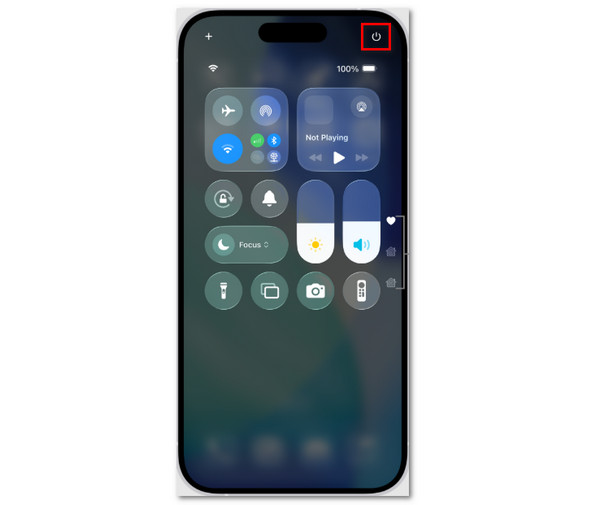
You can also turn off iPhone and an Android phone through the Quick Settings Panel or Control Center. This procedure is earlier compared to the previous method. Turn off phone without Power button with the steps below.
iPhone: Swipe down the Control Center section at the top right. Then, tap the Power button at the top right. Confirm the action to turn off your iPhone. However, this button is only available to the latest iOS versions, like iOS 26.
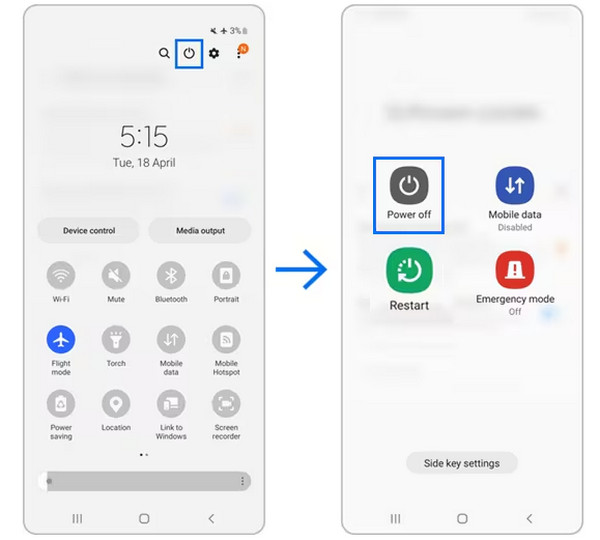
Android Phone: Swipe down Quick Settings panel on the screen. After that, tap the Power button from the list. Later, select the Power Off button from the screen.
Part 3. How to Turn Off Phone via Intelligent Assistant
Intelligent assistants are voice commands that can make changes on your iPhone or Android phone. Turning off your iPhone and Android phone is possible with the mentioned voice command. You can use Siri on your iPhone and Google Assistant on your Android phone. Turn the phone off with the intelligent assistant using the steps below.
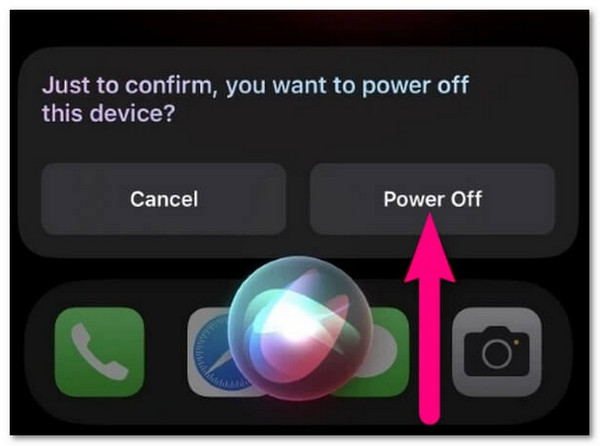
iPhone: Press and hold Side button on your iPhone. After that, Siri will be activated. You need to say Hey Siri. Wait for it to be activated and say Turn Off My iPhone or Shut Down My iPhone. Siri will show you an indication, and you need to tap the Power Off button to confirm the procedure.
Android Phone: Press and hold Power on your Android phone. You can also say Hey Google. After that, Google Assistant will be activated. Say Turn Off My Phone or Shut Down My Phone. The voice command will require you to confirm the process.
Part 4. Shut Phone Off on Settings App
Can I turn my phone off with the Settings app? Definitely! However, it is the most demanding procedure for shutting down the iPhone and Android phone. The steps are available below.
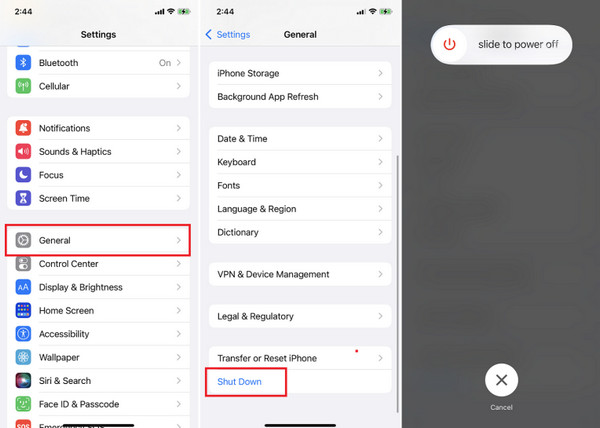
iPhone: Go to Settings and select the General button from the main interface. Then, select the Shut Down button at the bottom.
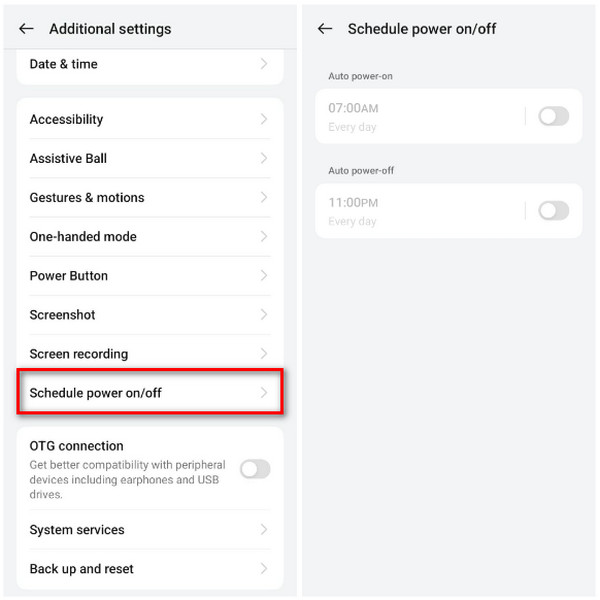
Android Phone: Go to Settings app on your Android phone. After that, select the Additional Settings button from the first interface. Then, choose the Schedule Power On/Off button from the screen. Later, choose the latest time to turn off your Android phone.
Part 5. What If You Can't Turn Off Your Android/iPhone
Some cannot turn off their Android phone or iPhone. It might be due to software issues. If so, this section will help you a lot. Please see the methods below.
Force Restart
You can force restart iPhone or an Android phone to fix issues with the system. You can do that with the steps below.
iPhone: Press and quickly release Volume Down. On other iPhone models, you need to press and quickly release Volume Down and Power. You may also press Volume Up and Volume Down. Later, wait for the Apple logo screen to appear.
Android Phone: Press Power and Volume Up until you see it turn on again. It depends on your Android phone brand and model.
FoneLab iOS System Recovery/FoneLab Broken Android Data Extraction
FoneLab has tools that can help you fix Android phone or iPhone issues when you cannot shut phone off. Know what FoneLab iOS System Recovery and FoneLab Broken Android Data Extraction are below.
FoneLab iOS System Recovery
FoneLab iOS System Recovery is a third-party tool that can fix your iPhone issues. It includes when the iPhone is disabled, screen issues, and more. The tool can also downgrade and update the iOS version. This software requires a USB connection. You can use its Standard Mode to fix the minor issues on your iPhone without losing your data.

FoneLab enables you to fix iPhone/iPad/iPod from DFU mode, recovery mode, Apple logo, headphone mode, etc. to normal state without data loss.
- Fix disabled iOS system problems.
- Extract data from disabled iOS devices without data loss.
- It is safe and easy to use.
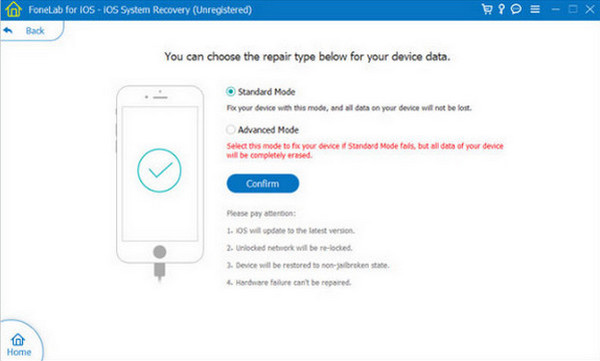
On the other hand, you can use the Advanced Mode to fix major problems on your iPhone. Backing up the iPhone is a must because it will delete the content and settings in this mode. Use the steps below to know how the tool functions.
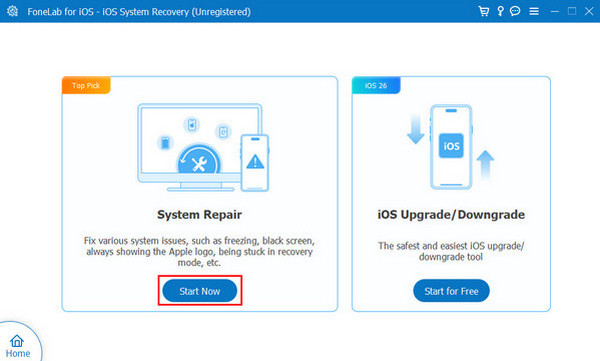
Step 1Go to the main website of this tool. After that, click the Free Download button from the main interface. Then, set up the downloaded file on the screen. Later, install the tool on your computer to open it immediately. Click the iOS System Recovery button from the first screen afterward.
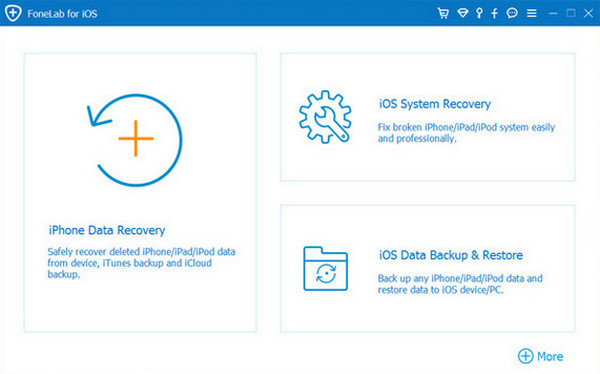
Step 2Plug the iPhone into the computer using your USB cable. After that, click the Start button on the left side of the screen. Then, you will see the next interface.
Step 3Please choose the Standard Mode or Advanced Mode from the main interface. After that, click the Confirm button on the screen. The iPhone will be fixed by the software immediately afterward.
FoneLab Broken Android Data Extraction

Fix your frozen, crashed, black-screen or screen-locked Android system to normal or Recover data from broken Android phone or SD card.
- Fix your Android disabled problems and recover data from phone.
- Extract Contacts, Messages, WhatsApp, Photos, etc. from broken android device or memory card.
- Android phone and SD card data are available.
FoneLab Broken Android Data Extraction is a tool that can fix abnormal issues on your Android phone. It includes frozen screen, black screen, system issues, and more. This tool supports multiple Samsung models, including Samsung Galaxy, Samsung Galaxy Note, and more. The tool also allows you to extract data, including contacts, videos, photos, call logs, messages, and more. Please know how to use this tool below.
Step 1Search for the website and click the Free Download button from the main interface. Then, set up the file and install it on a computer by following the on-screen instructions from the main interface. Then, the tool will be launched on your computer afterward.
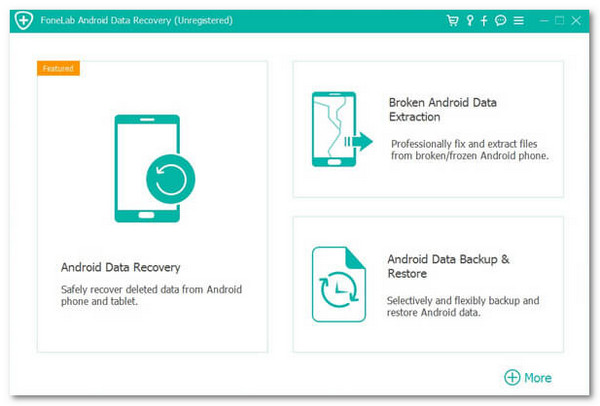
Step 2The primary features of the tool will be prompted. Then, click Start from the main interface to proceed. Later, plug the Android phone into the computer using a USB cable.
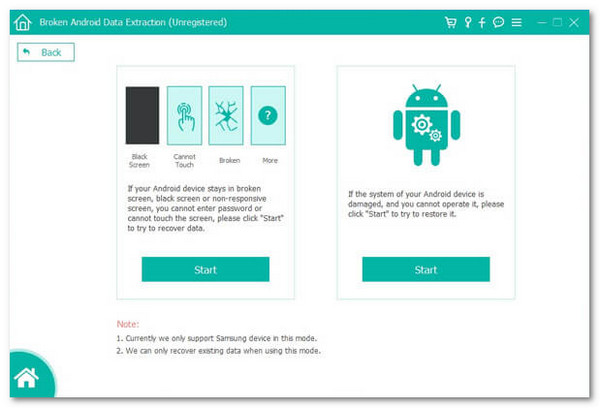
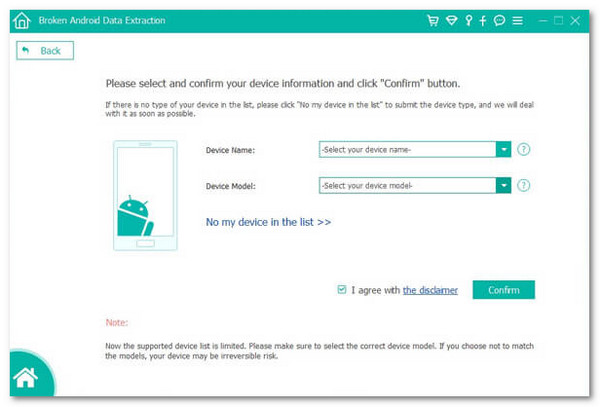
Step 3Select the model and version of your Android phone on the computer. After that, click the Confirm button. Please follow the on-screen instructions to start fixing the Android phone using the tool.
Part 6. FAQs about How to Turn Off Phone
Why won't my phone turn off when I press the Power button?
There are various reasons why the iPhone or Android phone does not turn off when you press the Power button. There might be a glitch or lag in the mobile phone. Also, it could be a hardware issue. The Power button might be broken or covered in dust. You need to replace or clean it if that’s the case.
Can I use the Volume button as a Power button?
There are some operations on your phone that you may use the Volume button instead of the Power button. However, you cannot replace the Power button with the Volume button when turning off the mobile phone.
How do I turn my phone off? We hope that the 4 easy ways posted in this article help you a lot. The FoneLab tools are also here to help you fix iPhone or Android phone issues when you cannot turn them off. It includes FoneLab iOS System Recovery and FoneLab Broken Android Data Extraction. You can download the mentioned tools to learn more about their features.



