
 iPhone Data Recovery
 iOS System Recovery
 iOS Data Backup & Restore
 iOS Unlocker
 iPhone Password Manager
 Location Changer
 Android Data Recovery
 Broken Android Data Extraction
 Android Data Backup & Restore
 Android Unlocker
 FoneTrans for iOS
 iPhone Data Eraser
 iPhone Cleaner
 HEIC Converter
 HyperTrans
 WhatsApp Transfer for iOS
 Mac Sweep
 Data Retriever
 Mac Data Retriever
 Video Converter Ultimate
 Screen Recorder
 Phone Mirror
- Part 1. Is It Possible to Unlock an iPhone If The Password Is Forgotten?
- Part 2. How to Unlock iPhone When You Forgot Password With Forgot Passcode Option
- Part 3. How to Unlock iPhone When You Forgot Password via FoneLab iFoneWiz
- Part 4. How to Unlock iPhone When You Forgot Password With Find My
- Part 5. How to Unlock iPhone When You Forgot Password With Recovery Mode
- Part 6. Comparison Table of Methods to Unlock iPhone When You Forgot Password
- Part 7. FAQs about How to Unlock iPhone When You Forgot Password
- Unlock Apple ID
- Bypass iCloud Activation Lock
- Doulci iCloud Unlocking Tool
- Factory Unlock iPhone
- Bypass iPhone Passcode
- Reset iPhone Passcode
- Unlock Apple ID
- Unlock iPhone 8/8Plus
- iCloud Lock Removal
- iCloud Unlock Deluxe
- iPhone Lock Screen
- Unlock iPad
- Unlock iPhone SE
- Unlock Tmobile iPhone
- Remove Apple ID Password
How to Unlock an iPhone When You Forgot the Password
 Updated by
 The iPhone passcode is used to secure the data and information you store. This way, no one can access your data except you! However, even you cannot access your iPhone data or information when the passcode is accidentally forgotten.
How to get into iPhone when forgot password? This article will show you the 4 easy ways to unlock your iPhone when the passcode is unknown. It includes Apple and third-party ways. Please scroll below to find the complete information on this topic.

Guide List
- Part 1. Is It Possible to Unlock an iPhone If The Password Is Forgotten?
- Part 2. How to Unlock iPhone When You Forgot Password With Forgot Passcode Option
- Part 3. How to Unlock iPhone When You Forgot Password via FoneLab iFoneWiz
- Part 4. How to Unlock iPhone When You Forgot Password With Find My
- Part 5. How to Unlock iPhone When You Forgot Password With Recovery Mode
- Part 6. Comparison Table of Methods to Unlock iPhone When You Forgot Password
- Part 7. FAQs about How to Unlock iPhone When You Forgot Password
Part 1. Is It Possible to Unlock an iPhone If The Password Is Forgotten?
Adding a passcode is important. In this case, there will be no unauthorized access from your iPhone when you leave it unattended. However, human errors are inevitable. Some users might accidentally forgot iPhone passcode. Is it possible to unlock an iPhone if the password is forgotten? Definitely, yes!
Apple offers multiple ways to unlock your iPhone without the passcode. However, most of them require the deletion of content and settings from the mentioned Apple device. Third-party tools can also be used, and the best one will be introduced in this article. See the methods as you continue browsing.
Part 2. How to Unlock iPhone When You Forgot Password With Forgot Passcode Option
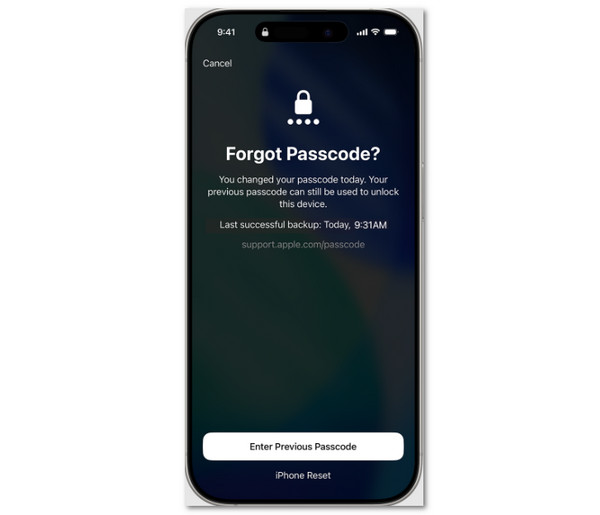
There are times when the user enters consecutive wrong attempts on the iPhone passcode. So, the iPhone Unavailable screen is seen. This screen shows you the Forgot Passcode option, which is the feature that can help you unlock your iPhone. Apple ID is the main requirement, as it asks for authentication. Please discover how to unlock an iPhone when you forgot the password with the steps below.
Please ensure that you are on the iPhone Unavailable screen. Then, select the Forgot Passcode button at the bottom right. Select the iPhone Reset button at the bottom. Enter the Apple ID credentials to proceed. Follow the on-screen instructions to start the erasing process.
Part 3. How to Unlock iPhone When You Forgot Password via FoneLab iFoneWiz
Sometimes, both the passcode and Apple ID are unknown on the iPhone. If that’s the case, the previous method is not possible. FoneLab iFoneWiz will help you unlock the iPhone with a forgotten passcode. The tool can also be used if the Apple ID is unknown because it supports a feature that can help you with the process.

iFoneWiz Helps you unlock iPhone screen, Removes Apple ID or its password, Remove screen time or restriction passcode in seconds.
- Helps you unlock iPhone screen.
- Removes Apple ID or its password.
- Remove screen time or restriction passcode in seconds.
Furthermore, the tool can function offline because it does not depend on an internet connection. Bypassing iCloud Activation Lock, iTunes backup encryption settings, and other operations are also supported by the software. Please use the steps below to know how to use it.
Step 1Download FoneLab iFoneWiz on your computer. Please click the Free Download button to perform the mentioned process. Set up, install, and open the tool on your computer to start the process.

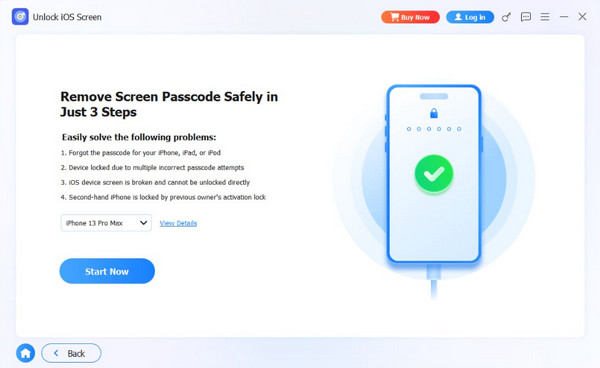
Step 2Click the Unlock iOS Screen feature at the top left. Plug an iPhone into the computer and click the Start Now button at the bottom left. Follow the on-screen steps for additional operations.
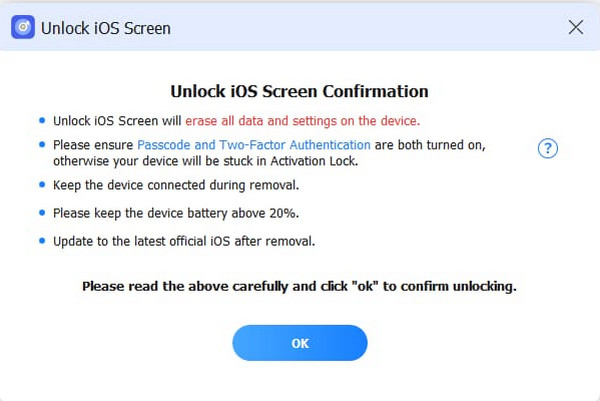
Step 3The firmware package will be downloaded. Select the OK button at the bottom. Click the Confirm Again button to start the unlocking process. Wait for the unlocking process to be completed. Later, click the Finish button on the left.
Part 4. How to Unlock iPhone When You Forgot Password With Find My
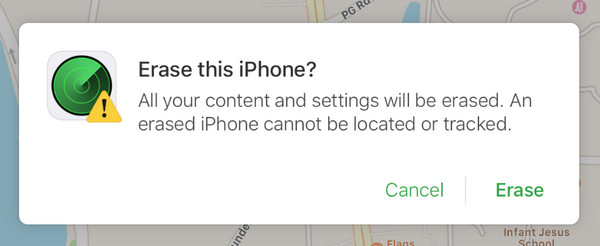
Find My iPhone is a feature that is offered by Apple to track the real-time location of your iPhone and other Apple devices. If you know how to use Find My iPhone, you might know that it can be used to erase your iPhone. This method can be used to unlock your iPhone without the passcode. Please continue browsing to see the steps for the mentioned process.
Go to the website of iCloud Find My. Then, enter the Apple ID associated with the locked iPhone. Go to the All Devices section at the top left. Select the iPhone name on the list. Select the Erase This Device button on the list. Authenticate the process and click the Erase button to confirm it.
Part 5. How to Unlock iPhone When You Forgot Password With Recovery Mode
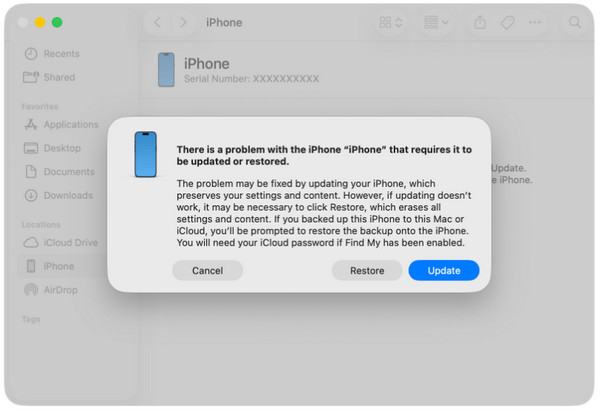
The previous methods require beginner skills to be completed. But sometimes, there are users who prefer to use advanced methods, like recovery mode. It requires intermediate to professional skills to be performed. iTunes, Apple Devices, or Finder is required. Please use the steps below to learn how to unlock your iPhone when you forgot the password using recovery mode.
Step 1Enter the iPhone recovery mode. Without the Home button, press and quickly release Volume Up. Volume Down will follow. Press and hold the Side afterward. If the iPhone has the Home button, push and hold Side and Volume Down or Home. Plug your iPhone into the computer afterward.
Step 2Open iTunes, Finder, or Apple Devices. Then, click the Restore button from the small window that will appear. Follow the on-screen instructions to start the restoring process.
Part 6. Comparison Table of Methods to Unlock iPhone When You Forgot Password
| Method | Will Undergo iCloud Activation Lock? | Connection Type | Time Duration |
| Forgot Passcode Option | Yes. | Internet Connection. | 30 Minutes to 1 Hour. |
| FoneLab iFoneWiz | No. | USB Connection. | A Few Minutes or Seconds. |
| Find My | Yes. | Internet Connection. | 30 Minutes to 1 Hour. |
| Recovery Mode | Yes. | USB Connection. | 45 Minutes to a Couple of Hours. |
Part 7. FAQs about How to Unlock iPhone When You Forgot Password
What is a common 4-digit passcode on an iPhone?
There are various common passcodes on an iPhone. It includes 1111, 2222, 1234, 0000, and more. However, these common passcodes are not suggested. They are easy to guess, which puts the iPhone at risk of unauthorized access.
How to eliminate the screen lock password on iPhone?
Open the Settings app on your iPhone. After that, please select the Face ID/Touch ID & Passcode button on the next screen. Then, enter the current passcode of your iPhone. Tap the Turn Passcode Off button on the list.
This post is all about how to get into iPhone when forgot password. The 4 quick methods to do it are included. FoneLab iFoneWiz is also here to help you remove the iPhone screen lock passcode offline! The tool can also be used to remove MDM, bypass iCloud Activation Lock, iTunes backup encryption settings, and more. Downloading it will help you familiarize yourself with its features!



