
 iPhone Data Recovery
 iOS System Recovery
 iOS Data Backup & Restore
 iOS Unlocker
 iPhone Password Manager
 Location Changer
 Android Data Recovery
 Broken Android Data Extraction
 Android Data Backup & Restore
 Android Unlocker
 FoneTrans for iOS
 iPhone Data Eraser
 iPhone Cleaner
 HEIC Converter
 HyperTrans
 WhatsApp Transfer for iOS
 Mac Sweep
 Data Retriever
 Mac Data Retriever
 Video Converter Ultimate
 Screen Recorder
 Phone Mirror
- Part 1. How to Unlock a Locked iPhone with Forgot Passcode
- Part 2. How to Unlock Locked iPhone via iCloud
- Part 3. How to Unlock a Locked iPhone through Recovery Mode
- Part 4. How to Unlock a Locked iPhone Using FoneLab iOS Unlocker
- Part 5. Comparison of iPhone Unlocking Methods
- Part 6. FAQs about How to Unlock a Locked iPhone
- Unlock Apple ID
- Bypass iCloud Activation Lock
- Doulci iCloud Unlocking Tool
- Factory Unlock iPhone
- Bypass iPhone Passcode
- Reset iPhone Passcode
- Unlock Apple ID
- Unlock iPhone 8/8Plus
- iCloud Lock Removal
- iCloud Unlock Deluxe
- iPhone Lock Screen
- Unlock iPad
- Unlock iPhone SE
- Unlock Tmobile iPhone
- Remove Apple ID Password
Trustworthy Guide on How to Unlock Locked iPhone Smoothly
 Updated by
 Can you unlock a locked iPhone?” A question often asked by many people who have forgotten or can’t provide their device’s passcodes. Whether it’s a forgotten Face ID or passcode, a second-hand device with unknown credentials, or an iPhone disabled after too many incorrect attempts, the frustration is universal. Luckily, yes, you can unlock your locked iPhone in most cases, and all you need is a suitable solution. But which option would be the best?
This guide has been designed to be your reliable roadmap in discovering the top unlocking methods on the iPhone. You must simply browse the following sections, and their information will help you decide which would be the most suitable and convenient for you and your device. From the official and built-in to the additional specialized unlocking solutions, a sufficient number of choices are available, and you must only perform your most preferred process. Just remember that all methods require the deletion of all your iPhone data.

Guide List
- Part 1. How to Unlock a Locked iPhone with Forgot Passcode
- Part 2. How to Unlock Locked iPhone via iCloud
- Part 3. How to Unlock a Locked iPhone through Recovery Mode
- Part 4. How to Unlock a Locked iPhone Using FoneLab iOS Unlocker
- Part 5. Comparison of iPhone Unlocking Methods
- Part 6. FAQs about How to Unlock a Locked iPhone
Part 1. How to Unlock a Locked iPhone with Forgot Passcode
The most direct unlocking solution Apple offers for iPhone users is the Forgot Passcode option. You will see it on the iPhone Unavailable screen after attempting multiple incorrect passcodes. So, you don’t have to jump into another platform, mode, or service to unlock the device. If you can provide the option’s requirements, which include your Apple account credentials, the process will be effortless, as it will be directly on the screen. The iPhone will immediately permit you to reaccess it since you have authenticated your identity through the Apple ID.
Mind the simple operation below to master how to unlock a locked iPhone with Forgot Passcode:
Step 1If the iPhone Unavailable screen hasn't appeared on your iPhone yet, enter multiple incorrect passcodes. Once it’s presented, tap Forgot Passcode on the lower part.
Step 2Following that, pick Start iPhone Reset and input the required Apple credentials. Afterward, select Erase iPhone and confirm the option to finish the unlocking process.
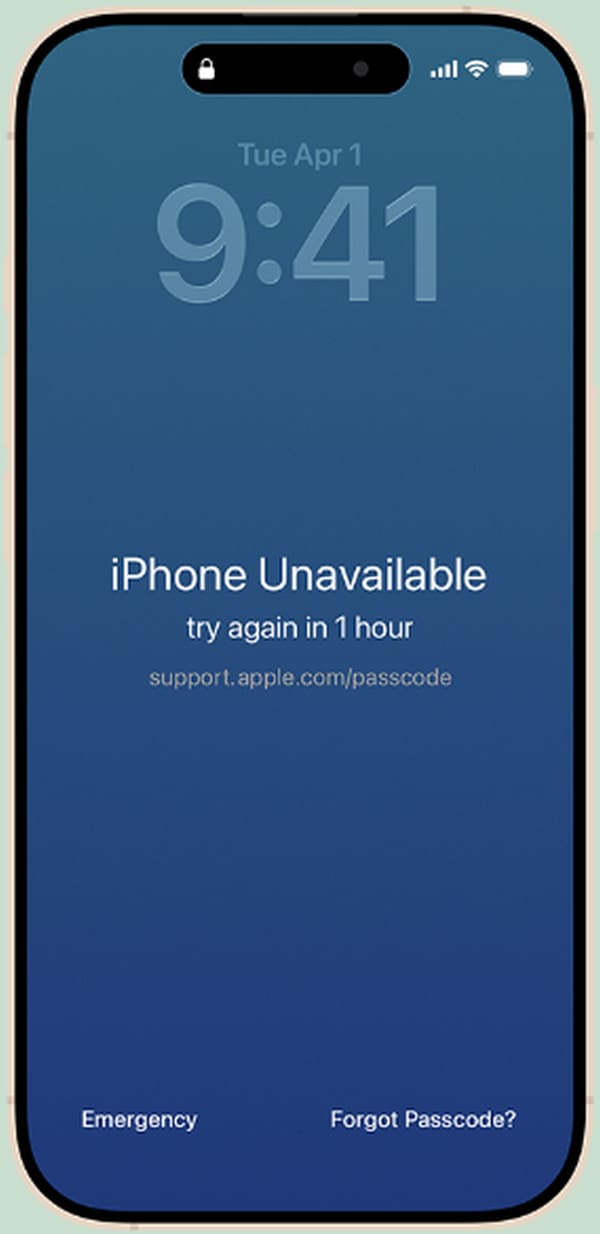
Note: This option is only available on iPhones running iOS 15.2, and you must have activated the Find My feature before this situation occurred.
Part 2. How to Unlock Locked iPhone via iCloud
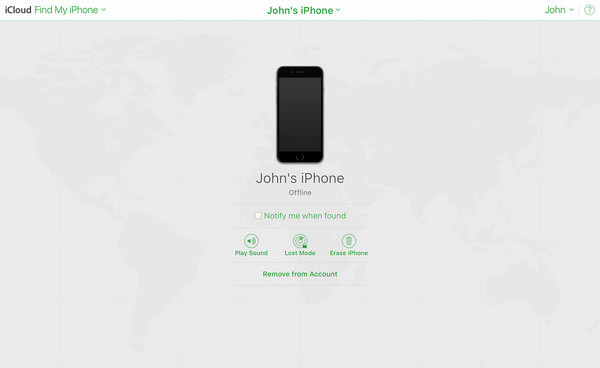
If the Forgot Passcode option is unavailable on your iPhone’s lock screen, rely on iCloud to erase your device and its passcode instead. Its Find My iPhone page presents multiple device management options that lets you control the iPhone, even without physically navigating it. Hence, use the Erase option on Find My, and the passcode will quickly be deleted from your device. Just use your Apple credentials to access the designated sections and ensure a stable internet. Also, the Find My feature must be enabled beforehand.
Take to heart the painless task below to unlock locked iPhone via iCloud:
Step 1Open the iCloud’s official page through your browser and log in with the account linked to your iPhone. Next, on the homepage, opt for Find My and hit All Devices on its page.
Step 2When your devices appear, select the locked iPhone to view its management options on the following page. Then, tick Erase iPhone and confirm the device deletion to finish.
Part 3. How to Unlock a Locked iPhone through Recovery Mode
Do you think that you have nothing to do if you have not enabled the iCloud feature on a locked iPhone? You can also rely on Apple’s troubleshooting state, Recovery mode. Whatever concerns you’re having with your iPhone, from the basic to the most complex issues, this mode was provided to resolve them without having to unlock or access the device. You simply need to put iPhone in Recovery mode using the designated button combination, and the available program, whether iTunes, Finder, or Apple Devices, on your computer will help you unlock it.
Mirror the unchallenging directions below to grasp how to unlock locked iPhone through Recovery mode:
Step 1Launch Finder, iTunes, or Apple Devices using your computer. Afterward, attach the locked iPhone with a Lightning cable before putting it into Recovery mode.
For iPhones without Home button: Push the Volume Up key quickly, followed by Volume Down. After that, immediately push down the Power key longer until Recovery mode is shown.
For iPhones with Home button: Push down the Power and Home keys concurrently. Later, the Recovery mode screen will materialize.
Step 2The program you opened on the computer will shortly detect the iPhone in Recovery mode, showing a Restore button. Select it and use the prompts to resolve the problem.
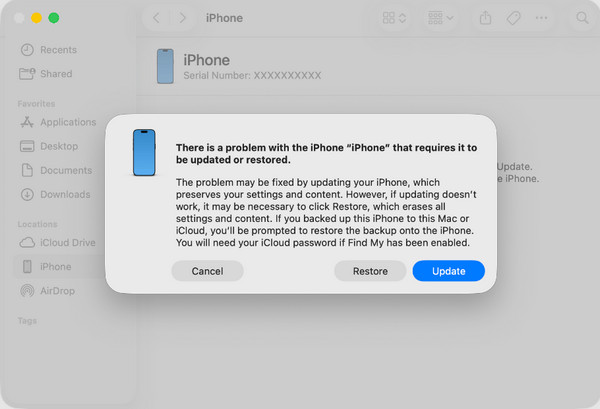
To easily figure out which program to use, note that Finder is primarily for later macOS users, and iTunes is for Windows and earlier macOS versions. Meanwhile, Apple Devices can be accessed by both later macOS and Windows users.
Part 4. How to Unlock a Locked iPhone Using FoneLab iOS Unlocker
As mentioned, specialized solutions are also available, and the best one we can offer is FoneLab iOS Unlocker. As its name indicates, the program can handle several locks on iOS devices, like your iPhone. In this case, the feature to unlock your screen passcode is the suitable one to use. Whether or not you remember your passcode or Apple credentials, you can trust this tool to unlock the iPhone and access it with minimal effort.
FoneLab iOS Unlocker also doesn’t demand users to be experienced or have advanced knowledge regarding unlocking programs. Even at your first use, the unlocking process will be effortless since its interface and functions are designed to make everything convenient for all types of users. You can unlock the iPhone’s passcode, Face ID, or Touch ID.

FoneLab Helps you unlock iPhone screen, Removes Apple ID or its password, Remove screen time or restriction passcode in seconds.
- Helps you unlock iPhone screen.
- Removes Apple ID or its password.
- Remove screen time or restriction passcode in seconds.
Identify the smooth process below as a model of how to unlock a locked iPhone using FoneLab iOS Unlocker:
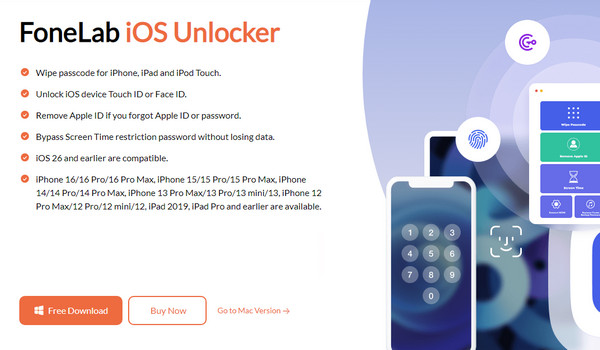
Step 1Download the FoneLab iOS Unlocker file using its webpage’s Free Download button. It can then be quickly installed by opening and setting it up in your Downloads folder. Once the program is ready, choose the Start selection to initialize its interface.
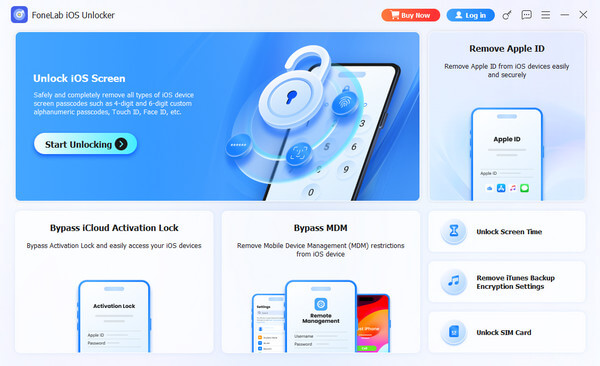
Step 2The primary interface will be presented with its key unlocking functions. So, on the upper left of the screen, choose Start Unlocking and attach the locked iPhone through a Lightning cable. You will then be provided with on-screen instructions, so navigate them until your device is unlocked.
Part 5. Comparison of iPhone Unlocking Methods
| Methods | Forgot Passcode | iCloud | Recovery Mode | FoneLab iOS Unlocker |
| What It Does | Lets you erase the iPhone directly from the lock screen | Remotely erases the iPhone. | Forces a factory restore via a computer. | Removes the screen passcode to unlock the iPhone. |
| Key Requirement | • iPhone must be running iOS 15.2 or later. • You must know the Apple ID password for the device. |
• Find My iPhone must be on. • Apple ID & password. • Internet access. |
• A computer. • USB cable. • iTunes, Finder, or Apple Devices. |
• A computer and USB cable. |
| Success Rate | High | Very High | Very High | Very High |
| Ease of Use | Very Good | Good | Moderate | Excellent |
Part 6. FAQs about How to Unlock a Locked iPhone
Why isn’t there a Forgot Passcode on my locked iPhone?
Your iOS version may not support it. Sadly, the Forgot Passcode option is supported only on iOS 15.2 or later.
Can I unlock my iPhone with my past passcode?
Yes, you can, but only on limited devices. You can only unlock and reset it with your past passcode if your iPhone runs iOS 17+. Also, you must reset it within 72 hours.
Numerous unlocking methods are accessible for iPhone users, so ease your worries and perform your most preferred one using the guidelines above. We especially suggest FoneLab iOS Unlocker for its convenience and advantages, so install it on your computer.



