
 iPhone Data Recovery
 iOS System Recovery
 iOS Data Backup & Restore
 iOS Unlocker
 iPhone Password Manager
 Location Changer
 Android Data Recovery
 Broken Android Data Extraction
 Android Data Backup & Restore
 Android Unlocker
 FoneTrans for iOS
 iPhone Data Eraser
 iPhone Cleaner
 HEIC Converter
 HyperTrans
 WhatsApp Transfer for iOS
 Mac Sweep
 Data Retriever
 Mac Data Retriever
 Video Converter Ultimate
 Screen Recorder
 Phone Mirror
How to Unblock a Number on iPhone in 2 Stress-free Ways
 Updated by
 Hi! How do I unblock a number on my iPhone? My friend told me that she had been calling me this morning with her new number, and I told her that I had not received any calls or messages. I think I accidentally blocked her number, thinking that it was a spam call. I hope you can help me unblock it. Thank you!
Spam calls are indeed unnecessary from an iPhone, and users prefer to block unknown numbers immediately. However, there are instances where the unknown numbers are their friends or family. In this post, you will know the 3 quick practices to unblock numbers from your iPhone. The complete information about this topic can be seen below.

Guide List
Part 1. How to Unblock a Number on iPhone Settings App
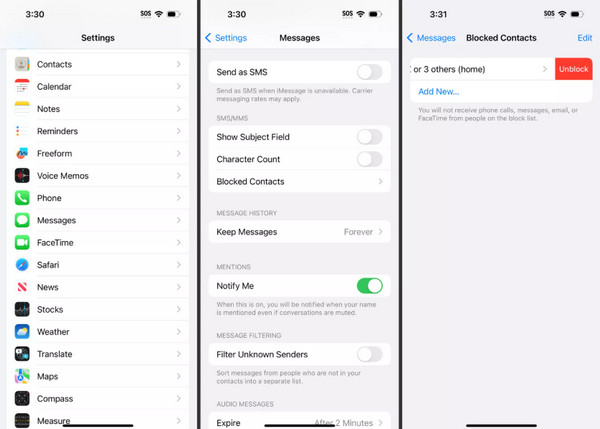
If you unblock a number on iPhone, what happens? Future calls, texts, and other operations for your phone numbers will be received or notified. There are various ways to do this, and the Settings app is one of the easiest of them. This app on your iPhone holds the controls and options that can be applied to your apps, content, and more. Please perform the steps below for unlocking numbers on your iPhone using its Settings app.
Access your iPhone Settings app. Then, select the Phone button. Tap the Blocked Contacts or Call Blocking & Identification button. Locate the phone number you need to unblock and tap the Unblock button.
Part 2. How to Unblock a Number on iPhone Contacts/Phone App
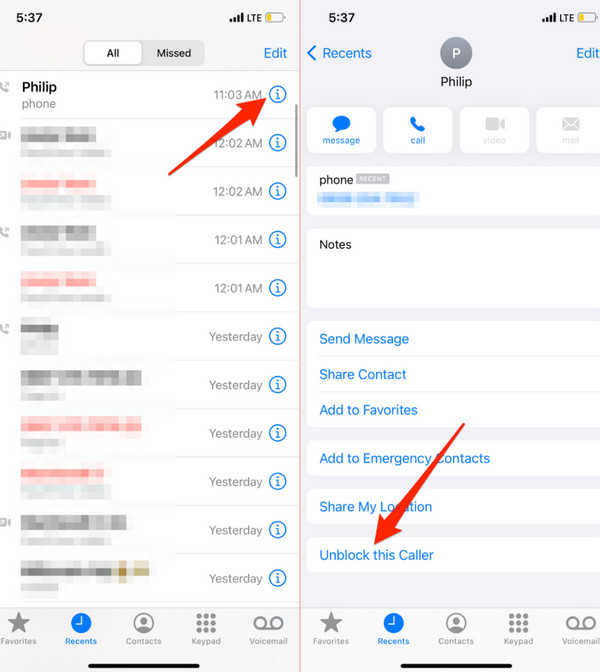
The Contacts app holds the registered phone numbers on your iPhone. While the Phone app holds the recent calls from your iPhone. Did you know that you can use these apps to unblock a number on your iPhone? Discover how to unblock number on iPhone with the Contacts and Phone app with the steps below.
Open the Contacts or Phone app and select the contact you want to unblock from your iPhone. Tap the i button on the right. After that, the caller's information will appear on the screen. Please select the Unblock This Caller button afterward.
Part 3. How to Back Up iPhone Contacts
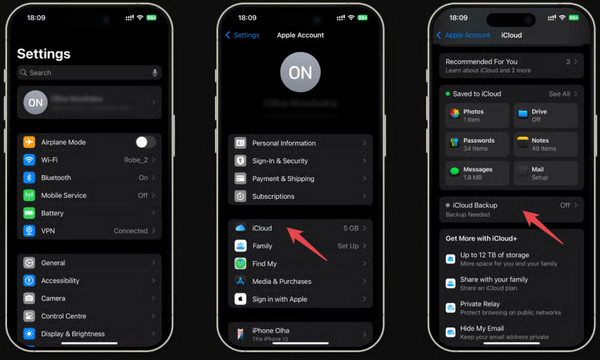
Some iPhone users also want to backup iPhone contacts. It is to prevent accidental loss after accidentally blocking them or when they cannot locate them anymore on the iPhone. iCloud is the best choice for creating backups for your iPhone contacts. The steps below will guide you through the backup process.
Open the Settings app on the iPhone. Then, tap the account name at the top of the screen. Select the iCloud button from the list. Later, select the iCloud Backup button and turn it on. Finally, tap the Back Up This iPhone button. Alternatively, you can turn on iCloud sync. Open Settings and select your name. Tap iCloud and select the data you need to sync. Choose Sync This iPhone.
Part 4. How to Restore iPhone Contacts
Besides blocking, you might accidentally delete some of your iPhone contacts. If so, recover lost iPhone contacts in this section. You can use iCloud and the best third-party recovery tool, which is FoneLab iPhone Data Recovery. Continue browsing to know their full details.

With FoneLab for iOS, you will recover the lost/deleted iPhone data including photos, contacts, videos, files, WhatsApp, Kik, Snapchat, WeChat and more data from your iCloud or iTunes backup or device.
- Recover photos, videos, contacts, WhatsApp, and more data with ease.
- Preview data before recovery.
- iPhone, iPad and iPod touch are available.
iCloud
The first method that might come to your mind when backing up your iPhone contacts is iCloud. It is the cloud service that offers multiple convenient features for your iPhone, including backing up and restoring your data. However, you need to factory reset your iPhone to restore your contacts. Follow the steps below to know how.
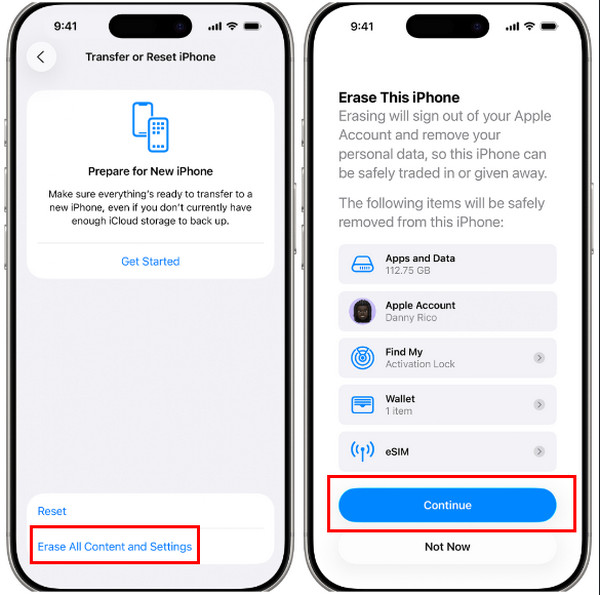
Step 1Go to the Settings app of your iPhone, which is located in the Home Screen section. After that, please tap the General button, and you will be prompted to a new screen. Please tap the Transfer or Reset iPhone button. Then, select Erase All Content and Settings. Follow the on-screen steps and tap Continue to start the factory reset.
Note: Alternatively, you may use iCloud sync. Open Settings and select your Apple ID account name. Tap the iCloud button and select the data type you need to sync. Select Sync This iPhone.
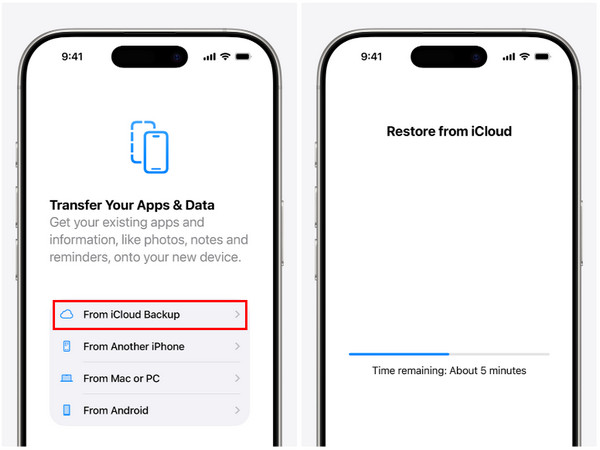
Step 2Set up the iPhone until the Transfer Your Apps & Data interface is seen. Please select the From iCloud Backup button. Sign in to your current Apple ID and choose the most relevant backup you prefer. Perform the on-screen instructions and wait until the restore procedure is complete.
FoneLab iPhone Data Recovery
iCloud is the built-in cloud service of Apple for backing up your iPhone data, including contacts. However, there are instances in which you did not have the chance to back them up. FoneLab iPhone Data Recovery may help you recover your iPhone contacts with and without a backup. You can directly recover from your iPhone or iTunes backup. Accidental deletion, water damage, no backup file, busted parts, device stuck, and system problem are some of the supported recoverable scenarios.
With FoneLab for iOS, you will recover the lost/deleted iPhone data including photos, contacts, videos, files, WhatsApp, Kik, Snapchat, WeChat and more data from your iCloud or iTunes backup or device.
- Recover photos, videos, contacts, WhatsApp, and more data with ease.
- Preview data before recovery.
- iPhone, iPad and iPod touch are available.
Also, previewing the iOS data, including the existing or deleted ones, is allowed. Some of the supported data for the recovery are reminders, contacts, audio, WhatsApp data, videos, and more. Use the tool with the steps below.
Step 1Pay a visit to the main website of FoneLab iPhone Data Recovery. After that, click the Free Download button. Set up the file downloaded from the web browser and install it. It will be launched afterward.

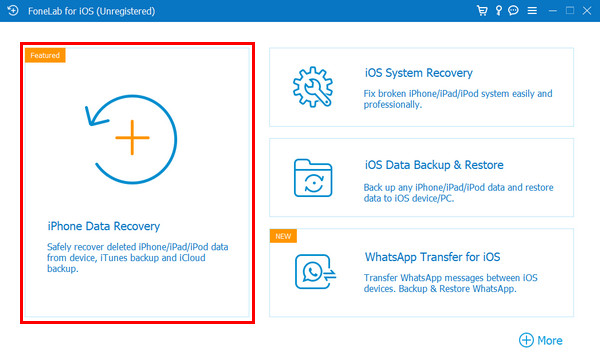
Step 2Four tools will be shown on the screen. Please select the iPhone Data Recovery button at the top right afterward. This way, you can see the correct features for the recovery process of the tool.
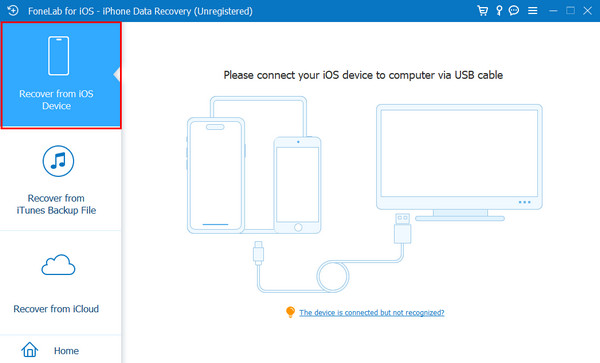
Step 3The new screen will guide you on how to plug the iPhone into the computer. Grab your USB cable and follow the on-screen instructions. Click the Start Scan button afterward. The scanned data will be prompted, and please choose the data you need to retrieve. Finally, click the Recover button placed at the bottom right.
Part 5. FAQs about How to Unblock a Number on iPhone
How to unblock a caller on iPhone for Unknown Callers?
Open the Settings application on your iPhone. Then, select the Phone button from the app list. Then, swipe down on the screen and select the Silence Unknown Callers button. Later, toggle off the slider to enable or unblock the unknown callers from your iPhone.
How do I block a number from calling and texting my iPhone?
Open the Phone app on your iPhone. After that, select the Recents button at the bottom. Later, find the number you prefer to block. Then, tap the i button on the screen. Swipe down on the screen and tap the Block Caller button. Confirm the action by selecting the Block Contact button.
All in all, this post will guide you on how to unblock someone on iPhone. The easiest methods are included for your reference. Additionally, methods to recover contacts from your iPhone are also posted. FoneLab iPhone Data Recovery is one of them. This tool can recover your contacts with or without a backup. Besides contacts, it can also recover other data types, including videos, photos, messages, and more. Download the tool now for more information about it!



