
 iPhone Data Recovery
 iOS System Recovery
 iOS Data Backup & Restore
 iOS Unlocker
 iPhone Password Manager
 Location Changer
 Android Data Recovery
 Broken Android Data Extraction
 Android Data Backup & Restore
 Android Unlocker
 FoneTrans for iOS
 iPhone Data Eraser
 iPhone Cleaner
 HEIC Converter
 HyperTrans
 WhatsApp Transfer for iOS
 Mac Sweep
 Data Retriever
 Mac Data Retriever
 Video Converter Ultimate
 Screen Recorder
 Phone Mirror
- Part 1. How to Delete Duplicate Contacts on iPhone with Contacts App
- Part 2. How to Remove Duplicate Contacts on iPhone with iCloud
- Part 3. How to Delete Duplicate Contacts on iPhone with Mac If Synced
- Part 4. How to Delete Duplicate Contacts on iPhone with FoneTrans for iOS
- Part 5. Bonus Tip: How to Free Up Space on iPhone
- Part 6. FAQs about How iPhone Deletes Duplicate Contacts
Delete Duplicate Contacts on iPhone in 4 Efficient Practices
 Updated by
 Good day! I have countless contacts stored on my iPhone due to my job. These are phone numbers from my past and current clients from my salon. However, I noticed that some of them are duplicated. How to remove duplicate contacts on iPhone? Please teach me how. Thanks!
You may create hundreds or even thousands of contacts on your iPhone. Due to their quantity, some individuals do not notice that some are duplicated. There are various ways to delete them; this article has the four most recommended easy ways. Kindly scroll below to discover the information that will indeed help you.

Guide List
- Part 1. How to Delete Duplicate Contacts on iPhone with Contacts App
- Part 2. How to Remove Duplicate Contacts on iPhone with iCloud
- Part 3. How to Delete Duplicate Contacts on iPhone with Mac If Synced
- Part 4. How to Delete Duplicate Contacts on iPhone with FoneTrans for iOS
- Part 5. Bonus Tip: How to Free Up Space on iPhone
- Part 6. FAQs about How iPhone Deletes Duplicate Contacts
Part 1. How to Delete Duplicate Contacts on iPhone with Contacts App
There are built-in ways to delete duplicate contacts on iPhone. You can delete them manually or merge the original contact with the duplicates. See more information about them below.
1. Manually Delete Contacts
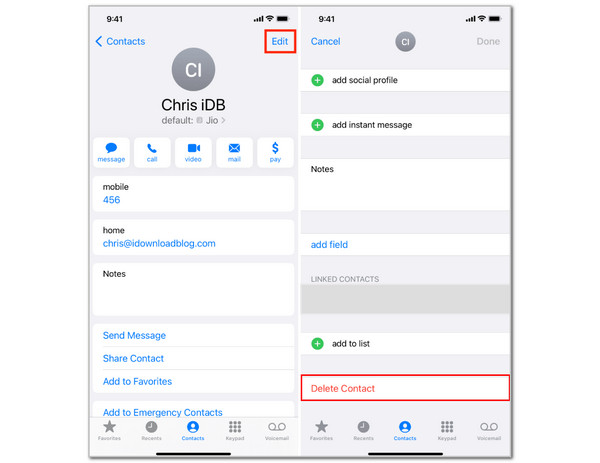
The best method for deleting contacts on your iPhone is manually and individually. This ensures that the contacts that will be deleted are accurate. However, it consumes more time than the other methods. See how to use this technique below.
Step 1Open the Contacts app from your iPhone, and the list of contacts must be prompted. After that, please tap the Edit option at the top of the main interface to see more options.
Step 2Scroll down and tap the contact you prefer to delete. After that, tap the Delete Contact and Delete Contact buttons again to confirm the deletion.
2. Merge Contacts
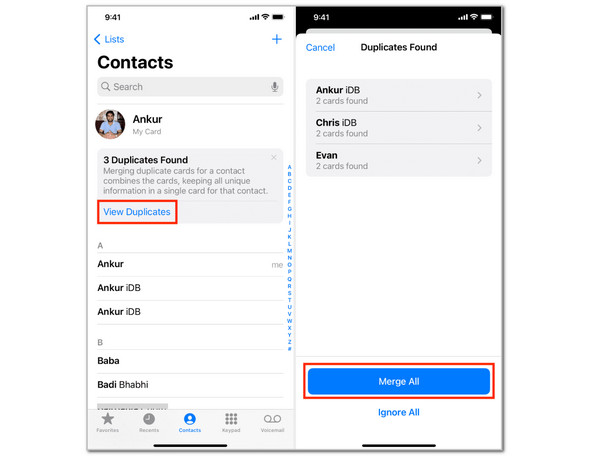
Another built-in way for the iPhone to delete duplicate contacts is by merging them. This method combines contact information. The best part is that the iPhone Contacts app automatically distinguishes duplicate contacts and stores them in the Duplicates Found folder. For a clearer understanding of this process, follow the steps below.
Step 1Please open and unlock your iPhone. After that, please open your Contacts app from the Home Screen section. After that, you will see the current contacts stored on your iPhone. You will see the Duplicates Found button at the top if there are duplicate contacts from the iPhone. Please tap the button to continue.
Step 2The duplicate contacts will appear on the screen. Select the duplicates you want to merge and tap the Merge option at the bottom center of the interface.
Part 2. How to Remove Duplicate Contacts on iPhone with iCloud
iCloud can also store your iPhone contacts, including the duplicate ones. Do you have duplicate contacts on your iCloud account? Let us delete them using the steps below.
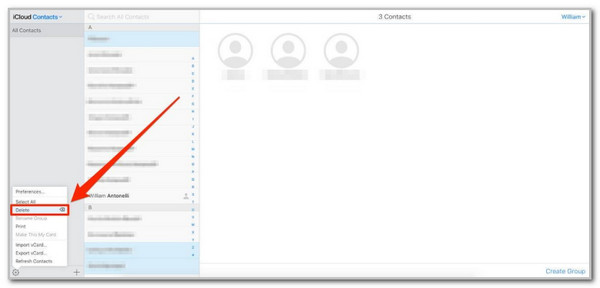
Step 1Please visit the iCloud website and sign in to your Apple ID account used for the contacts. Enter the verification code to authenticate the process. The data types supported by the cloud service will appear, and click the Contacts button from the main interface.
Step 2The contacts are listed alphabetically on the left side of the screen. Scroll down and locate all the contacts you prefer to delete. After that, click the Settings button at the bottom left corner and click the Delete option. If you prefer to delete all the contacts from iCloud, click the Select All button.
Part 3. How to Delete Duplicate Contacts on iPhone with Mac If Synced
Some individuals sync their contacts from an iPhone to a Mac. They are allowed to do this with iCloud and an Apple ID account. You can delete the duplicate contacts if you synced your iPhone contacts to your Mac. See how to perform that using the steps below.
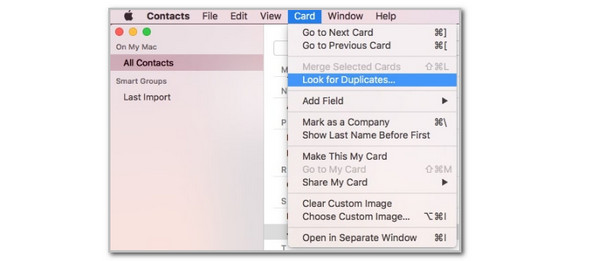
Step 1Open the Contacts program on your Mac, and all the contacts synced from the iPhone with the same Apple ID account will be shown. Please click the Card button at the top of the main interface, and drop-down options will appear. Click the Card button again to proceed.
Step 2Please click the Look for Duplicates button on the screen. This will open a small window displaying the duplicate contact number from the Mac. Please click the Merge button to merge these contacts.
Part 4. How to Delete Duplicate Contacts on iPhone with FoneTrans for iOS

With FoneTrans for iOS, you will enjoy freedom to transfer your data from iPhone to computer. You can not only transfer iPhone text messages to computer, but also photos, videos and contacts can be moved to PC easily.
- Transfer photos, videos, contacts, WhatsApp, and more data with ease.
- Preview data before transferring.
- iPhone, iPad and iPod touch are available.
FoneTrans for iOS is bound to transfer different data from your Apple devices. Did you know that this transfer tool can also help you locate and delete duplicate contacts on your iPhone? Let’s find out how! The steps below will be your best guide on how to use this tool for the procedure.
Step 1Click Free Download. Set up and launch it afterward.
Step 2Plug the iPhone into the computer. Follow the on-screen instructions that will be seen in the center.

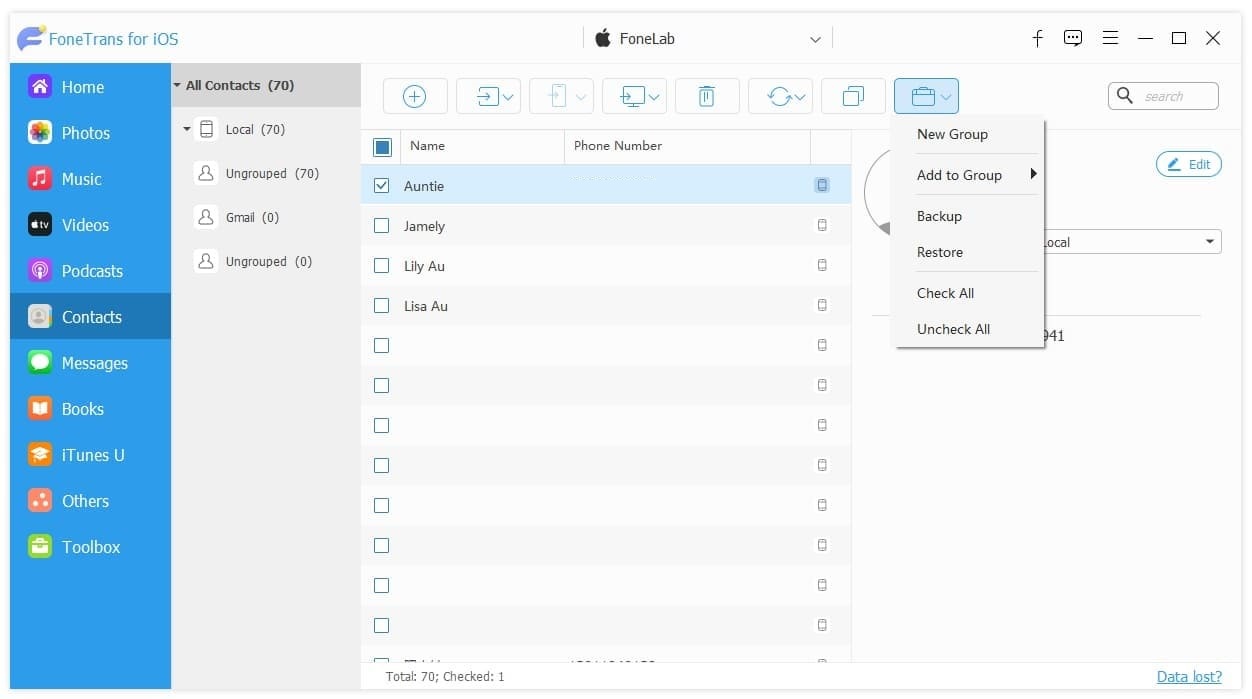
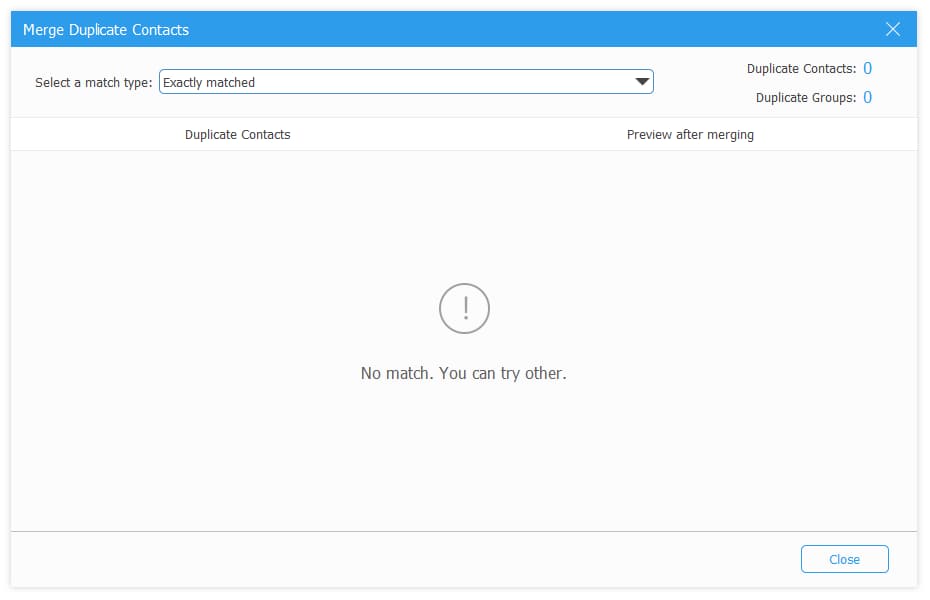
Step 3Click Contacts on the left to scan the files. Then, select the duplicated icon, it will scan your duplicate contacts automatically.
Part 5. Bonus Tip: How to Free Up Space on iPhone
Multiple contacts on an iPhone consume much storage space, which is one reason people want to delete duplicates. Here’s a bonus tip! FoneLab iPhone Cleaner is a third-party tool that can free up your iPhone's storage space. It can uninstall applications, delete large files, clean up photos, and more! Additionally, this tool can wipe your iPhone's content and settings. Lastly, it can delete the private data from the iPhone. Please perform the steps below to learn how to use the tool.
Step 1Go to the software's main web page and click the Free Download option to download it to your computer. Then, set up the downloaded file on your computer based on the requirements. Click Install and launch it afterward to start the process.

Step 2The tool will require you to plug the iPhone into the computer. Please get a USB cable and perform the plugging process using it. The iPhone name will appear afterward.

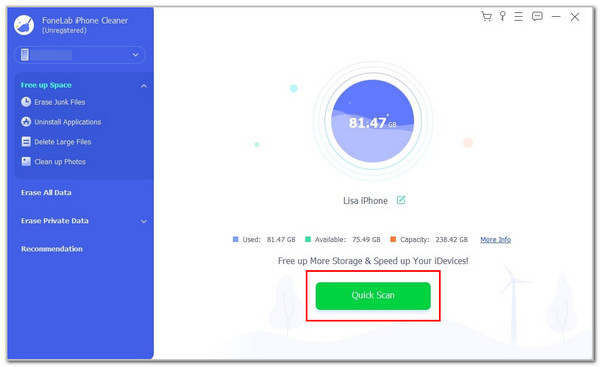
Step 3Click the Free Up Space button on the left side of the main interface. After that, please click the Quick Scan button on the right side of the main interface. Choose all the data you want to delete from the iPhone to free up space. Finally, please click the Erase button at the bottom right corner of the main interface.
Part 6. FAQs about How iPhone Deletes Duplicate Contacts
Can I delete multiple contacts at the same time on an iPhone?
Open your iPhone Contacts app, and the contacts must be prompted. Then, long-press the first contact you want to delete using your two fingers. Drag it to the other contacts you want to delete. Finally, tap the Delete [Quantity] Contacts button to delete them.
Are iPhone Contacts stored on the SIM or the storage?
By default, iPhone contacts are stored in internal storage. The iPhone cannot store phone numbers or contacts on the SIM card, and Apple does not allow this process. You can transfer your SIM card contacts to your iPhone, but not vice versa.
In conclusion, you can delete duplicate contacts on an iPhone in different ways, but this article has outlined the four leading processes. The best thing about it is that it also introduces the best third-party program to clean up your iPhone storage, FoneLab iPhone Cleaner. Duplicate contacts are indeed confusing. Delete them now to avoid confusion and a quick scan for your iPhone contacts!



