
 iPhone Data Recovery
 iOS System Recovery
 iOS Data Backup & Restore
 iOS Unlocker
 iPhone Password Manager
 Location Changer
 Android Data Recovery
 Broken Android Data Extraction
 Android Data Backup & Restore
 Android Unlocker
 FoneTrans for iOS
 iPhone Data Eraser
 iPhone Cleaner
 HEIC Converter
 HyperTrans
 WhatsApp Transfer for iOS
 Mac Sweep
 Data Retriever
 Mac Data Retriever
 Video Converter Ultimate
 Screen Recorder
 Phone Mirror
- Unlock Apple ID
- Bypass iCloud Activation Lock
- Doulci iCloud Unlocking Tool
- Factory Unlock iPhone
- Bypass iPhone Passcode
- Reset iPhone Passcode
- Unlock Apple ID
- Unlock iPhone 8/8Plus
- iCloud Lock Removal
- iCloud Unlock Deluxe
- iPhone Lock Screen
- Unlock iPad
- Unlock iPhone SE
- Unlock Tmobile iPhone
- Remove Apple ID Password
2 Easy Ways on How to Turn Off SafeSearch on iPhone
 Updated by
 Have you heard about the SafeSearch on the iPhone Google? It is a feature that is designed to filter the content and information that will appear on the mentioned web browser. It includes the images and videos shown in search results. It blocks the adult and violent content that are not suited for children or teenagers.
However, this feature is not for all. Some iPhone users experience that unrelated content, including adult and violent contents are also blurred. In this case, they cannot see the information they are looking for. How to turn off SafeSearch on iPhone? The 2 leading ways to do that are posted in this article, as you scroll below.

Guide List
Part 1. How to Turn Off SafeSearch on iPhone Settings
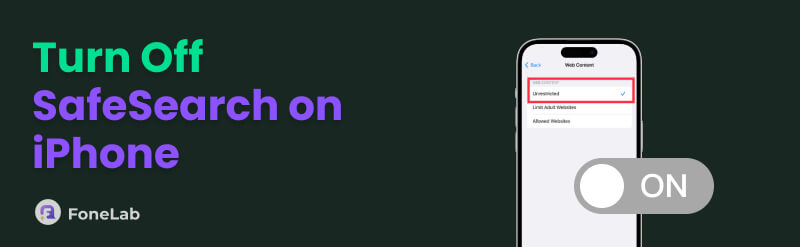
iPhone does not support SafeSearch natively, including on its built-in web browser, which is Safari. But there is a quick technique to turn off the mentioned feature. Screen Time allows you to prevent someone from turning it off. So, it is recommended to remove the restrictions from your iPhone's Screen Time to achieve your goal. Learn how to do that as you scroll below.
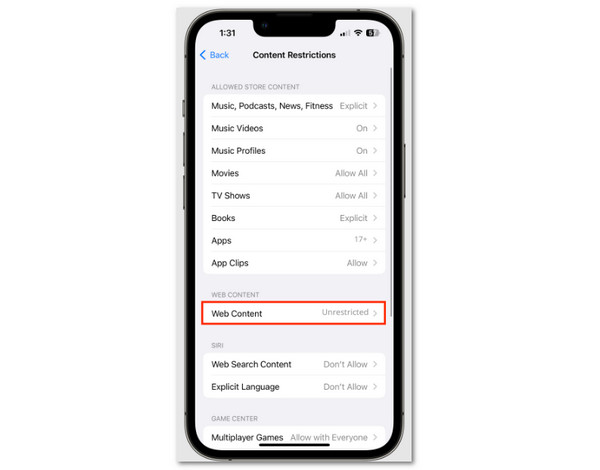
Please open Settings on your iPhone. Then, select the Screen Time button from the options list. Later, please tap the Content & Privacy Restrictions button. Later, more options will appear on the screen. Select the App Store, Media, Web, & Games, and Web Content button. Finally, tap the Unrestricted button to remove the mentioned restrictions. Later, the restrictions will be removed from your iPhone. You can now use all the apps and features it contains.
Part 2. How to Turn Off Google SafeSearch
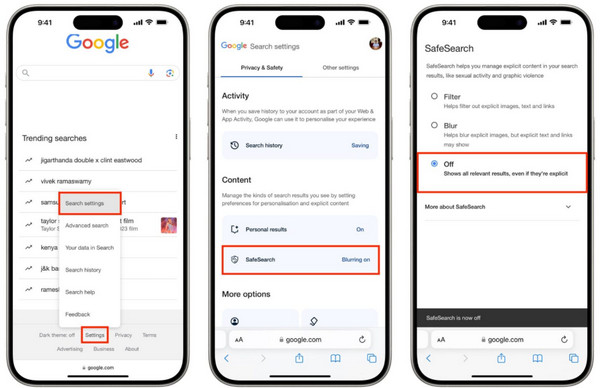
As stated, SafeSearch is a feature that Google offers. The mentioned web browser has built-in settings that can help you to turn off SafeSearch. However, Google allows you to sign in to different accounts on your iPhone. You need to ensure that the correct account is the one being set up. Discover how to turn SafeSearch off on iPhone Google Chrome with the steps below.
Step 1Open the Google application on your iPhone. You will see the first interface, containing the search bar where you can search the content you prefer. Alternatively, you can search the URL of Google on your Safari. Then, select the Profile button at the top right corner. It is commonly prompted as your initials if you do not have a profile picture.
Step 2Tap the Settings button from the main interface. Then, select the SafeSearch button on the screen. Then toggle off SafeSearch. The feature will now be turned off. You will now see the content that are blocked by the feature on your iPhone.
Part 3. What to Do When You Cannot Turn Off SafeSearch on iPhone
Turning off SafeSearch on your iPhone is easy. However, there are instances when iPhone users cannot turn it off. There might be enabled restrictions on the iPhone, including MDM and Screen Time. Learn to turn off or remove these features below with or without the needed password or credentials. Please see the sections below.
1. Remove MDM
MDM is a feature on iPhones and other Apple devices that can restrict certain operations and apps. Schools and workplaces use it for students or employees. When MDM is enabled, prohibited actions — such as turning off SafeSearch — cannot be performed.
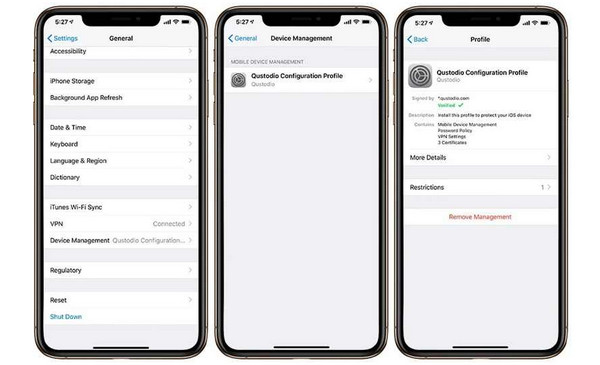
Step 1Grab your iPhone and turn it on. After that, the passcode is needed. Tap Settings from the Home Screen of the mentioned Apple device. Tap the General button from the first list of options that will be prompted on the screen.
Step 2Select the VPN & Device Management button from the first screen. Later, tap the MDM profile you need to remove from your iPhone. Finally, please tap the Remove Management button under the mentioned MDM profile.
2. Turn Off Screen Time
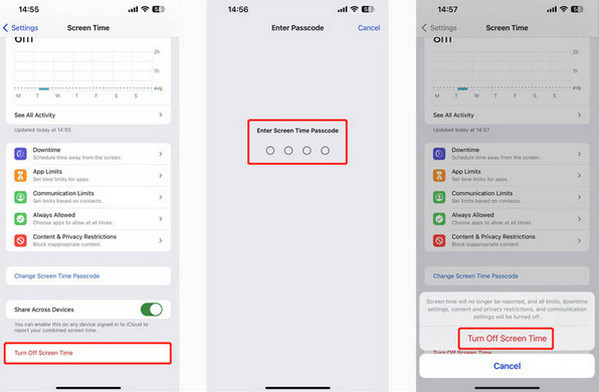
Besides MDM, Screen Time can also be the reason SafeSearch cannot be turned off. Turning off this feature requires the passcode. If not, you can reset or bypass Screen Time passcode. Bypassing the mentioned feature can be learned in the next section. You can skip this part if you need to. Now, follow the instructions below to turn off Screen Time with the passcode.
Open your iPhone Settings app. Then, select the Screen Time button on the list. Tap the Turn Off App & Website Activity or Turn Off Screen Time button. Finally, enter the Screen Time passcode on the screen. If you forgot the passcode, tap Forgot Passcode and enter your Apple ID. Then set a new passcode.
3. Use FoneLab iOS Unlocker

FoneLab Helps you unlock iPhone screen, Removes Apple ID or its password, Remove screen time or restriction passcode in seconds.
- Helps you unlock iPhone screen.
- Removes Apple ID or its password.
- Remove screen time or restriction passcode in seconds.
MDM and Screen Time cannot be turned off or removed when their passcode or credentials are unknown. FoneLab iOS Unlocker can be used to remove these two features. Bypassing Screen Time will not affect your data. The tool can also be used to unlock iCloud-locked iPhone, remove Apple IDs, unlock your SIM-locked iPhone, and more. See the steps below to know how to use the tool.
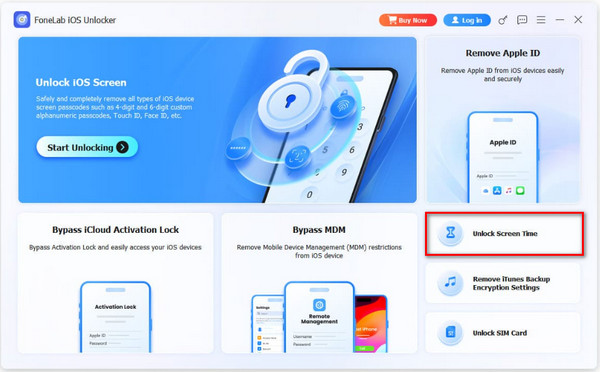
Step 1Download FoneLab iOS Unlocker by selecting the Free Download button. Set up, install, and open the tool afterward. Later, please select the Unlock Screen Time feature from the first screen.
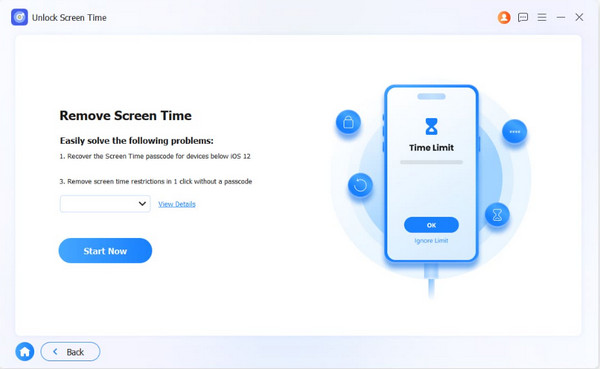
Step 2Plug your iPhone into the computer. Then, click Start Now at the bottom left. Follow the on-screen steps for other operations, including the process of turning off the Find My feature on your iPhone. Click the Continue button to proceed.
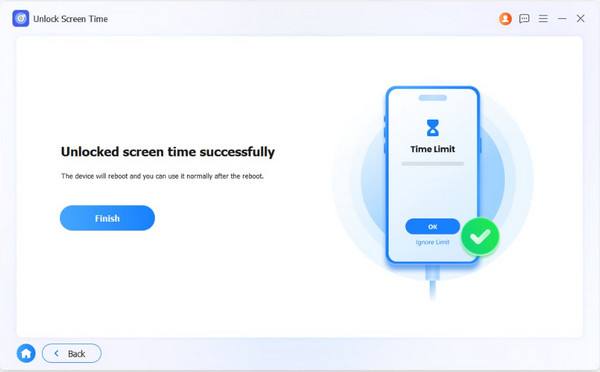
Step 3Please click the Unlock button to start bypassing the Screen Time feature on your iPhone. Click the Finish button when the process is done. Finally, unplug the iPhone from your computer to end the process safely.
Part 4. FAQs about How to Turn Off SafeSearch on iPhone
How to turn off SafeSearch on Safari iPhone?
The iPhone Safari does not natively support the SafeSearch feature. But you can use it to turn off Google’s SafeSearch feature. You only need to search Google on your iPhone Safari. Part 2 of this article has the same procedure.
Why is SafeSearch suddenly locked on?
The SafeSearch feature can be locked due to the setup of your Google account. Some of the primary causes are the device itself, internet search, or someone who has access to your account.
This post is all about how to turn off SafeSearch on iPhone. The 2 leading ways to perform it can be accessed. FoneLab iOS Unlocker can help in terms of removing the Screen Time restriction when the mentioned feature cannot be turned off. You can also use it to remove MDM, Apple ID, and more features. Download it now!



