
 iPhone Data Recovery
 iOS System Recovery
 iOS Data Backup & Restore
 iOS Unlocker
 iPhone Password Manager
 Location Changer
 Android Data Recovery
 Broken Android Data Extraction
 Android Data Backup & Restore
 Android Unlocker
 FoneTrans for iOS
 iPhone Data Eraser
 iPhone Cleaner
 HEIC Converter
 HyperTrans
 WhatsApp Transfer for iOS
 Mac Sweep
 Data Retriever
 Mac Data Retriever
 Video Converter Ultimate
 Screen Recorder
 Phone Mirror
- Part 1. How to Unlock Android Phone without Factory Reset through Google Account
- Part 2. How to Unlock Android Phone without Factory Reset Using Samsung SmartThings Find
- Part 3. How to Unlock Android Phone without Factory Reset via Google Find Hub
- Part 4. How to Unlock Android Phone with FoneLab Android Unlocker
- Part 5. Comparison Table about Methods to Unlock Android Phone Without Factory Reset
- Part 6. FAQs about How to Unlock Android Phone without Factory Reset
- Unlock Apple ID
- Bypass iCloud Activation Lock
- Doulci iCloud Unlocking Tool
- Factory Unlock iPhone
- Bypass iPhone Passcode
- Reset iPhone Passcode
- Unlock Apple ID
- Unlock iPhone 8/8Plus
- iCloud Lock Removal
- iCloud Unlock Deluxe
- iPhone Lock Screen
- Unlock iPad
- Unlock iPhone SE
- Unlock Tmobile iPhone
- Remove Apple ID Password
How to Unlock Android Phone without Factory Reset in 2 Reliable Ways
 Updated by
 The Android phone must have a lock screen password to avoid unauthorized access from an unknown individual. It is beneficial for securing your files, yet inconvenient when you accidentally forget the password. Factory reset is the top method to unlock the Android phone when that happens. However, it will delete all the content and settings from the mentioned device. How to unlock Android phone password without factory reset? This article will teach you the 2 leading ways to do it. Please continue browsing in this post to see them.

Guide List
- Part 1. How to Unlock Android Phone without Factory Reset through Google Account
- Part 2. How to Unlock Android Phone without Factory Reset Using Samsung SmartThings Find
- Part 3. How to Unlock Android Phone without Factory Reset via Google Find Hub
- Part 4. How to Unlock Android Phone with FoneLab Android Unlocker
- Part 5. Comparison Table about Methods to Unlock Android Phone Without Factory Reset
- Part 6. FAQs about How to Unlock Android Phone without Factory Reset
Part 1. How to Unlock Android Phone without Factory Reset through Google Account
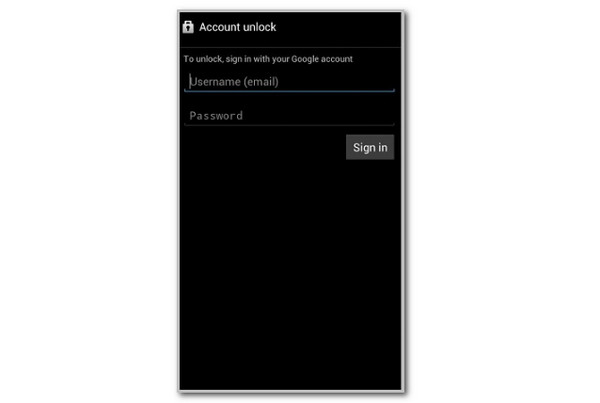
The earlier versions, like 4.4 Android OS, have a Forgot PIN/Pattern/Password feature that can unlock your Android phone without the password. It only requires you to have a Google account associated with it. However, this feature is no longer supported in the latest versions and models of Android. Follow the instructions below on how to unlock Android phone password without factory reset with this feature.
Open the Android phone and enter wrong passwords consecutively. Tap Forgot PIN/Pattern/Password at the bottom. Enter the linked Google account on the next screen to unlock the Android phone.
Part 2. How to Unlock Android Phone without Factory Reset Using Samsung SmartThings Find
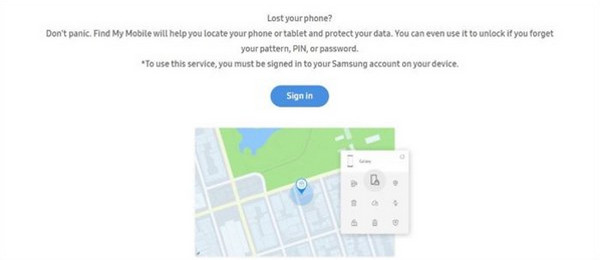
The SmartThings Find is a free tracking service for Samsung phones. It helps you track the Samsung phone when lost, stolen, or misplaced wirelessly. It can also unlock your Samsung phone without a factory reset. However, this service is only available on Samsung phone models and versions by default. The good thing is that non-Samsung device can download the app from Google Play Store.
Kindly scroll below to discover how to use Samsung SmartThings Find.
Step 1Go to the main website of SmartThings Find. Then, select Sign In and enter the needed account credentials to sign in.
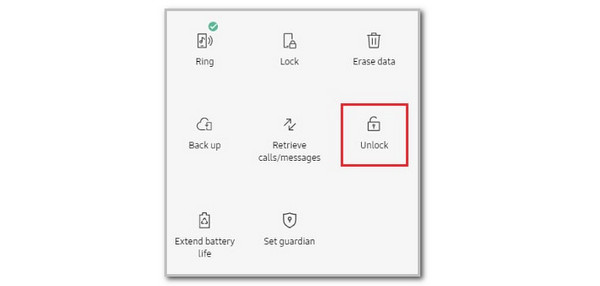
Step 2Choose the Samsung phone name. Then, select the Unlock button and follow the on-screen instructions to complete the process.
Part 3. How to Unlock Android Phone without Factory Reset via Google Find Hub
Some of you might not use the previous methods due to their limitations in supporting only specific Android models. If so, erasing the iPhone is your top priority. FoneLab Android Unlocker is a third-party tool that you can use. This tool is known for removing the Android phone PIN, pattern, password, fingerprint, and face recognition lock screen types. You can do the procedure on different Android phone models. It includes Samsung, Sony, Google phones, Motorola, Infinix, HTC, Oppo, Huawei, and more. The earlier and latest versions of the Android OS are supported. Additionally, it can be used in different scenarios, including forgotten Android password, second-hand, broken screen, disabled, and more. Use the steps below to discover how to use it.

FoneLab Helps you remove Android screen lock easily.
- Unlock PlN, pattern, password on Android.
- Android fingerprint & face recognition are available.
- Bypass Google FRP lock in seconds.
Step 1Go to the main website of FoneLab Android Unlocker. After that, click the Free Download button on the website and wait for the procedure to be completed. Then, please locate the downloaded file from your computer and set it up afterward. Imitate the on-screen instructions to launch the tool on your computer successfully.

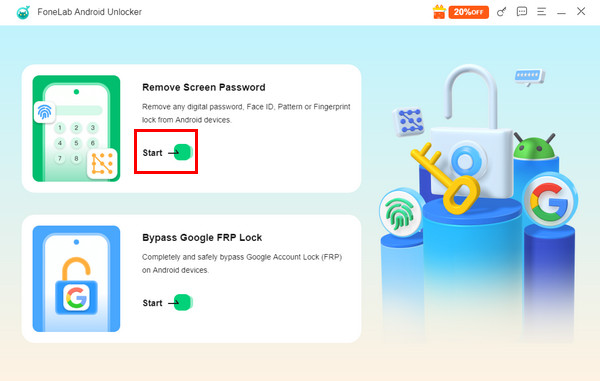
Step 2You will be prompted to the first interface of the mentioned Android phone unlocking tool. Go to the Remove Screen Password section at the top of the main interface. Then, click the Start button under the primary procedure.
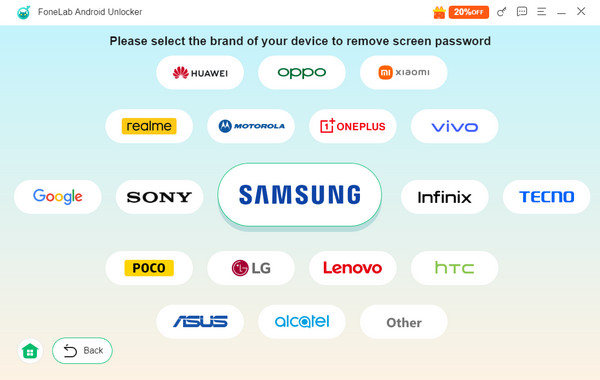
Step 3The interface will be changed. The supported Android phone models will appear on the main interface. Please choose the model of your Android phone you wish to unlock. After that, you will be directed to the following process.
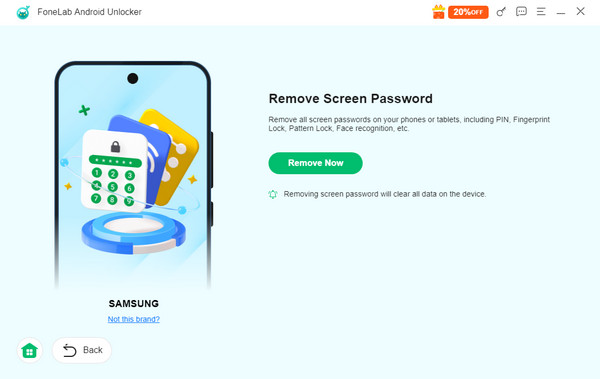
Step 4The tool will inform you about the outcome of the unlocking procedure, depending on your Android phone model. Please click the Remove Now button on the right to start unlocking your Android phone. Please patiently wait for the procedure to be completed before unplugging the Android phone from the computer.
Part 4. How to Unlock Android Phone with FoneLab Android Unlocker
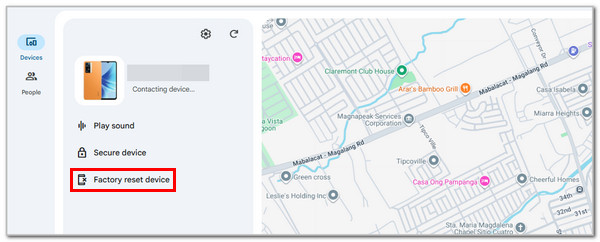
Another way to factory reset the Android phone is Google Find Hub, which is known as Find My Device before. This service requires a strong internet connection and location services turned on on your Android phone. Without them, you cannot use it to unlock your Android phone wirelessly. Please perform the detailed instructions below.
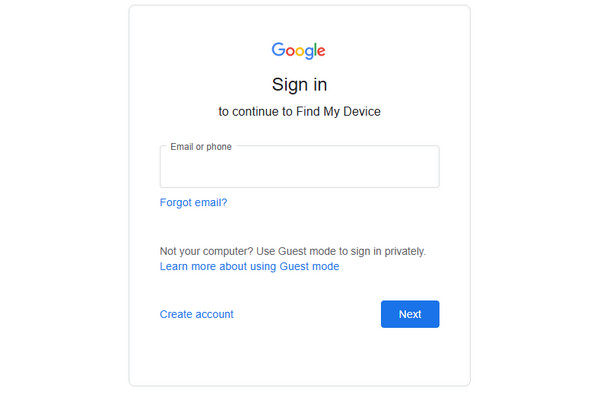
Step 1Go to the main website of Find Hub. After that, you are required to sign in to a Google account that is linked to the Android phone. First, enter the Email or Phone from the first screen. Select the Next button to proceed. Later, enter your Google account password. Select the Next button to sign in to the account.
Step 2The digital map will show you the current location of the Android phone. Click the Factory Reset Device button on the left. Enter your Google account password to start erasing your Android phone.
Part 5. Comparison Table about Methods to Unlock Android Phone Without Factory Reset
| Feature/Service | Requirements | When to Use |
| Google Account (Forgot Feature) | Internet connection, a linked Google account, and Android 4.4 or below. | When the Android phone lock screen has the Forgot Pattern/PIN button after multiple wrong attempts. |
| Find Hub | Internet connection, enabled location, Find My Device turned on, and the linked Google account. | When the Android phone Find My Device is enabled, an internet connection is required. |
| SmartThings Find | Samsung account, internet connection, and enabled Find My Mobile. | When the Samsung phone lock screen is forgotten, it must have a linked Samsung account. |
| FoneLab Android Unlocker | PC and USB cable. | When the Android phone requires a PC to be unlocked. |
Part 6. FAQs about How to Unlock Android Phone without Factory Reset
What is a secret code to unlock an Android phone?
There are no specific secret codes that your Android phone can possess. On the other hand, there are master codes that can help you unlock the mentioned devices, which are *#*#7780#*#* or *2767*3855#. However, these master codes are made to unlock the Android phone by factory resetting it.
What is a universal unlock PIN for Android?
There is no universal PIN for the lock screen of your Android phone. However, there are common PIN locks that most Android phone users use. It includes 0000, 1111, birthdays, and other essential combinations of dates.
This post gathered the 2 most helpful guides on how to unlock Android phone password without factory reset. FoneLab Android Unlocker is your best alternative to unlock your Android phone if your model is not supported by the methods mentioned. You may download the tool now and be professional in using it for unlocking your Android phone without the password!



