
 iPhone Data Recovery
 iOS System Recovery
 iOS Data Backup & Restore
 iOS Unlocker
 iPhone Password Manager
 Location Changer
 Android Data Recovery
 Broken Android Data Extraction
 Android Data Backup & Restore
 Android Unlocker
 FoneTrans for iOS
 iPhone Data Eraser
 iPhone Cleaner
 HEIC Converter
 HyperTrans
 WhatsApp Transfer for iOS
 Mac Sweep
 Data Retriever
 Mac Data Retriever
 Video Converter Ultimate
 Screen Recorder
 Phone Mirror
- Part 1. How to Restart Samsung Phone in Quick Settings
- Part 2. How to Restart Samsung Phone via Buttons
- Part 3. Auto Restart Samsung Phone
- Part 4. Restart Samsung Phone Using Bixby
- Part 5. Restart Samsung Phone in Recovery Mode
- Part 6. Comparison Table of Methods for Restarting Samsung Phone
- Part 7. Fix Samsung Issues with FoneLab Broken Android Data Extraction
- Part 8. FAQs about How to Restart Samsung Phone

How to Restart a Samsung Phone in 5 Quick Techniques
 Updated by
 Hi! My Samsung phone is experiencing lagging issues with some of its features and apps. It started when I used it for multitasking. My brother told me to restart my Samsung phone to fix the issue. How to restart my Samsung phone? I hope you can help me do that. Thank you!
Restarting the Samsung phone can fix minor and significant issues in its system. However, some Samsung users do not know how to perform this troubleshooting method. In this post, you will see the 5 proper ways to restart your Samsung phone. Scroll below for more details.

Guide List
- Part 1. How to Restart Samsung Phone in Quick Settings
- Part 2. How to Restart Samsung Phone via Buttons
- Part 3. Auto Restart Samsung Phone
- Part 4. Restart Samsung Phone Using Bixby
- Part 5. Restart Samsung Phone in Recovery Mode
- Part 6. Comparison Table of Methods for Restarting Samsung Phone
- Part 7. Fix Samsung Issues with FoneLab Broken Android Data Extraction
- Part 8. FAQs about How to Restart Samsung Phone
Part 1. How to Restart Samsung Phone in Quick Settings
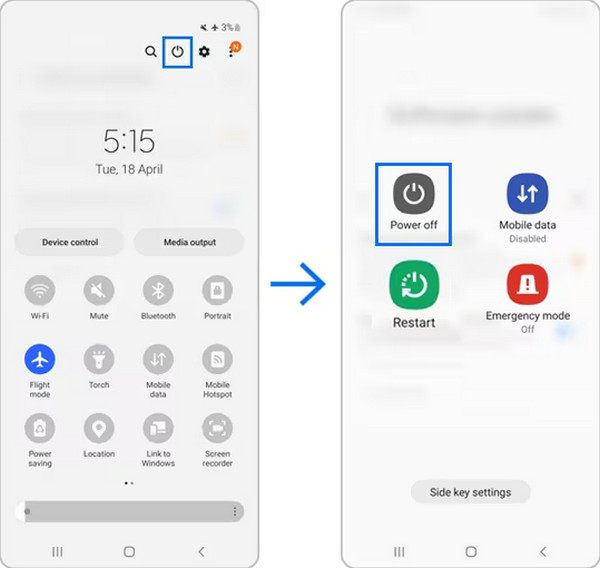
Samsung phones have different quick features that can help you have a convenient procedure. Quick Settings is one of the features that allows you to experience this process, which contains different active tiles from your Samsung phone. This way, you can quickly access some of the features on your Samsung phone, like restarting it. The steps on how to do that are posted below.
Unlock your Samsung phone and swipe down at the top right of the screen. The Quick Settings panel will appear on the screen. Tap the Power button at the top, and more options will appear. Tap the Restart button and tap the button again to restart the Samsung phone.
Part 2. How to Restart Samsung Phone via Buttons
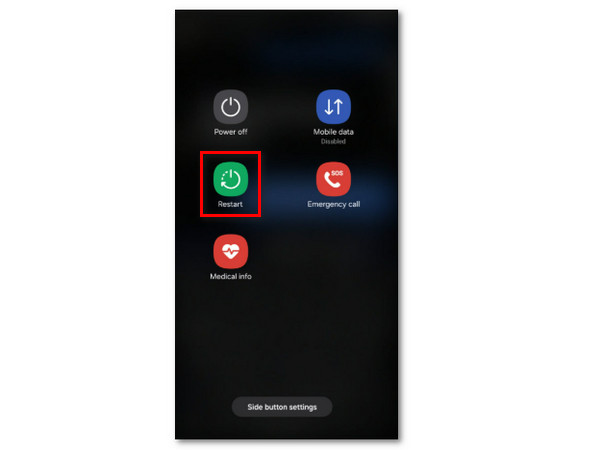
The Samsung phone buttons have different operations that can be performed. You can use it when you turn off phone, turn down or up the volume, and more. Did you know that you can also restart your Samsung phone with these physical buttons? The steps for this procedure are posted below. Ensure that you imitate the steps correctly to avoid different commands from your Samsung phone. Please proceed below.
Press and hold the Power physical button on the side of the Samsung phone. Wait until the list of options for the action appears on the screen. Then, please select the Restart button on the left. The Samsung phone will be turned off and on again. You can also force restart it by pressing and holding Power and Volume Down until it restarts.
Part 3. Auto Restart Samsung Phone
The restart procedure on your Samsung phone can also be scheduled. You can set the time and date of the restart of the mentioned procedure. It is commonly used when Samsung phone users prefer a regular restart on their Samsung phones. However, this procedure is not recommended for users who do not want a regular restart for the Samsung phones. There will be no confirmation when the Samsung phone is about to restart. The procedure will be automatic. The steps for the method are available below for your reference.
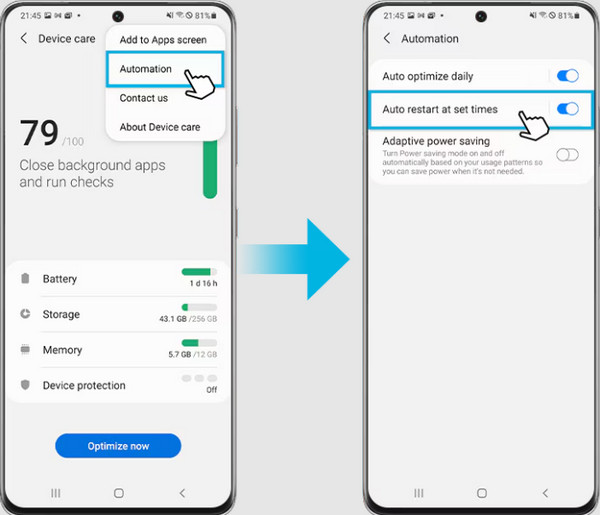
Step 1Unlock your Samsung phone and enter the passcode if required. After that, tap the Settings app to open it on your Samsung phone. Then, the multiple customizations will be prompted on the screen. Tap the Battery and Device Care button from the list to proceed. Next, tap the Three Dots button at the top right. Later, tap the Automation button from the options list.
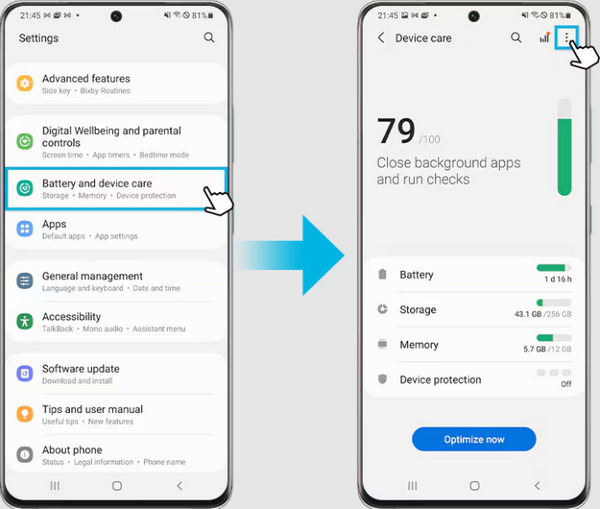
Step 2Tap the Auto Restart at Set Times button from the next screen. Then, you will see the available dates when you can set the automatic restart of your Samsung phone. Please go to the Schedule section at the bottom of the screen. Then, set the date and time of the automatic restart. Follow the on-screen instructions to complete the process.
Part 4. Restart Samsung Phone Using Bixby
Do you know that you can restart your Samsung phone with your voice? Bixby can help! It is the built-in voice command of Samsung phones. Bixby can do other operations on your Samsung phone aside from restarting it. It can open apps, manage calls, adjust settings, and more. However, you are required to activate it first from its application. There are also countless requirements you need to remember. First, you must sign in with a Samsung account on your Samsung phone.
The features of Bixby depend on the language, country, and other information from your Samsung phone. Please use Bixby to restart your Samsung phone with the steps below.
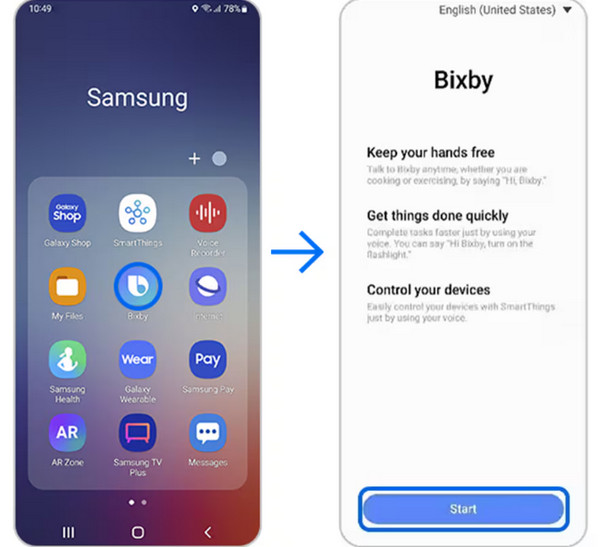
Open Bixby on your Samsung phone by tapping its button from the Home Screen section. After that, please select the Start button from the first interface to enable the mentioned voice command. Later, please say Restart The Phone. Then, confirm the procedure, and the Samsung phone will restart.
Part 5. Restart Samsung Phone in Recovery Mode
The Samsung phone Android recovery mode can help you restart the device. It is a method that can be performed with a combination of physical buttons. It is usually used to restart your Samsung phone in recovery mode with the steps below.
Step 1Turn off your Samsung phone. Then, press and hold the Volume Up and Power physical buttons at the same time. Please keep holding the buttons until the Samsung logo appears. Keep holding the Volume Up button. Wait until the Android Recovery screen is prompted.
Step 2The options list will appear on the screen. Please select the Reboot System Now button from the screen. Wait for the Samsung phone to restart.
Part 6. Comparison Table of Methods for Restarting Samsung Phone
The previous methods are the most proper ways to restart your Samsung phone. Here are some of the highlights of the mentioned methods for your quick reference. Please see the information in the table below.
| Methods | Best Time to Use | Difficulty | Works When the Screen is Frozen |
| Quick Settings | Normal restart for everyday use | Easy | No |
| Buttons | Samsung phone has an unresponsive or lagging screen | Moderate | Yes |
| Auto Restart | Users want routine maintenance | Moderate | No |
| Bixby | Users want a convenient and hands-free restart process | Easy | No |
| Recovery Mode | Samsung has a system issue or boot problems | Hard | Yes |
Part 7. Fix Samsung Issues with FoneLab Broken Android Data Extraction
Restarting the Samsung phone is convenient for fixing minor issues. However, some Samsung users cannot use the method. It might be due to the unavailability of the needed buttons or requirements from the said device. FoneLab Broken Android Data Extraction can help! This tool can also fix minor issues on your Samsung phone, as the restart procedure does.
Backup and restore Android data to your computer easily.
- Backup and restore Android data to your computer easily.
- Preview data in detail before you restore data from backups.
- Backup and restore Android phone and SD card data Selectively.
The supported issues of the tool are crashed apps or screen, black screen, screen-locked Android system, and more. It can retrieve messages, contacts, photos, videos, and more data types. Use the steps below to utilize the tool.
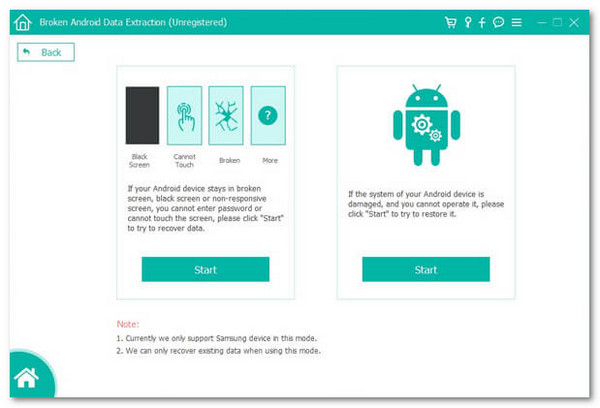
Step 1Click the Free Download option on the main website of the tool. Then, select the downloaded file from the web browser. Later, set it up, and a small window will appear on your screen. Please install the tool, and it will be launched automatically. Click the Broken Android Data Extraction button from the list.
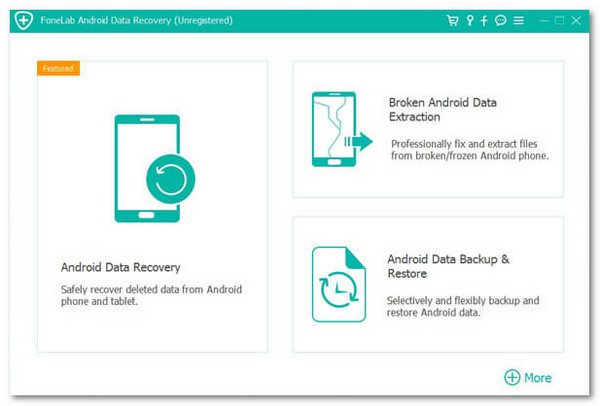
Step 2Click the Start button on the left side of the screen. Later, plug the Samsung phone into the computer with your USB cable. A new interface will be shown afterward.
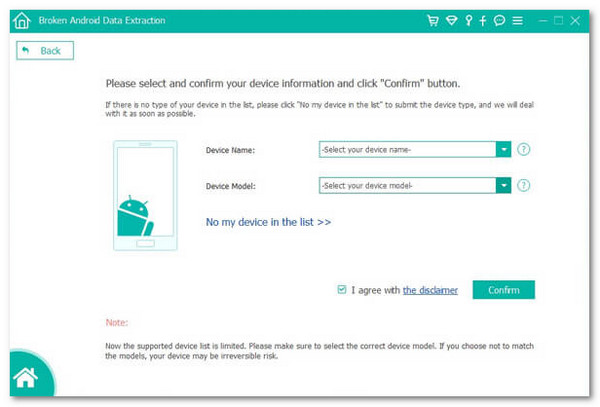
Step 3Select the name of your Samsung phone from the options list and choose your models from the next column. After that, please click the Confirm button at the bottom right. Later, follow the on-screen instructions to start fixing your Samsung phone.
Part 8. FAQs about How to Restart Samsung Phone
How to force restart Samsung phone?
Press and hold the Power physical button on the right side. Then, you need to press the Volume Down button while the first button is pressed. Release the buttons when you feel a vibration from your Samsung phone.
Why is my Samsung screen not responding to touch?
It can be due to faulty system settings, crashing apps, or more. You can also check for hardware issues on your Samsung phone.
This article teaches you how to restart a Samsung phone. You can use its physical buttons, automatic features, voice commands, and more. FoneLab Broken Android Data Extraction will also help you to fix Samsung issues, like what restarting does. The tool can also recover multiple data types on your Samsung phone, including videos, photos, and more. Download the tool to explore these features!



