
 iPhone Data Recovery
 iOS System Recovery
 iOS Data Backup & Restore
 iOS Unlocker
 iPhone Password Manager
 Location Changer
 Android Data Recovery
 Broken Android Data Extraction
 Android Data Backup & Restore
 Android Unlocker
 FoneTrans for iOS
 iPhone Data Eraser
 iPhone Cleaner
 HEIC Converter
 HyperTrans
 WhatsApp Transfer for iOS
 Mac Sweep
 Data Retriever
 Mac Data Retriever
 Video Converter Ultimate
 Screen Recorder
 Phone Mirror
- Part 1. How to Remove iCloud from iPhone with Standard Sign Out in Settings
- Part 2. How to Remove iCloud from iPhone Without Password via Reset
- Part 3. Remove iCloud from iPhone via Contact Apple Support
- Part 4. Remove iCloud Account from iPhone Without Password via FoneLab iOS Unlocker
- Part 5. Comparison Table for Methods to Remove iCloud from iPhone
- Part 6. FAQs about How to Remove iCloud from iPhone
- Unlock Apple ID
- Bypass iCloud Activation Lock
- Doulci iCloud Unlocking Tool
- Factory Unlock iPhone
- Bypass iPhone Passcode
- Reset iPhone Passcode
- Unlock Apple ID
- Unlock iPhone 8/8Plus
- iCloud Lock Removal
- iCloud Unlock Deluxe
- iPhone Lock Screen
- Unlock iPad
- Unlock iPhone SE
- Unlock Tmobile iPhone
- Remove Apple ID Password
Remove iCloud from iPhone in 4 Straightforward Ways
 Updated by
 The iCloud account on your iPhone is indeed helpful for storing, backing up, and restoring data. It supports different data, including files, notes, photos, contacts, and more. However, there are iPhone users who need to remove the iCloud account. They might want to trade the iPhone, sell, transfer ownership, and more. This way, the iCloud account will not be accessible.
How to remove iCloud account from iPhone? 4 of the easiest methods in this article are included to help you. You can do it with or without the account password. Please continue browsing in this post to see the full details about the topic.

Guide List
- Part 1. How to Remove iCloud from iPhone with Standard Sign Out in Settings
- Part 2. How to Remove iCloud from iPhone Without Password via Reset
- Part 3. Remove iCloud from iPhone via Contact Apple Support
- Part 4. Remove iCloud Account from iPhone Without Password via FoneLab iOS Unlocker
- Part 5. Comparison Table for Methods to Remove iCloud from iPhone
- Part 6. FAQs about How to Remove iCloud from iPhone
Part 1. How to Remove iCloud from iPhone with Standard Sign Out in Settings
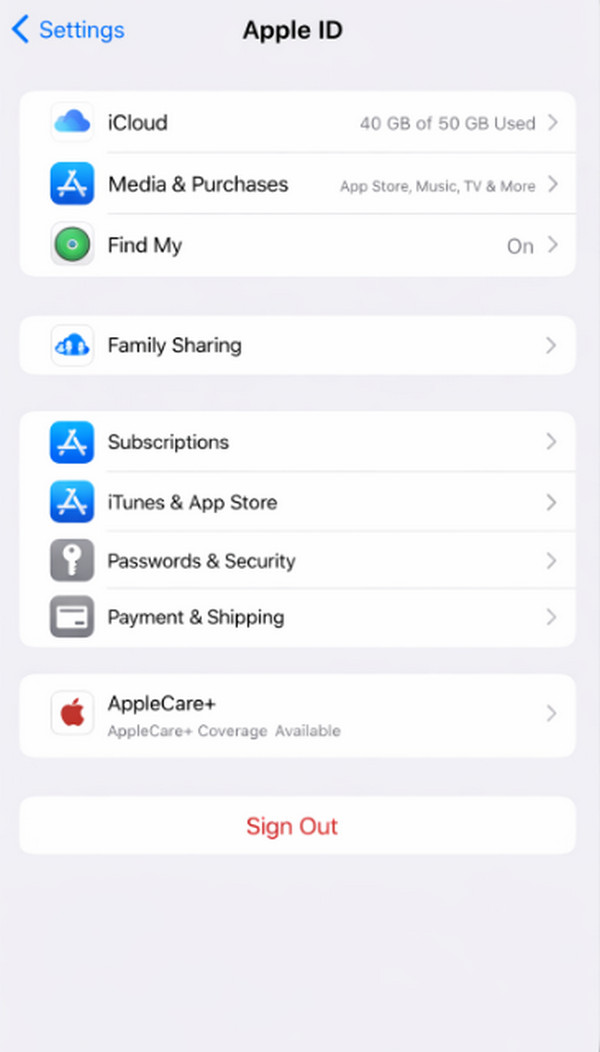
Removing the iCloud account on your iPhone is straightforward. It is attainable when you know the correct password of the account. The Settings app is the standard sign-out process of the iCloud account from your iPhone. See the steps below to know how.
Open the Settings app on the said Apple device. After that, tap your iCloud account name at the top. Later, swipe down and tap the Sign Out button. Enter the Apple ID password and turn off Find My iPhone. Tap the Sign Out button to confirm the process.
Part 2. How to Remove iCloud from iPhone Without Password via Reset
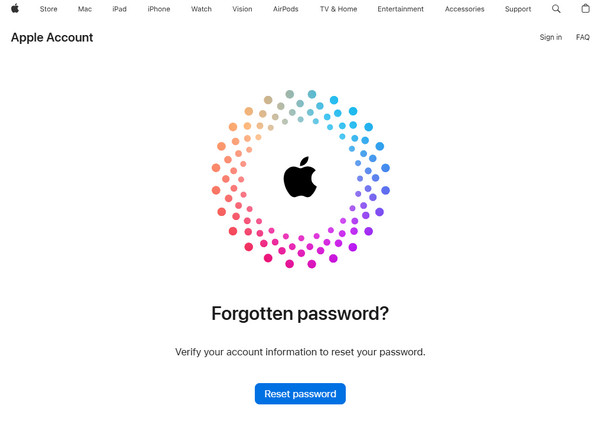
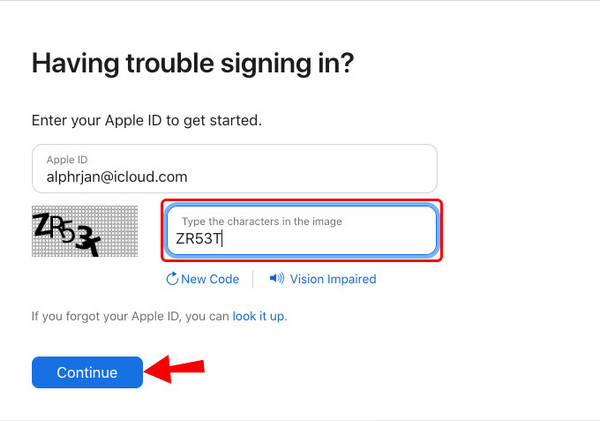
However, how to remove iCloud from iPhone without password? Apple - iForgot is a website that Apple offers to reset your iCloud password. This website requires your Apple ID email or phone number. Also, a captcha code is required. You can type the text or use the Vision Impaired feature.
However, there are times when you encounter the 503 Service Temporarily Unavailable error message from the website. It means that the web page is down and you need to wait for a few minutes or hours. This issue is very inconvenient for some users. Please follow the steps below for a faster process.
Step 1Visit the official website of Apple - iForgot. After that, select the Reset Password button at the center of the screen.
Step 2Please enter your mobile phone, email, and password. Enter the text in the picture. After that, click the Continue button to proceed with the procedure. Enter the authentication information afterward. Then, follow the on-screen instructions. Finally, create your new password for your Apple ID. Perform the standard sign-out process of the iPhone afterward. Then, log in into your account and remove the iPhone from iCloud.
Part 3. Remove iCloud from iPhone via Contact Apple Support
Alternatively, you can also contact Apple Support to reset your iCloud account. You can visit their official website for this procedure. However, there are lots of information that the website will ask you. It includes the proof of purchase. You need to be patient about this process. Please use the steps below as your guide.
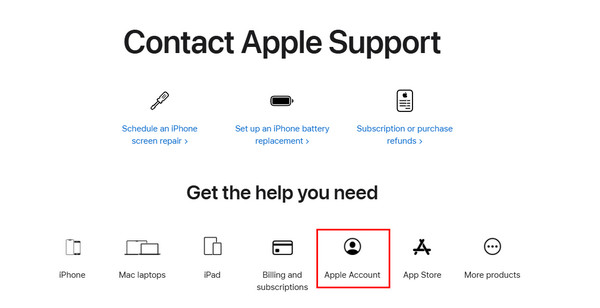
Step 1Go to the website of Contact Apple Support. The first screen will show you the supported operations it can perform. After that, go to the Get The Help You Need section at the bottom. Later, click the Apple Account button.
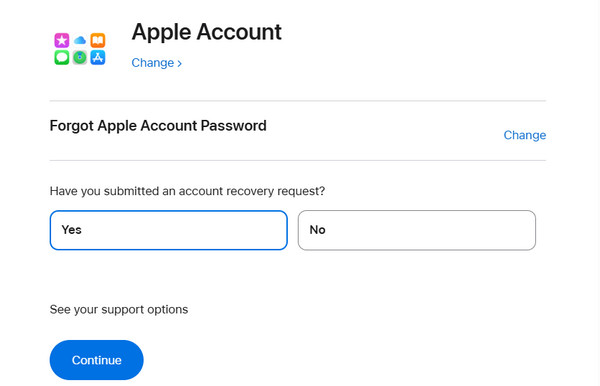
Step 2The next screen will show you the support operations for the category. Please click the Forgot Apple Account Password button. Then, a new question will be prompted. Please click the Continue button at the bottom.
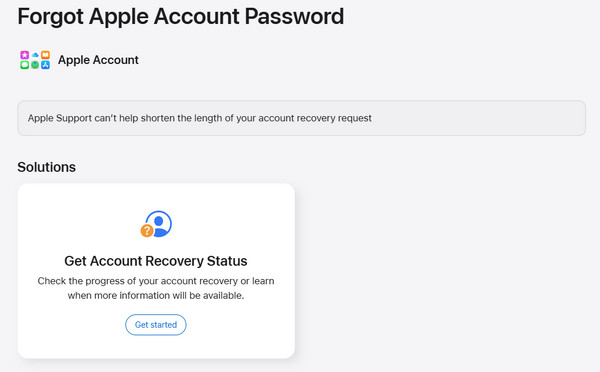
Step 3Go to the bottom of the screen. Then, click the Get Started button at the bottom left. Follow the on-screen instructions to proceed. You will know if the Apple Support team can help you with the process.
Alternatively, you can contact the hotlines of the Apple Support team. This way, they can assist you in person: 1-800-692-7753. However, you need to go to their physical stores. This way, you know what to do when resetting the password of your iCloud account.
Also, authentication information is also needed, like proof of purchase and more. Others will find this inconvenient as it consumes much of their time. If you want a convenient method, you can try the software in the next section of this article.
Part 4. Remove iCloud Account from iPhone Without Password via FoneLab iOS Unlocker
Can you remove iCloud account from iPhone without password? FoneLab iOS Unlocker is the best choice! Removing the Apple ID (same as iCloud account) on your iPhone does not require its correct password. Deleting the Apple ID from your iPhone will delete all the content and settings it contains. The time interval of the procedure is short.

FoneLab Helps you unlock iPhone screen, Removes Apple ID or its password, Remove screen time or restriction passcode in seconds.
- Helps you unlock iPhone screen.
- Removes Apple ID or its password.
- Remove screen time or restriction passcode in seconds.
Furthermore, iCloud Activation Lock, Screen Time, screen lock, and MDM are some of the other supported security features that can be removed using the tool. Please use the steps below to use the tool correctly.
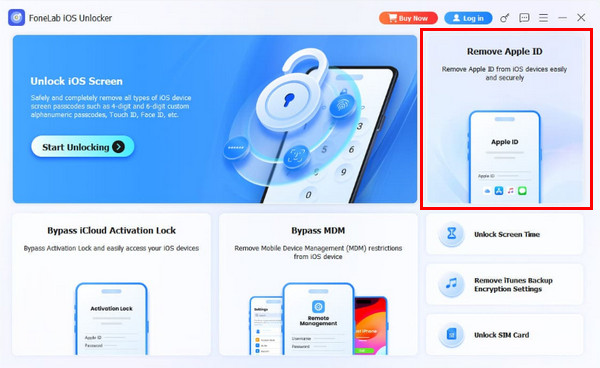
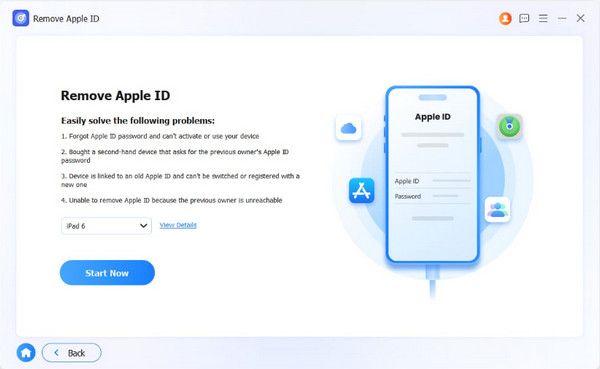
Step 1Go to the main website of FoneLab iOS Unlocker and download the tool. Click the Free Download button to do that. Set up and open the tool afterward. Click the Remove Apple ID feature at the top right of the first interface.
Step 2Plug the iPhone into the computer. Use a USB cable for the process. Then, click the Start Now button.
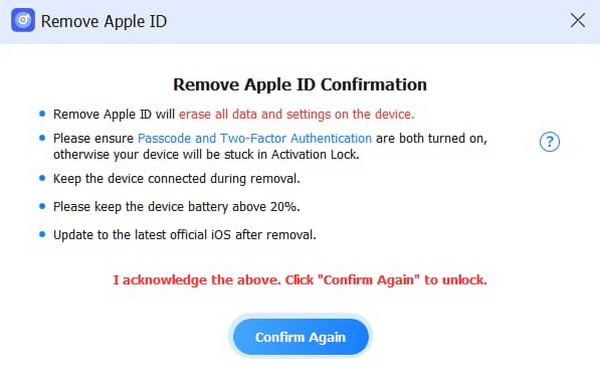
Step 3Click the OK button on the next screen. Click the Confirm Again button, and the Apple ID removal will start.
Part 5. Comparison Table for Methods to Remove iCloud from iPhone
| Method | Technical Skills Needed | Is iCloud Password Required? | Connection Type |
| Settings App | No | Yes | Internet Connection |
| Reset iCloud Password | Yes | No. However, authentication information is needed. | Internet Connection |
| Apple Support | Yes | No. But the authentication information is needed. | Internet Connection |
| Fonelab iOS Unlocker | No | No | Internet Connection |
Part 6. FAQs about How to Remove iCloud from iPhone
Will removing iCloud erase my iPhone?
No. Removing the iCloud account on your iPhone will not delete even a single piece of data. Your data will remain intact. The synced data from the iCloud account will only be the data that will be removed, but not deleted. But it still depends on the method used.
How do I delete an Apple ID?
Search for the Apple Data & Privacy website. After that, enter the iCloud account you prefer to delete. After that, please click the Request to Delete Your Account button. Follow the on-screen instructions to complete the deletion.
To summarize, you can remove iCloud from iPhone with and without the password. The 4 easy methods are included in this informative article. FoneLab iOS Unlocker will help you remove the Apple ID from your iPhone without a password in a few clicks. The tool uses a USB connection for the Apple ID removal, which is more convenient than other methods that require an internet connection. Download the tool now!



