
 iPhone Data Recovery
 iOS System Recovery
 iOS Data Backup & Restore
 iOS Unlocker
 iPhone Password Manager
 Location Changer
 Android Data Recovery
 Broken Android Data Extraction
 Android Data Backup & Restore
 Android Unlocker
 FoneTrans for iOS
 iPhone Data Eraser
 iPhone Cleaner
 HEIC Converter
 HyperTrans
 WhatsApp Transfer for iOS
 Mac Sweep
 Data Retriever
 Mac Data Retriever
 Video Converter Ultimate
 Screen Recorder
 Phone Mirror
- Part 1. How to Remove Device Supervision from iPhone Using Apple Configurator
- Part 2. How to Remove Device Supervision from iPhone With Fonelab iFoneWiz
- Part 3. How to Remove Device Supervision from iPhone via iPhone Settings
- Part 4. Contact Your Administrator to Remove Device Supervision from iPhone
- Part 5. Comparison Table of Methods to Remove Device Supervision from iPhone
- Part 6. FAQs about How to Remove Device Supervision from iPhone
- Unlock Apple ID
- Bypass iCloud Activation Lock
- Doulci iCloud Unlocking Tool
- Factory Unlock iPhone
- Bypass iPhone Passcode
- Reset iPhone Passcode
- Unlock Apple ID
- Unlock iPhone 8/8Plus
- iCloud Lock Removal
- iCloud Unlock Deluxe
- iPhone Lock Screen
- Unlock iPad
- Unlock iPhone SE
- Unlock Tmobile iPhone
- Remove Apple ID Password
How to Remove Device Supervision from iPhone in 4 Dependable Ways
 Updated by
 Good day! I was about to use AirDrop to share my photos with my friends. However, I cannot do it because my iPhone is supervised. How to remove device supervision from iPhone? Please help me. Thank you in advance!
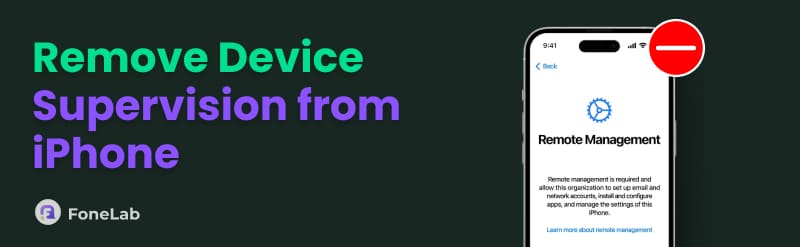
iPhone supervision is a special control mode that imposes additional restrictions. However, this feature is one of the reasons why limitations exist on the iPhone. It is a common reason why people want to remove it. Below are the 4 easy methods to do that. Continue reading to discover them.

Guide List
- Part 1. How to Remove Device Supervision from iPhone Using Apple Configurator
- Part 2. How to Remove Device Supervision from iPhone With Fonelab iFoneWiz
- Part 3. How to Remove Device Supervision from iPhone via iPhone Settings
- Part 4. Contact Your Administrator to Remove Device Supervision from iPhone
- Part 5. Comparison Table of Methods to Remove Device Supervision from iPhone
- Part 6. FAQs about How to Remove Device Supervision from iPhone
Part 1. How to Remove Device Supervision from iPhone Using Apple Configurator
Some administrators use Apple Configurator on a Mac. Using the Apple Configurator is the cleanest and most official way that Apple offers for the supervision removal. It does not need the involvement of the IT admin who created the supervision. You only need the Mac that is trusted by the iPhone. Please note that this process only works with the original Mac. It also deletes all the content and settings stored on the iPhone.
However, there are instances where the supervision comes back automatically. It happens when the iPhone is linked to Apple School Manager and Apple Business Manager. Please use the steps below to remove the iPhone supervision with Apple Configurator.
Step 1Plug the iPhone into the Mac using a USB cable. Then, tap the Trust This Computer button on your iPhone. Open the Apple Configurator on your Mac. The iPhone name must be listed on the device list. Click the mentioned Apple device to proceed.
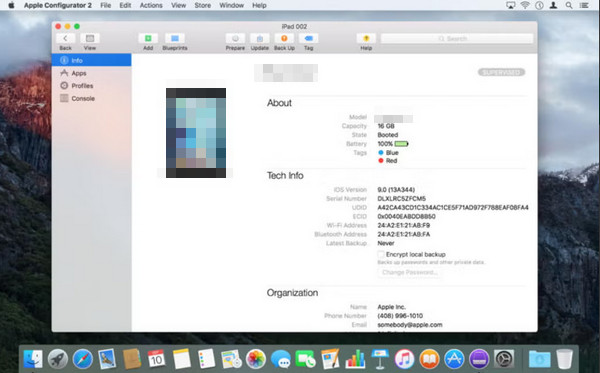
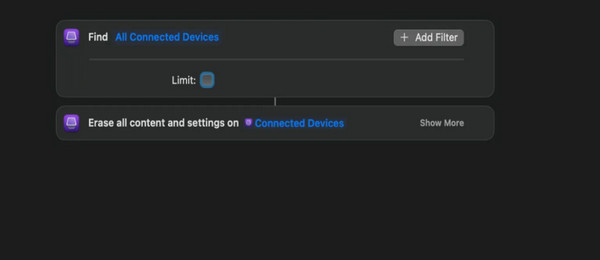
Step 2Please click the Actions button and choose the Advanced button from the next screen. Later, please select the Erase All Content and Settings button on the screen. Now, set up the iPhone again. Do not select the Prepare button and do not check the Supervise Devices option. You need to skip them to finish the setup process without any supervision.
Part 2. How to Remove Device Supervision from iPhone With Fonelab iFoneWiz
The supervision on your iPhone can be linked to your MDM profile from the mentioned device. If you do not have the credentials for the MDM profile, you can use FoneLab iFoneWiz to eliminate it. This tool does not require you to have an internet connection, unlike the previous methods. Besides MDM, this tool is also designed to remove Screen Time, screen lock, iTunes encryption passcode, SIM lock, and more features.

iFoneWiz Helps you unlock iPhone screen, Removes Apple ID or its password, Remove screen time or restriction passcode in seconds.
- Helps you unlock iPhone screen.
- Removes Apple ID or its password.
- Remove screen time or restriction passcode in seconds.
Novices will love using this tool because of the intuitive interface it supports. Also, its tools are designed for beginners. Please use the steps below to know how to use the tool.
Step 1Get FoneLab iFoneWiz on a computer. You must select the Free Download button. Then, locate the downloaded file and set it up based on the requirements needed. Later, please install the tool on your computer to open it automatically.

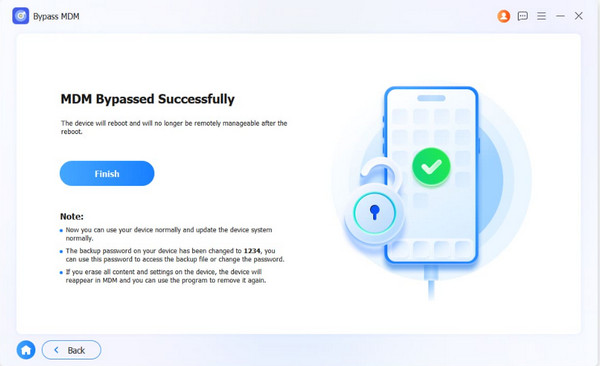
Step 2The features of the tool will be prompted. Please select the Bypass MDM feature from the list. Then, you are required to plug your iPhone into the computer. Please grab a USB cable and do the mentioned process. Click the Start Now option at the bottom left. Follow the on-screen instructions to turn off Find My on your iPhone. Click the Continue option at the bottom right to proceed.
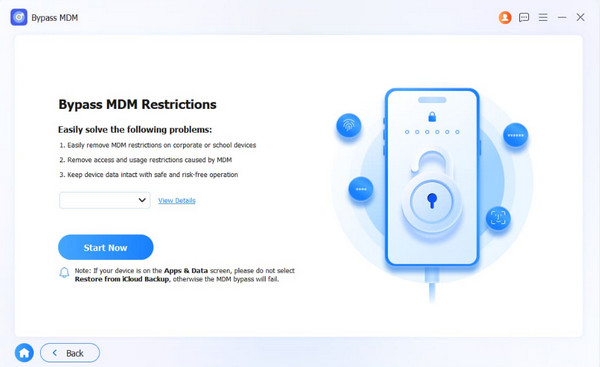
Step 3Ensure that the Stolen Device Protection feature is also turned off. Click the Next button at the bottom right to confirm the process. The procedure will be discussed on the next screen. Click the OK button in the center. The tool will start to bypass the iPhone MDM. Please wait for the process to be completed. Later, click the Finish button on the left side of the screen. Finally, please unplug the iPhone from the computer for the safety of your device, including its data and other features.
Part 3. How to Remove Device Supervision from iPhone via iPhone Settings
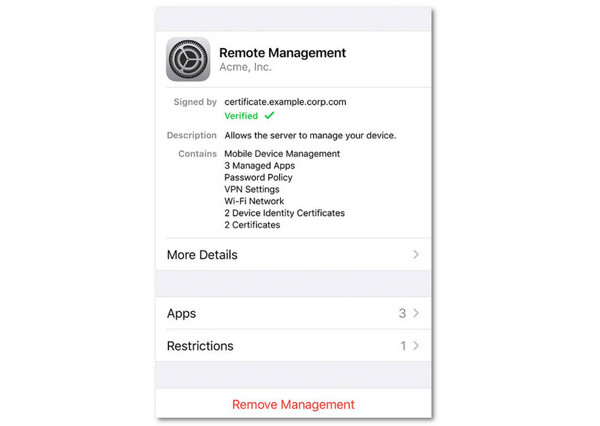
As mentioned, the supervision of your iPhone can be linked to the MDM profile. Removing this profile can also help you remove the supervision on your iPhone. However, this method has a low success rate. Commonly, the iPhone Settings application can only show the status of supervision. You can still remove the MDM profile to eliminate the iPhone supervision. Please continue browsing below to know the full process.
Tap Settings from the Home Screen section of your iPhone. After that, there will be options that will appear on the screen. Select the General button on the screen. Tap the VPN & Device Management button from the list. Select the profile where the supervision is linked. Later, select the Remove Management button. Enter the authentication and credentials needed for the removal.
Part 4. Contact Your Administrator to Remove Device Supervision from iPhone
The supervision of your iPhone can be from your workplace or school. So, you cannot remove it by yourself. You are required to ask for their IT admin to remove them. You can go directly to them or contact them from their hotlines.
When you contact them, they will give you the details of the information needed to remove the supervision. However, it is still recommended to go to them to get the full assistance for the removing process.
Part 5. Comparison Table of Methods to Remove Device Supervision from iPhone
| Methods | Difficulty | Required Authentication | Duration |
| Apple Configurator | Hard | None | 30 Minutes to 1 Hour |
| Fonelab iFoneWiz | Easy | None | A Few Seconds or Minutes |
| Settings | Moderate | MDM Account Profile | A Few Minutes to Hours |
| Contact Administrator | Hard | None | It will be more than an hour if you call the organizations on their hotlines. However, it will cost more than an hour if you go to them. |
Part 6. FAQs about How to Remove Device Supervision from iPhone
Is removing MDM illegal?
It depends on the situation on how you will remove the MDM profile. If the iPhone where the MDM is installed is yours, removing it will be legal. But if it is not yours, the process will be illegal.
Can a factory reset remove the MDM lock?
A factory reset does not typically remove the MDM lock on your iPhone. It will only be possible if the iPhone has been released from the Apple Business Manager feature.
In conclusion, you can remove iPhone supervision using the 4 easy methods of this article. FoneLab iFoneWiz is here to help you bypass the MDM profile. Also, it can be used to remove Screen Time, screen lock passcode, and other security features. Download the tool now to explore more of its features!



