
 iPhone Data Recovery
 iOS System Recovery
 iOS Data Backup & Restore
 iOS Unlocker
 iPhone Password Manager
 Location Changer
 Android Data Recovery
 Broken Android Data Extraction
 Android Data Backup & Restore
 Android Unlocker
 FoneTrans for iOS
 iPhone Data Eraser
 iPhone Cleaner
 HEIC Converter
 HyperTrans
 WhatsApp Transfer for iOS
 Mac Sweep
 Data Retriever
 Mac Data Retriever
 Video Converter Ultimate
 Screen Recorder
 Phone Mirror
- Unlock Apple ID
- Bypass iCloud Activation Lock
- Doulci iCloud Unlocking Tool
- Factory Unlock iPhone
- Bypass iPhone Passcode
- Reset iPhone Passcode
- Unlock Apple ID
- Unlock iPhone 8/8Plus
- iCloud Lock Removal
- iCloud Unlock Deluxe
- iPhone Lock Screen
- Unlock iPad
- Unlock iPhone SE
- Unlock Tmobile iPhone
- Remove Apple ID Password
Efficient Guide on How to Find IMEI on iPhone Easily
 Updated by
 Hello! Does anybody know where to find IMEI on iPhone? I put my device on sale online and recently found a buyer. But the thing is, she’s asking for the IMEI number when she gets the iPhone later for authentication purposes. Would anyone be able to tell me where to find it? Whether it’s on my iPhone or anywhere, please guide me with the correct method. Thanks!
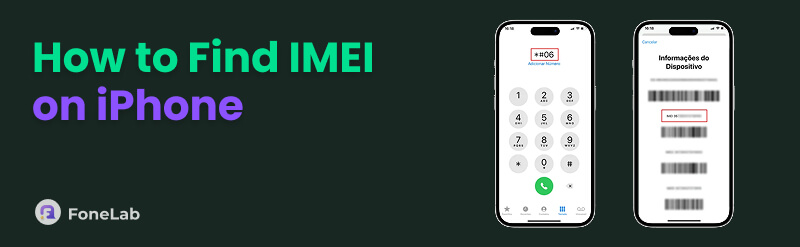
The IMEI number on iPhone is a unique 15-digit code that distinguishes your iPhone from every other device in the world, serving as the device’s digital fingerprint. For sellers like the one above, sharing the IMEI has become a standard trust-building step in online marketplaces, allowing buyers to verify a device’s authenticity. The question is, how can you find it? Well, Apple provides multiple ways to locate this number, and you can learn them below.

Guide List
Part 1. Find IMEI on iPhone Using 6 Methods
The following options are the official ways to find your iPhone’s IMEI number. Understand their details to choose your most preferred method and use our provided steps correctly.
Option 1. On Settings
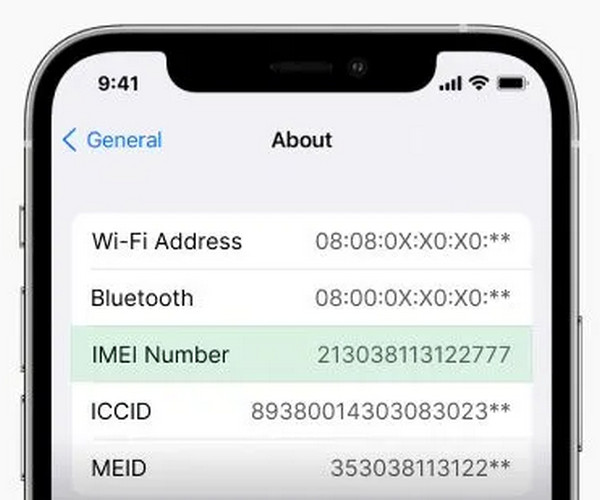
The Settings app offers a painless way to locate your IMEI without any special codes or tools. All the essential device details, including the IMEI number, are neatly organized in the About section, making it easy to find and copy whenever needed. This method is particularly useful when you have the device in hand and want to share the number with a buyer quickly.
Act under the steps below to find IMEI iPhone in Settings:
Step 1On the iPhone’s Settings interface, opt for the General tab.
Step 2Select About and scroll down to find the IMEI number from the list.
Option 2. On Phone App
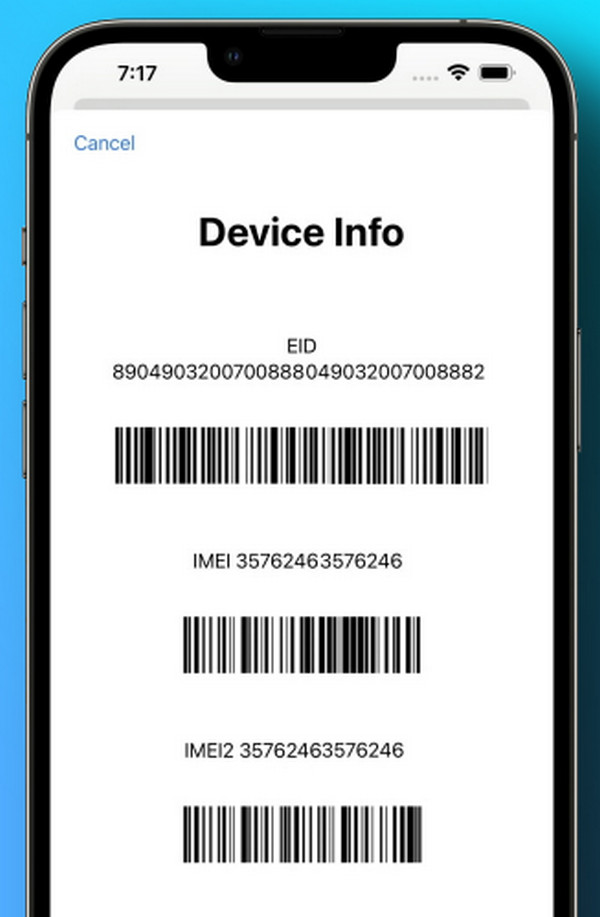
The Phone app offers a quick universal code that reveals the IMEI directly on the screen without requiring any menu. Unlike the Settings method, this approach displays the number instantly the moment the code is entered, making it ideal for situations where speed matters most. It also works even when the device has no active cellular service, making it more convenient.
Follow the task below to grasp how to find IMEI number iPhone on the Phone app:
Step 1Initialize the Phone app on your iPhone’s Home screen.
Step 2Dial *#06# and the IMEI number will immediately appear.
Option 3. Look at Your iPhone SIM Tray
For many iPhone models, the IMEI number is physically engraved directly on the device itself. You can find it written on the SIM card tray, which can be ejected using a SIM ejector tool, or on the back of older iPhone models. This method is particularly helpful when the iPhone won't turn on or the screen is unresponsive, as it requires no interaction with the device's system.

Option 4. Visit Apple ID Webpage
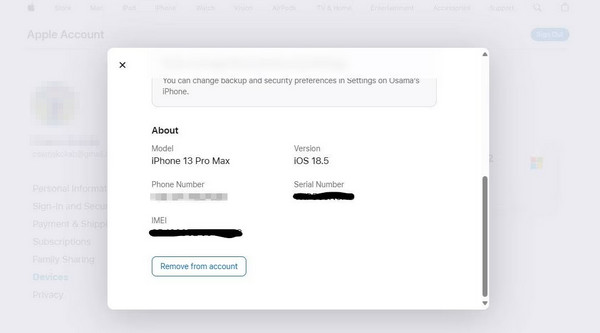
Meanwhile, the Apple ID webpage provides a remote way to access your iPhone's IMEI without needing the device in hand. All your devices appear in your account, so if you browse correctly, you can find the IMEI of your chosen device easily listed among the details for each iPhone. It is effective even if the device is no longer with you or cannot be powered on.
Mind the procedure below to determine how to find IMEI number without phone via the Apple ID webpage:
Step 1Enter the account.apple.com page and use your credentials to sign in.
Step 2In the Devices section, click your iPhone to view its details, including IMEI.
Option 5. Look Before Setting Up Your iPhone
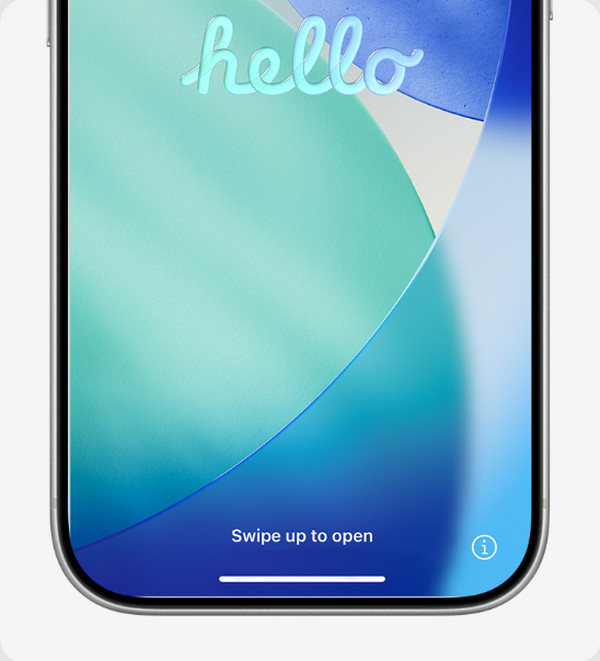
The IMEI number is accessible even on a brand-new or freshly erased iPhone before any setup takes place. A simple info icon on the initial welcome screen provides immediate access to this essential device detail. This option is especially helpful when verifying the device’s identity without having to go through the full setup process.
Observe the operation below to understand how to find the IMEI number on iPhone before setting it up:
Step 1Turn on your iPhone by long-pressing the Power button.
Step 2Once the “Hello” screen appears, hit the i symbol at the bottom left to view the IMEI.
Option 6. Use Finder, Apple Devices, or iTunes
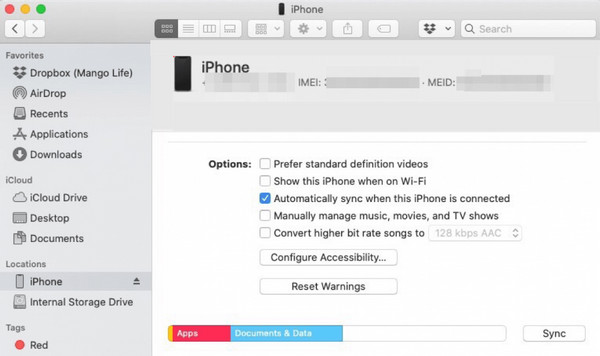
You can also link your iPhone to the Apple programs, Finder, Apple Devices, or iTunes. That’s because when the iPhone is connected to a computer, the IMEI number is readily available within the device summary screen of the available program. The key information about the connected iPhone, including the IMEI, without requiring any navigation through the device itself.
Obey the directions below to master how to find IMEI number on iPhone using Finder, Apple Devices, or iTunes:
Step 1With a Lightning cable, link your iPhone to the computer where the program is opened.
Step 2Once detected, tick your device’s symbol or name on the screen to find the IMEI.
Part 2. Unlock iPhone Without IMEI
On the other hand, some users need the IMEI for unlocking their iPhones, but what if you really can’t find it? No worries. You can use the effective techniques below instead.
Method 1. Use Recovery Mode
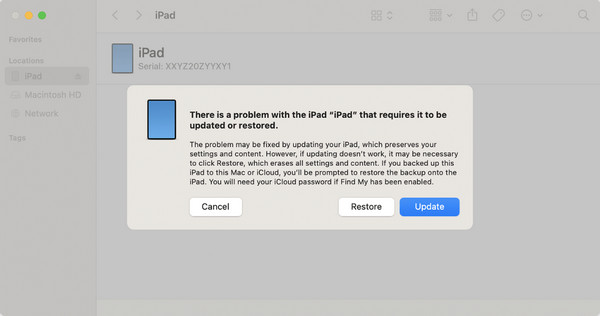
Recovery Mode allows an iPhone to be restored without needing the IMEI number. This approach is useful when the device is disabled, the screen is unresponsive, or the passcode is forgotten. By linking the iPhone to a computer and entering the Mode, the device can be restored through Finder, Apple Devices, or iTunes, whichever is available.
Note the process below to learn how to put iPhone in Recovery mode to unlock it:
Step 1Start Finder, Apple Devices, or iTunes and link your iPhone, then enter Recovery mode.
On iPhone with Face ID: Press down Volume Up, then Volume Down keys quickly before long-pressing the Side button until the device boots to Recovery mode.
On iPhone with Home button: Hold the Power and Home buttons concurrently. Release them when the iPhone shows the Recovery mode.
Step 2On the program interface, a Restore tab will appear, so select it.
Method 2. Try FoneLab iOS Unlocker

FoneLab Helps you unlock iPhone screen, Removes Apple ID or its password, Remove screen time or restriction passcode in seconds.
- Helps you unlock iPhone screen.
- Removes Apple ID or its password.
- Remove screen time or restriction passcode in seconds.
Another method is FoneLab iOS Unlocker. It is a tool designed to help users regain access to their iPhones without needing the IMEI number. Unlike traditional methods, it focuses solely on removing screen locks such as passcodes, Face ID, Touch ID, and even Apple ID restrictions, making it a practical alternative when an iPhone IMEI unlock process is unavailable. Besides, it handles the unlocking efficiently, offering a professional yet convenient approach.
Perceive the easy task below as a model to unlock your iPhone with FoneLab iOS Unlocker:
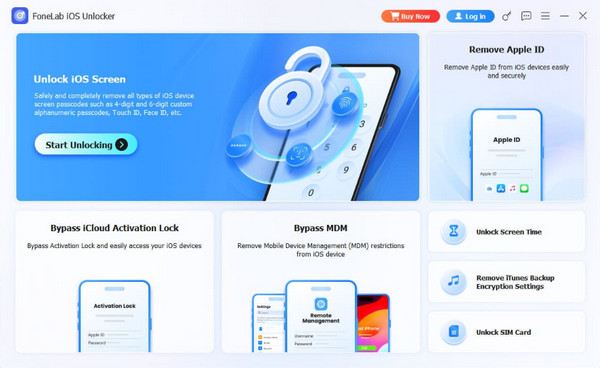
Step 1Save and install FoneLab iOS Unlocker, then set it up quickly on your desktop. A Start tab will pop up shortly, so hit it to launch the tool and view the interface.
Step 2Opt for Unlock iOS Screen when the key interface is shown, followed by linking your iPhone via a Lightning cable. Then, manage the prompts until the device unlocks.
Part 3. FAQs about How to Find IMEI on iPhone
How to find IMEI on iPad?
Use the same methods above since the processes don’t only apply to iPhones, but also to iPads.
Is it safe to share my IMEI with a buyer?
Generally, yes, as the IMEI is often requested by buyers to verify the device's status. However, avoid sharing it publicly, such as online to prevent potential risks.
Your iPhone's IMEI is necessary for security and unlocking, but with multiple easy methods to find it, you'll always have access when needed. But we also highly suggest learning FoneLab iOS Unlocker afterward, as it can be helpful for your unlock concerns later.



